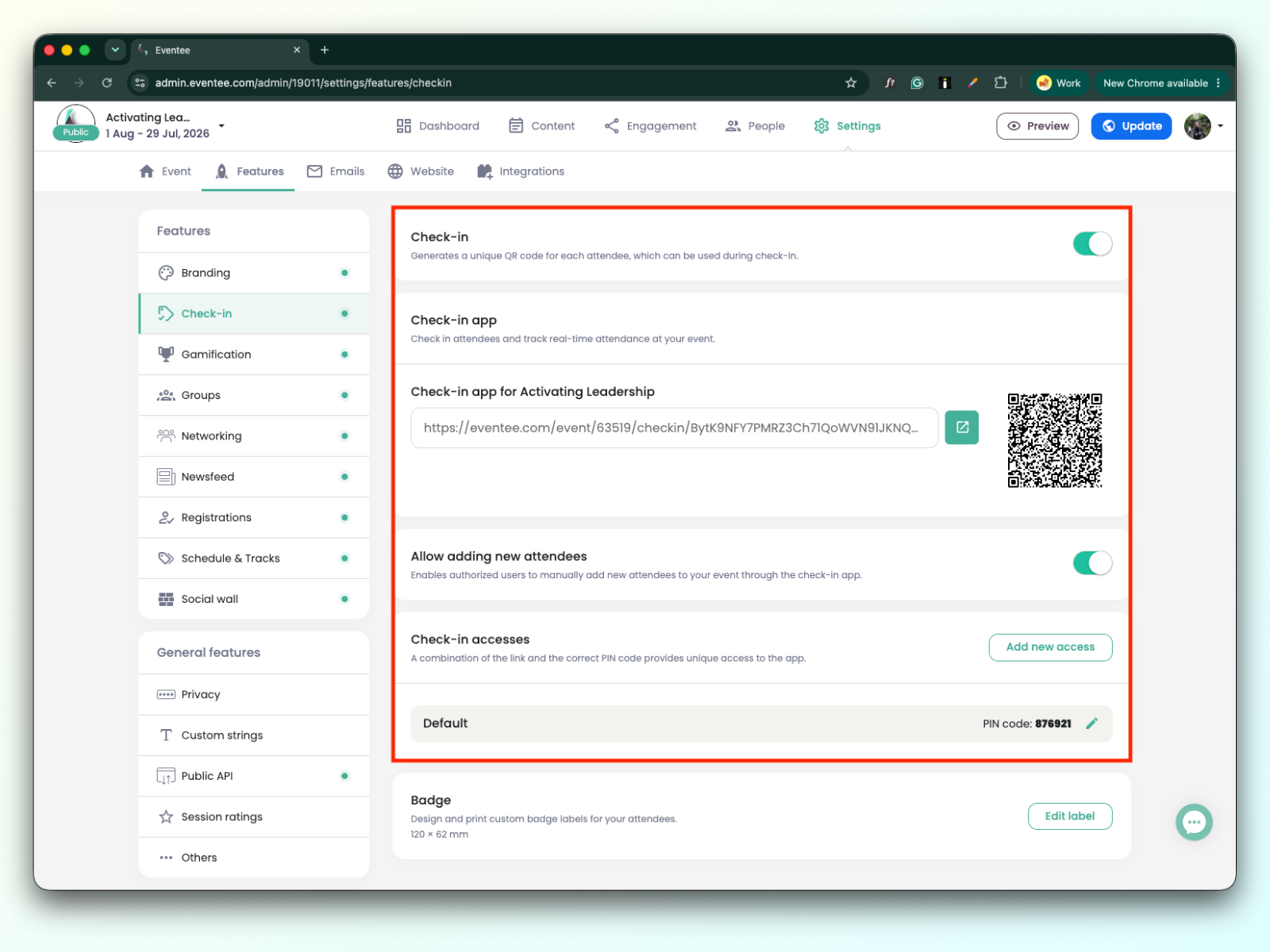
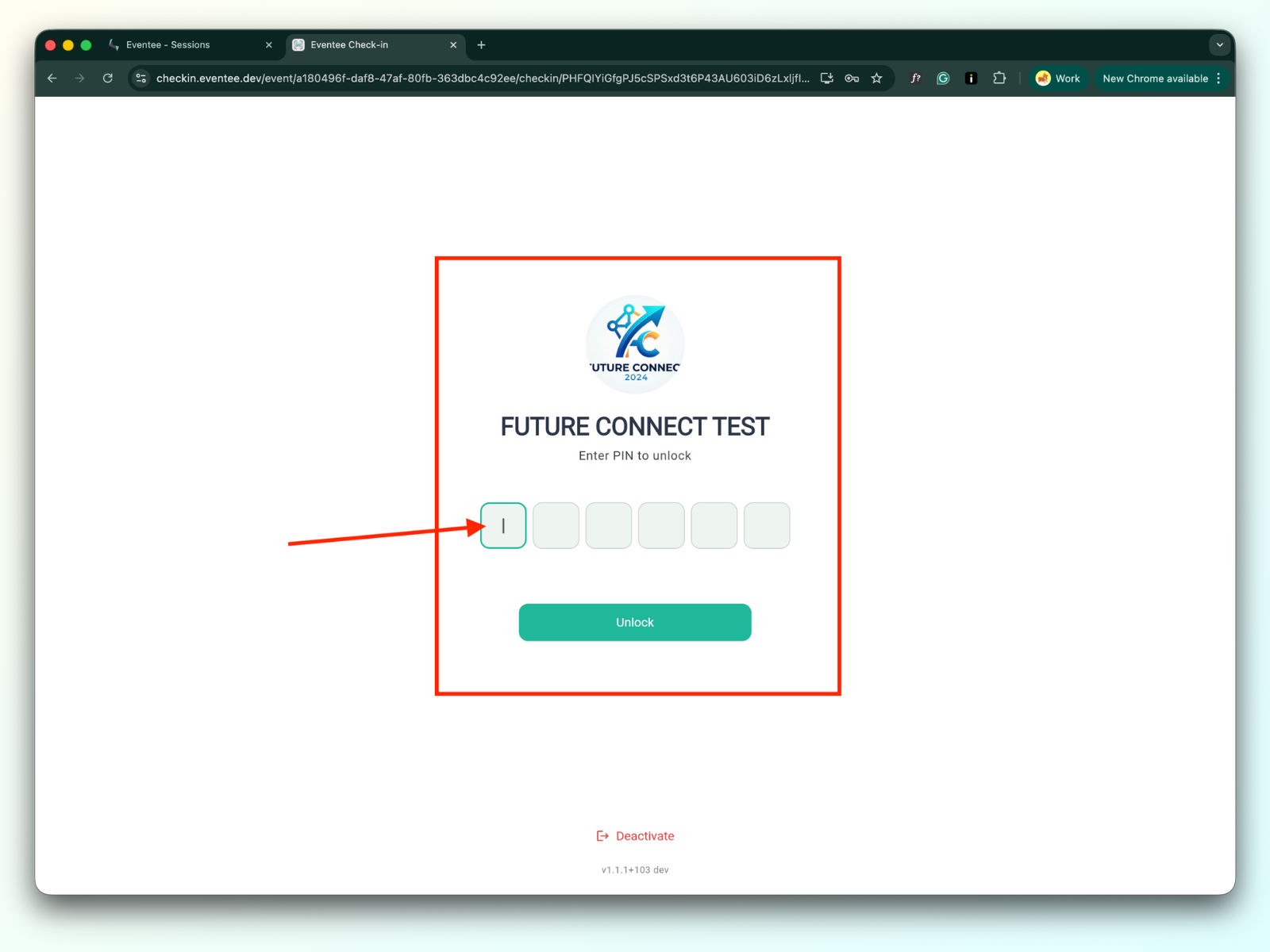
When redirected to the check-in page from your administration, enter your PIN code to unlock the check-in app.
PIN code is available in Settings → Features → Check-in. More about how the check-in feature works.
Make sure that check-in is enabled for individual sessions in your admin settings. Learn more about how to set up a session check-in in the admin.
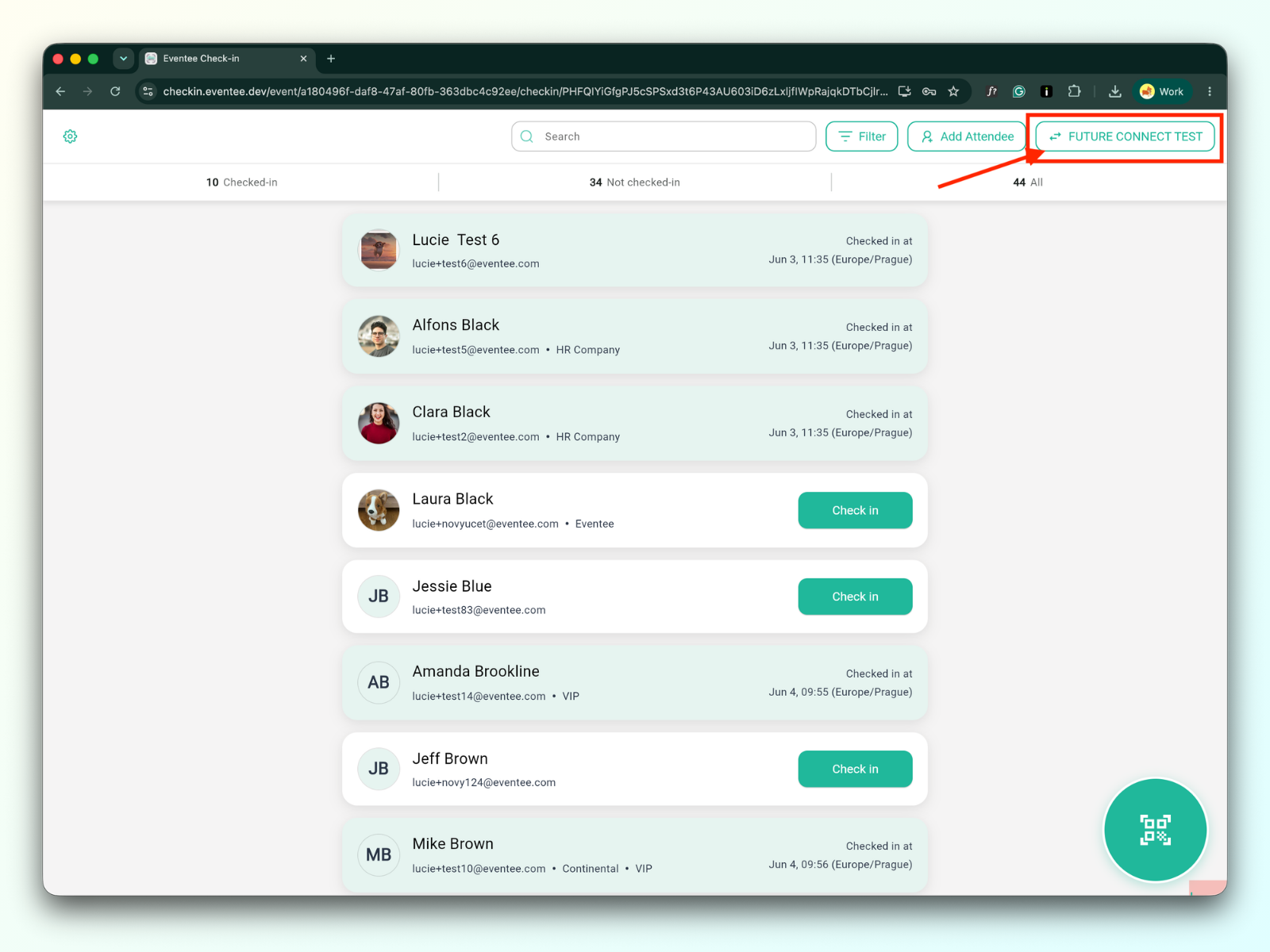
If check-in is not enabled for any of the sessions, clicking the event name button in the top right corner of the screen will open the modal window with no session list:
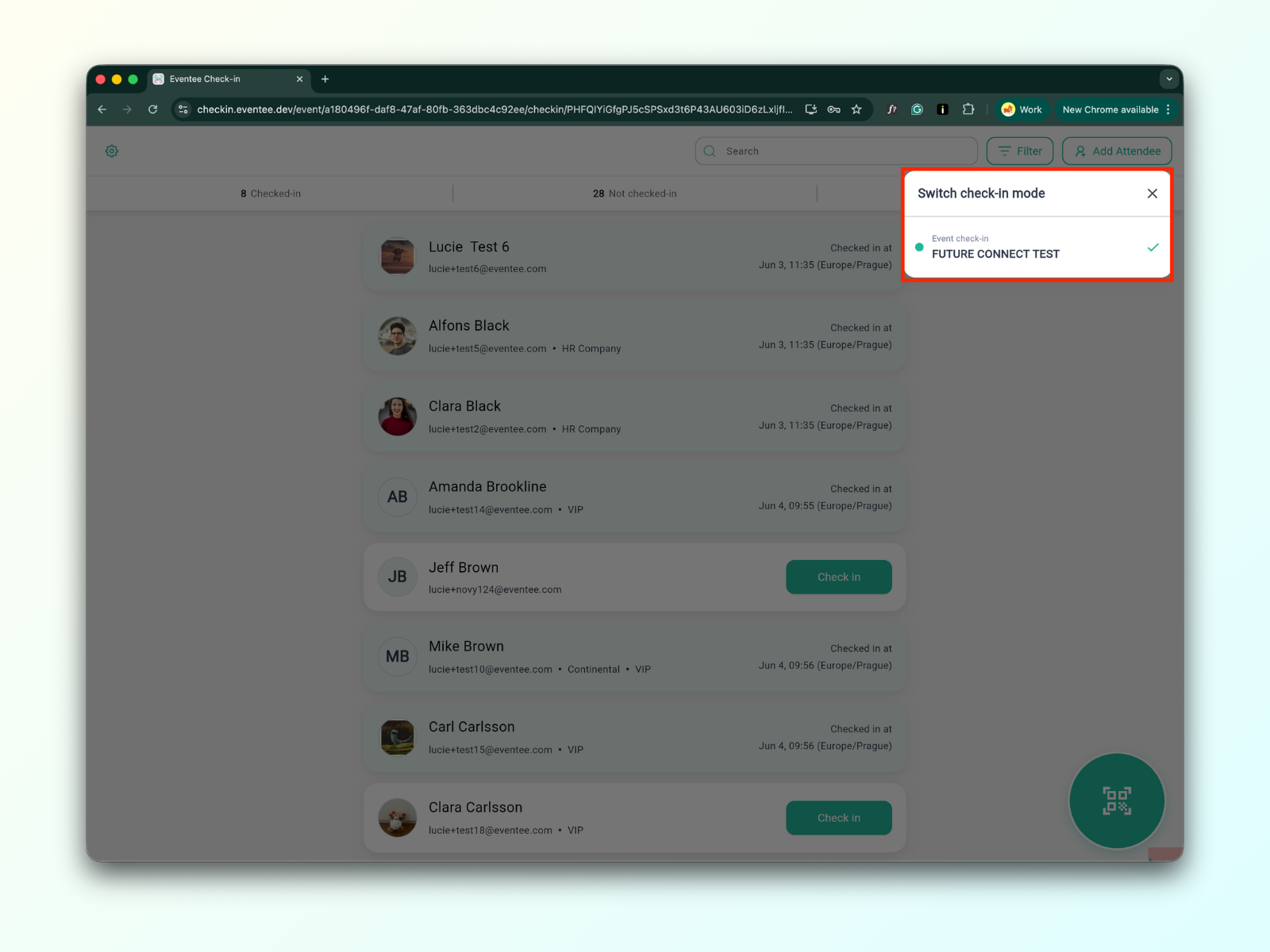
If check-in for some sessions is enabled, the modal window includes the session list:
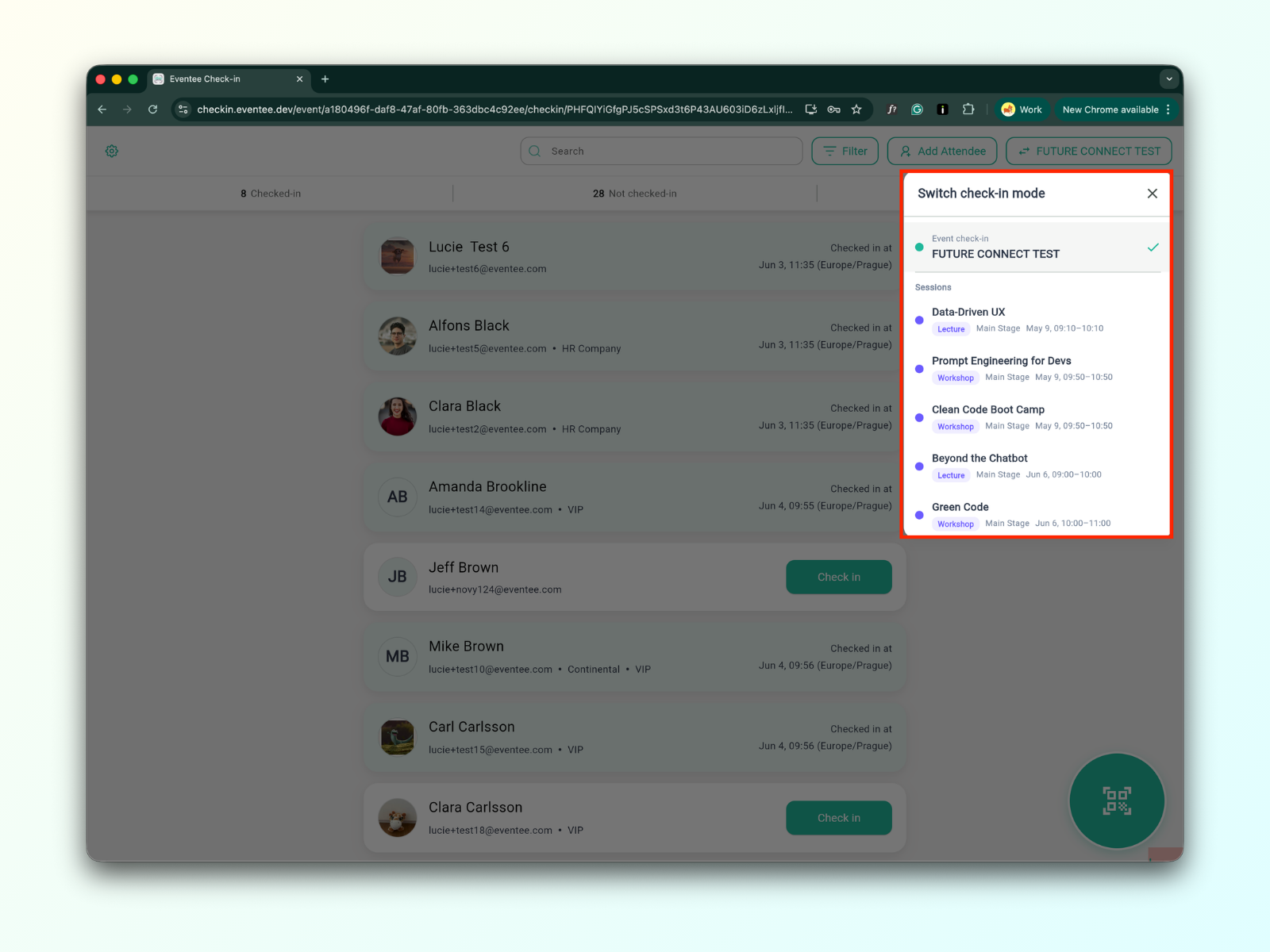
Choose a session from the session list in a modal window. It redirects you to the particular session check-in page.
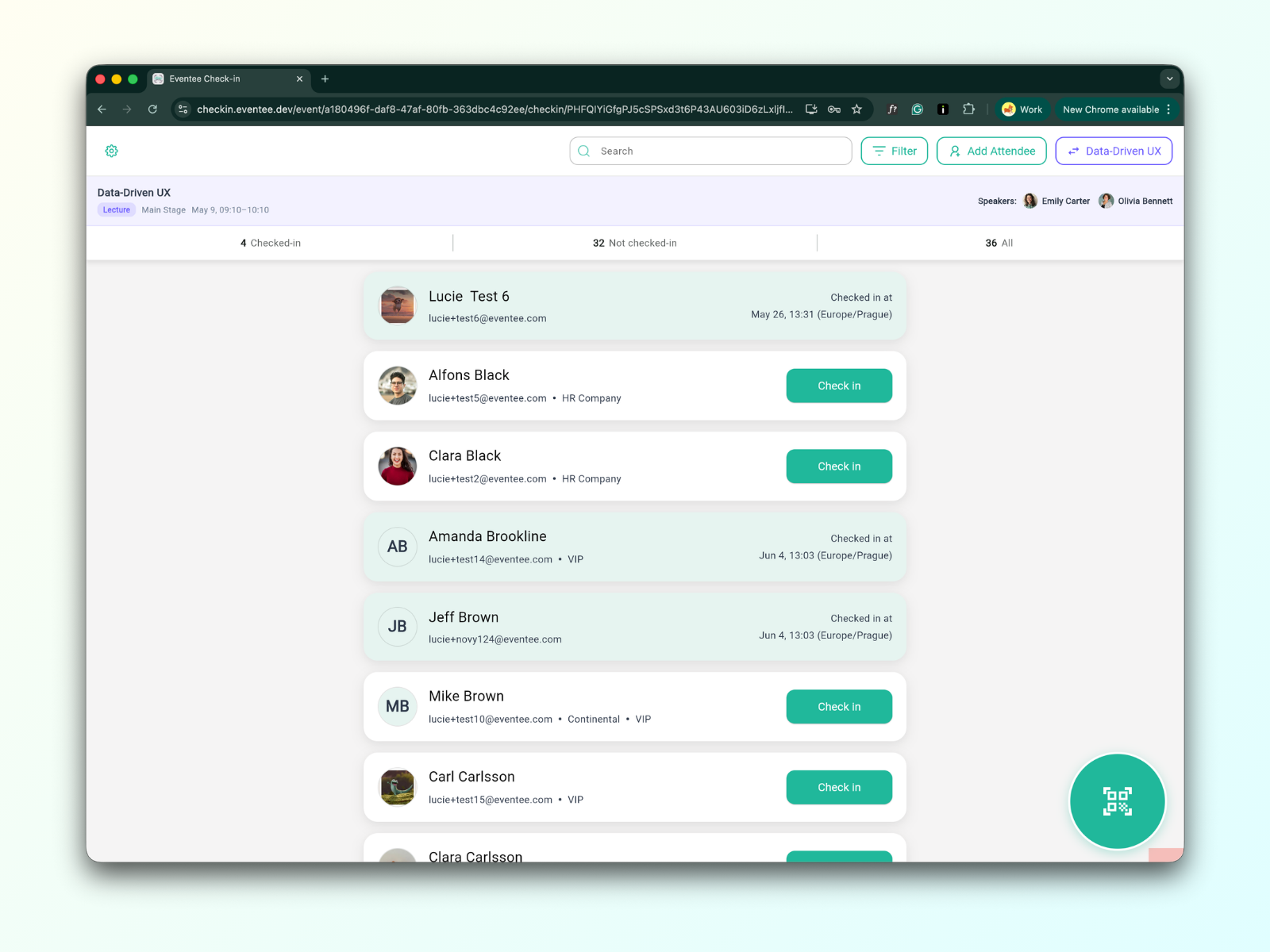
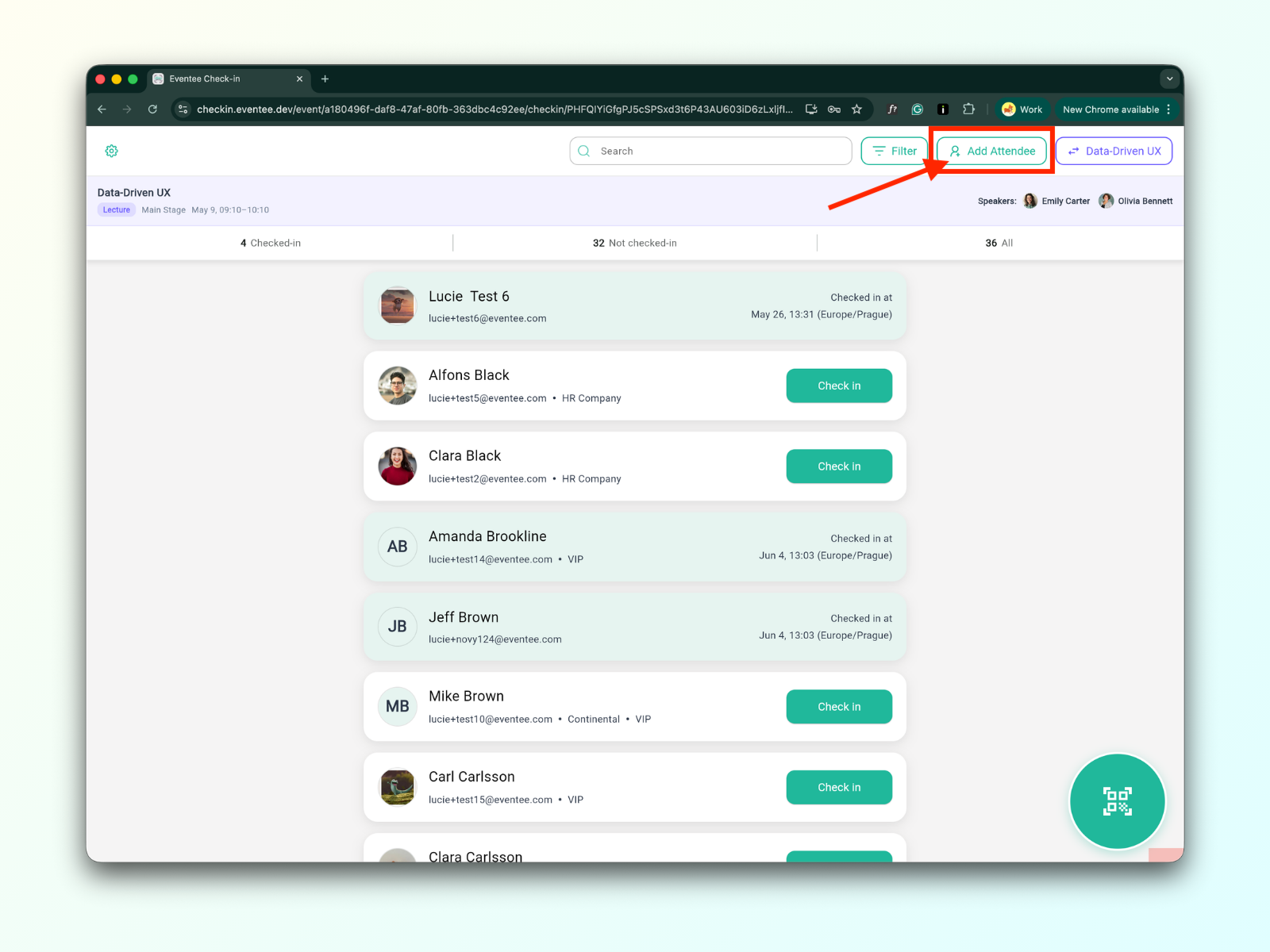
The header displays session details, including the title, session type, stage, schedule, and speakers. Alongside that, it shows the total number of attendees as well as the checked-in/uncheck-in count.
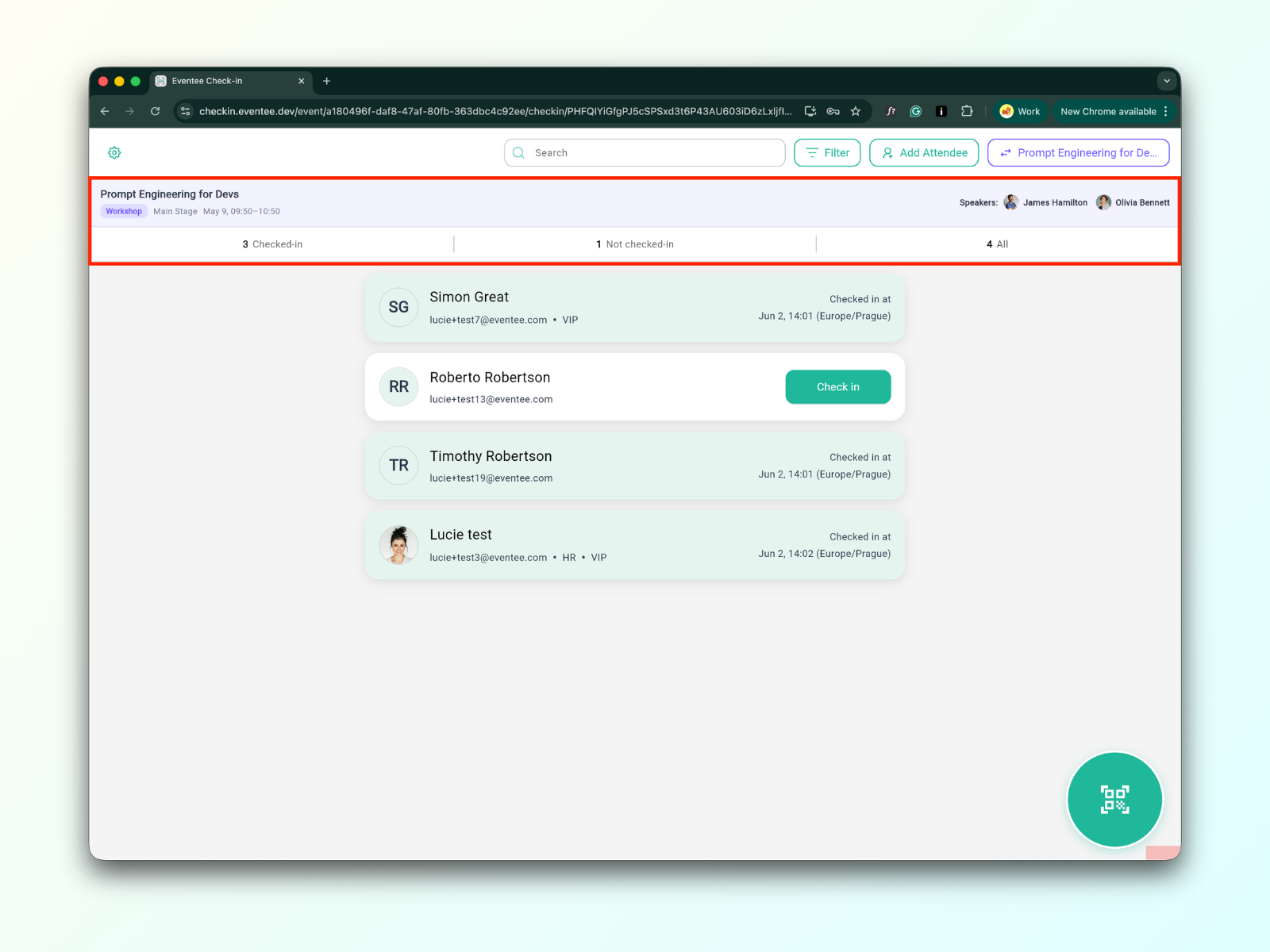
Below the header, there is a list of attendees:
Registration for the lecture is not required, and it is open to all event attendees. Since there is no specific lecture attendee list, you will see a list of all event attendees instead.
For workshops, you will find a list of all attendees who registered for that specific workshop.
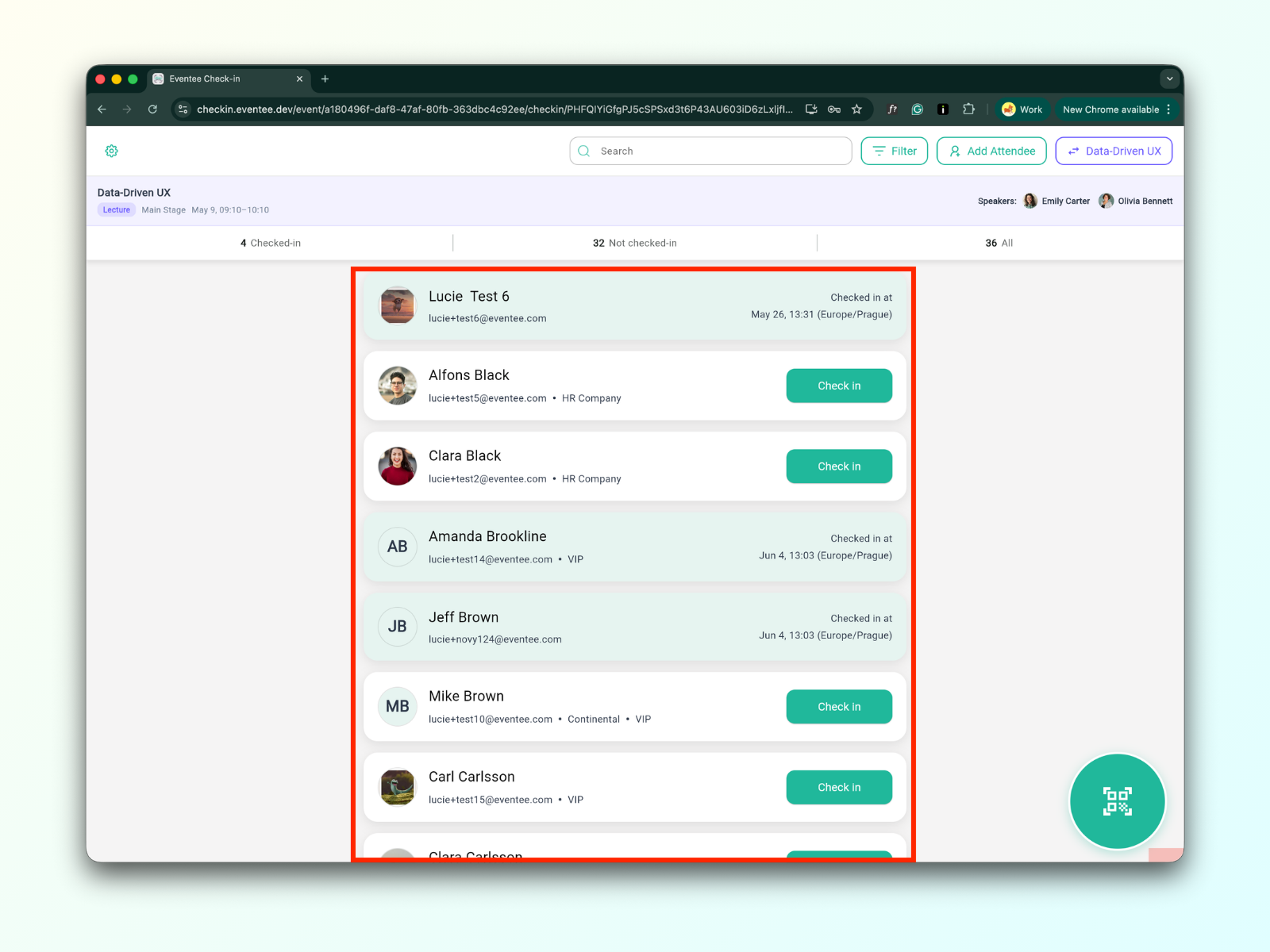
The check-in process is the same as check-in for the event. More details here.
For example, if there are still available spots in a workshop, you can add another attendee.
How to manually add an attendee:
Click the “Add Attendee " button
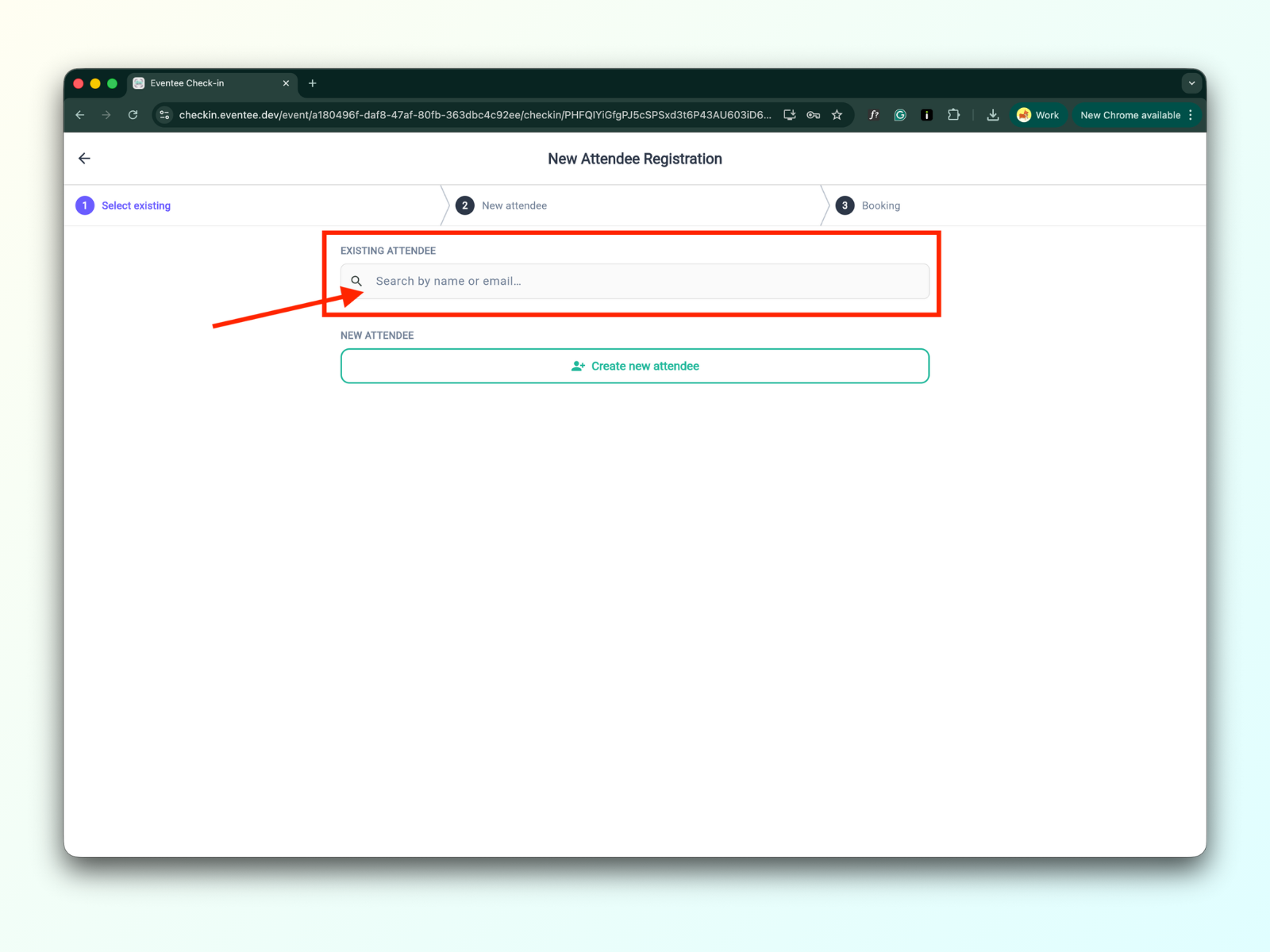
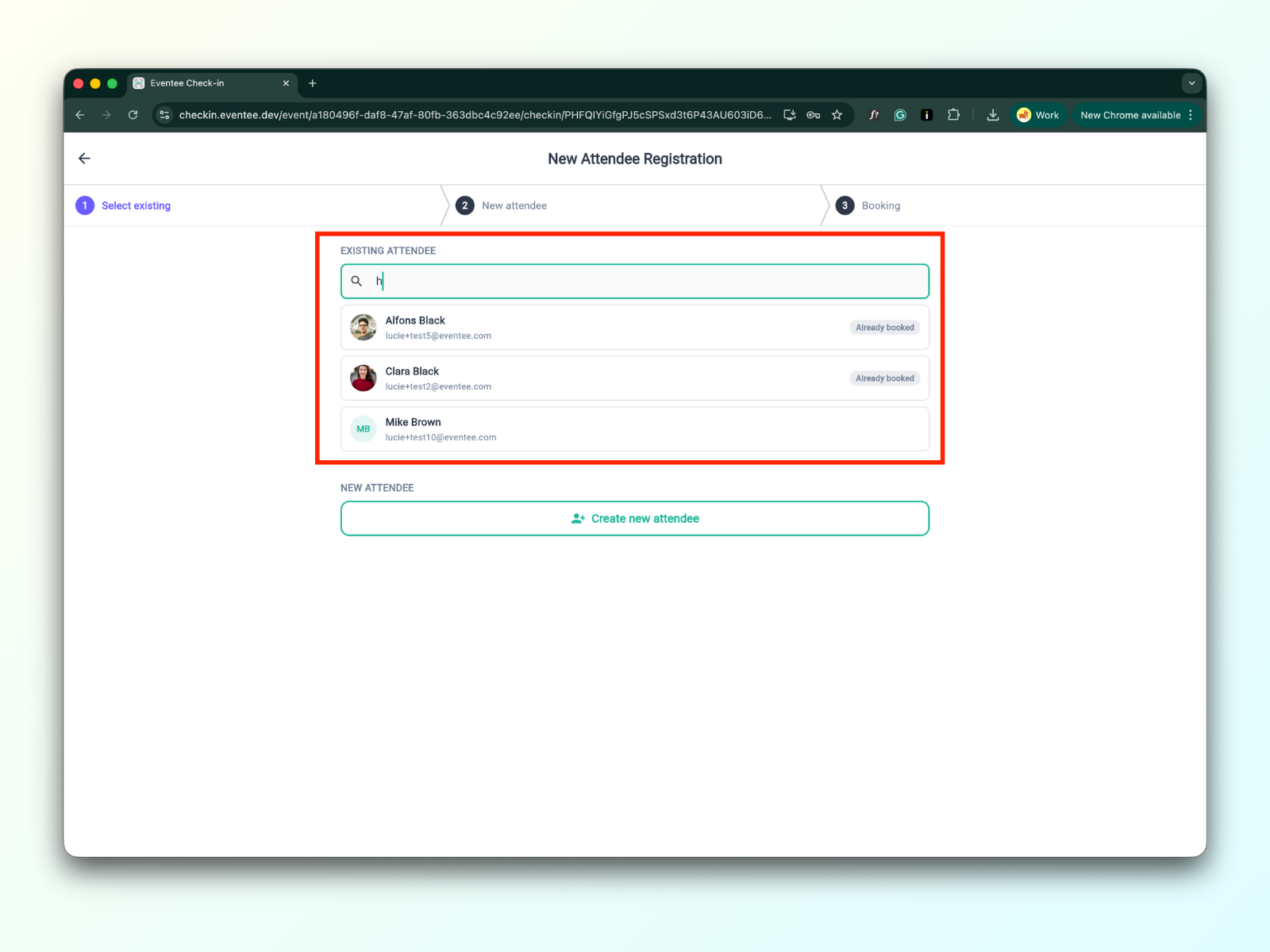
First, check if the attendee already exists. If they exist but are not checked in, click on their name. This will check them in for the session. For a mentored workshop, you will also need to choose which mentor the attendee will be assigned to.
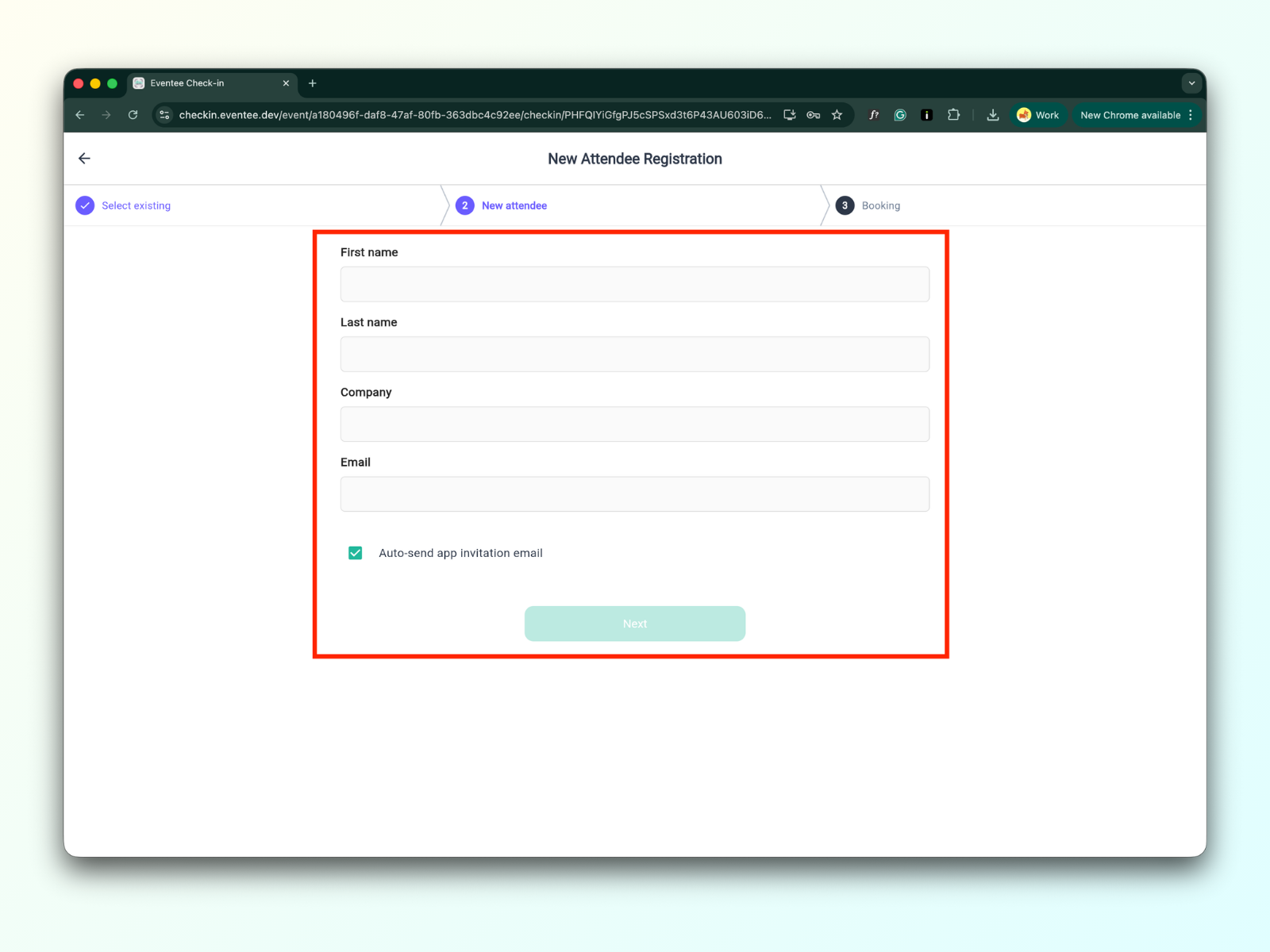
If the attendee doesn’t exist, you can create a new one by clicking “Create new attendee”. Fill in the form, and click the submit button.
After submitting the form, you are redirected to the list of attendees