After enabling and configuring the check-in feature in the administration, you can install and open the check-in app. The check-in app is available on three platforms: iOS, Android, and the web.
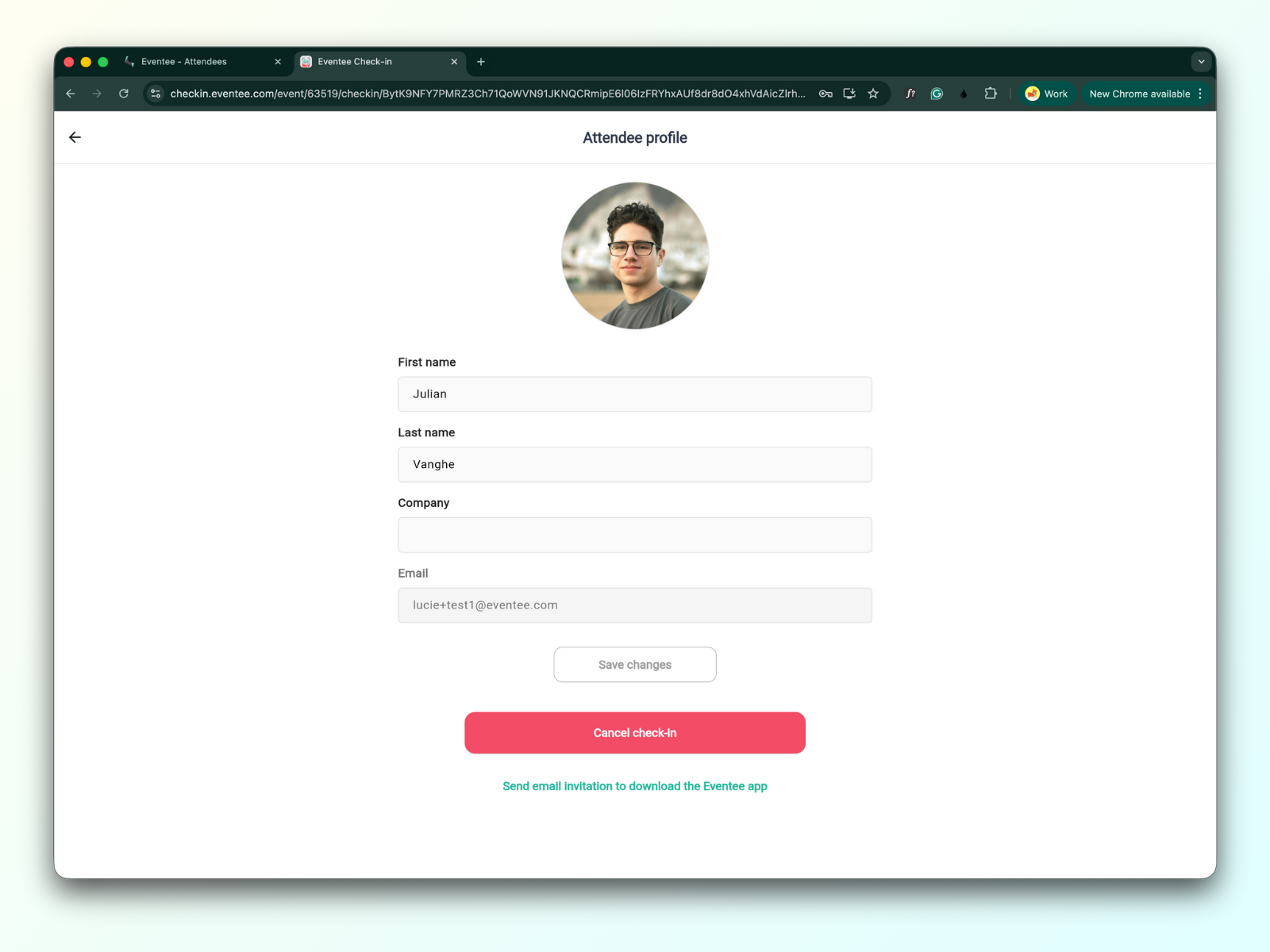
To install and open either the web or mobile check-in app, you’ll need the app link and the PIN code. You can find both in the administration of the event:
Navigate to Settings → Features → Check-in
On the check-in tab, you can find a unique deeplink, QR code, and PIN code
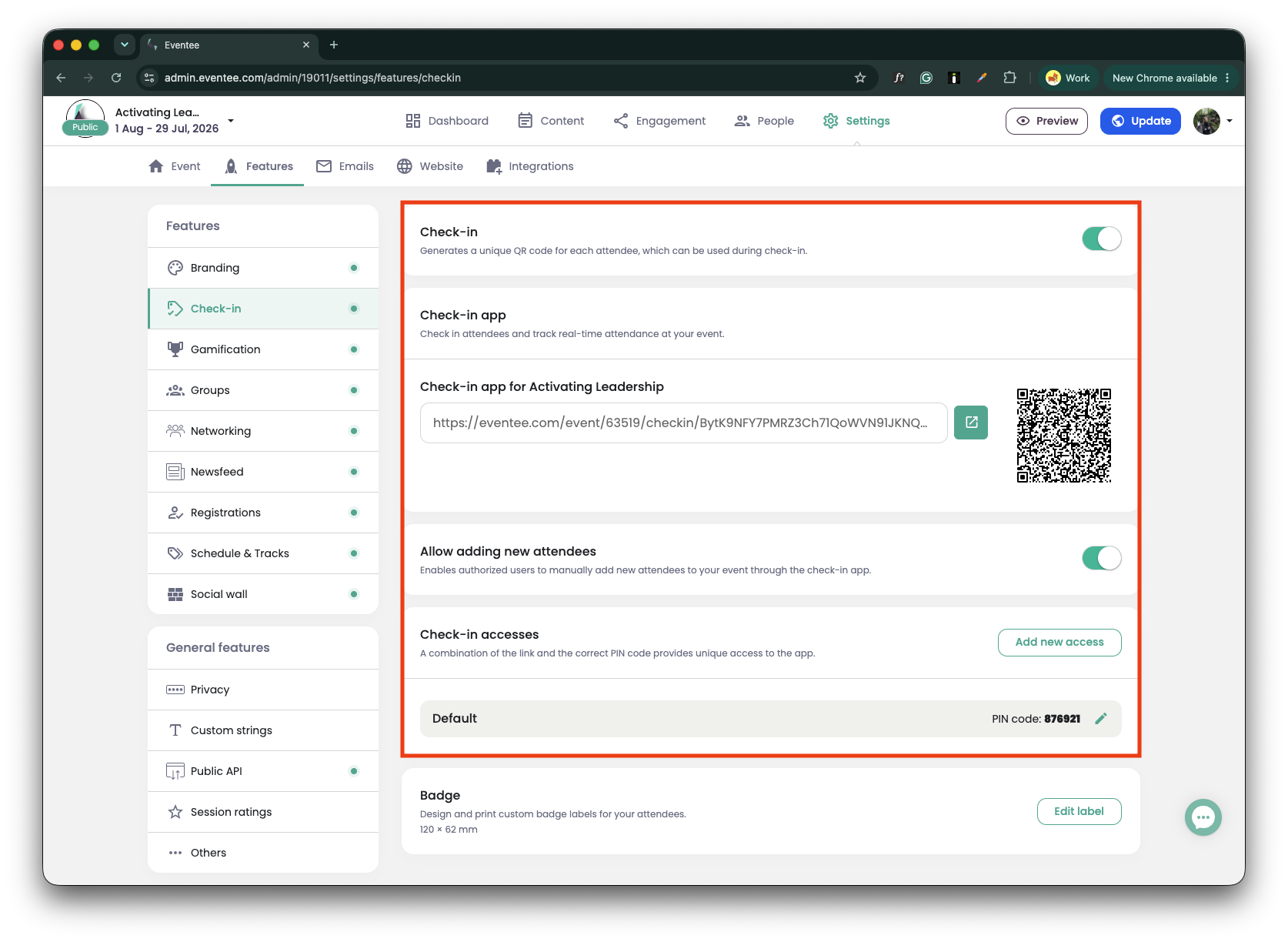

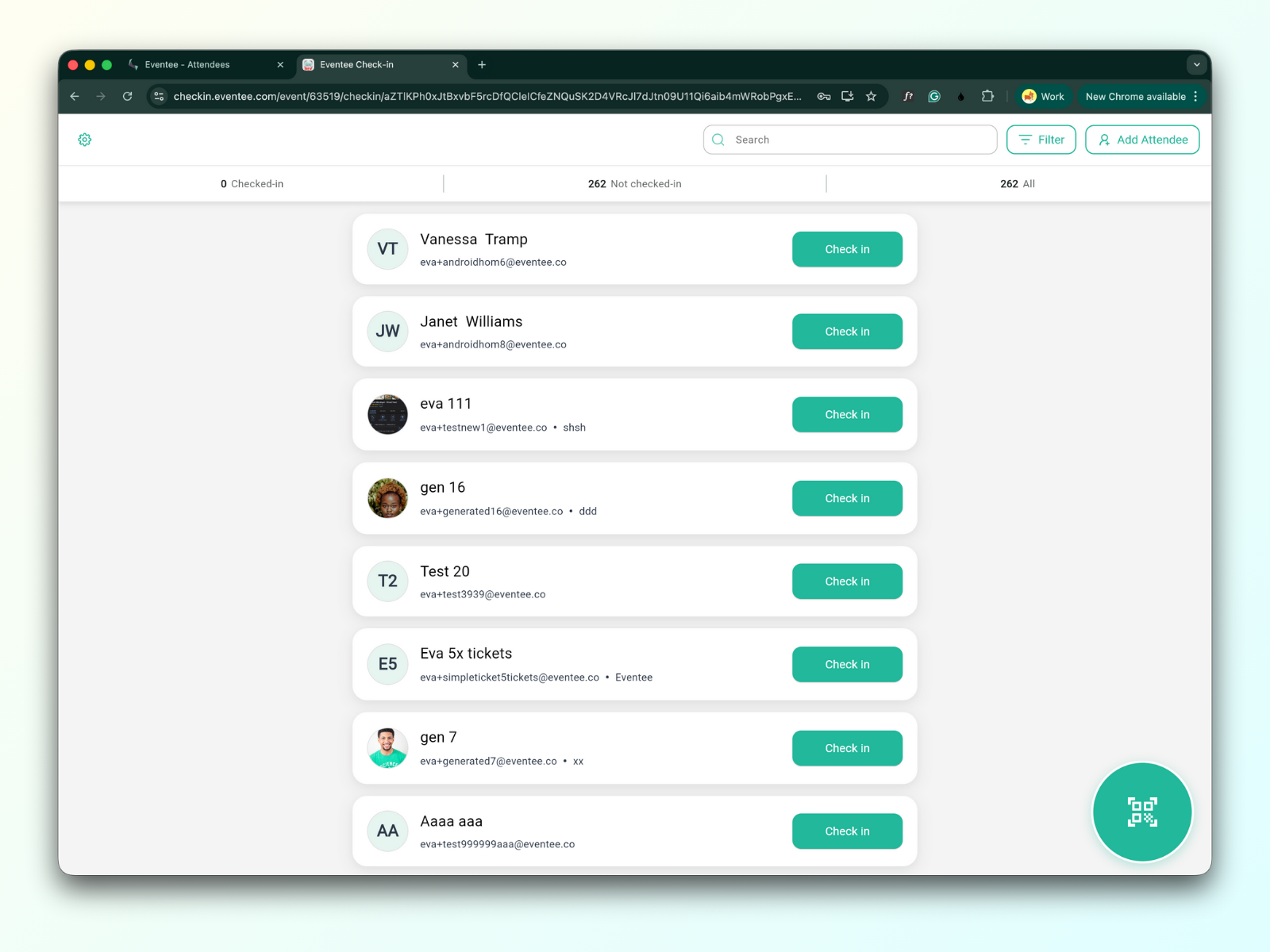
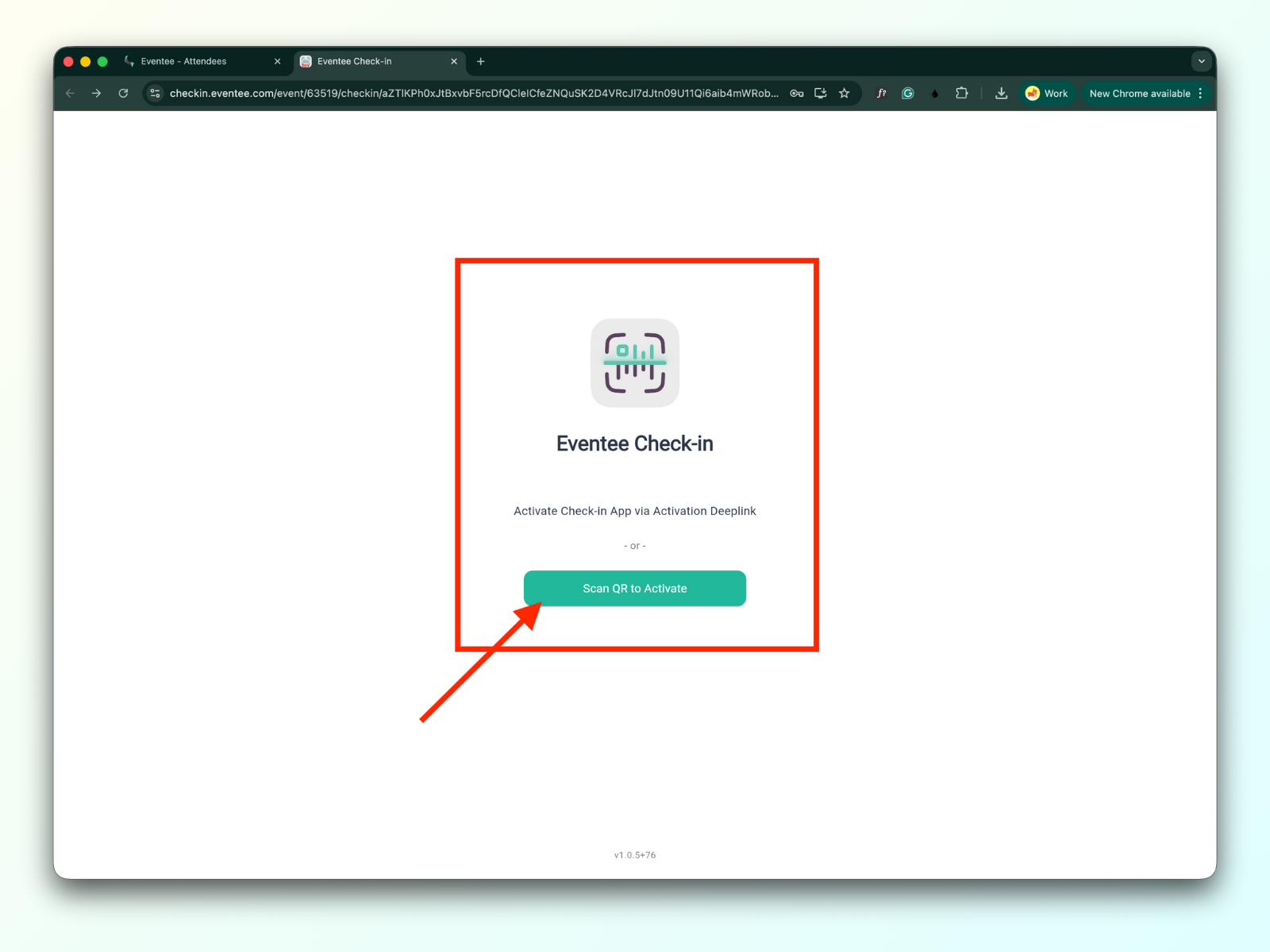
Opening the link on a desktop browser navigates to the web check-in application activation screen.
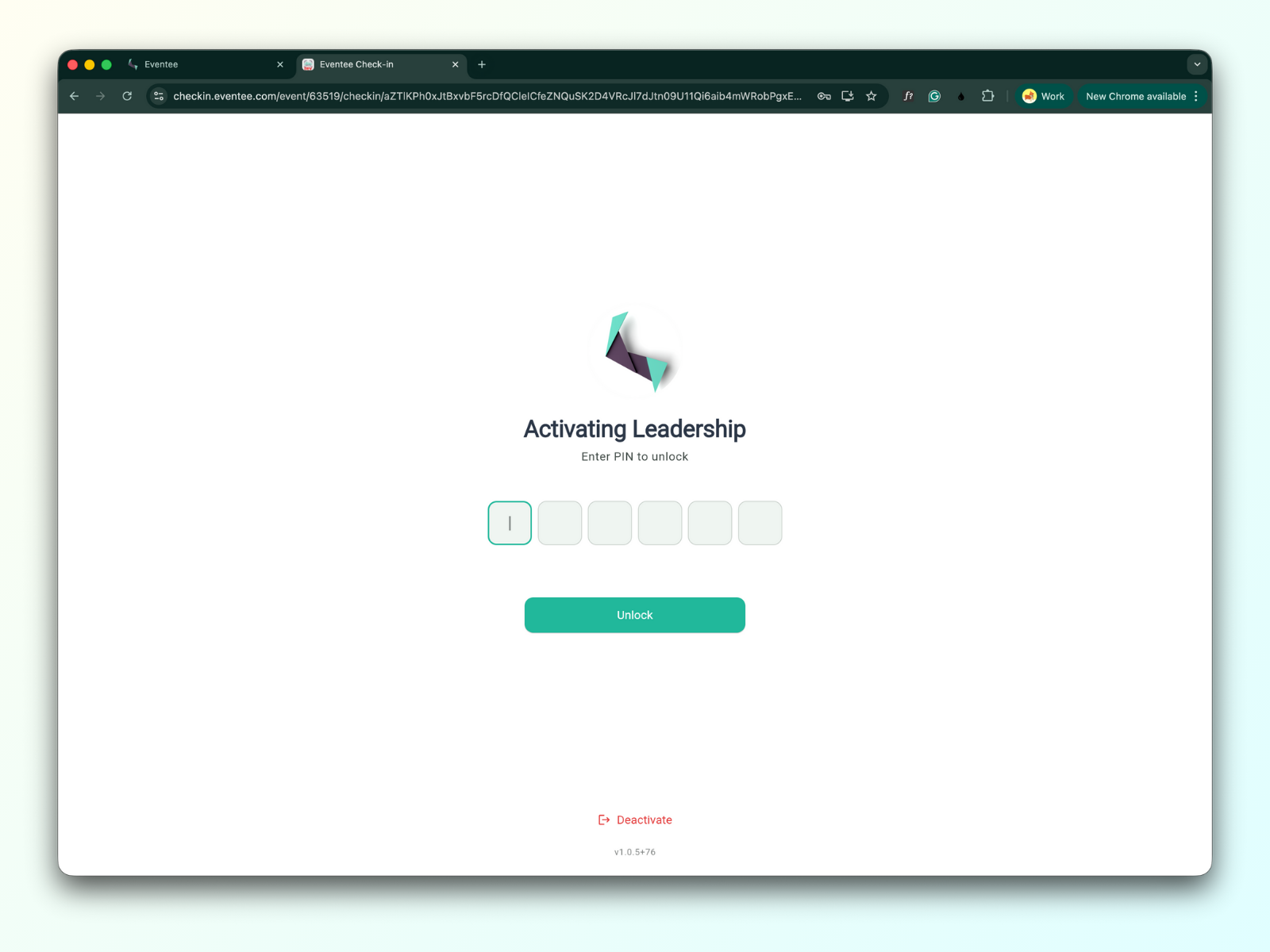
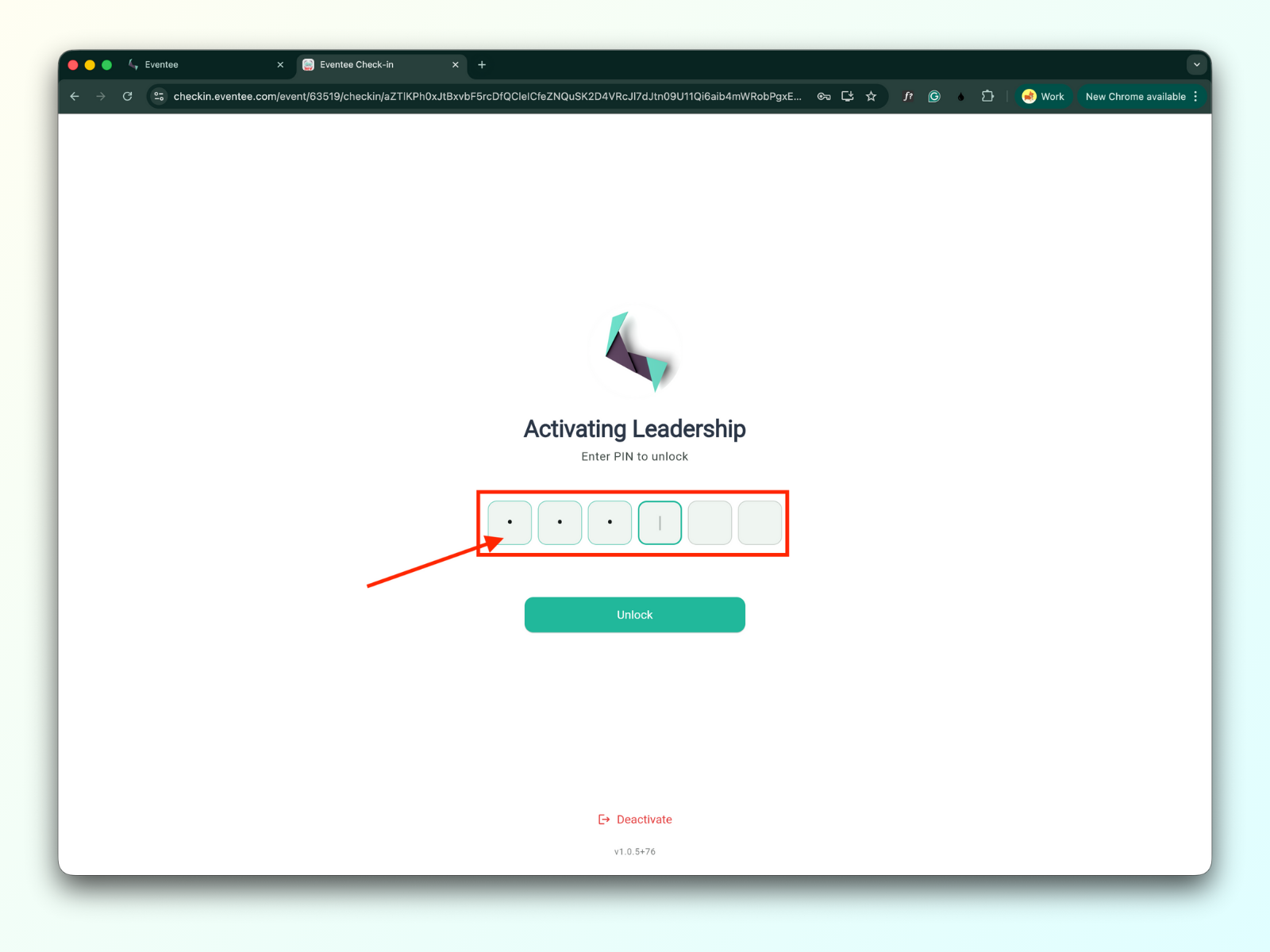
Entering the PIN code opens the event check-in app
Opening the link on an iOS device or scanning the QR code with your mobile camera will direct you to the app download page.
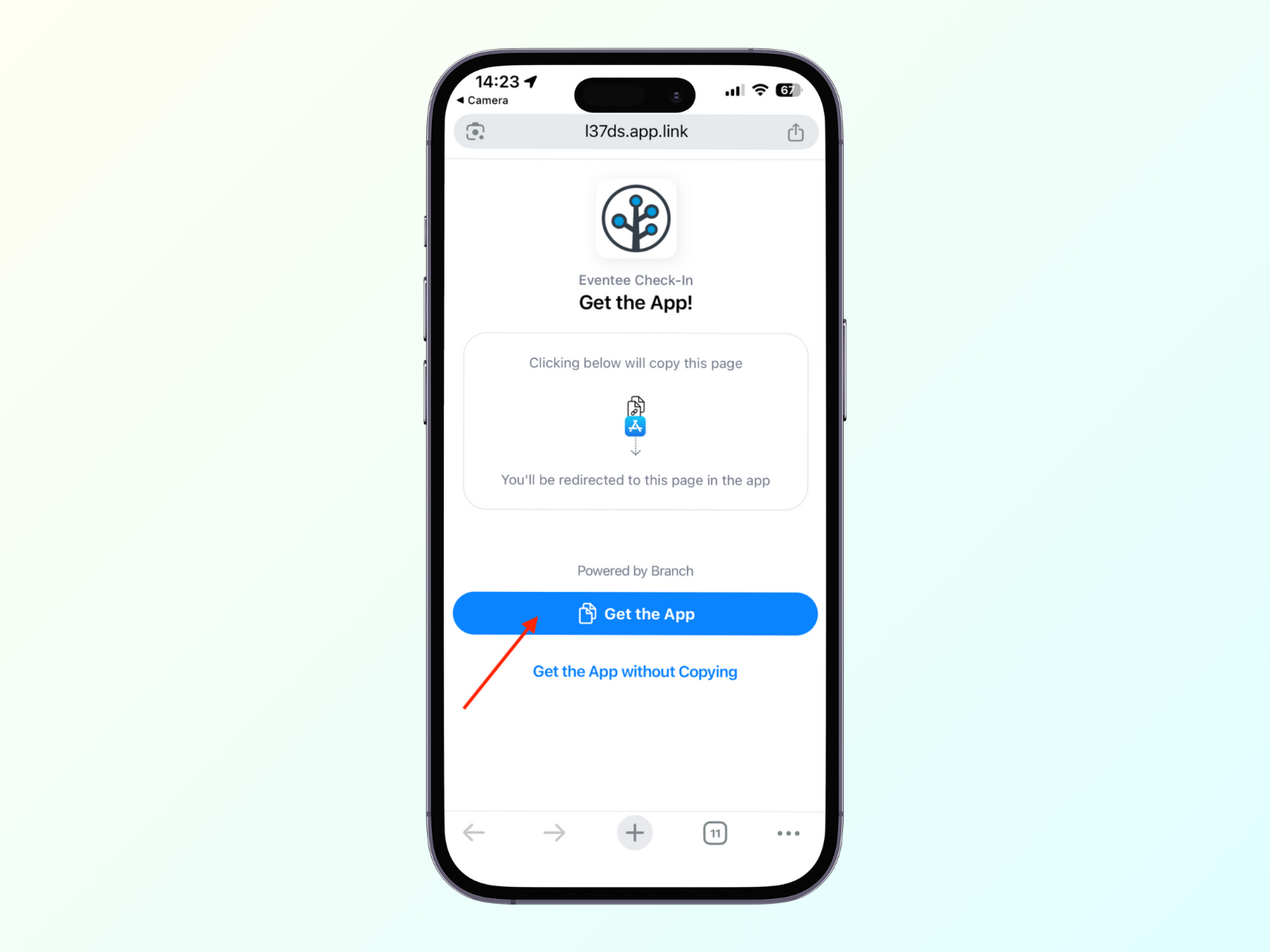
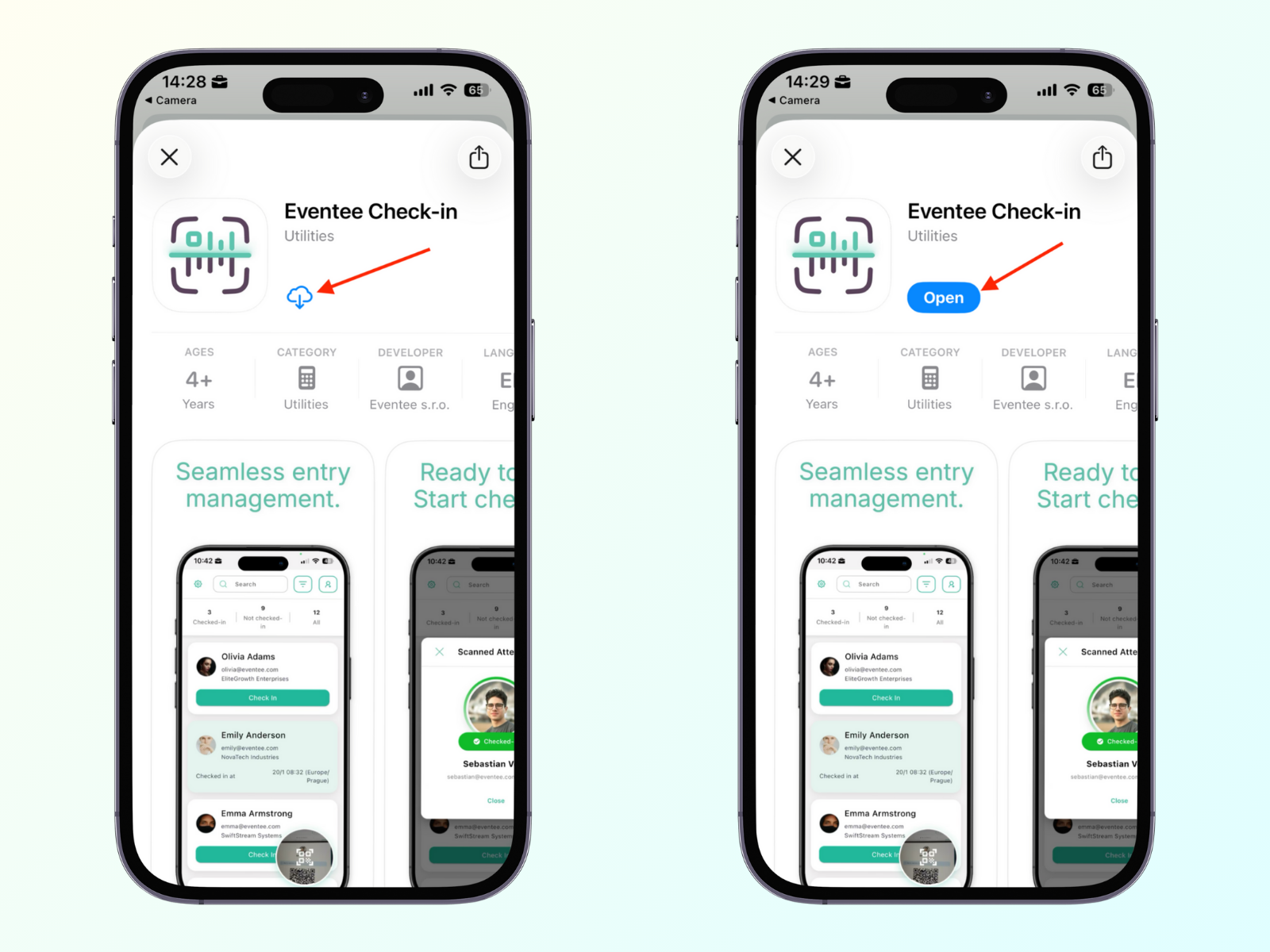
Clicking on the Get the App button navigates to the App Store, where you can click on the Install button and open the app
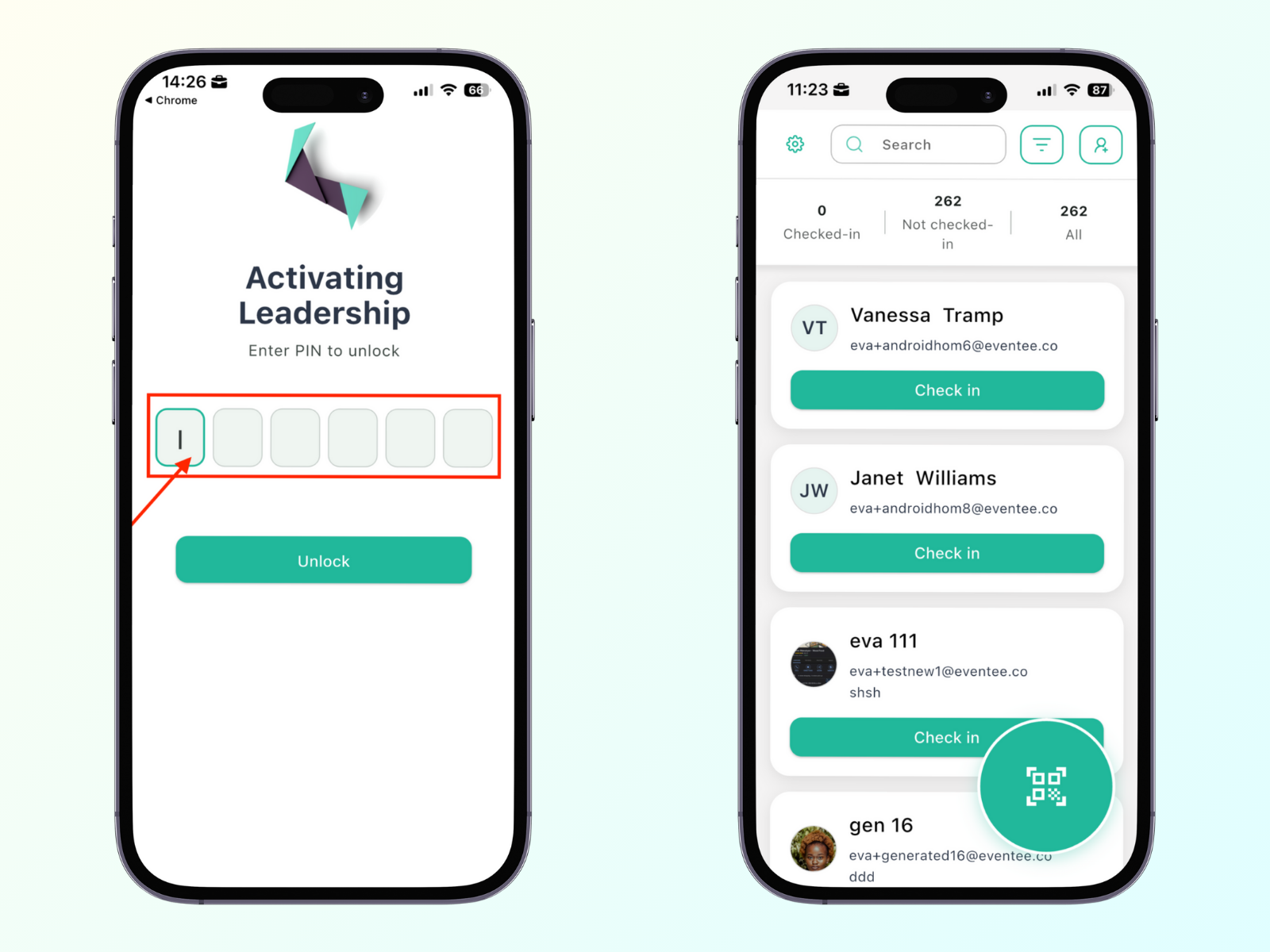
Entering the PIN code opens the event check-in app
Opening the link on an Android device or scanning the QR code with your mobile camera will direct you to the app download page.
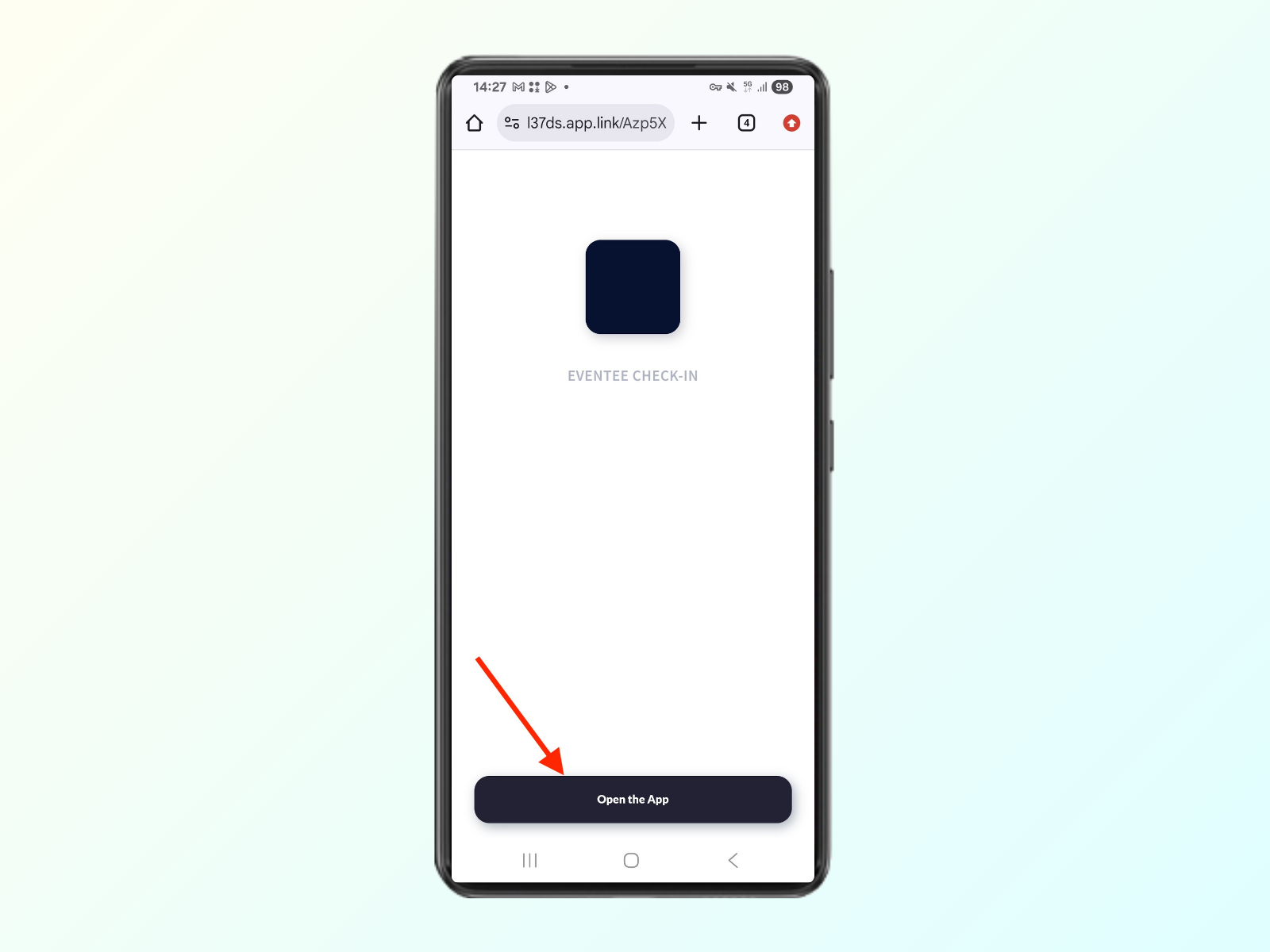
Clicking on the “Open the app” button navigates to the Google Play Store, where you can click on the Install button and open the app
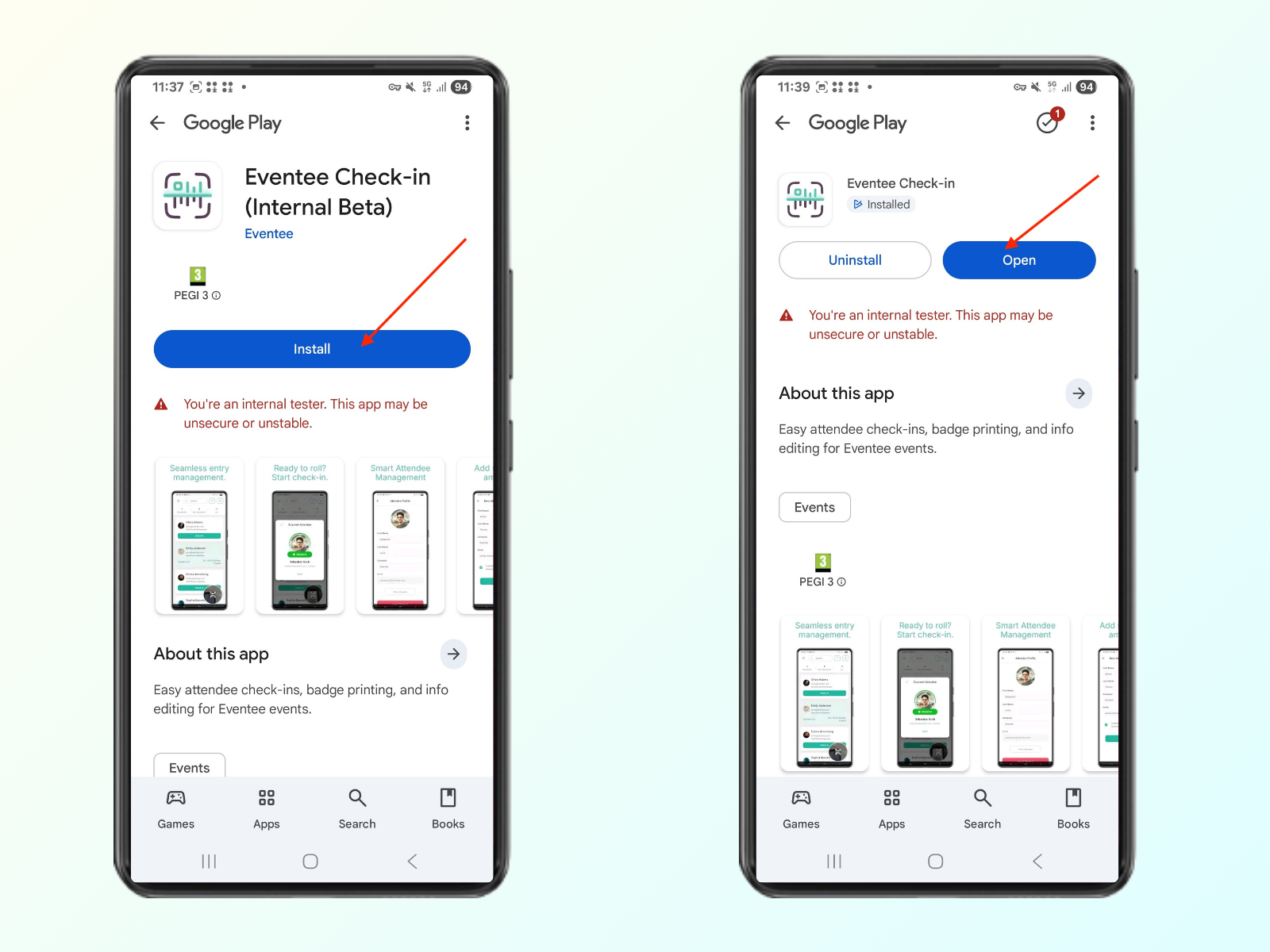
Entering the PIN code opens the event check-in app
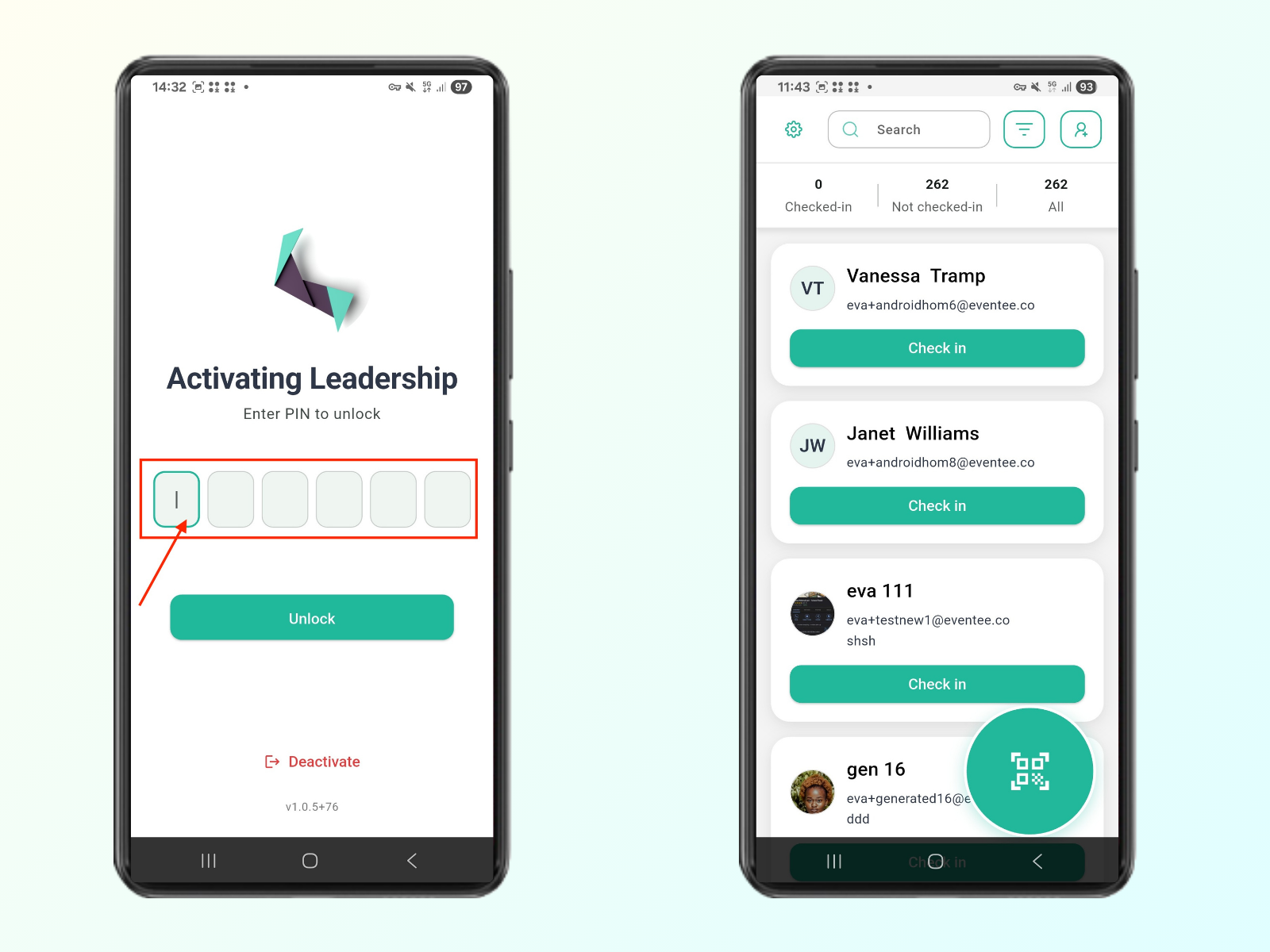

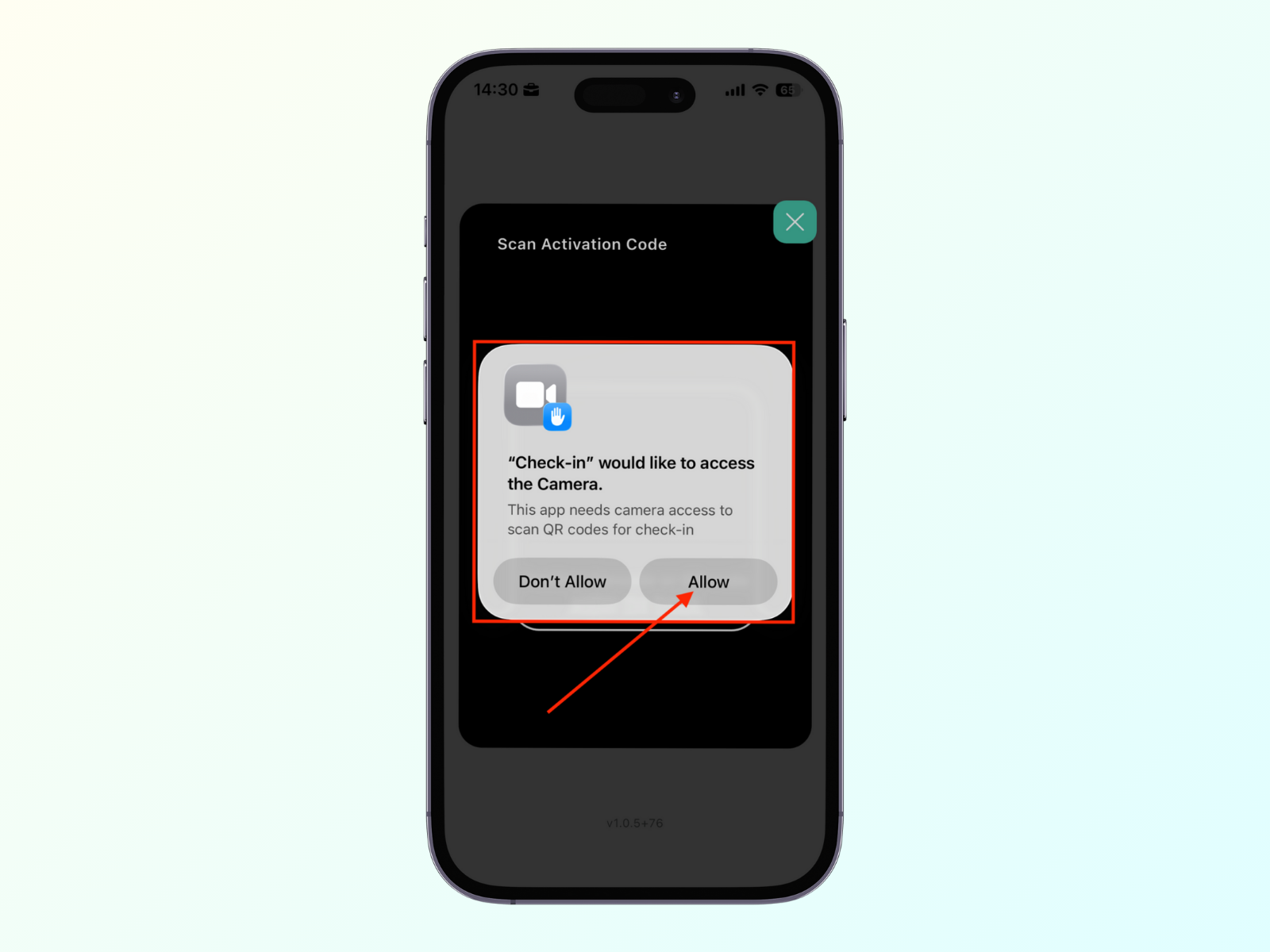
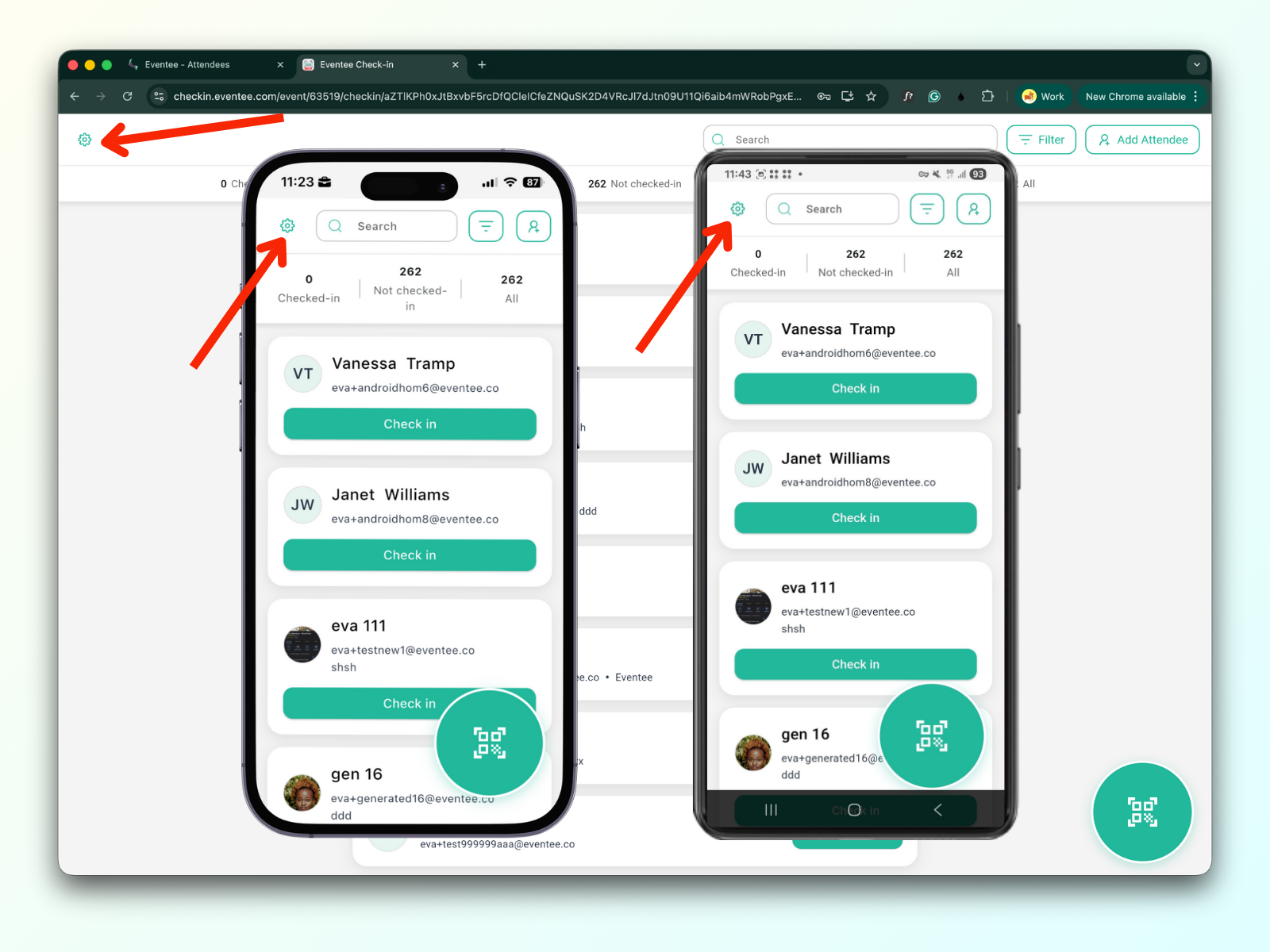
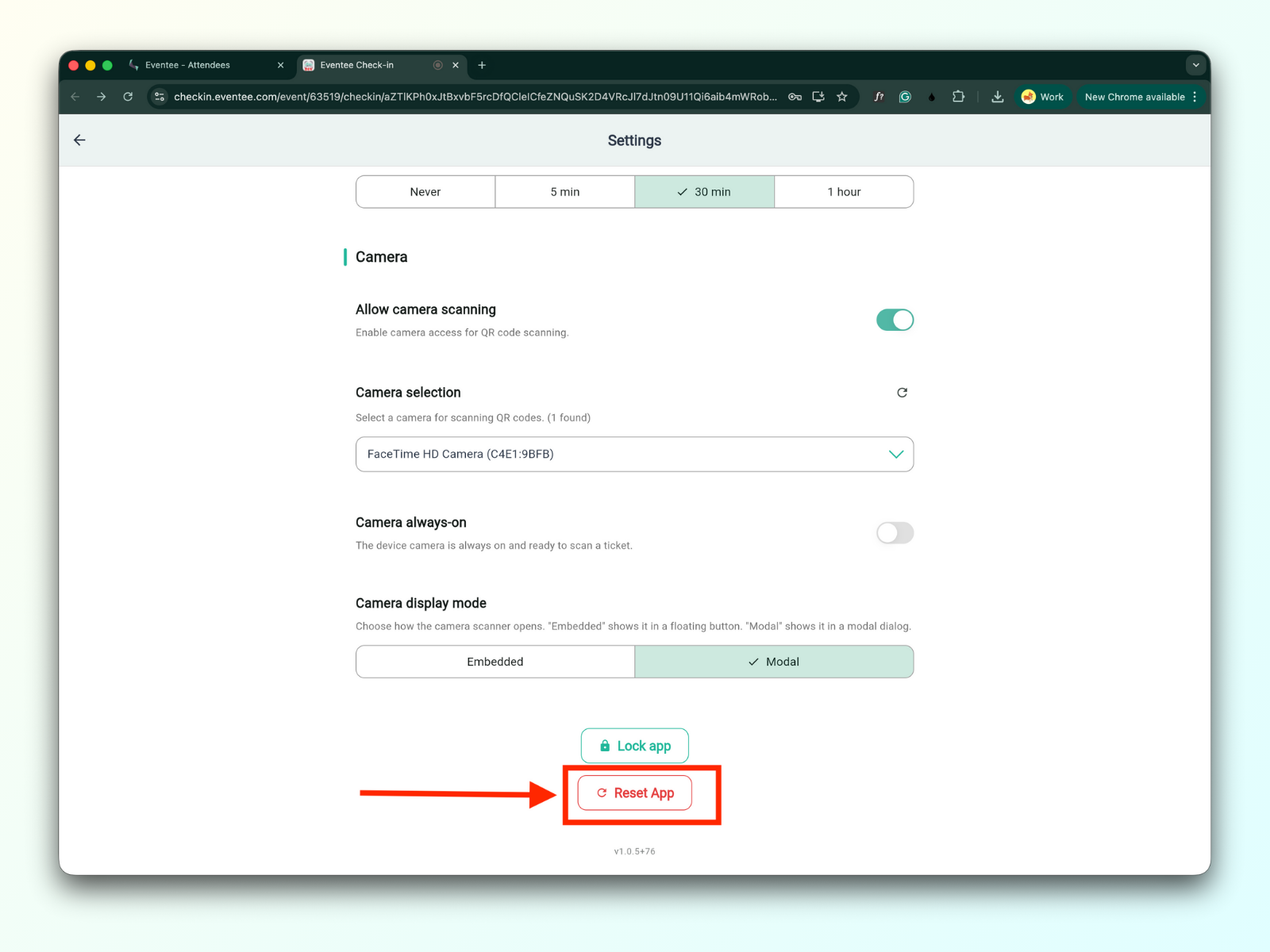
In all platforms, the settings button is placed on the left side of the menu bar, and the settings are the same for all of them
Settings are divided into three sections:
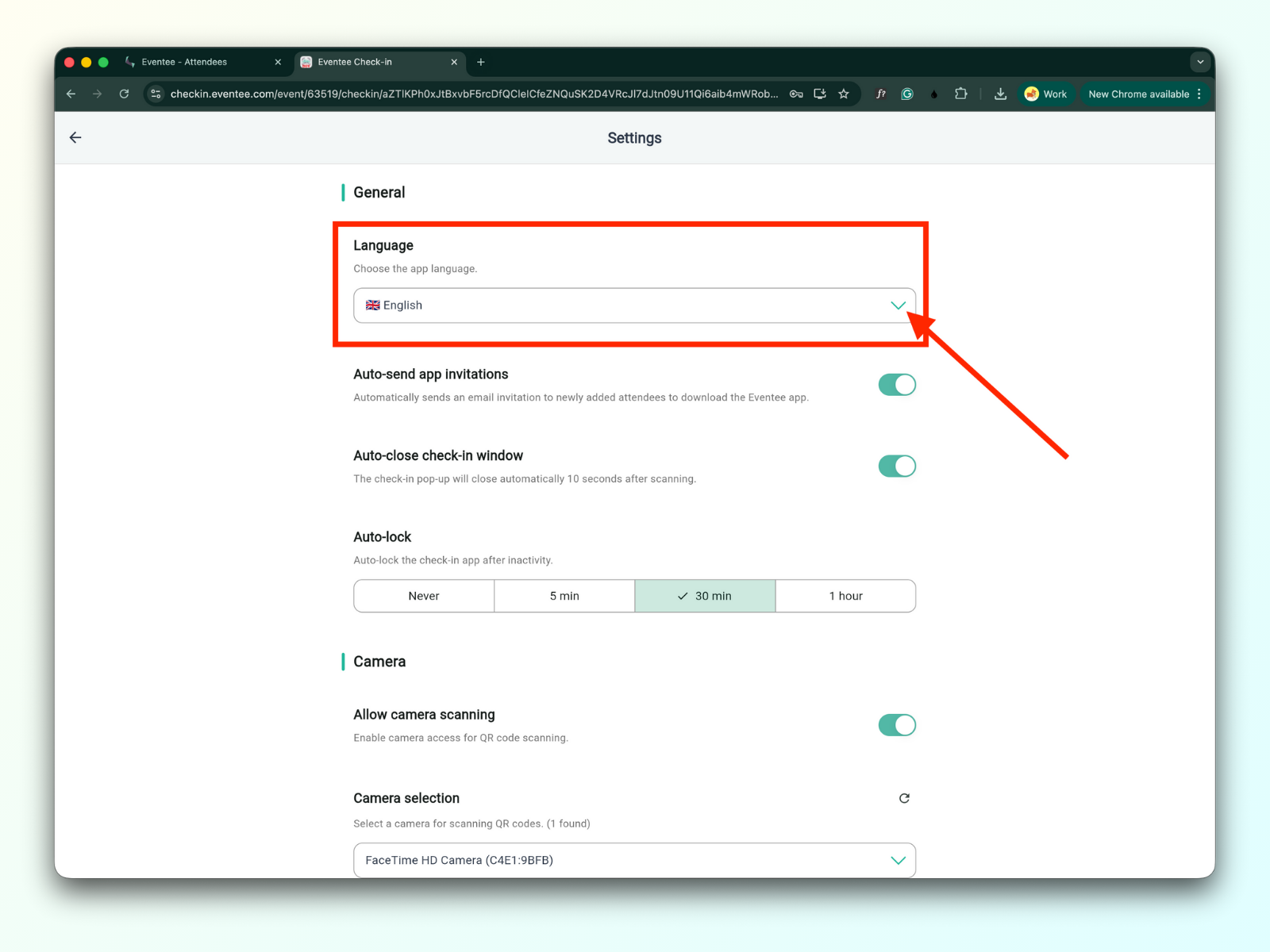
1a. Language
You can set the app language.
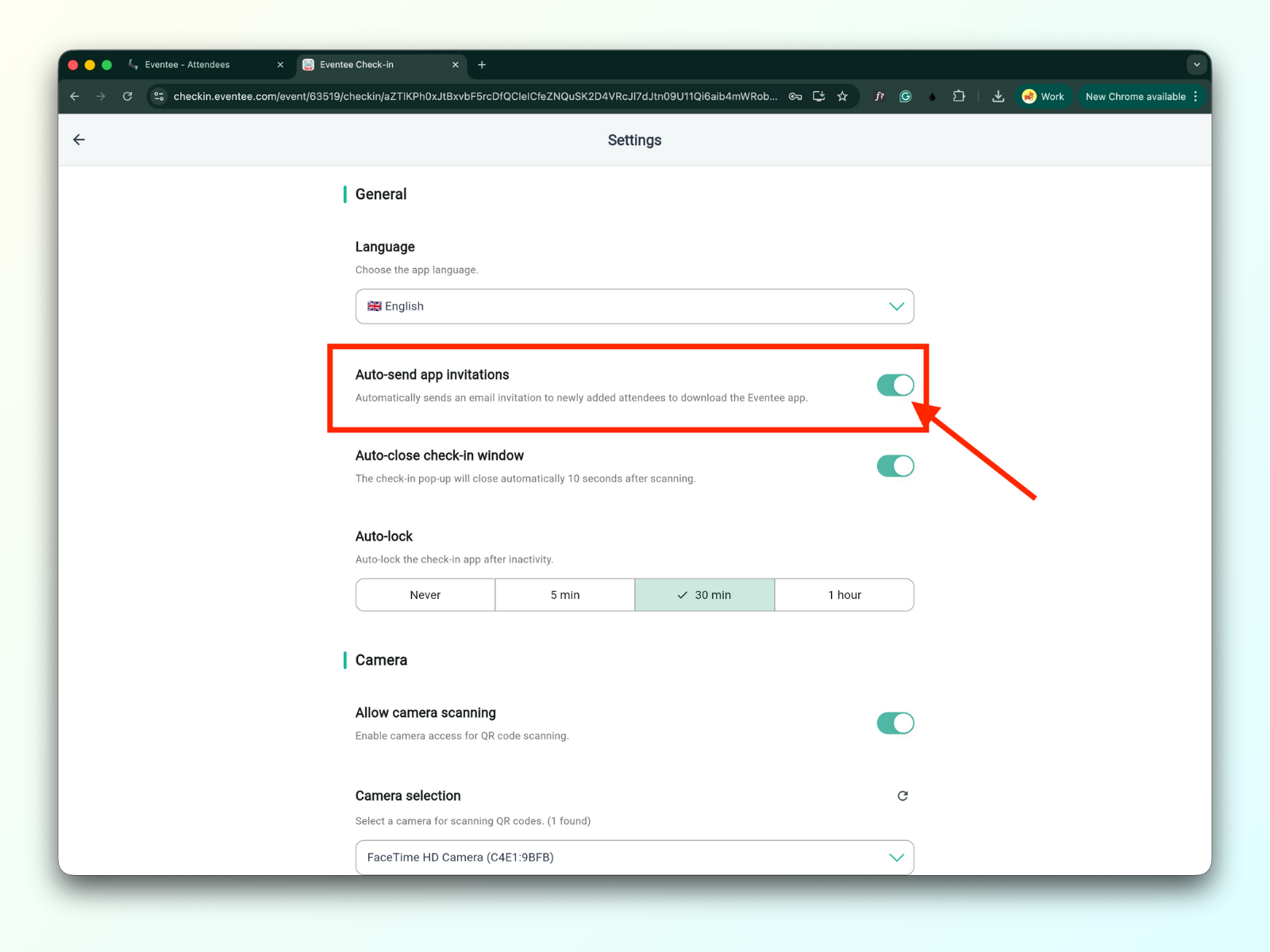
1b. Auto-send app invitations
When enabled, an attendee will receive an email to download the Eventee app after scanning a ticket.
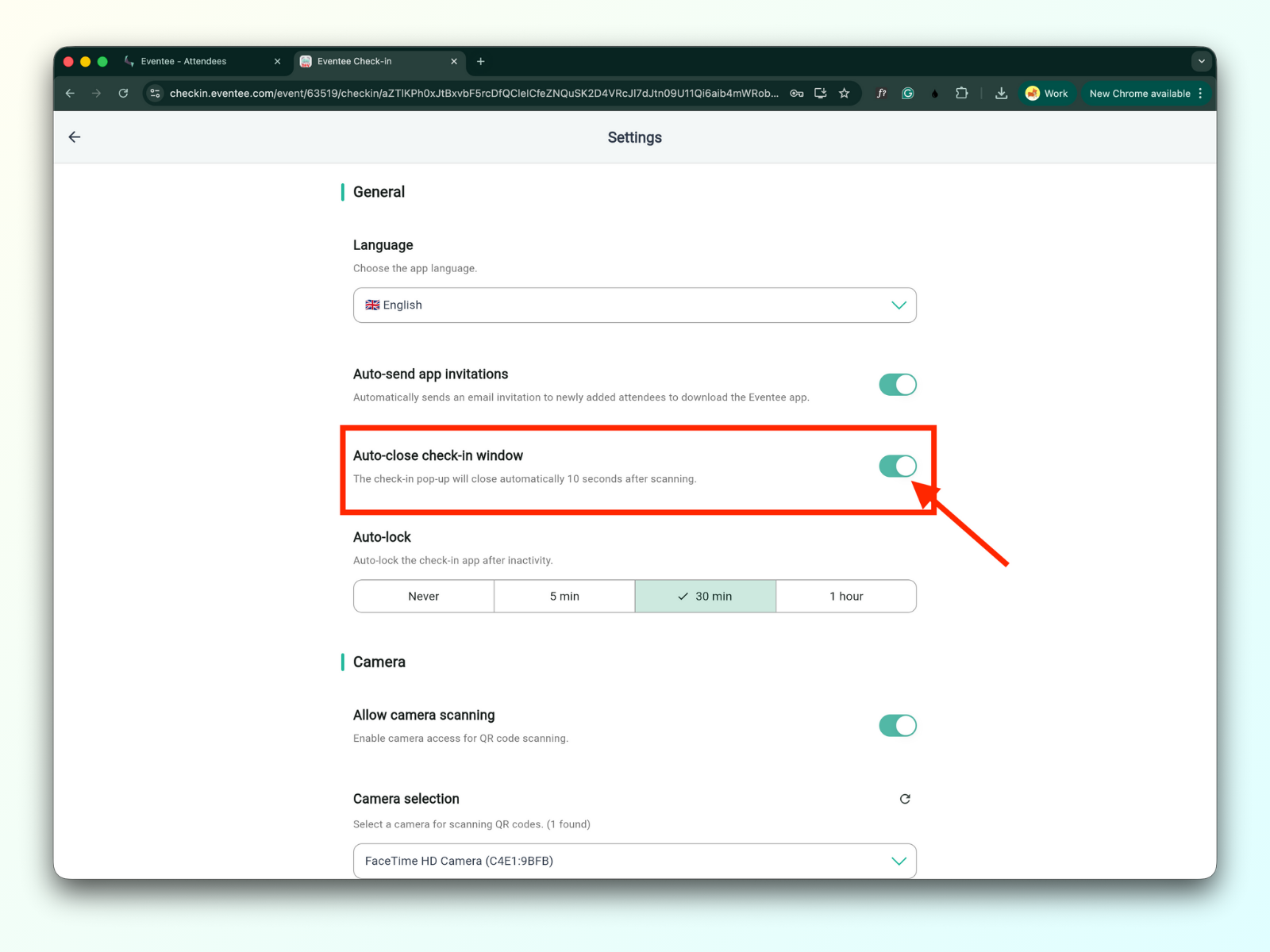
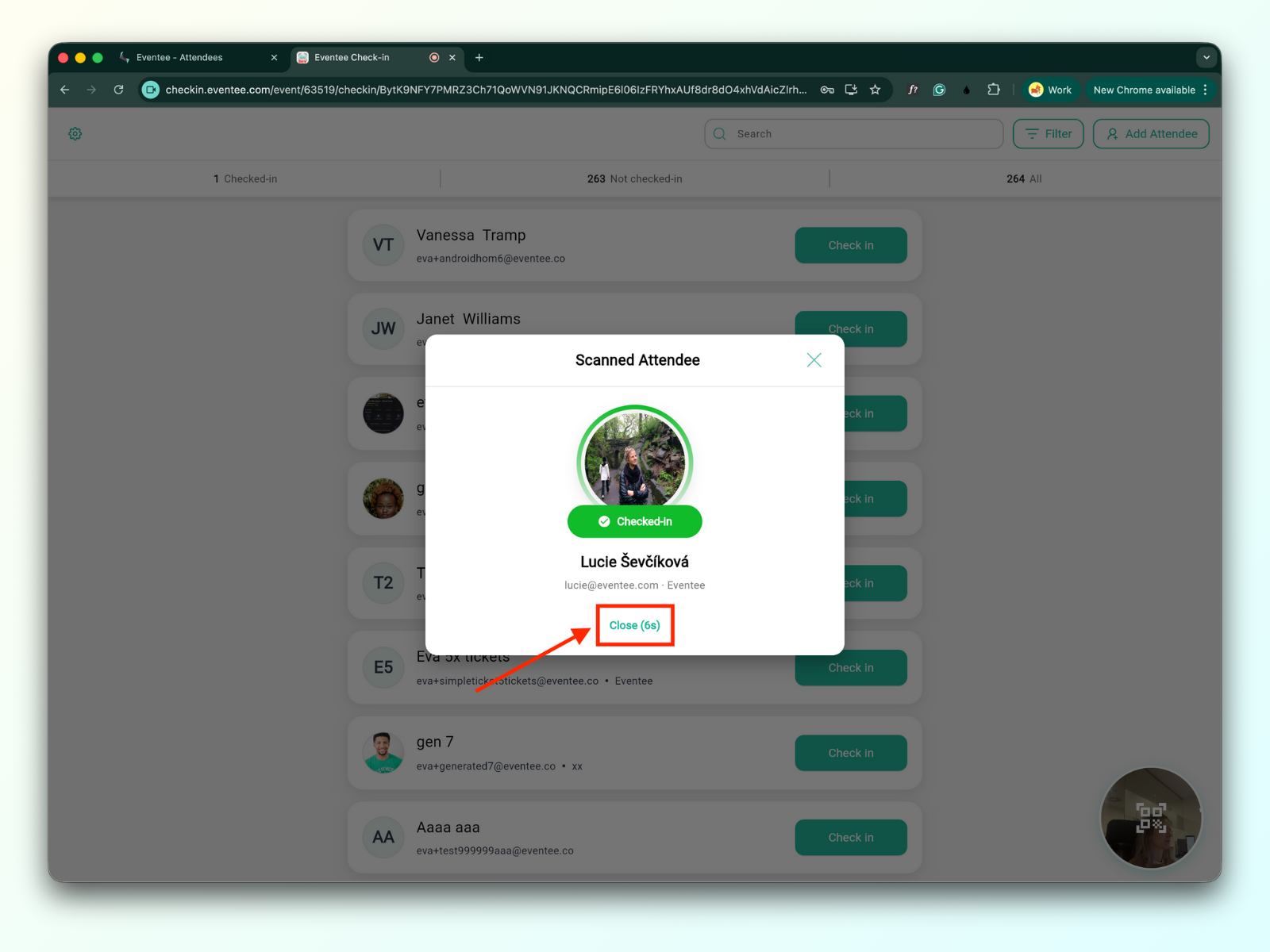
1c. Auto-close check-in window
When enabled check-in pop-up window will be closed automatically in 10 seconds.
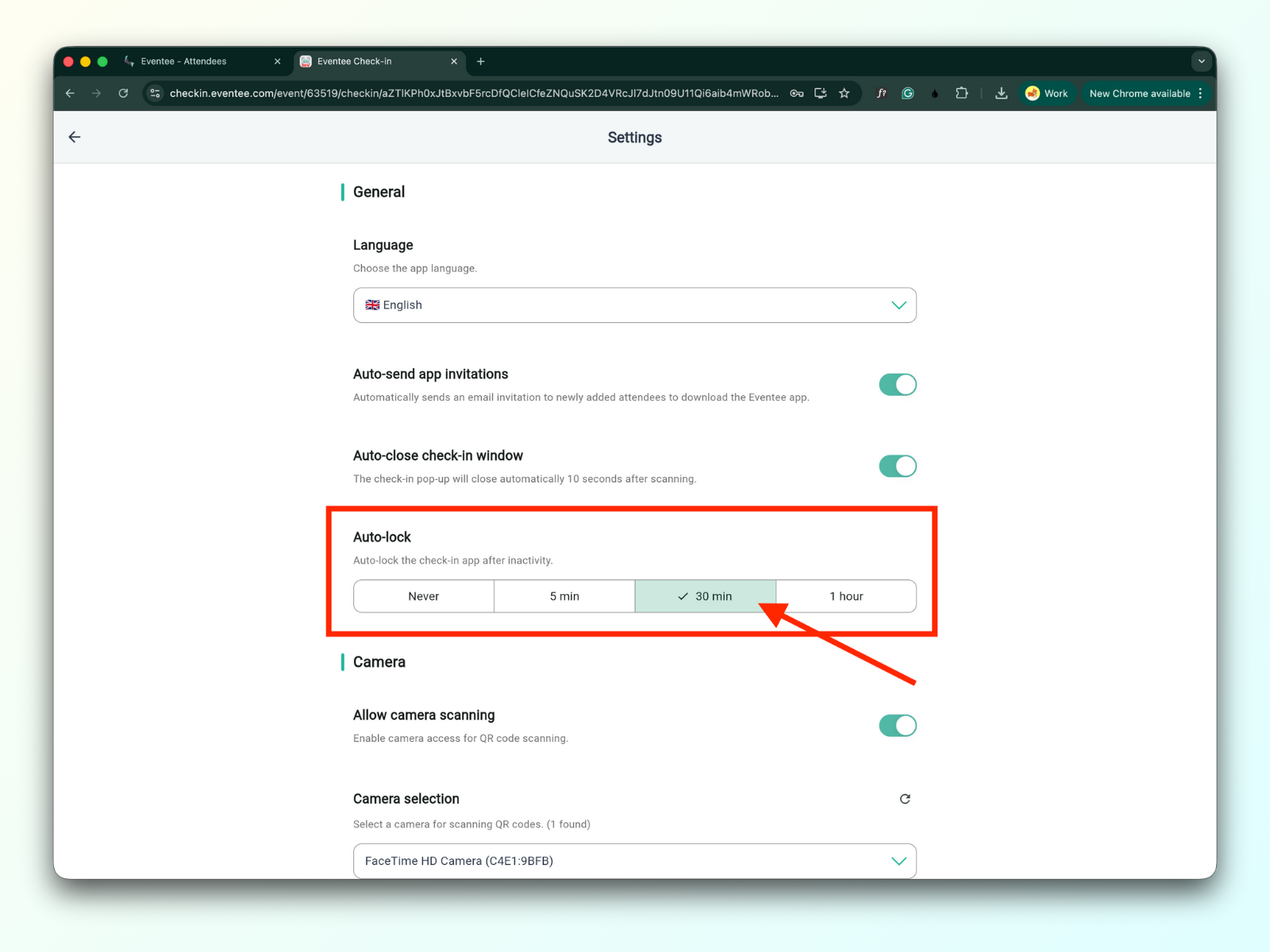
1d. Auto-lock
You can set the amount of time before the app automatically locks due to inactivity.
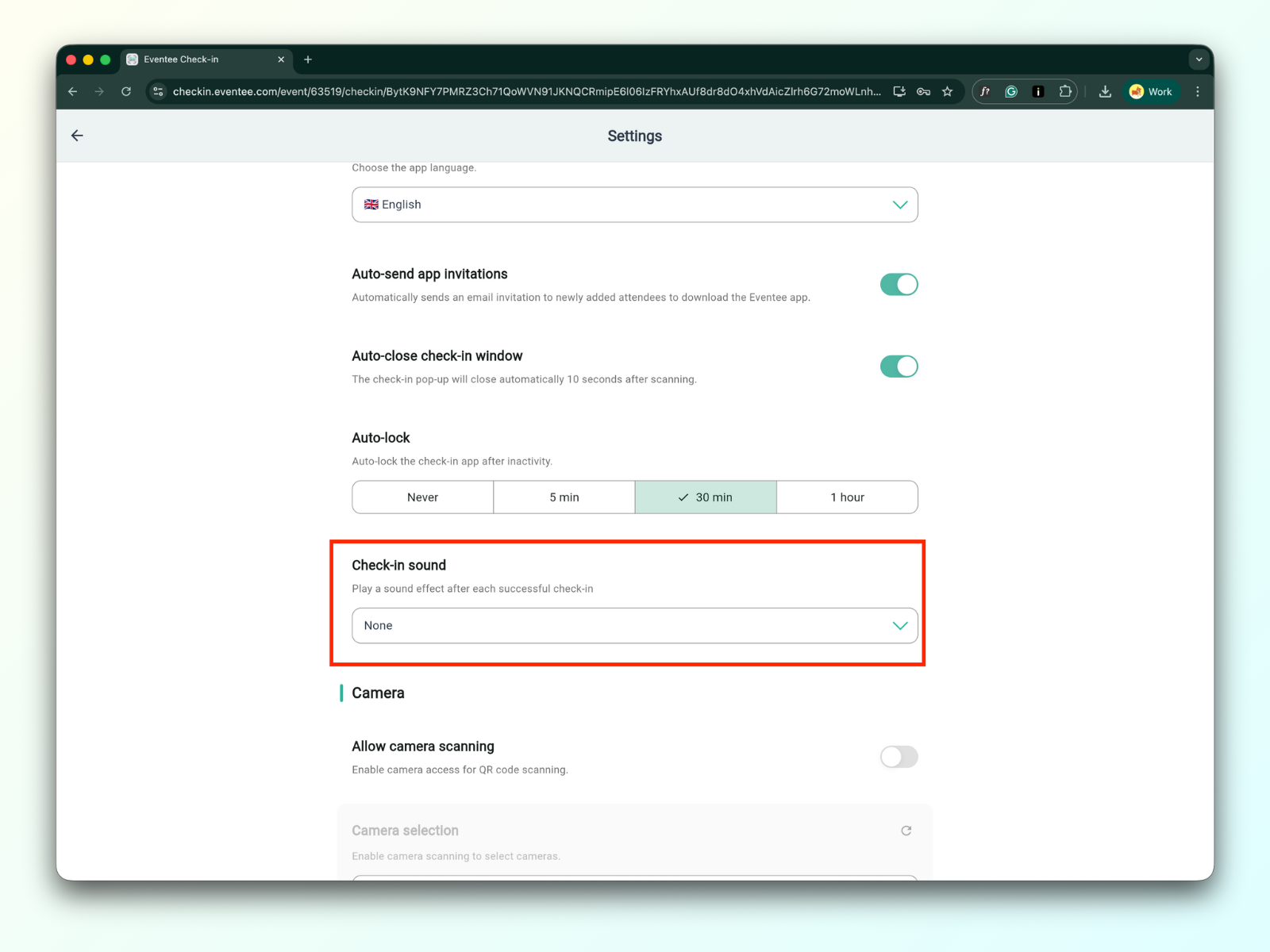
1e. Check-in sound
You can choose from various built-in sounds or upload your own custom sound. The sound will play after each successful check-in. By default, check-in is set to silent.
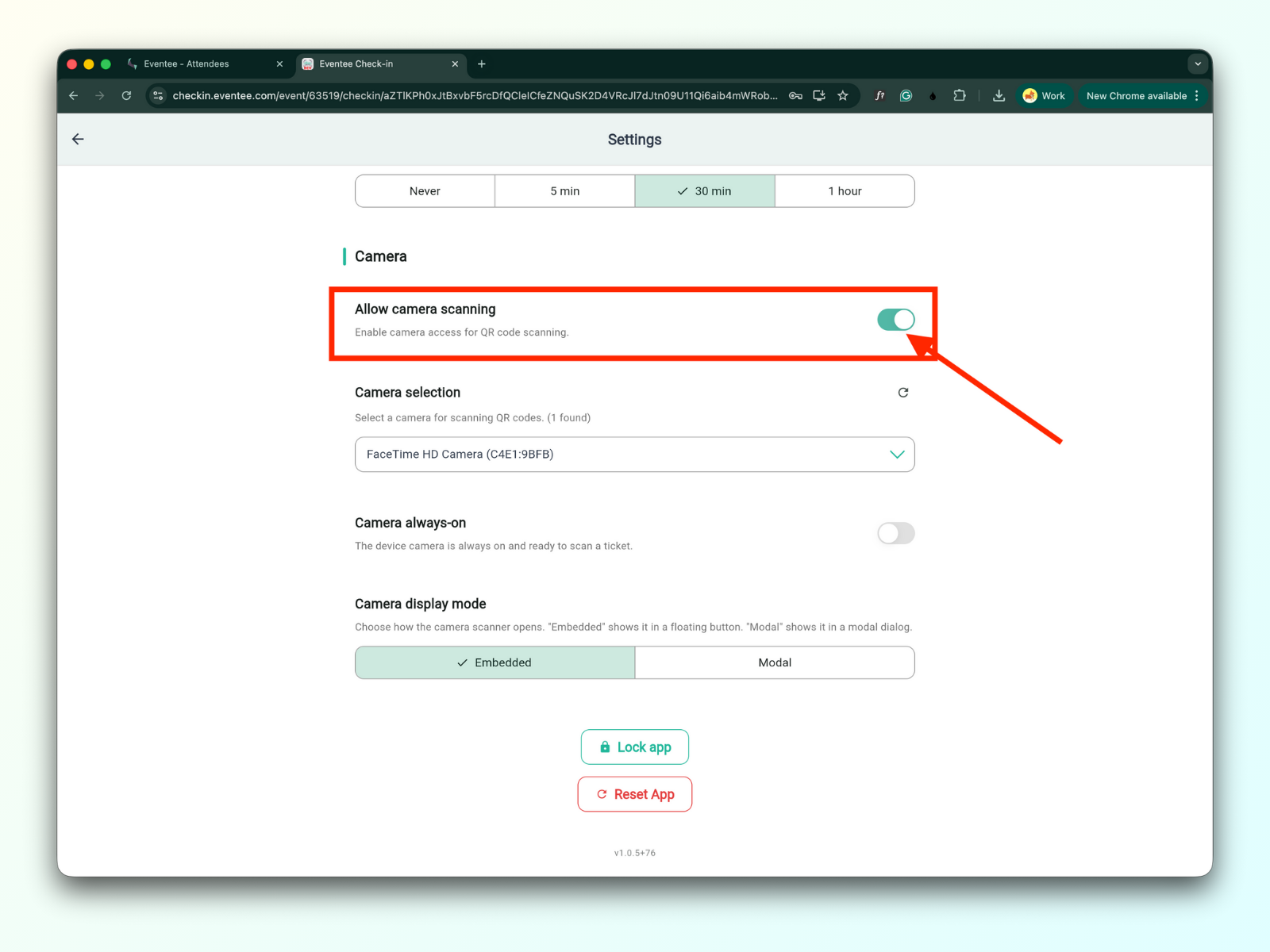
2a. Allow camera scanning
Once enabled, you will be able to scan the QR codes of your attendees.
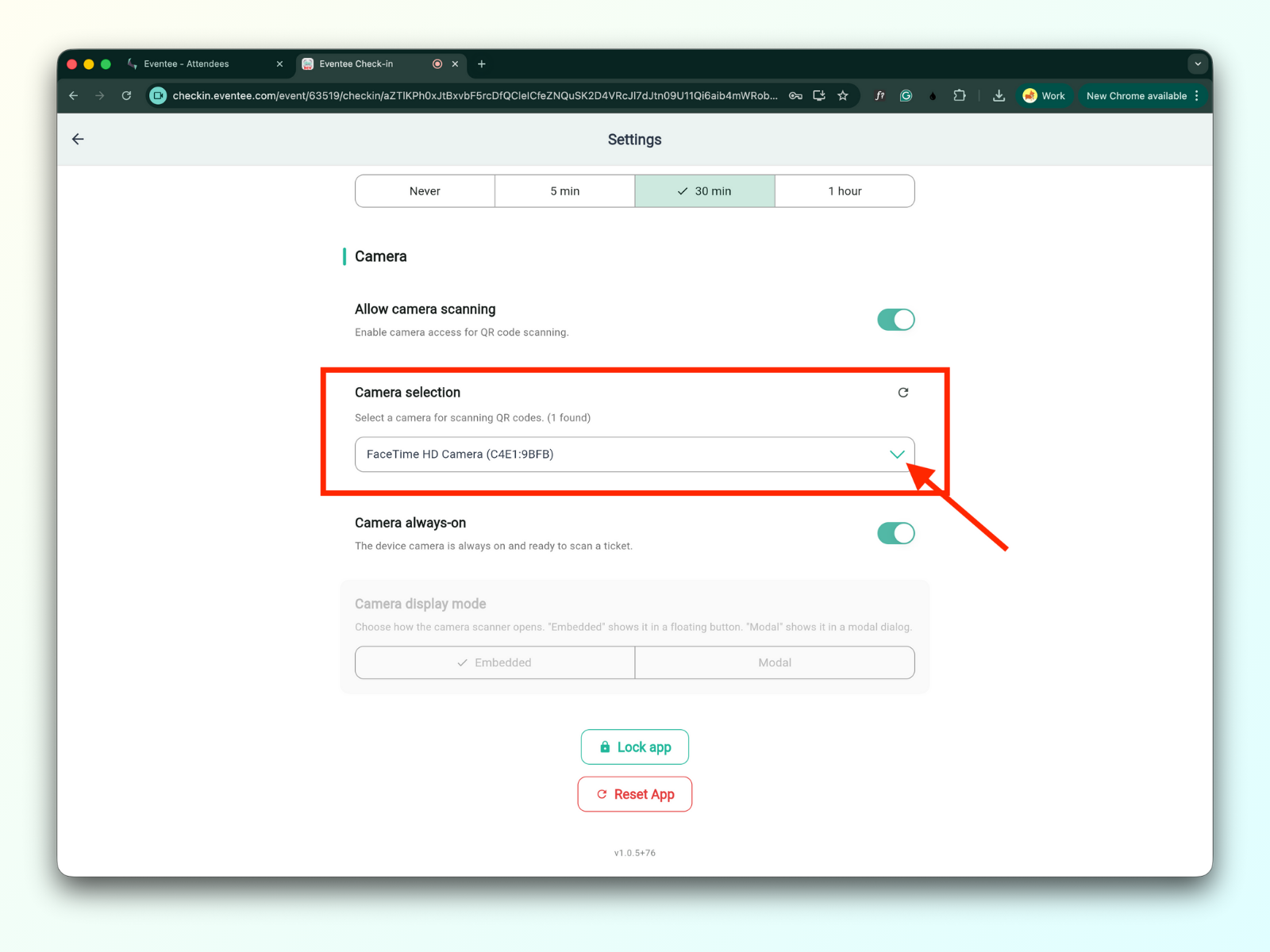
2b. Camera selection
You can select your preferred camera for scanning QR codes.
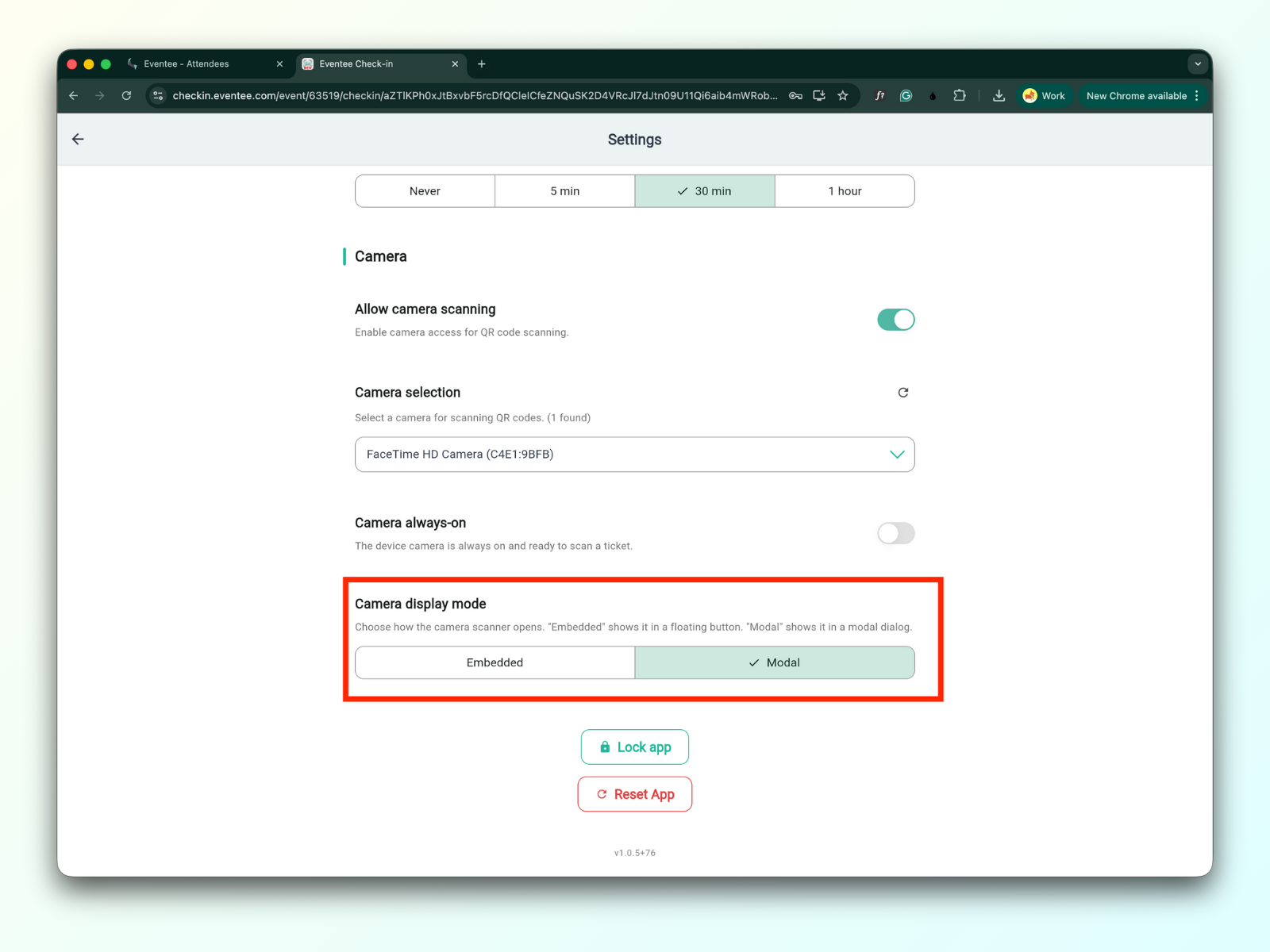
2c. Camera always-on
When enabled, the device camera remains on and ready to scan tickets.
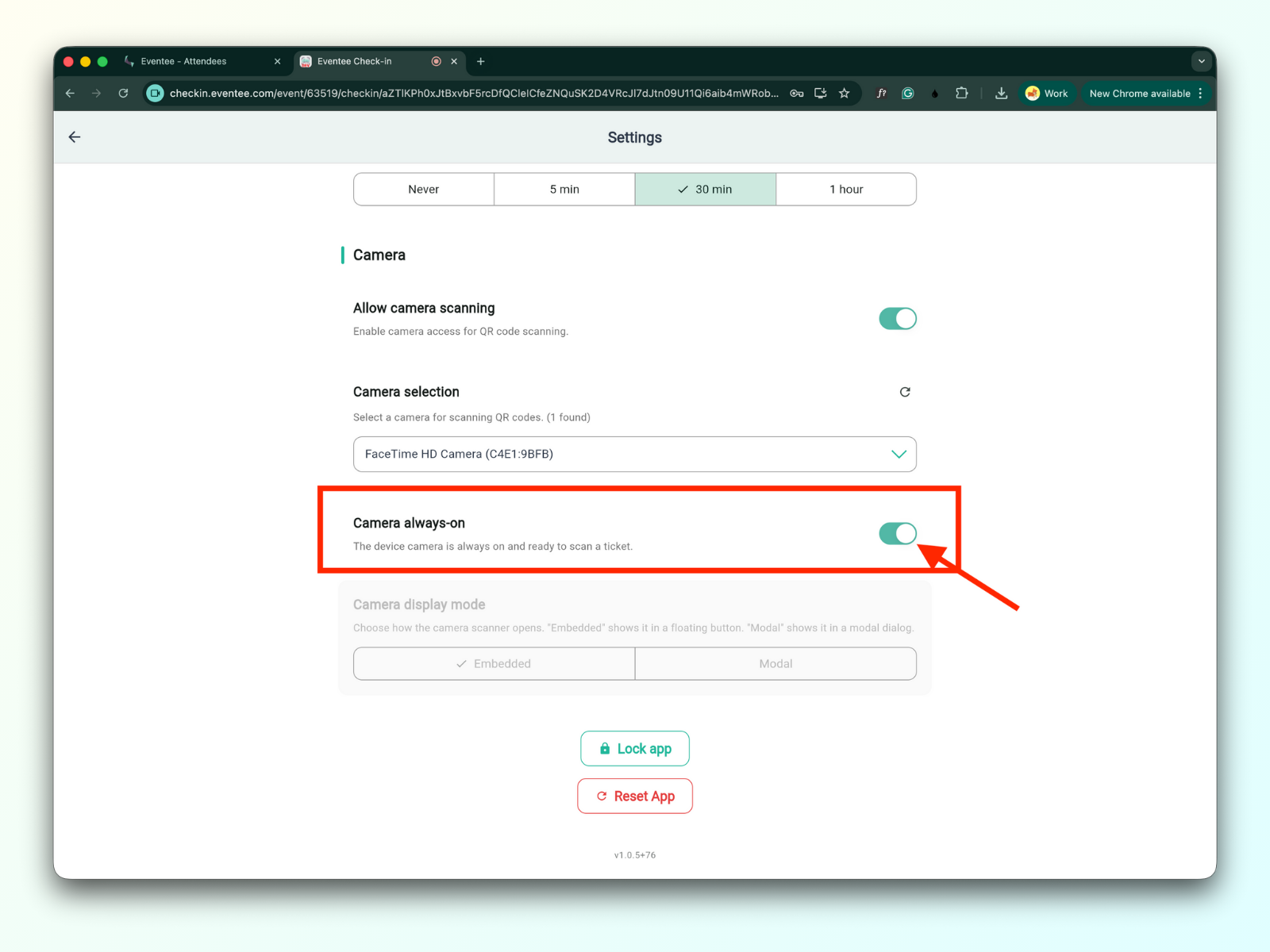
When disabled, you can choose how camera scanning is presented in Camera display mode
Embedded - shows camera feed in a floating button
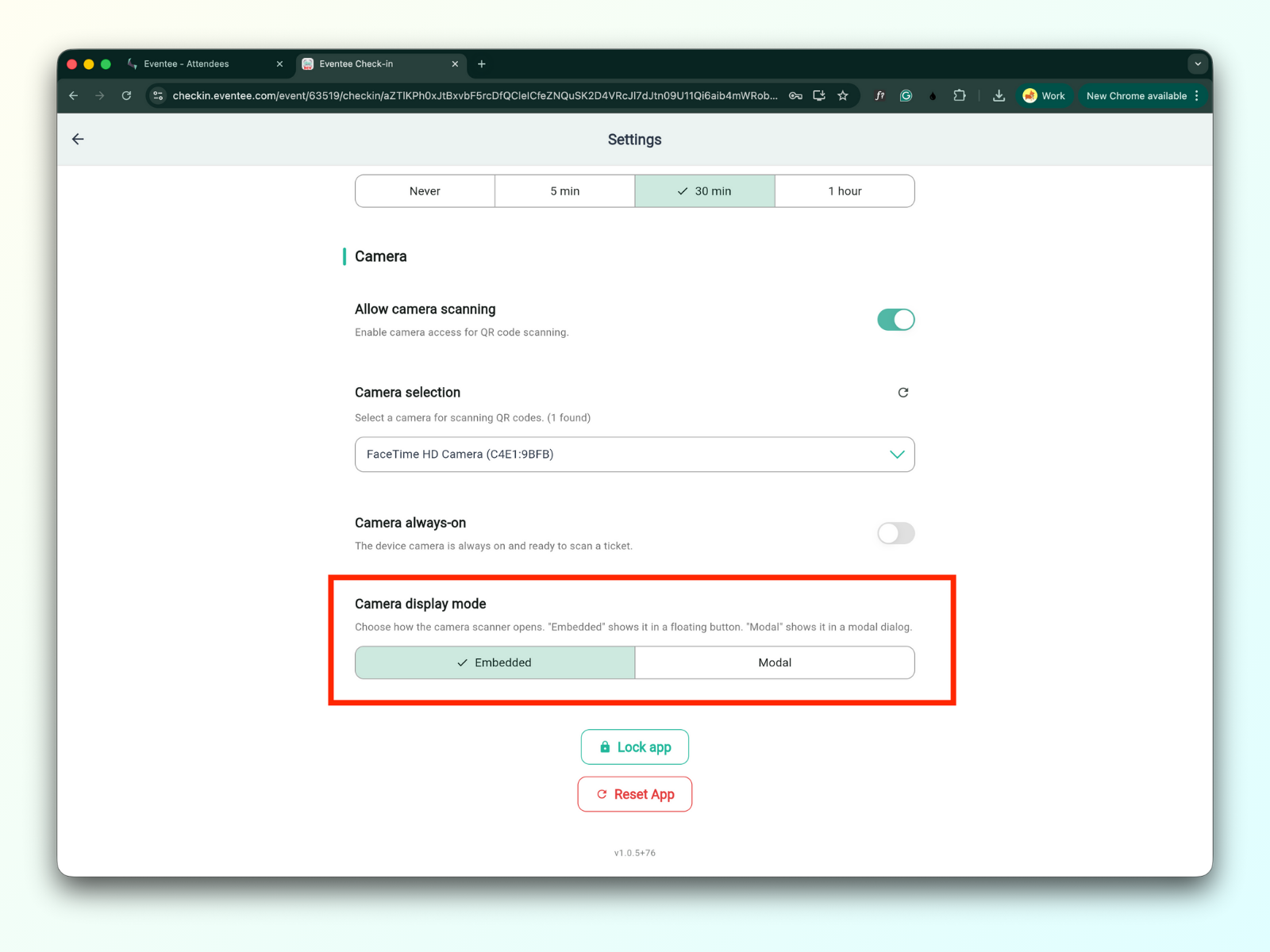
Modal - shows the camera scanner in a modal dialog
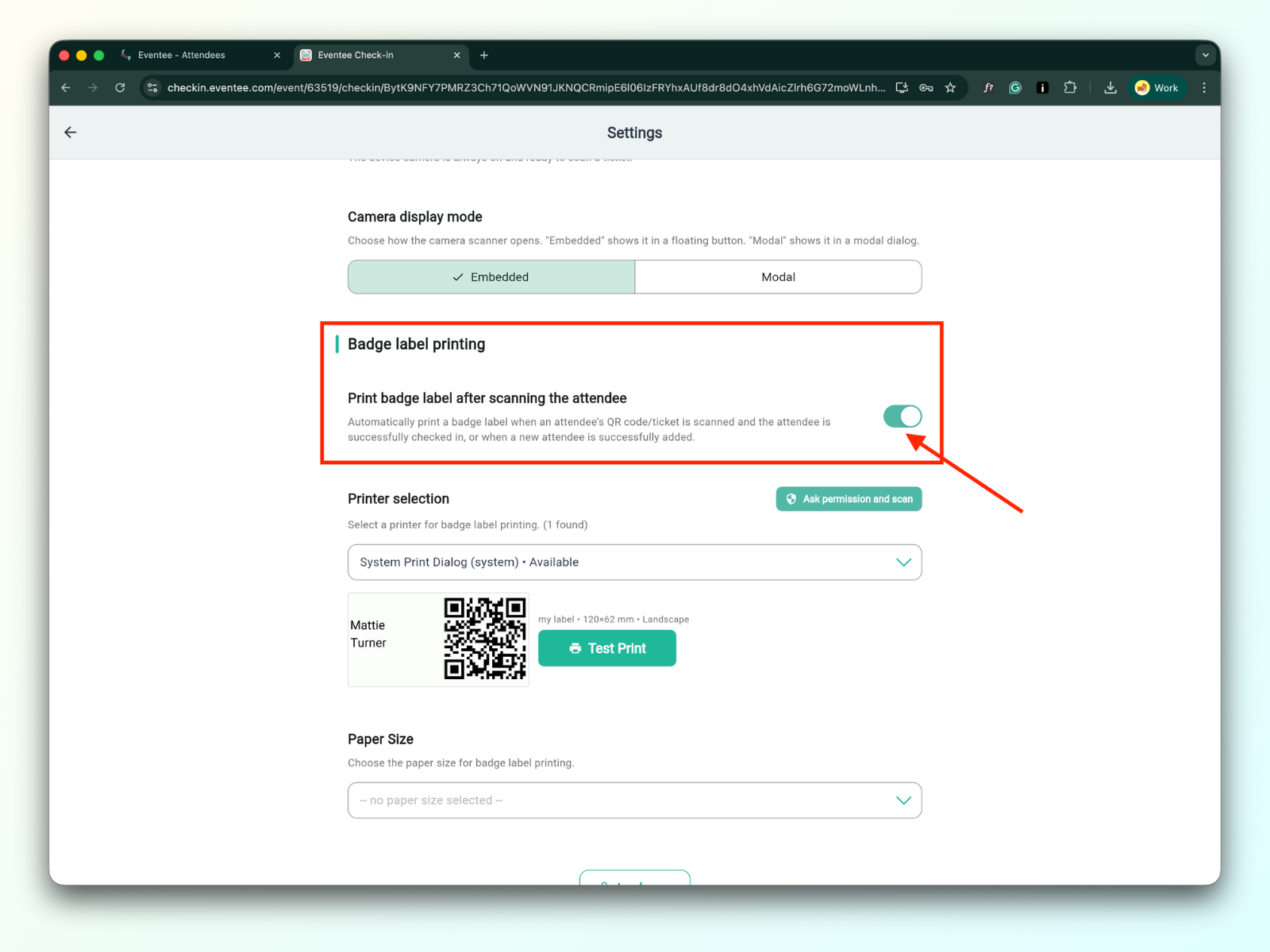
3a. Print badge label after scanning the attendee
When this function is enabled, badges will print automatically after the attendee is successfully checked in
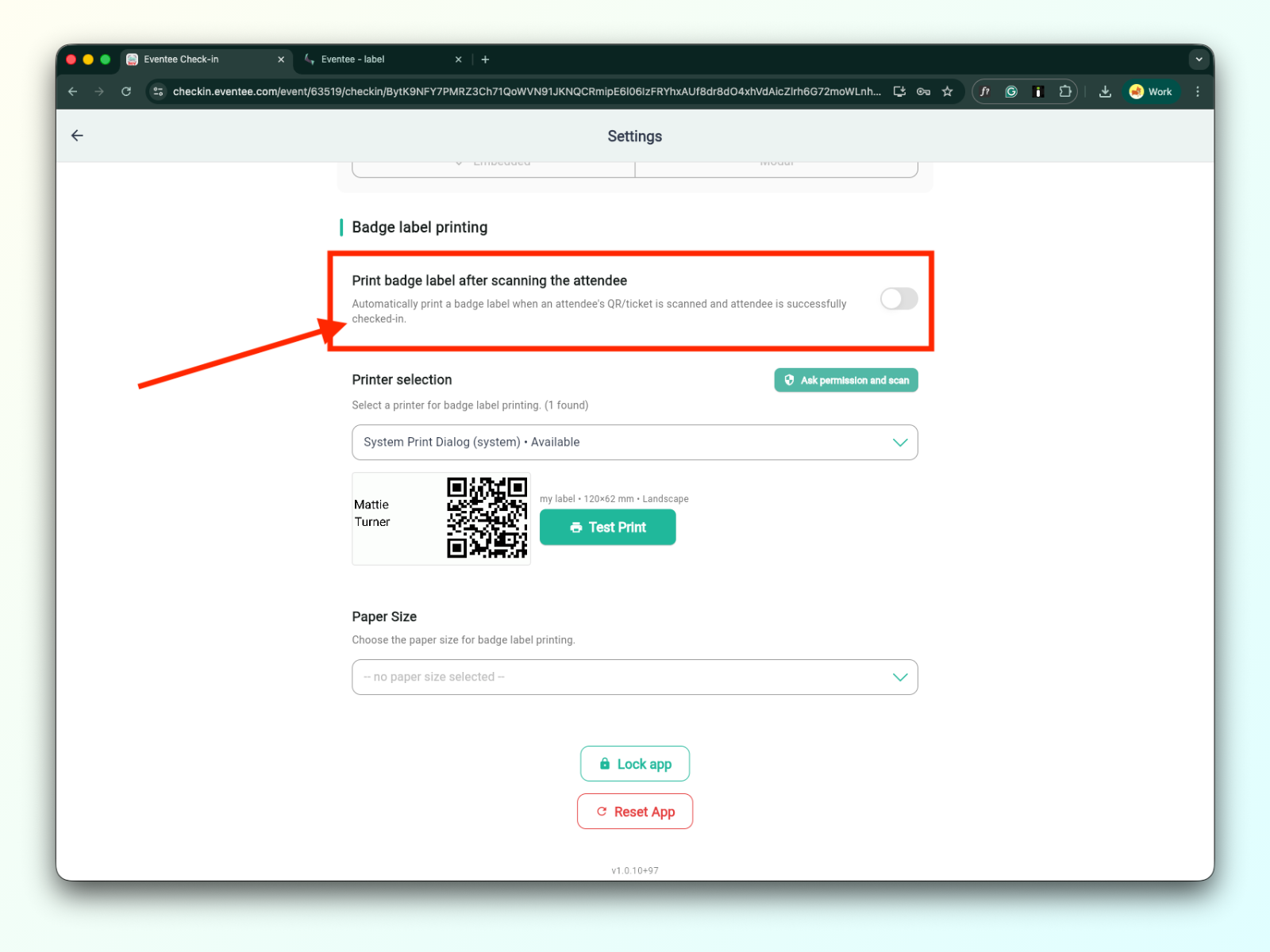
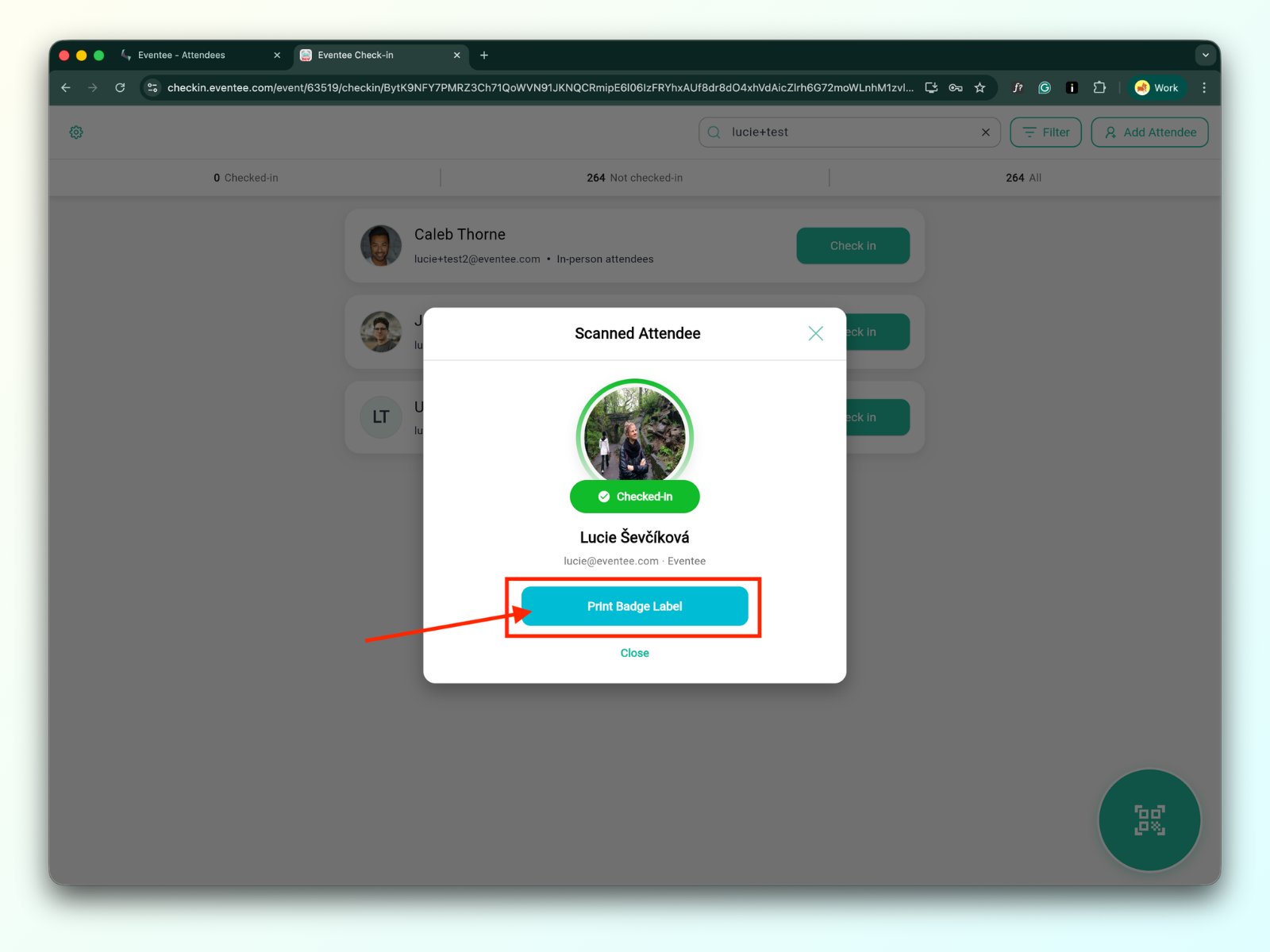
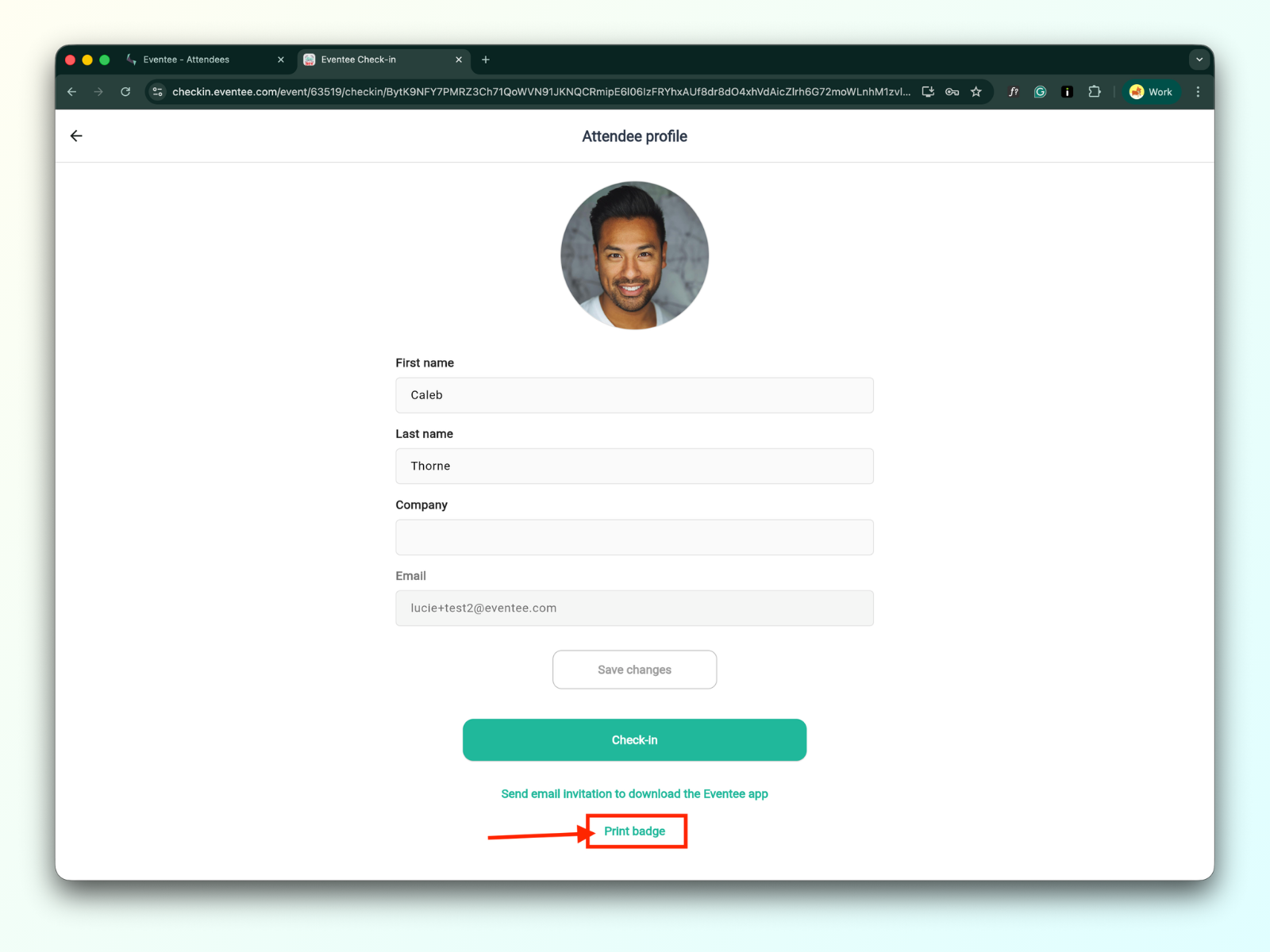
When this function is disabled, you must click the 'Print Badge' button to print a badge.
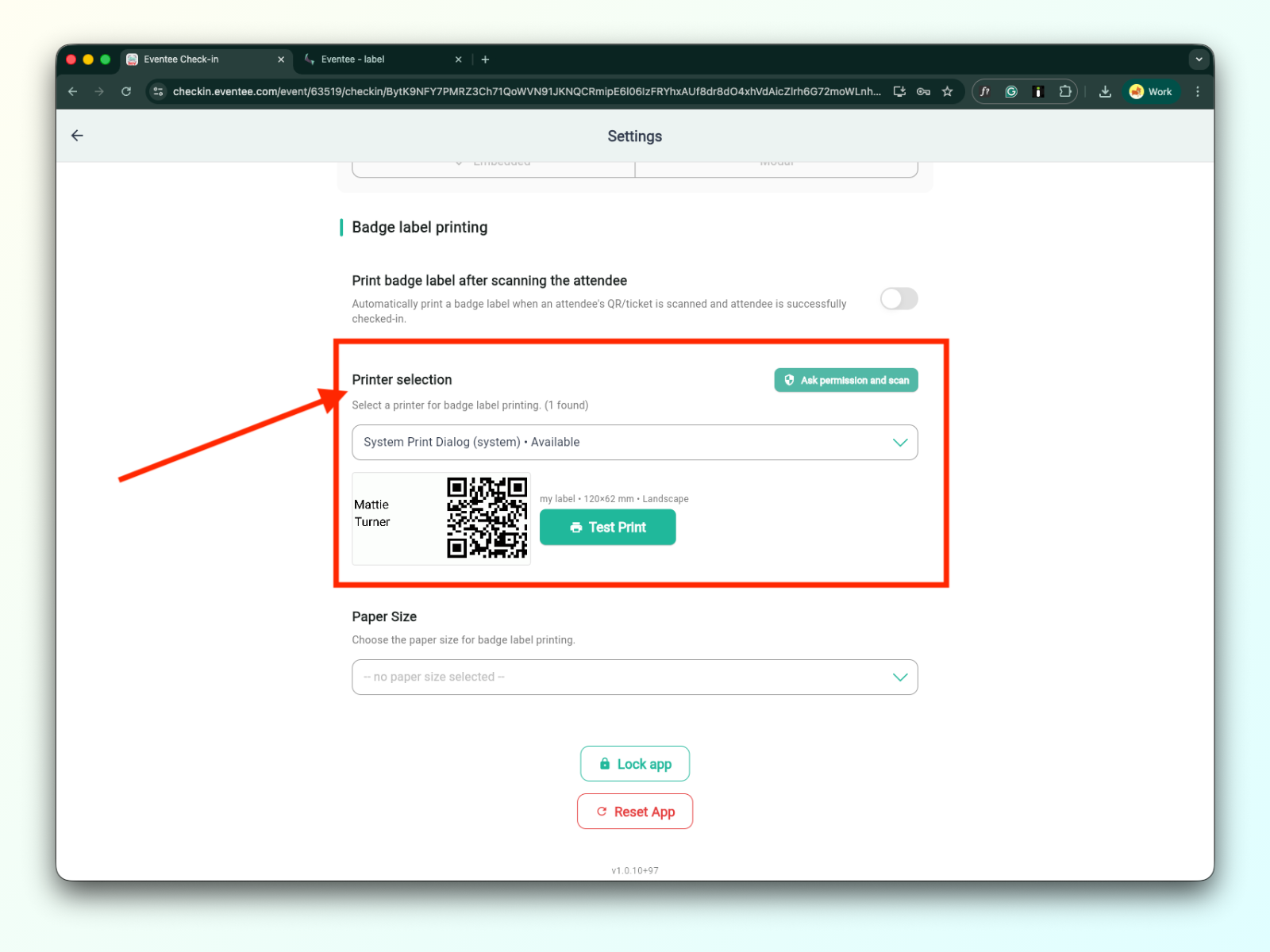
3b. Printer selection
Once you have successfully added the printer, it will appear in the printer selection dropdown. For more information on connecting a printer, please refer to the technical documentation for badge label printing.
After selecting your printer from the list, click 'Ask permission and scan'. You can then perform a test print by clicking the 'Test print' button.
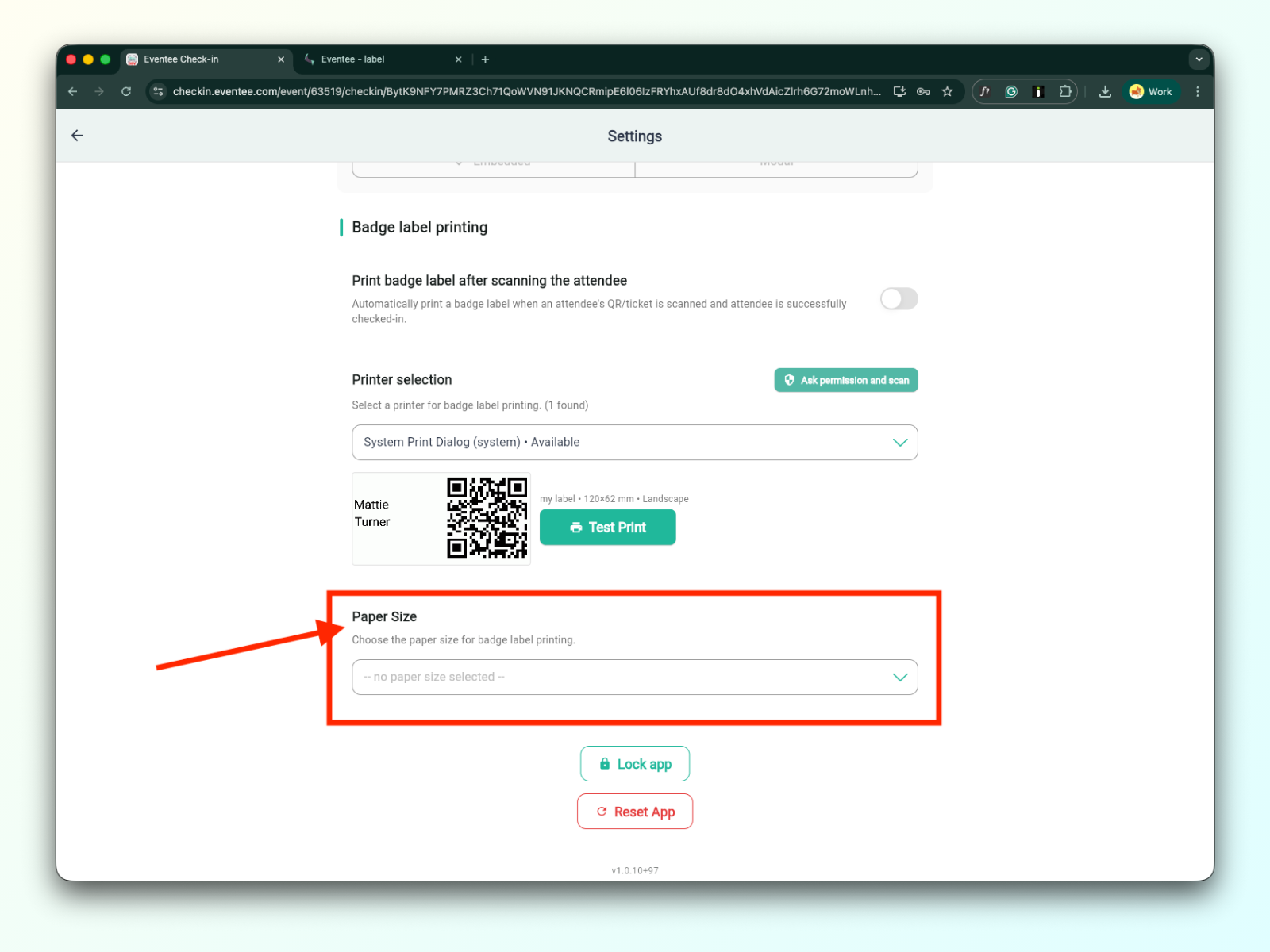
3c. Paper size
Detailed information on paper sizes can be found in the technical documentation for badge label printing.
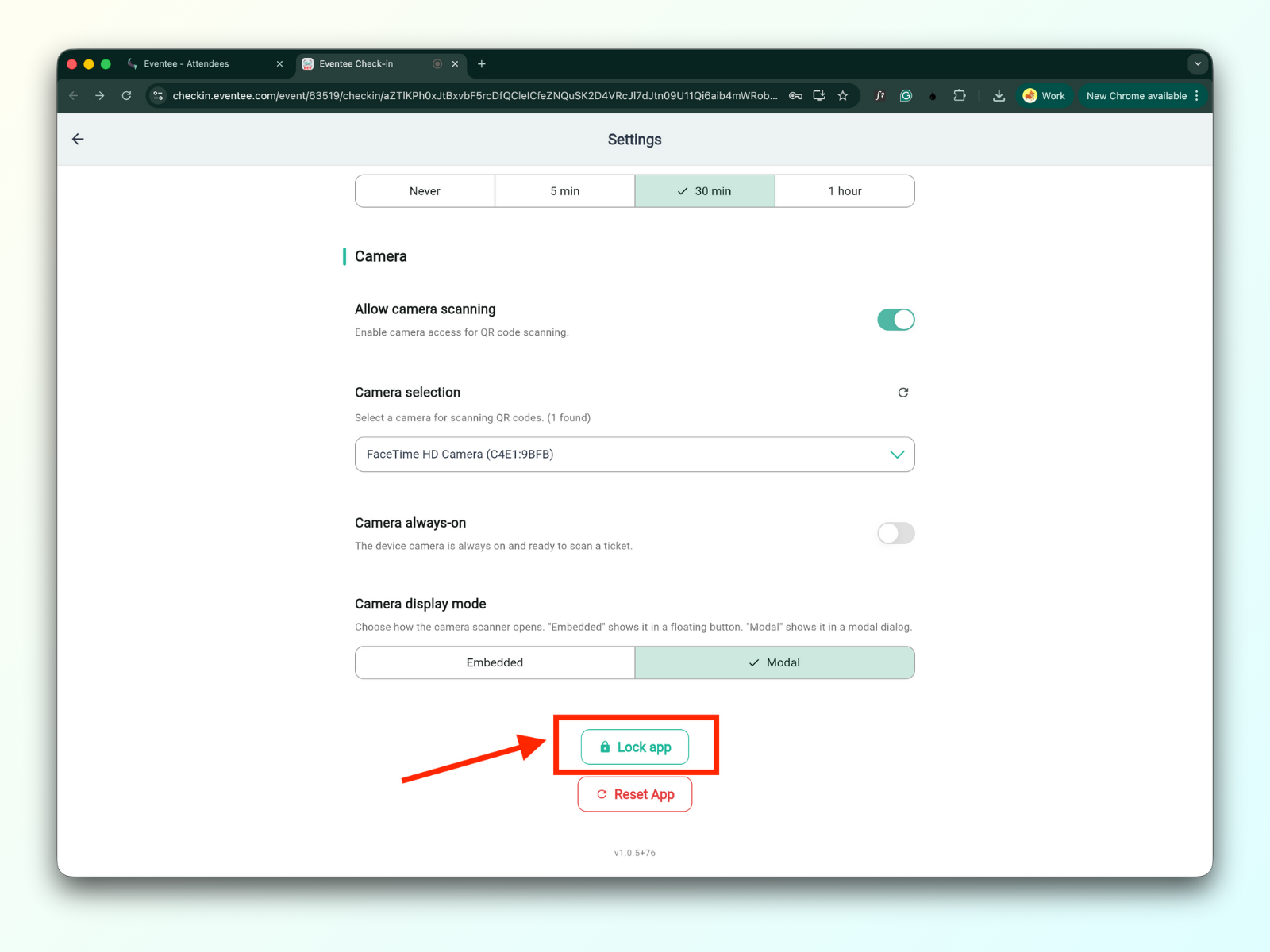
Clicking the 'Lock app' button will lock the application and redirect you to the activation screen. To access the app again, you will need to re-enter your PIN code.
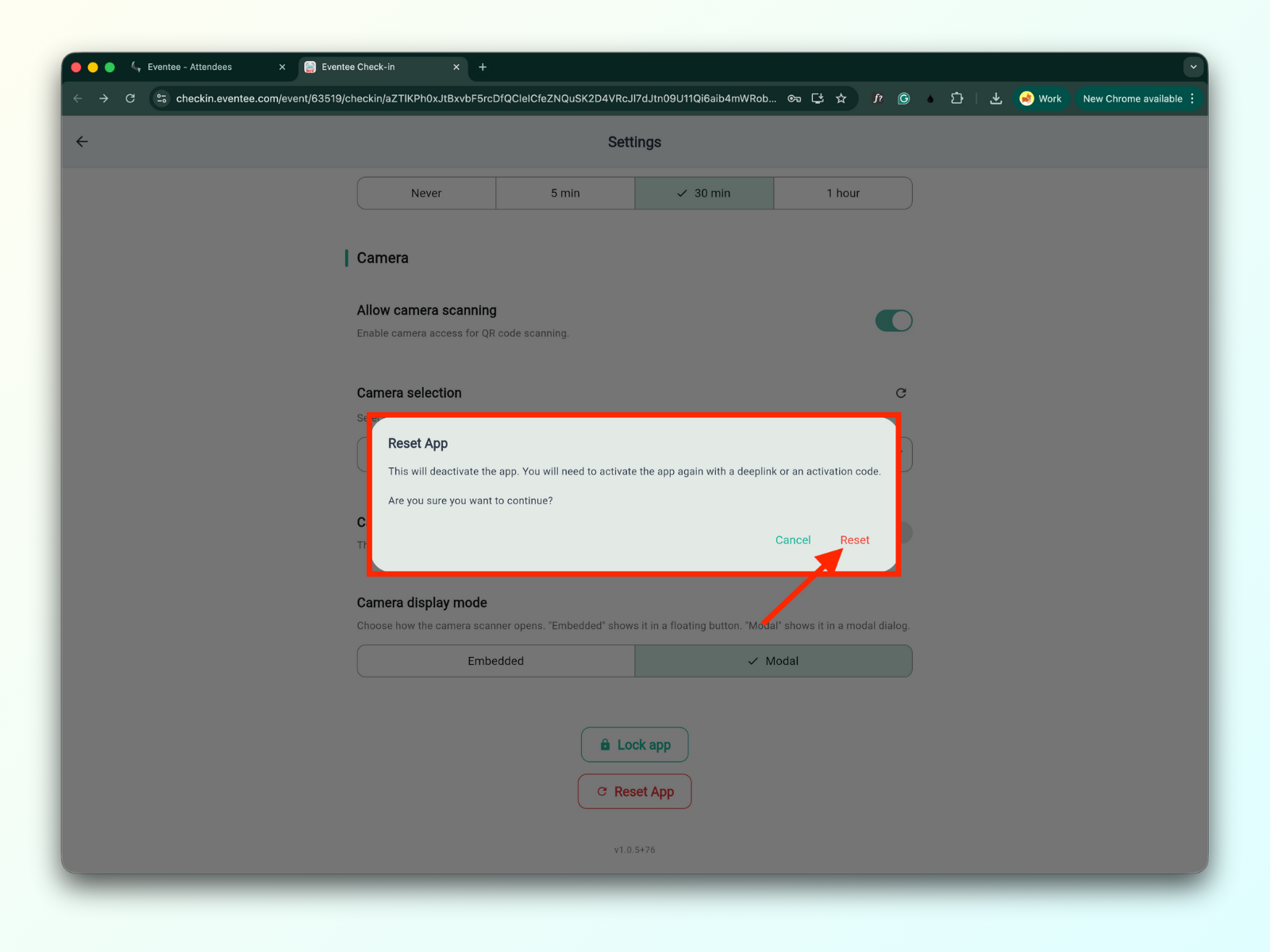
Clicking the ‘Reset app‘ button show modal window with the warning that the reset will deactivate the app. You will need to activate the app again with a deeplink or an activation code.
Open check-in app
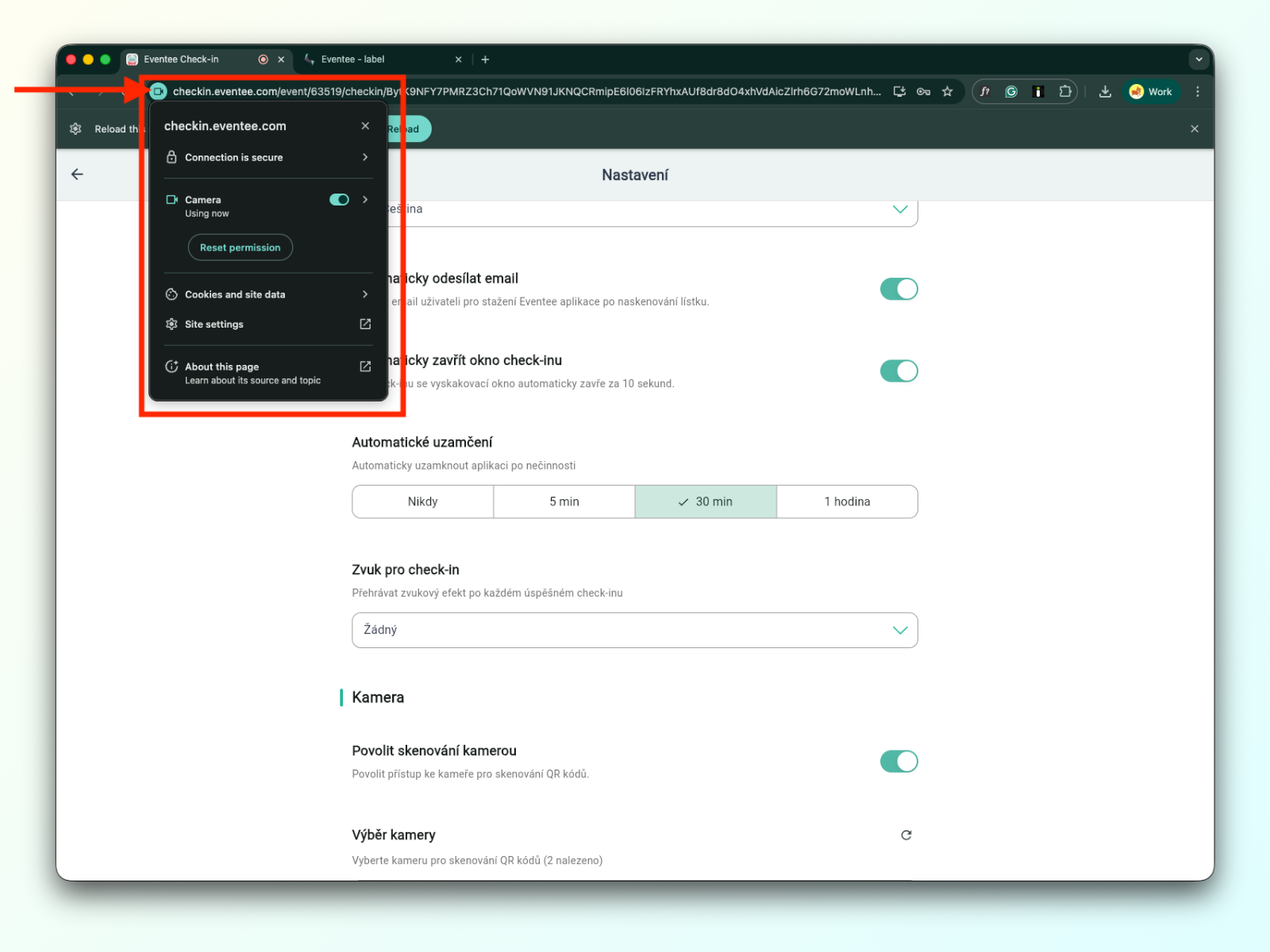
Check that in the settings, “Allow camera scanning” is enabled
Navigate back to the dashboard screen
Check if the QR scanner is visible in the bottom-right corner of the dashboard screen
Now, just scan the attendee's ticket with the camera.
Attendees can present the QR code sent in their registration confirmation email.
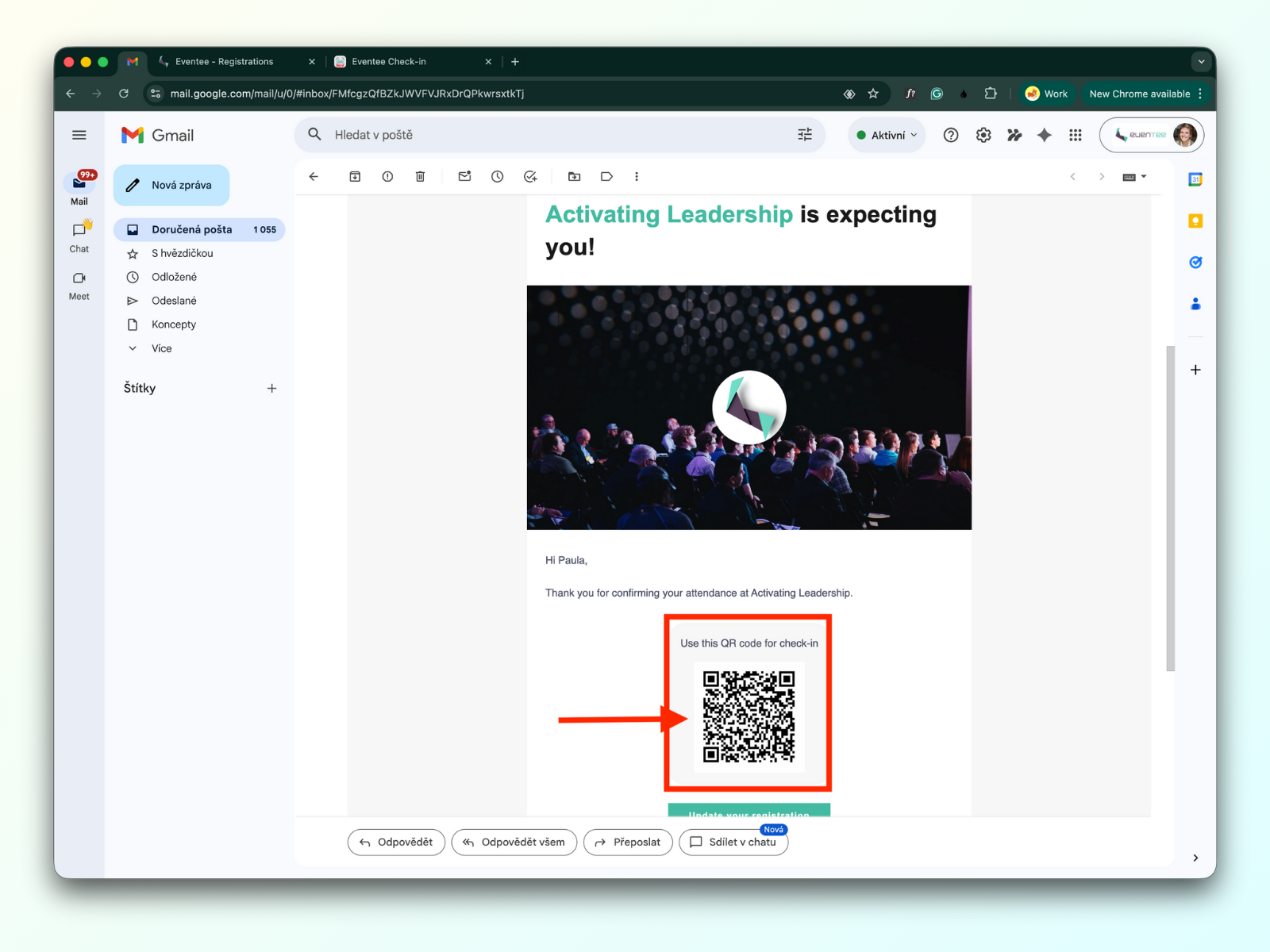
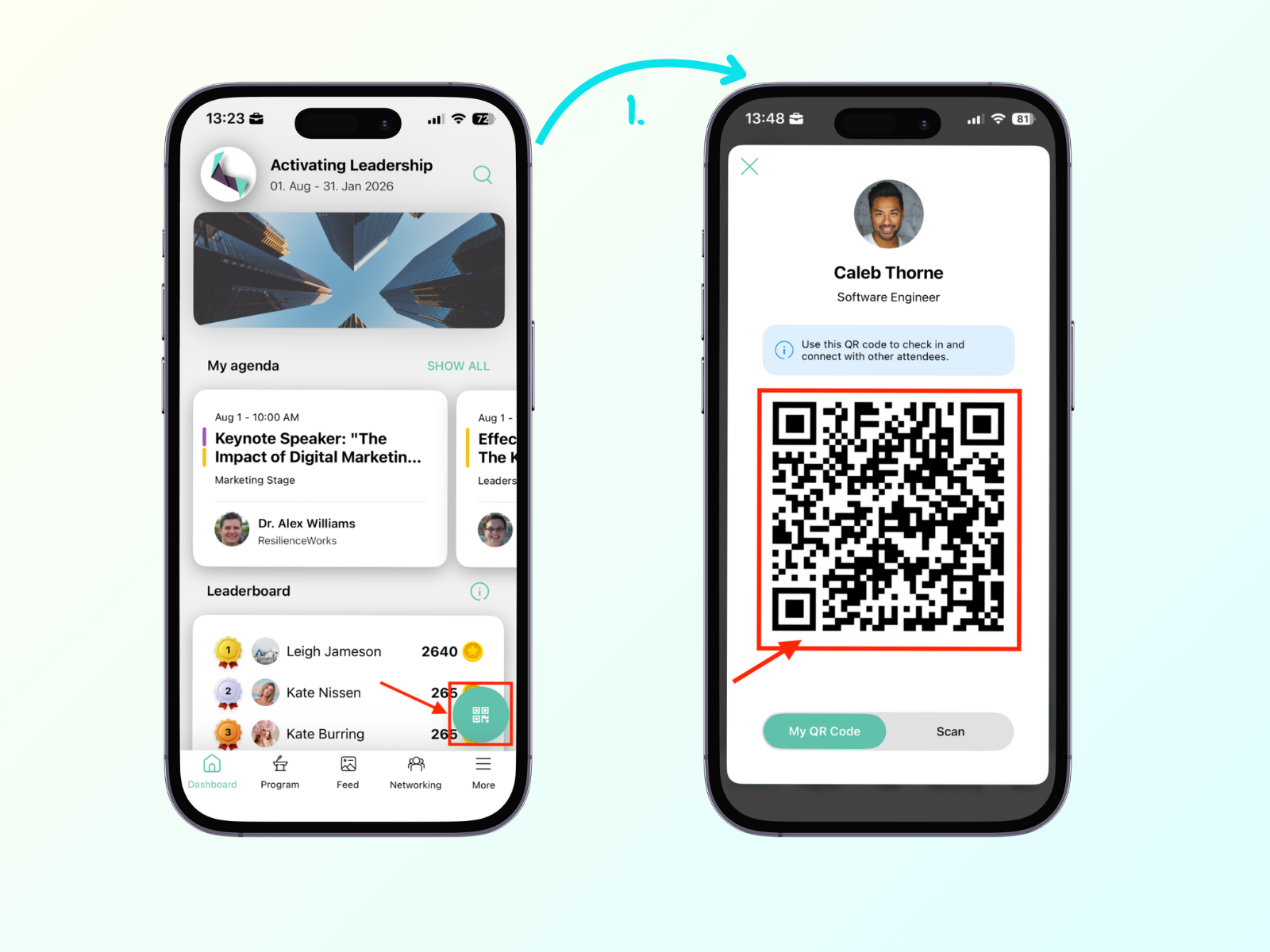
If the attendee downloaded the Eventee app and opened the event, they can find their personal QR code in the dashboard by tapping the green floating button in the bottom right of the screen.
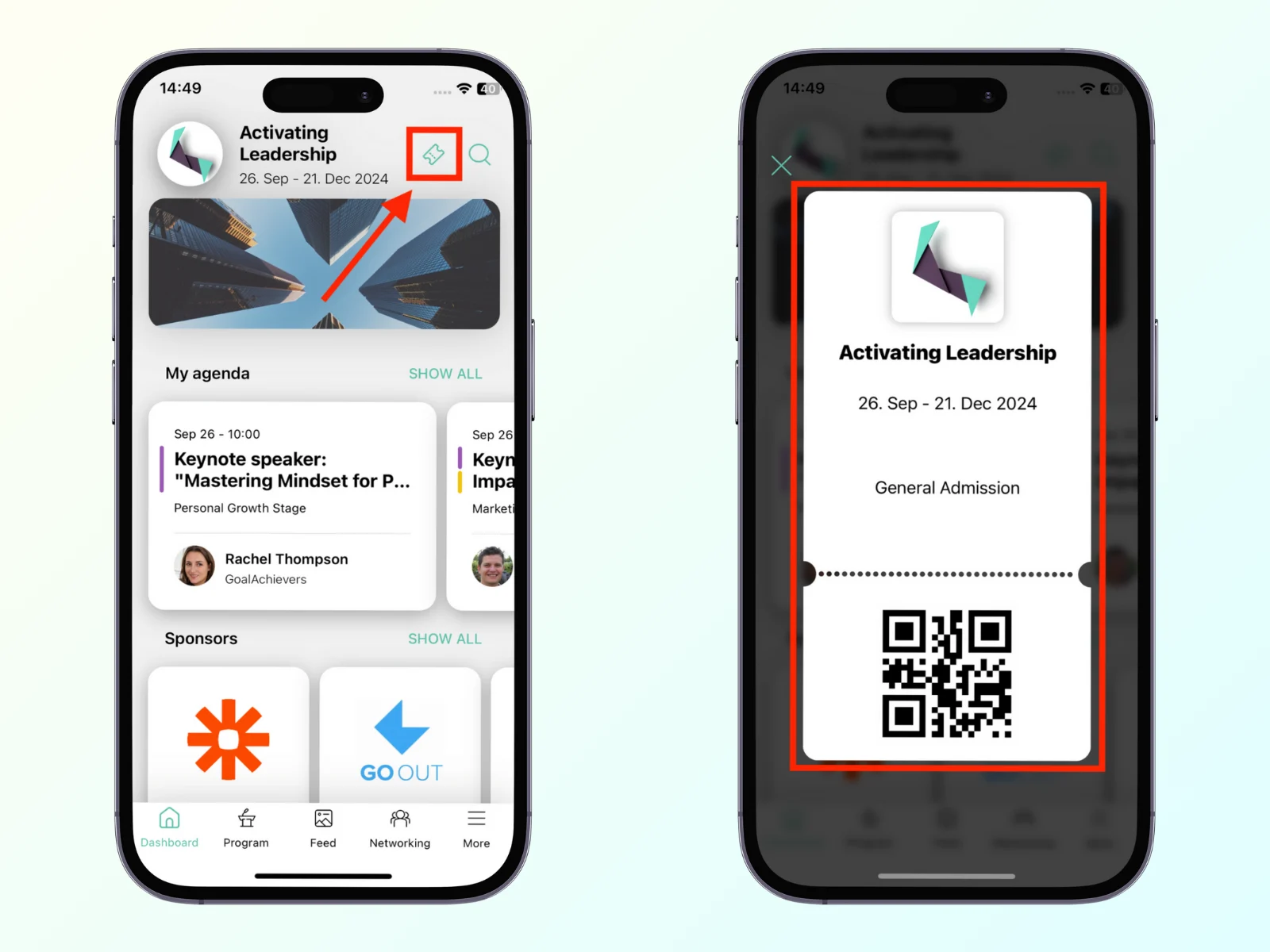
If you are using ticketing (learn more about ticketing), you can scan the ticket that the attendee can find in the app next to the search icon.
We support scanning a wide range of barcode formats on all platforms, including QR, Aztec, Data Matrix, PDF417, Code 128, Code 39, Code 93, Codabar, ITF, EAN-8/13, and UPC-A/E.
Eventee Check-in app (web version) supports external QR code scanners.
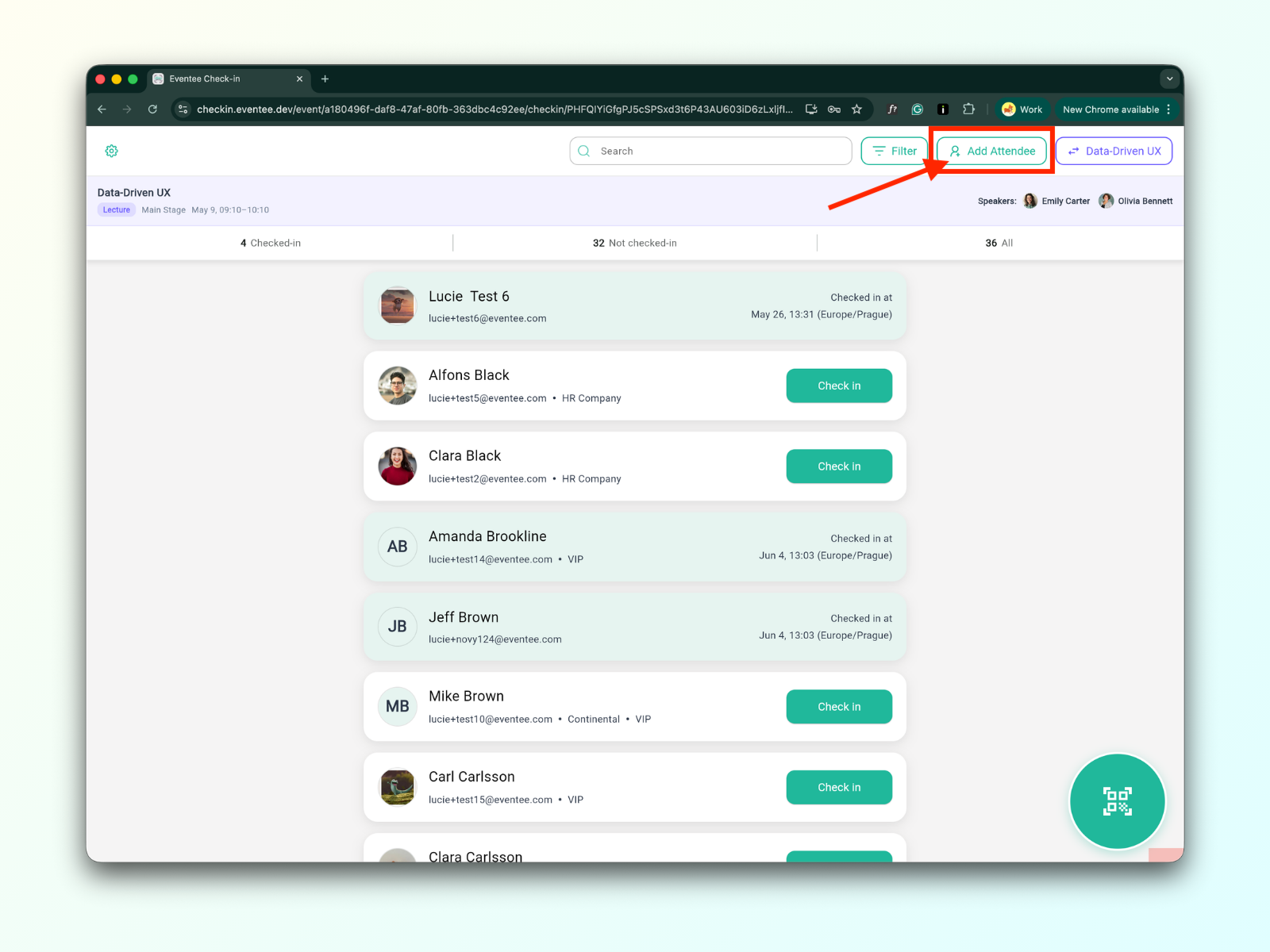
Incoming unlisted attendees can be added to the list directly from the application. The “Add attendee” button is in the top-right corner of the dashboard screen.
Click the “Add Attendee " button
First, check if the attendee already exists. If they exist but are not checked in, click on their name. This will check them in for the session. For a mentored workshop, you will also need to choose which mentor the attendee will be assigned to.
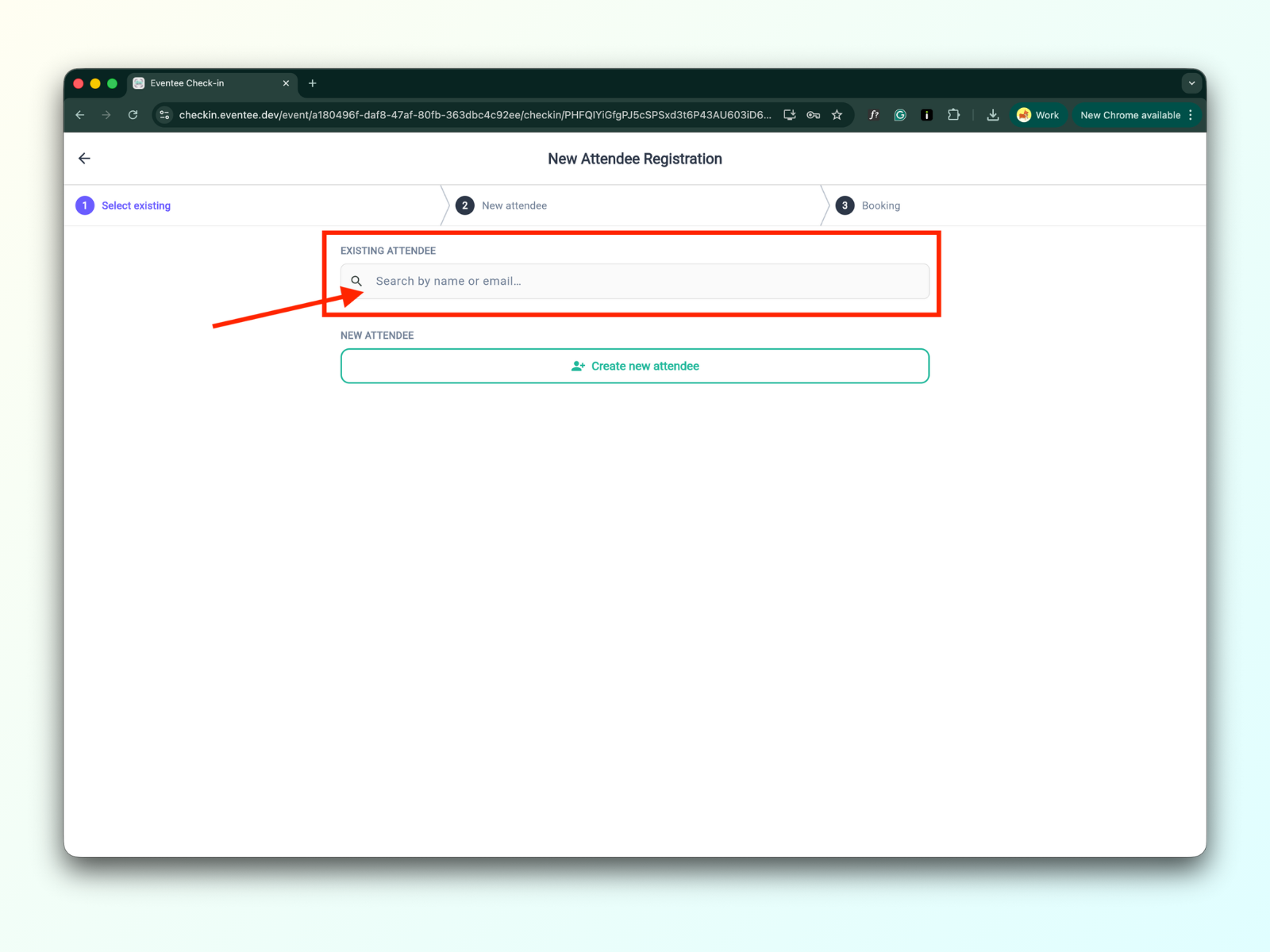
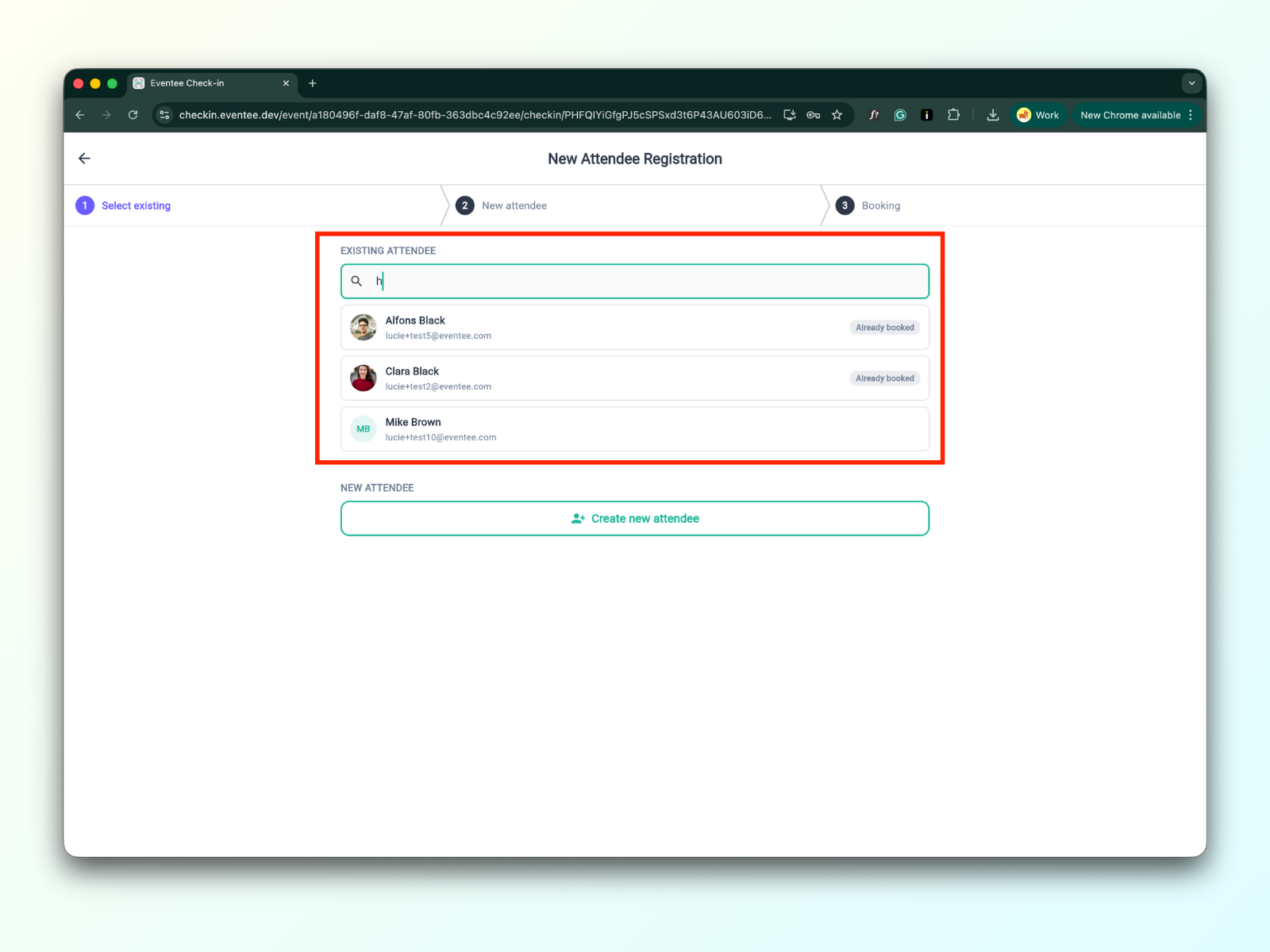
If the attendee doesn’t exist, you can create a new one by clicking “Create new attendee”. Fill in the form, and click the submit button.
The form contains the following form fields:
First name (optional field)
Last name (optional field)
Company (optional field)
Email (required field)
Check-box - Automatically send an email for the download of the Eventee app
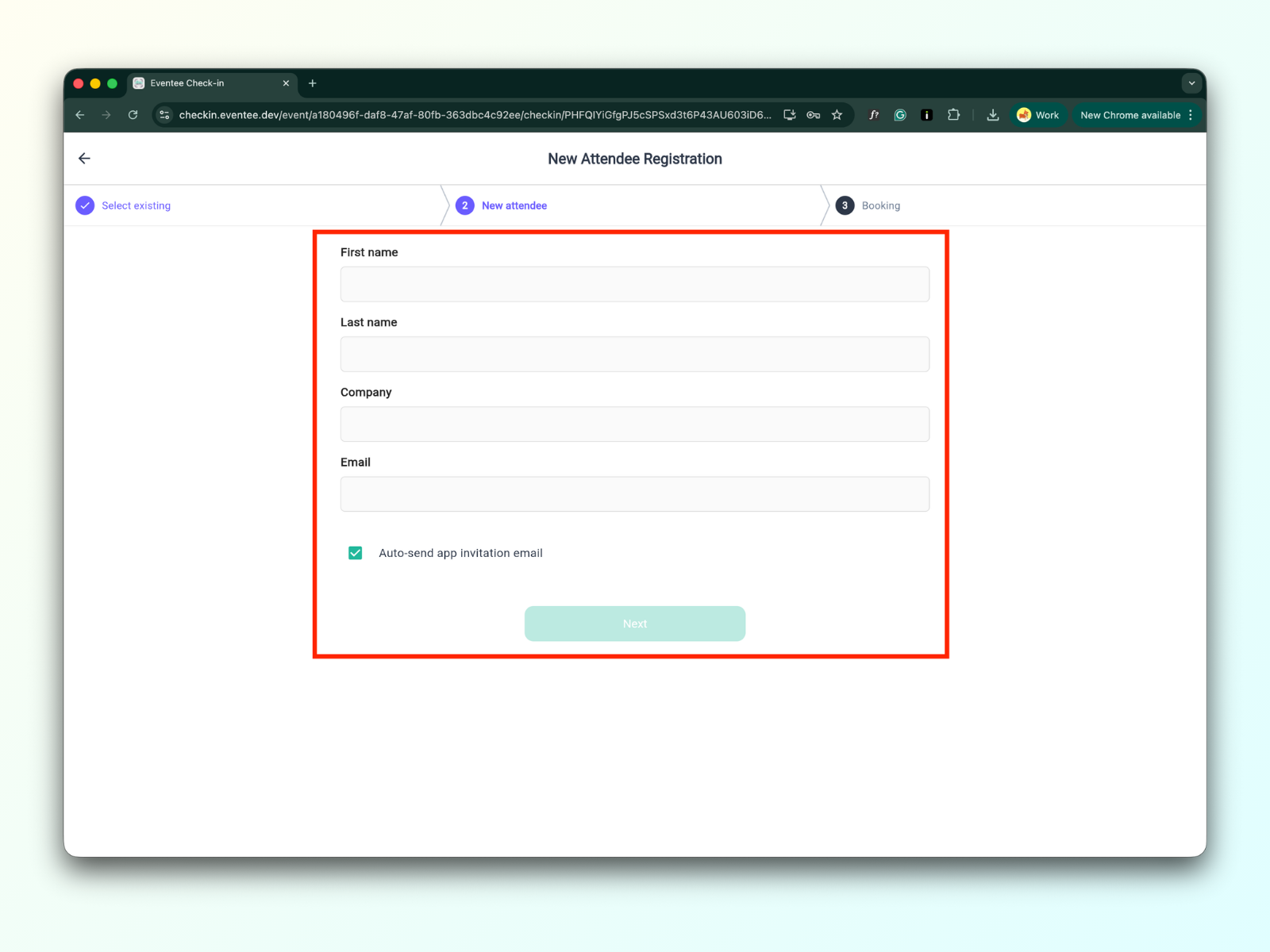
After submitting the form, you are redirected to the list of attendees
The Filter button can be found next to the search bar in the top-right corner of the screen.
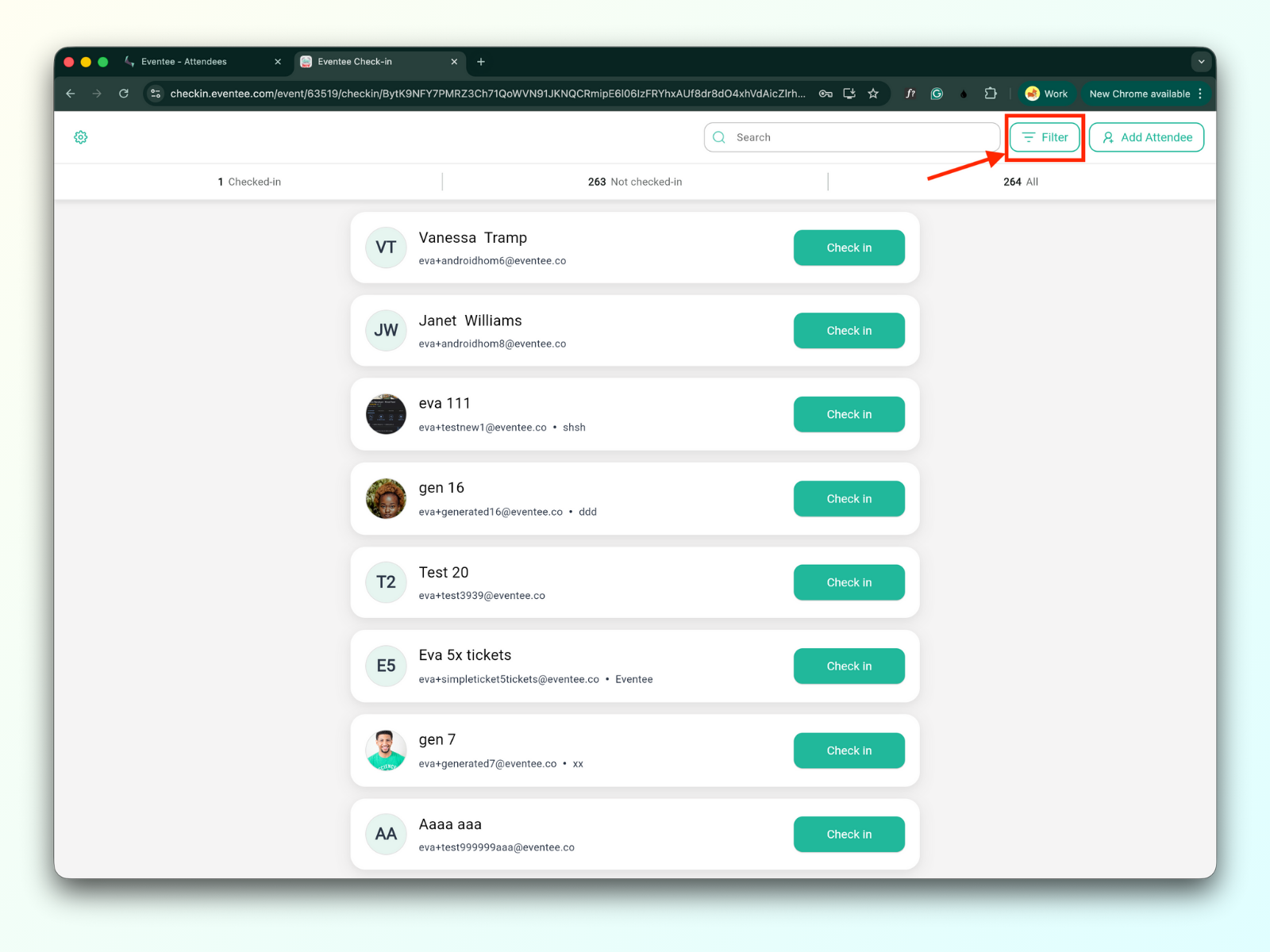
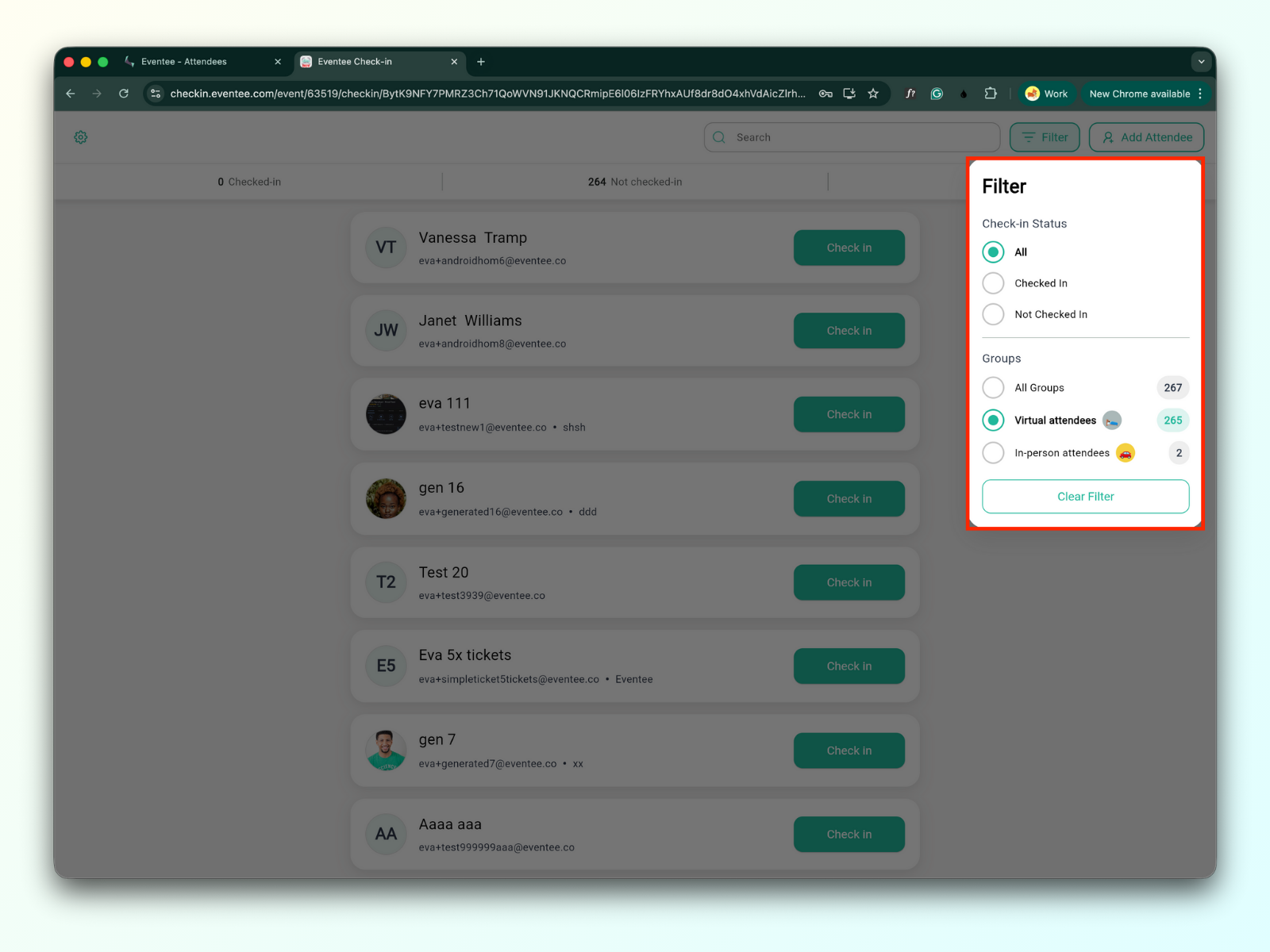
You can filter attendees by:
Check-in status:
Checked-in: All attendees who have already checked in.
Not checked in: All attendees who haven't checked in yet.
Groups
When you click on an attendee in the list, you can view their profile. From there, you can edit their information, cancel their check-in, or send an email invitation to download the Eventee app.