Eventee offers a flexible badge-label printing solution that streamlines attendee check-in across various environments.
To accommodate different hardware setups, the platform supports badge label generation through two primary methods: Web Check-in for browser-based printing on desktop platforms, and the Eventee Check-in mobile app for iOS and Android devices.
macOS: ✅ Supported
Windows: ✅ Supported (requires a one-time driver setup)
Linux: ❌ Not supported yet (coming later)
Printing is supported in Chromium-based browsers, for example:
✅ Tested: Google Chrome
Microsoft Edge
Opera
Other Chromium-based browsers may work as well
Please note that following browsers are not supported for this printing flow: non-Chromium browsers (e.g., Firefox, Safari).Setting up platforms via USB
No special software is required on macOS.
Set up instructions:
Connect the Brother printer via USB
Open the Eventee Check-in web app in a supported browser (Chrome/Edge/Opera)
Go to Printers in the Check-in app
Click Scan / Refresh printers
Select the Brother printer and try printing
On Windows, you need to install a WinUSB driver for the printer using Zadig.
Set up instructions:
Download Zadig (https://zadig.akeo.ie/)
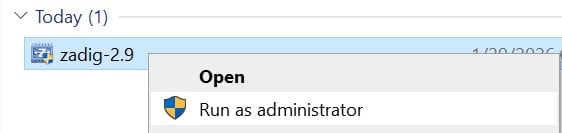
Run Zadig as Administrator
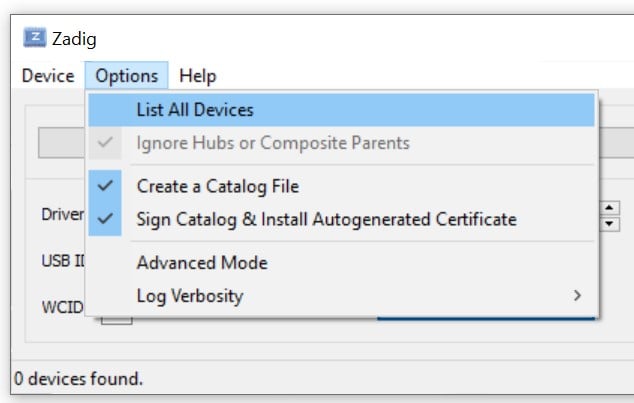
Options → List All Devices
Select your Brother printer from the dropdown
If multiple interfaces exist, choose one without an existing WinUSB driver
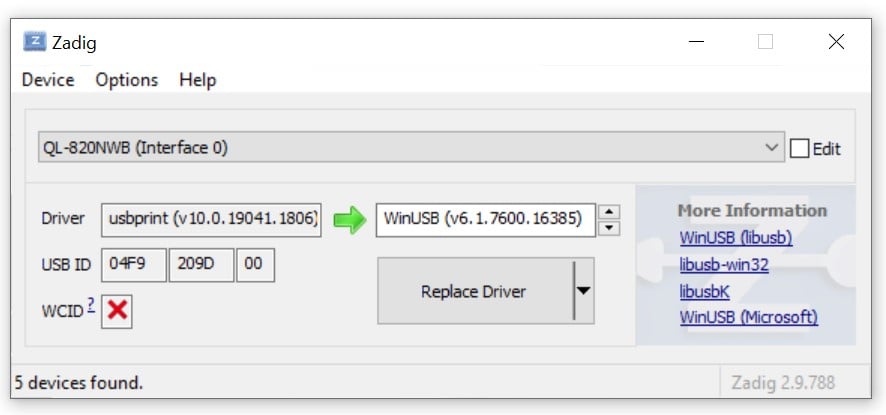
Select WinUSB (not libusbK) and click Replace Driver
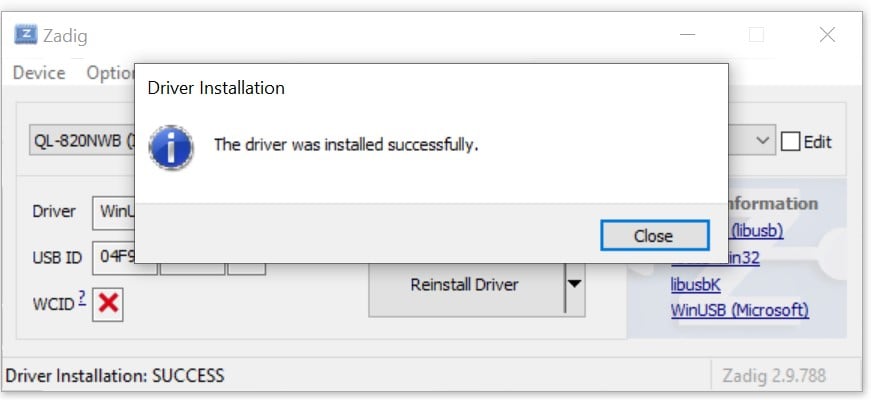
Reconnect the printer (unplug/replug the USB cable)
In the Check-in app, refresh printers and try printing again

Linux is not supported yet for web-based badge/label printing.
Badge/label printing is also supported in the Eventee Check-in mobile app:
iOS (iPhone / iPad): ✅ Supported
Android (phone/tablet): ✅ Supported
Instructions for pairing the printer via Bluetooth:
Enable Bluetooth on the printer (pairing mode, if required)
On your mobile device, open System Settings → Bluetooth
Pair/connect the printer via Bluetooth
Open the Eventee Check-in app
Go to Settings → Printers (or Printing)
Tap on the green button “Ask permission and scan” and select the printer
Once the printer is connected in system settings, it should be discoverable inside the Eventee Check-in app.
How to fix Bluetooth pairing issues with your printer:
It is not possible to connect to the printer while another device is currently connected. To establish a new connection, you must first disconnect the printer from the active device.
If you have verified that no other devices are connected and the issue persists, please disable and re-enable Bluetooth in the printer's settings.
2a.
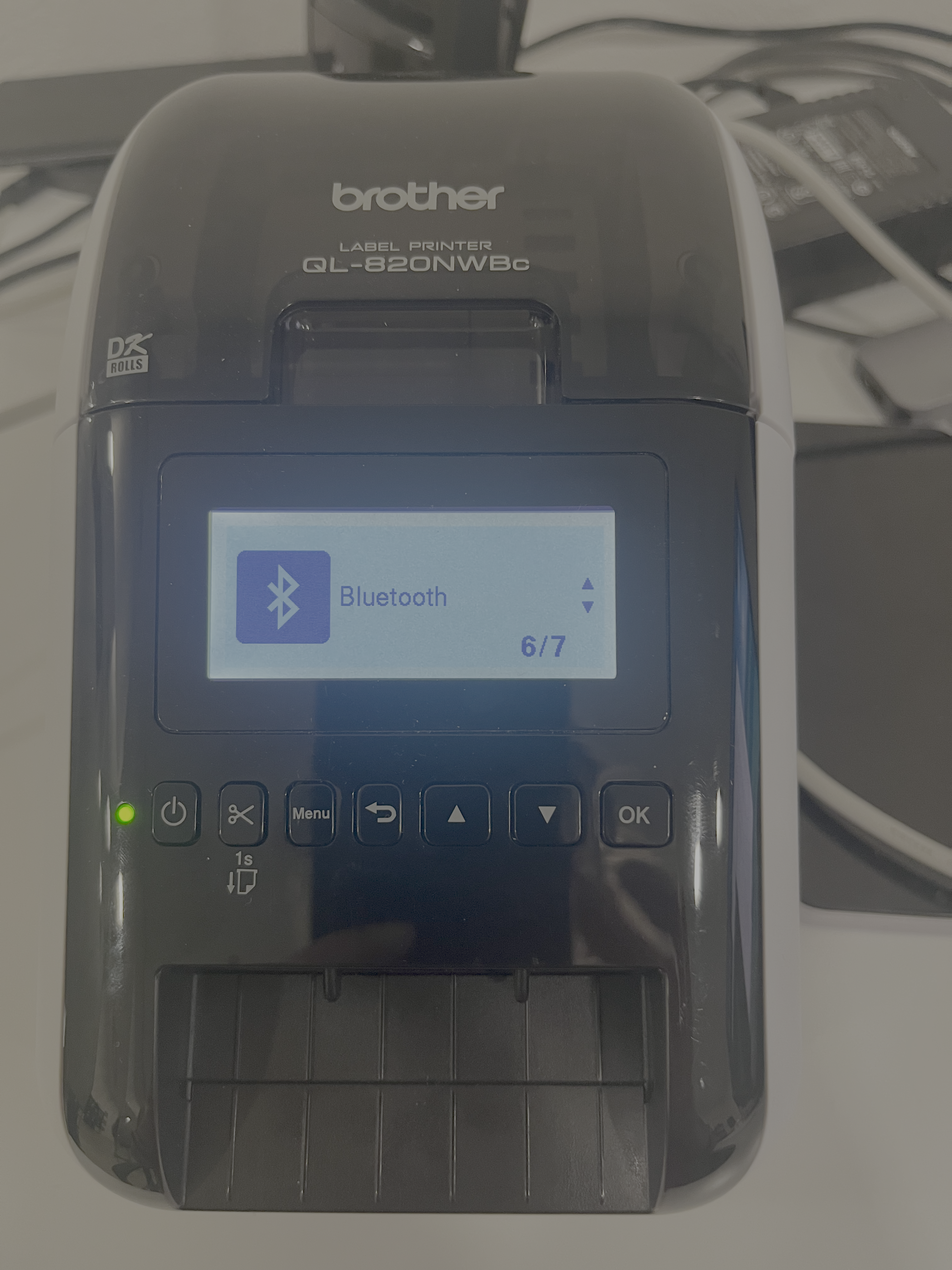
2b.
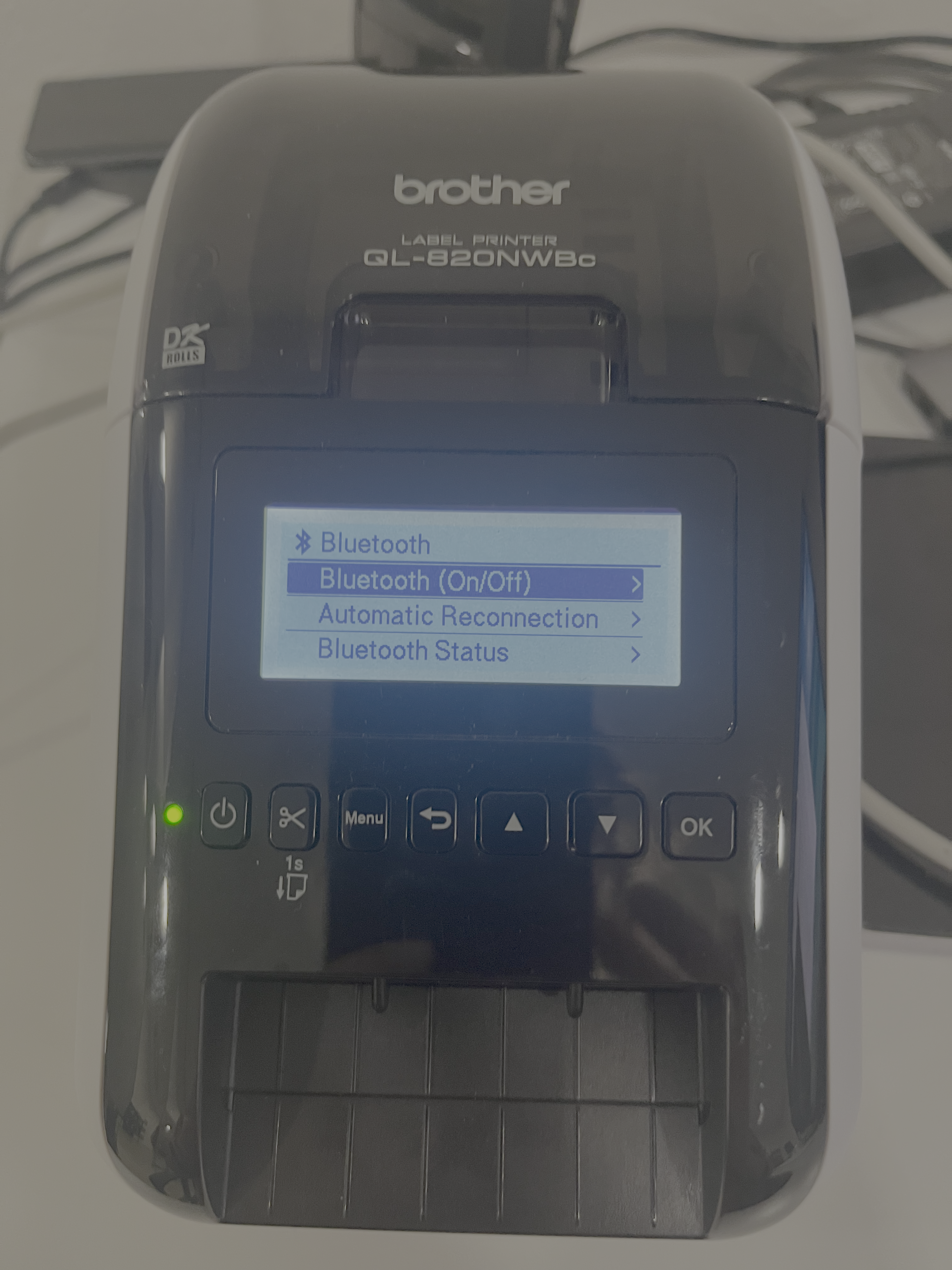
2c.
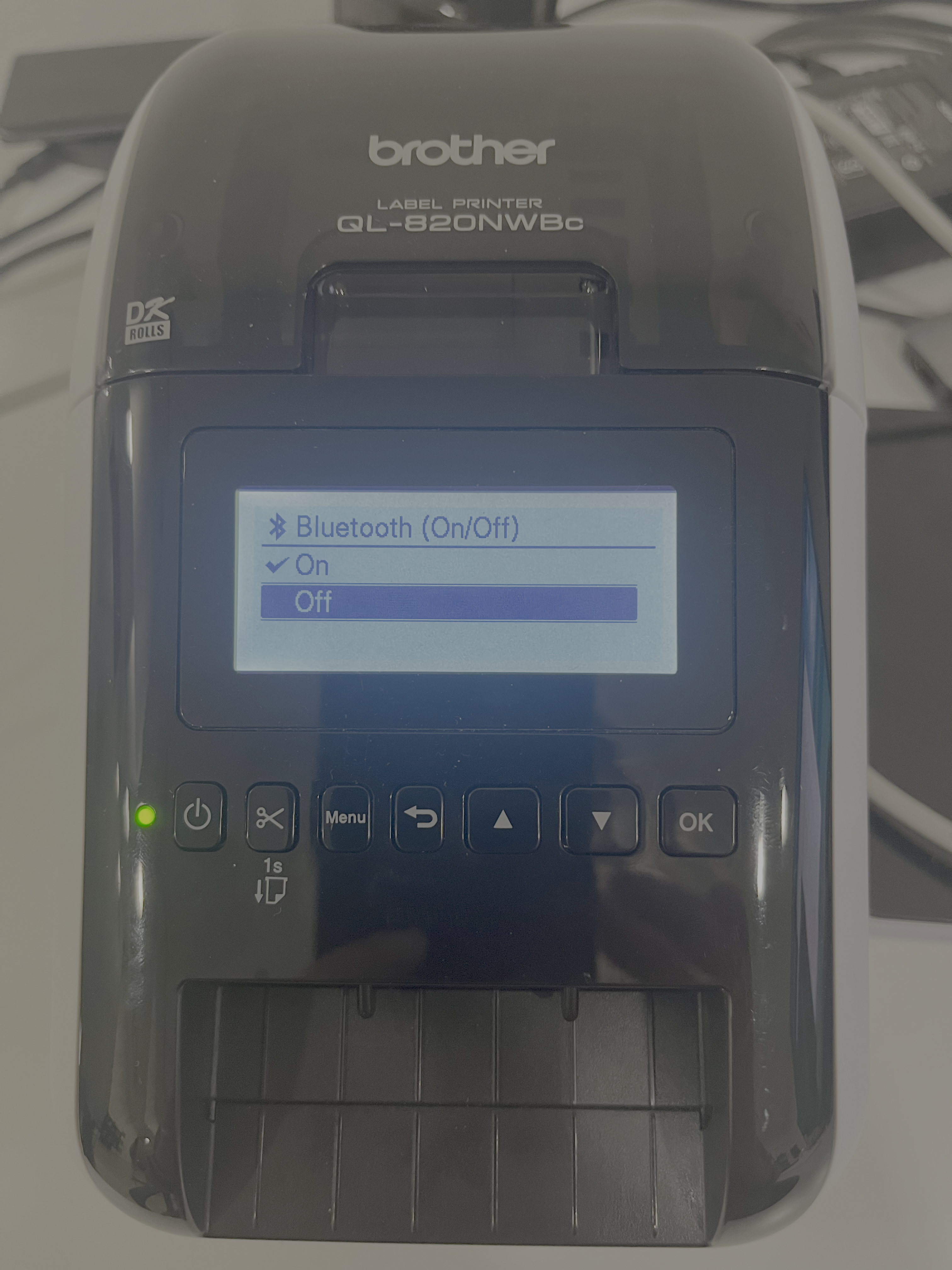
If neither of the previous steps worked, try resetting the printer via the settings menu. This final step is expected to restore connectivity, enabling you to connect successfully.
3a.
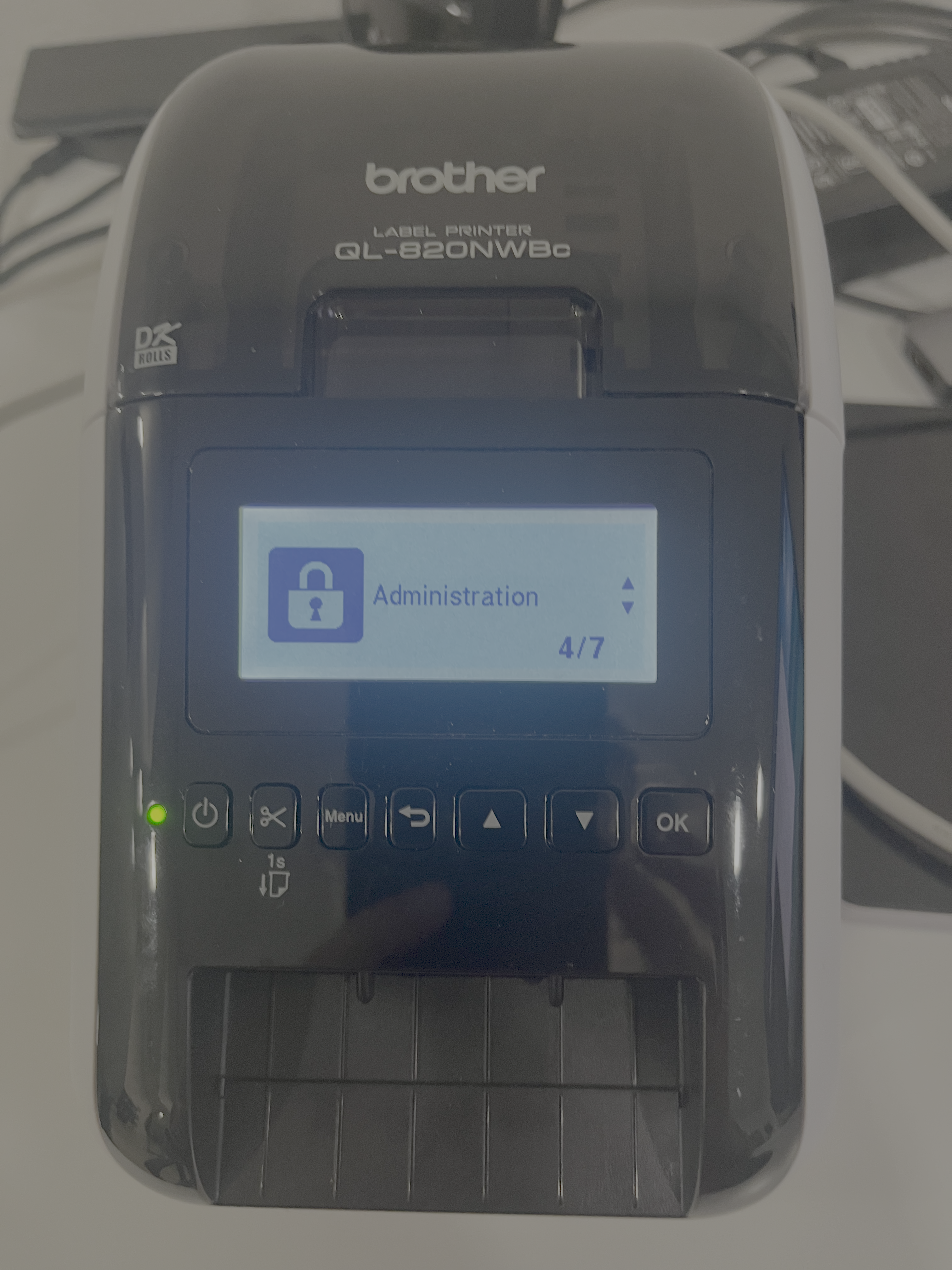
3b.
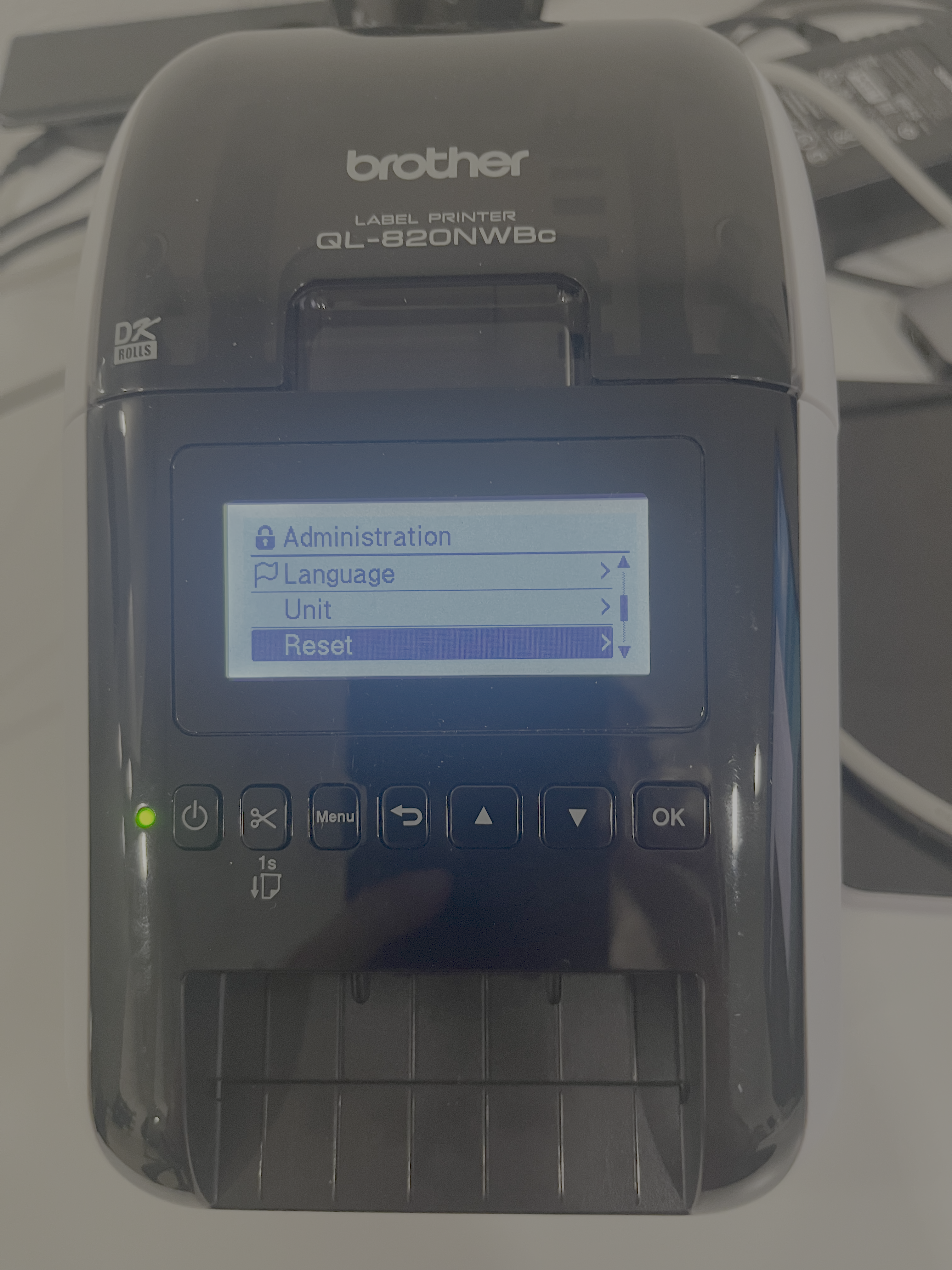
3c.
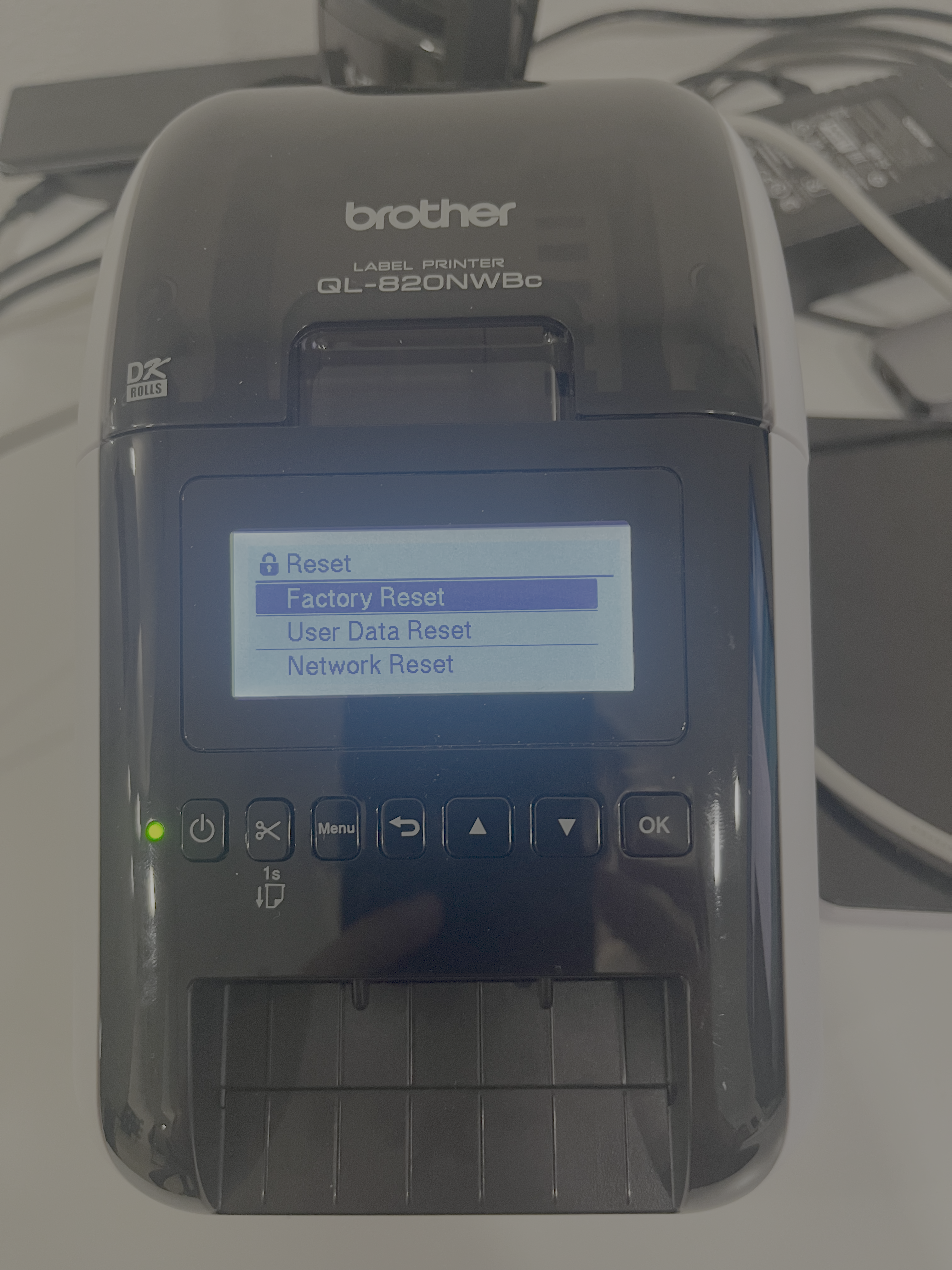
✅ Tested: Brother QL-820NWBc
🟡 Likely compatible (not tested): Other Brother QL-xxxx series label printers may work, but we haven’t tested them yet, so compatibility isn’t guaranteed.
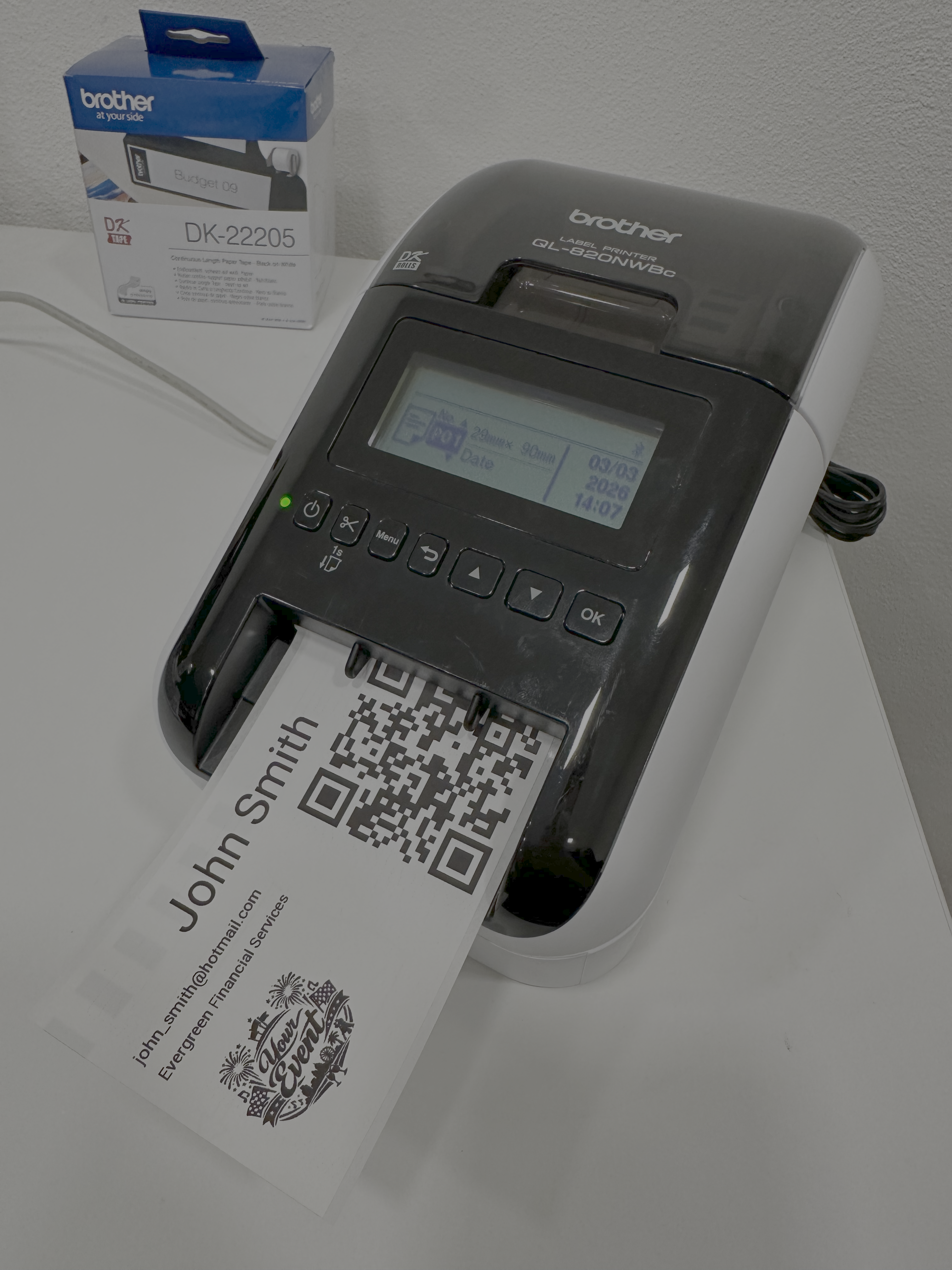
✅ Tested:
DK-22205 — 62 mm continuous (also known as DK-2205 / 2.4" continuous)
DK-11201 — 29 mm × 90 mm die-cut (also known as DK-1201 / 1.1" × 3.5" die-cut)
🟡 Likely compatible (not tested): Other Brother DK label rolls should work as well, as long as the label size matches your badge/label template.