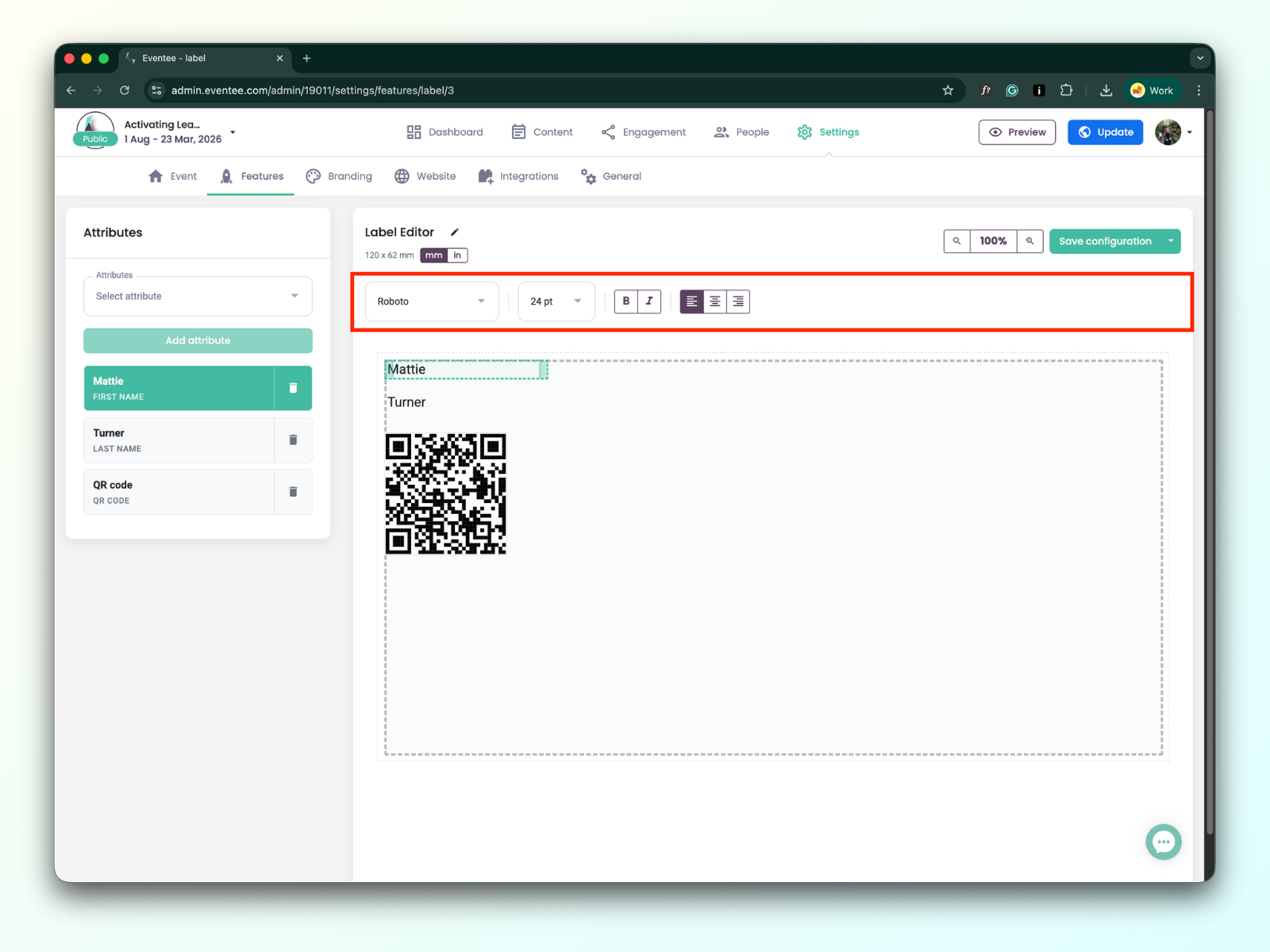
Our Label Editor is a specialized tool for creating and printing event badge labels. You can easily include the attendee name, the attendee’s QR code, event logo, and much more on every label.
The starting point for creating your first label is in: Settings → Features → Check-in → Edit label
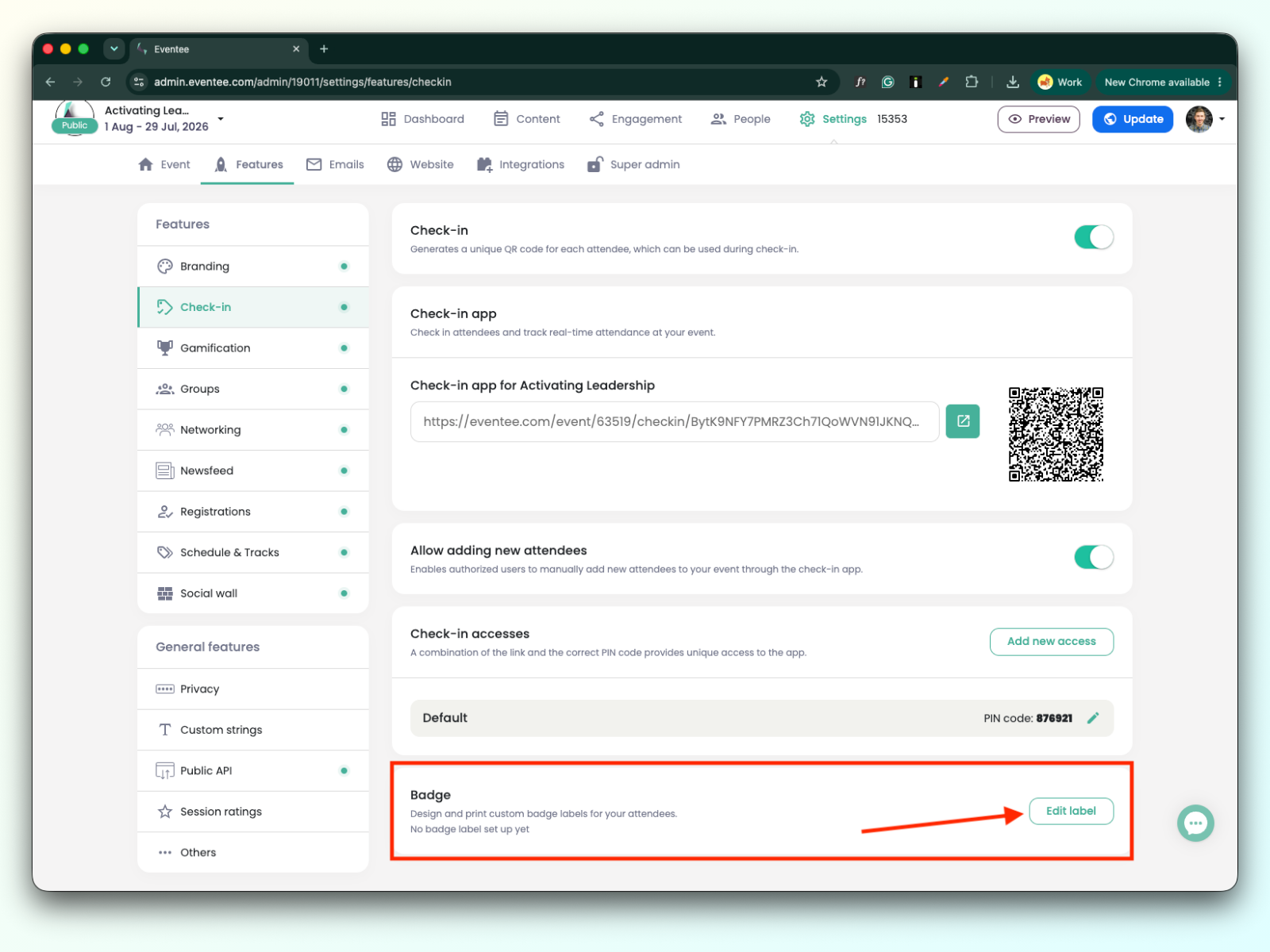
Clicking on the green “Manage label” button opens a pop-up window with Label settings.
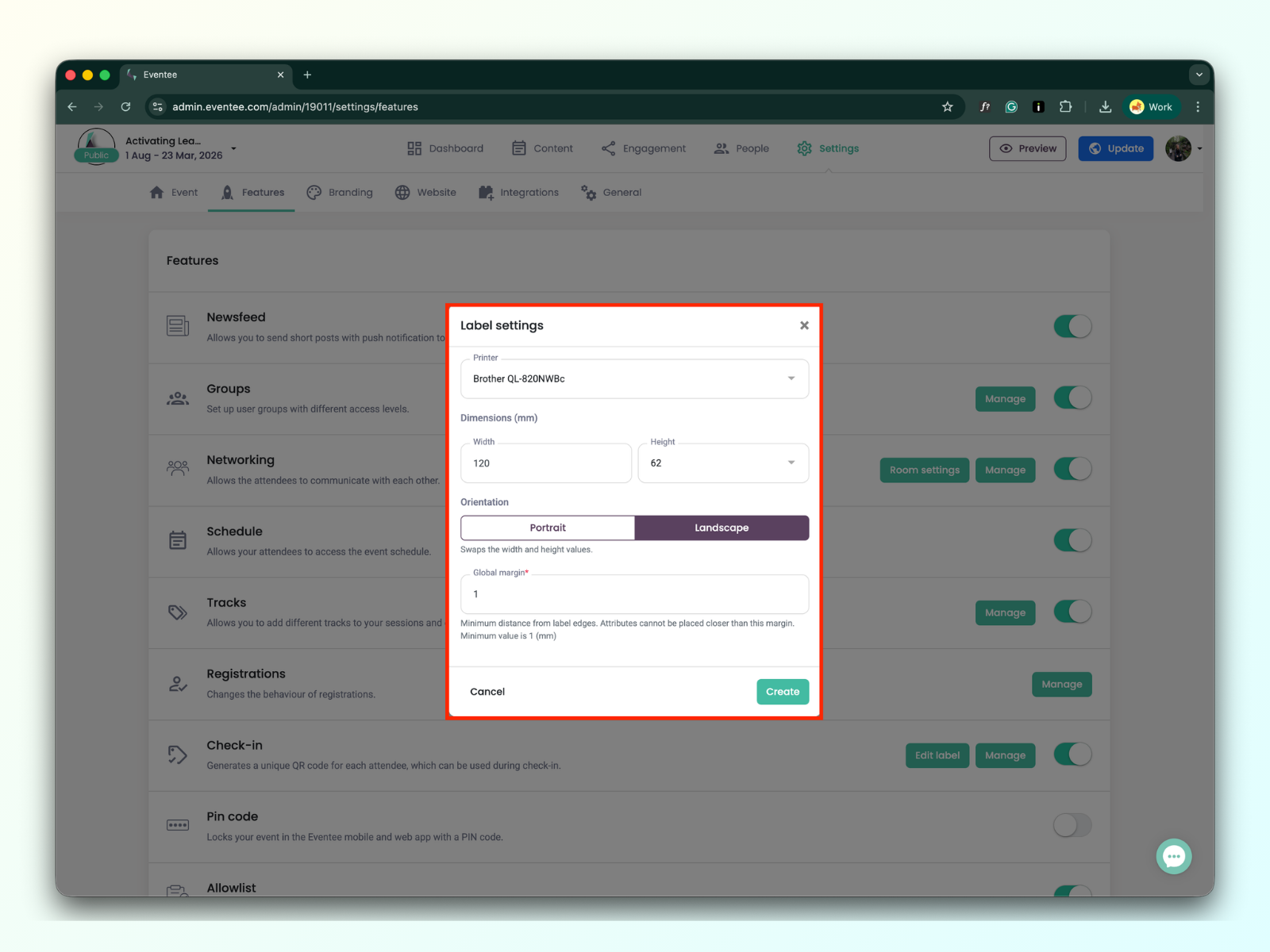
您有两个打印机选项:
Brother QL-820NWBc 打印机
我们推荐此打印机,因为它受支持且已经过测试。
自定义打印机
其他 Brother QL-xxxx 系列 标签打印机可能可以使用,但我们尚未对其进行测试,因此不能保证兼容性。
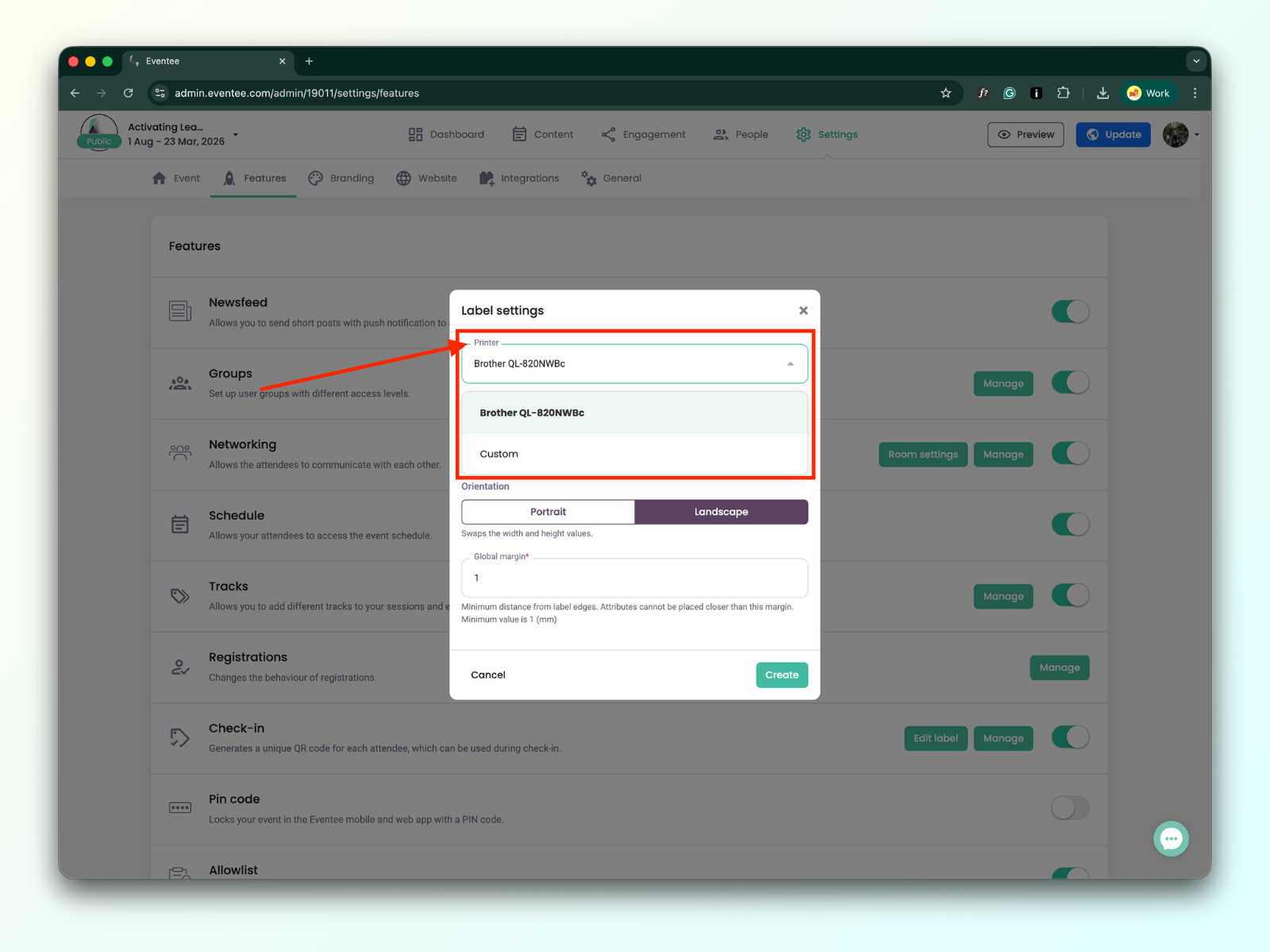

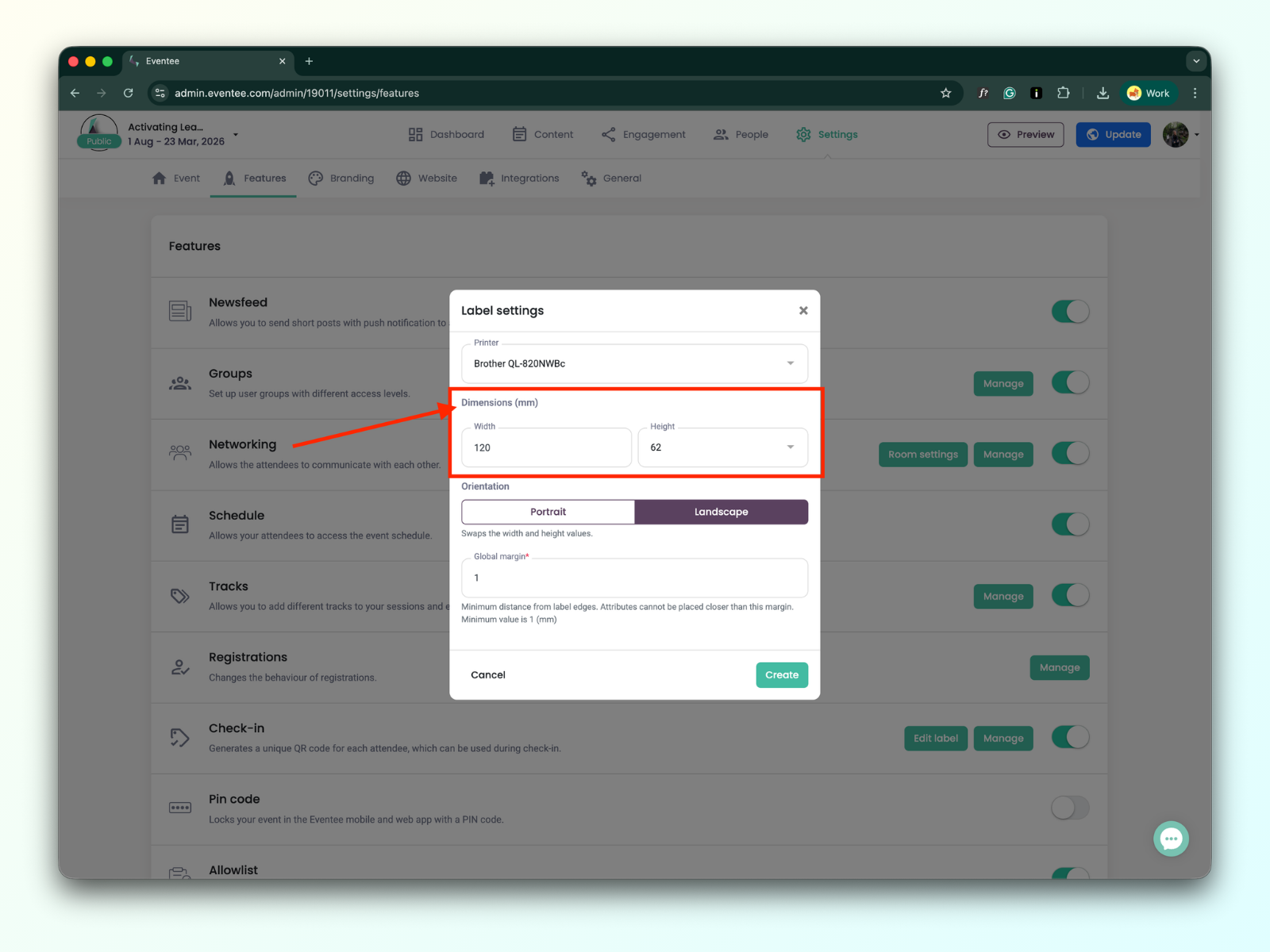
您可以设置标签的宽度和高度。
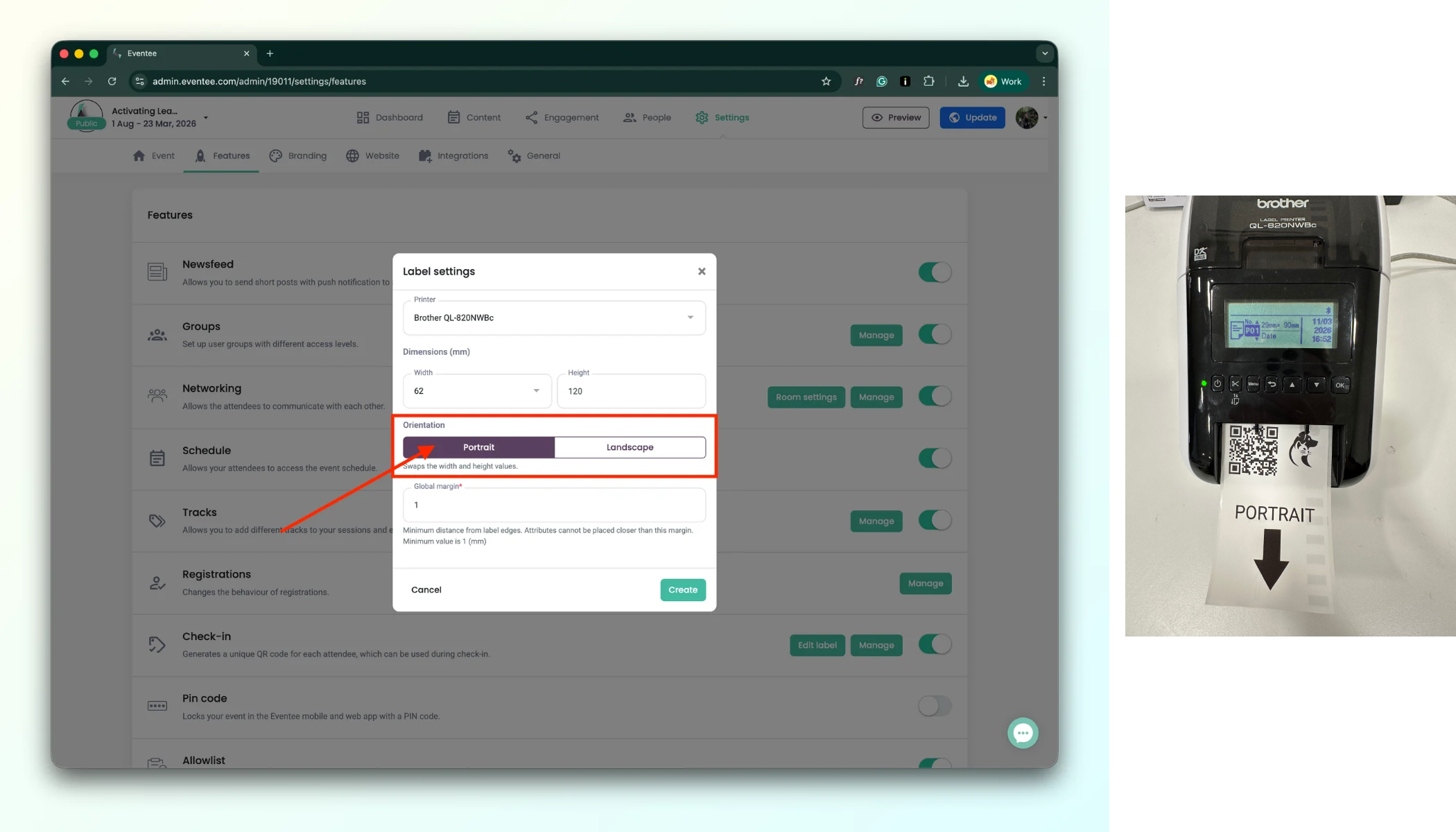
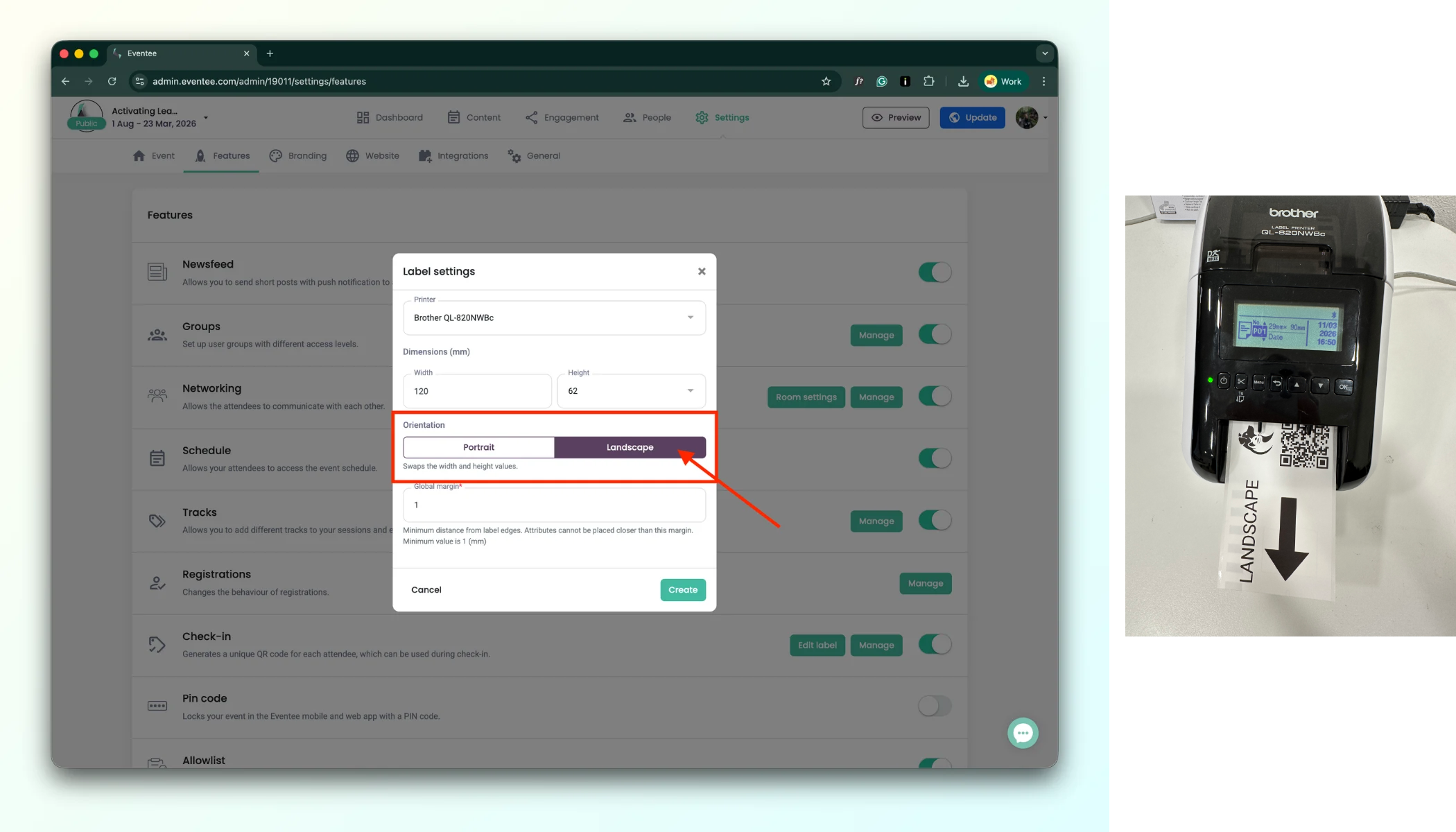
When designing a badge label, you can choose between Portrait and Landscape mode. This setting controls how the label is oriented when it comes out of the printer.
a. Portrait - The label is printed in the normal reading direction. When it comes out of the printer, you can read the text directly without turning the label.
b. Landscape - The label is printed rotated by 90°. When it comes out of the printer, you need to turn the label sideways to read it correctly.
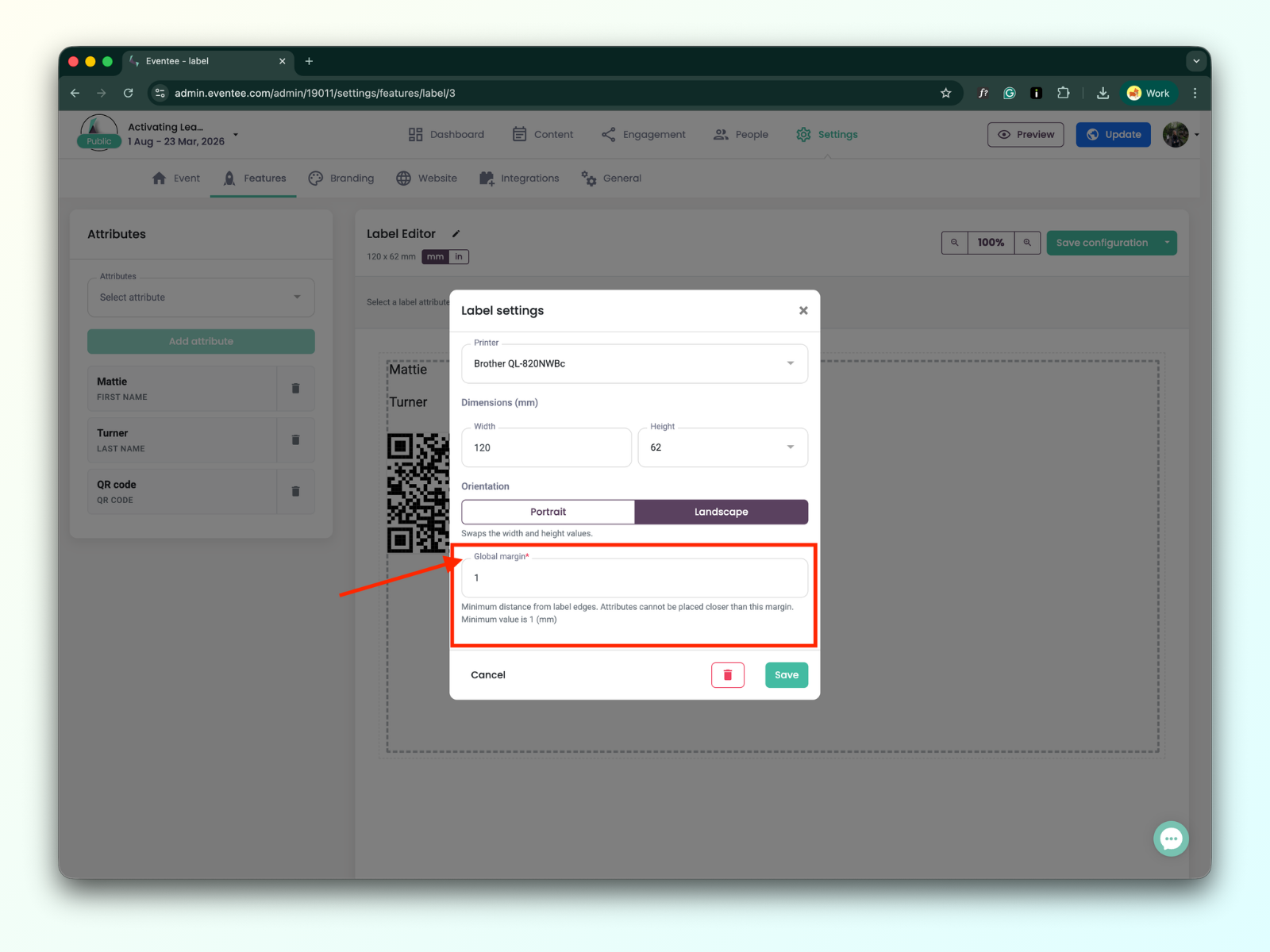
Minimum distance from label edges. Elements cannot be placed closer than this margin. Minimum value is 1 (mm).
Clicking on the “Create” button redirects you to the Label editor page.
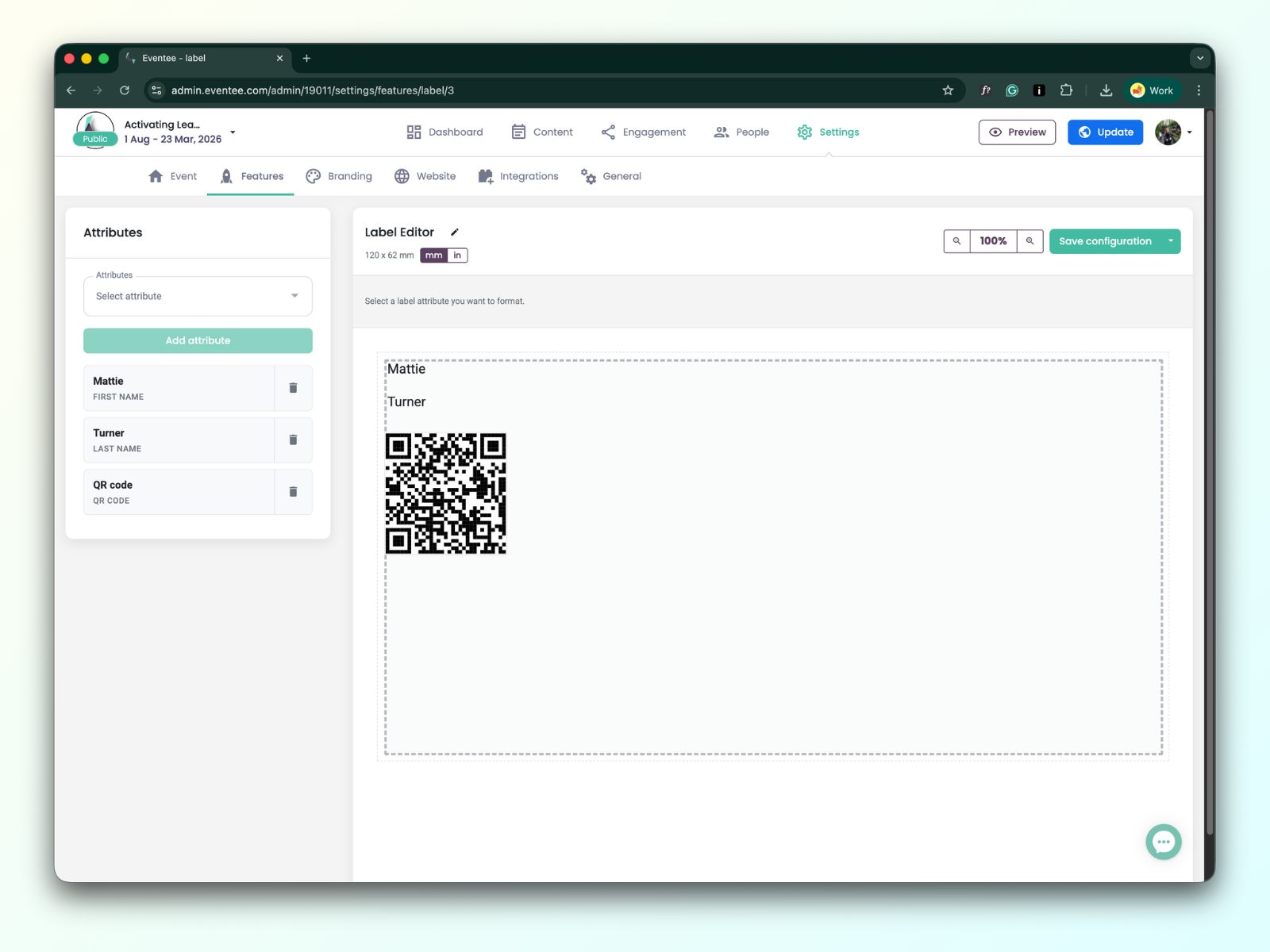
您会注意到,系统默认在标签编辑器中添加了一些属性,例如名字、姓氏和二维码。这些仅作为示例添加;您可以删除或编辑这些默认属性。
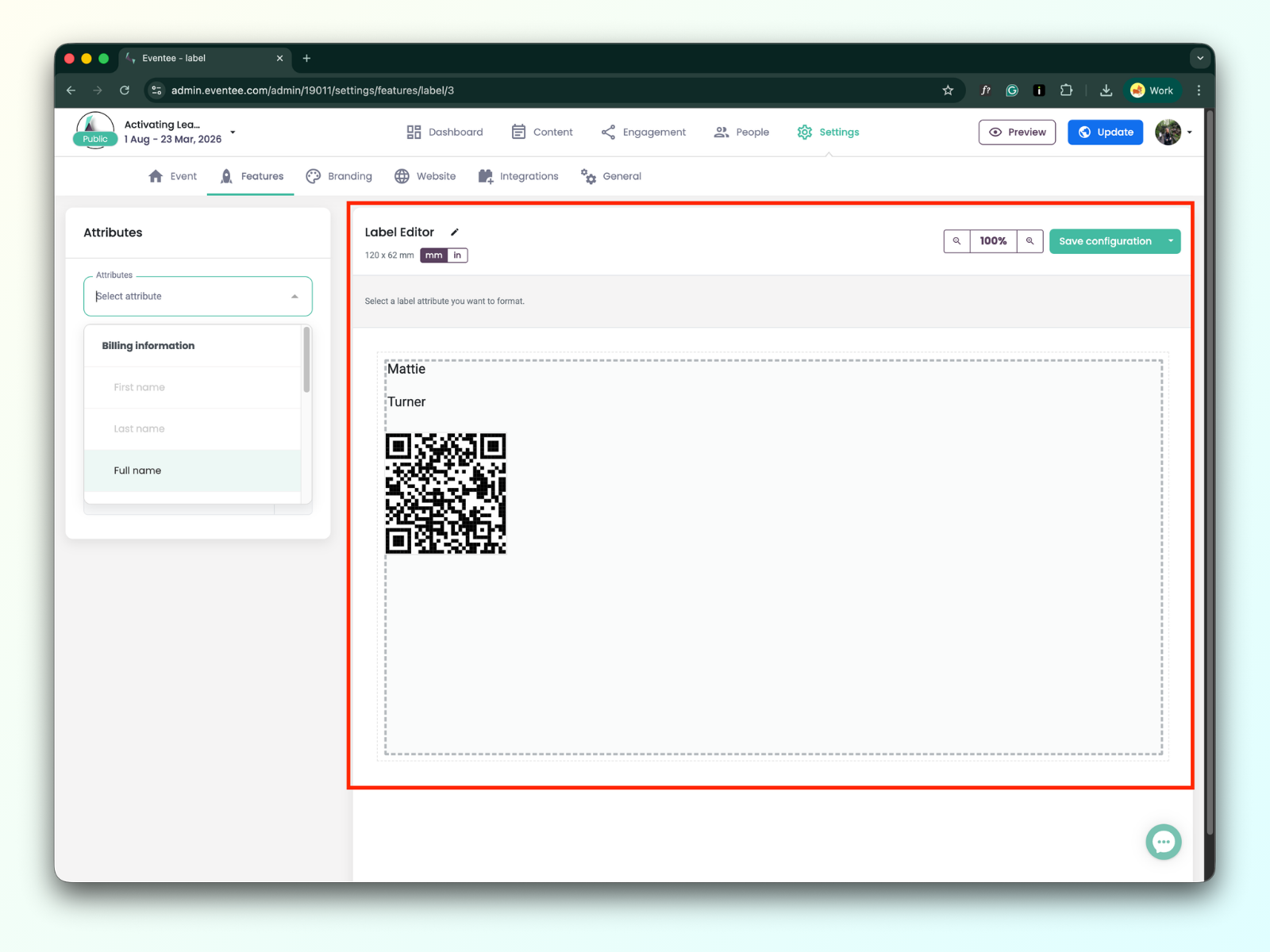
标签编辑器界面由两个主要部分组成:
左侧边栏:包含您可以添加到设计中的可用属性。
标签编辑器:右侧区域,您可以在其中排列和编辑已添加的属性。
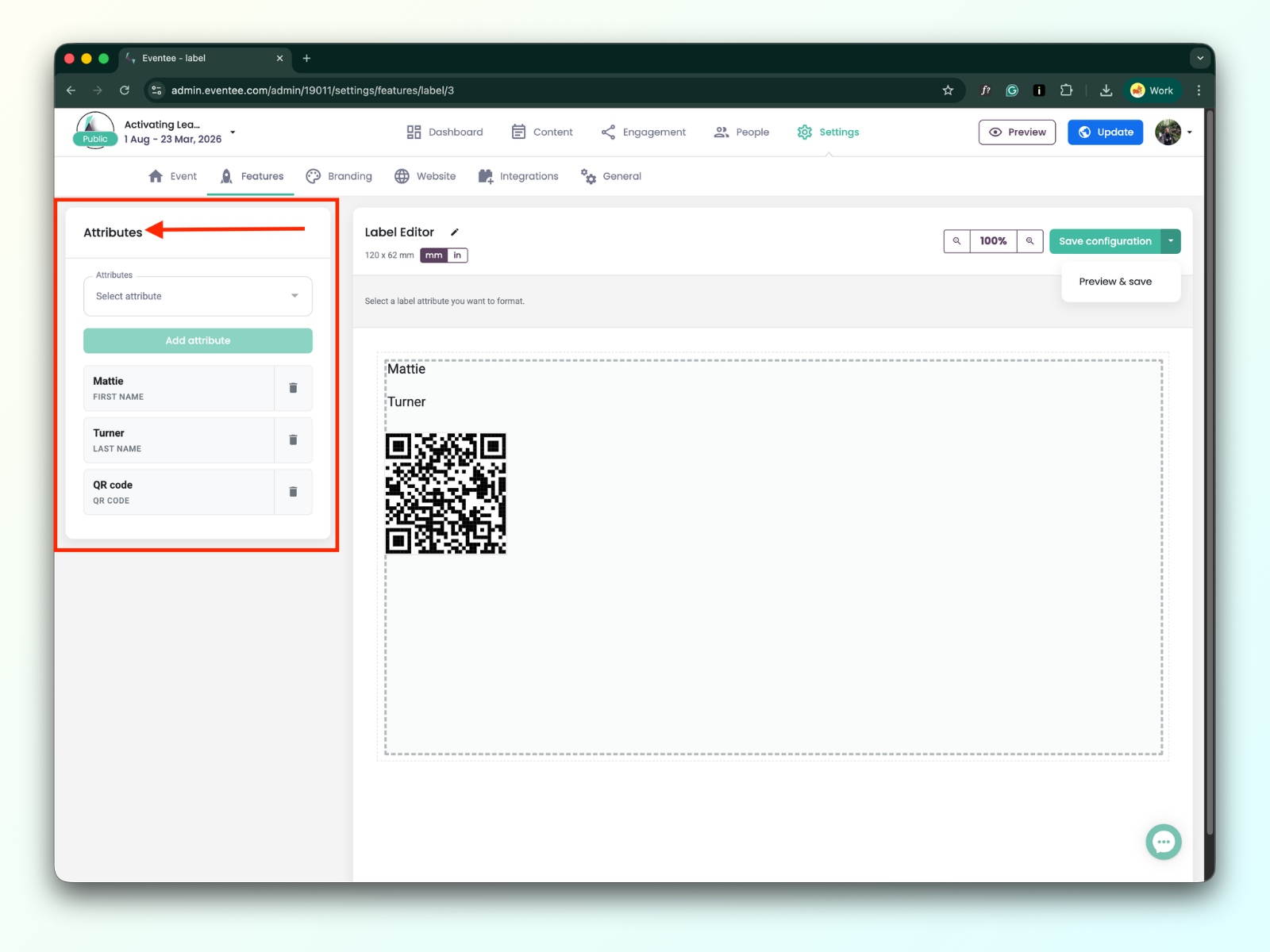
您可以用于标签的属性分为两组:
账单数据
名字
姓氏
全名
职位
公司名称
电子邮件
电话
其他
二维码
每个参与者的二维码是唯一的
自定义文本
可以多次添加
图像
可以多次添加
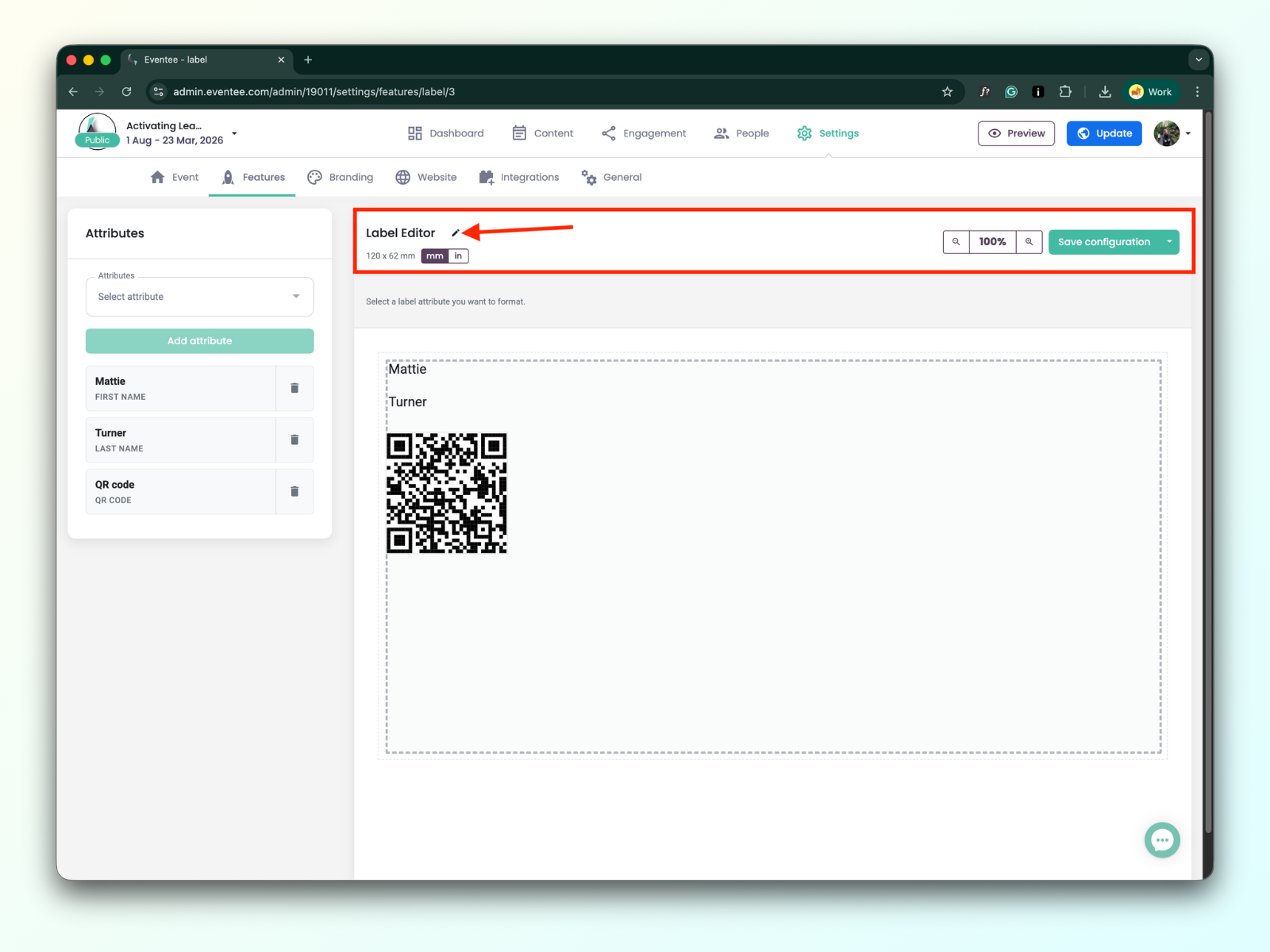
标签编辑器工具
在工具中,您可以找到:
笔图标按钮用于编辑标签编辑器设置
缩放选项
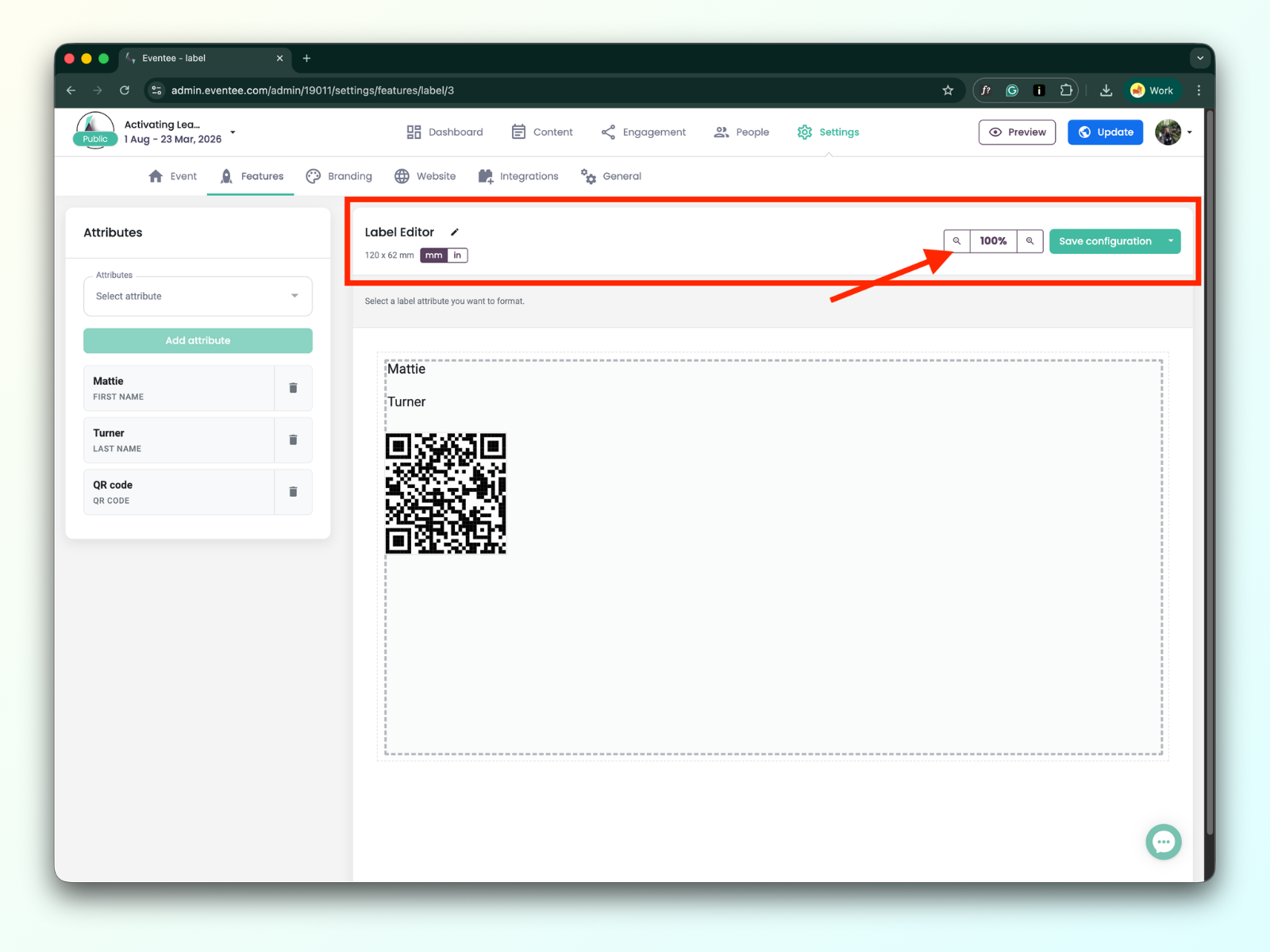
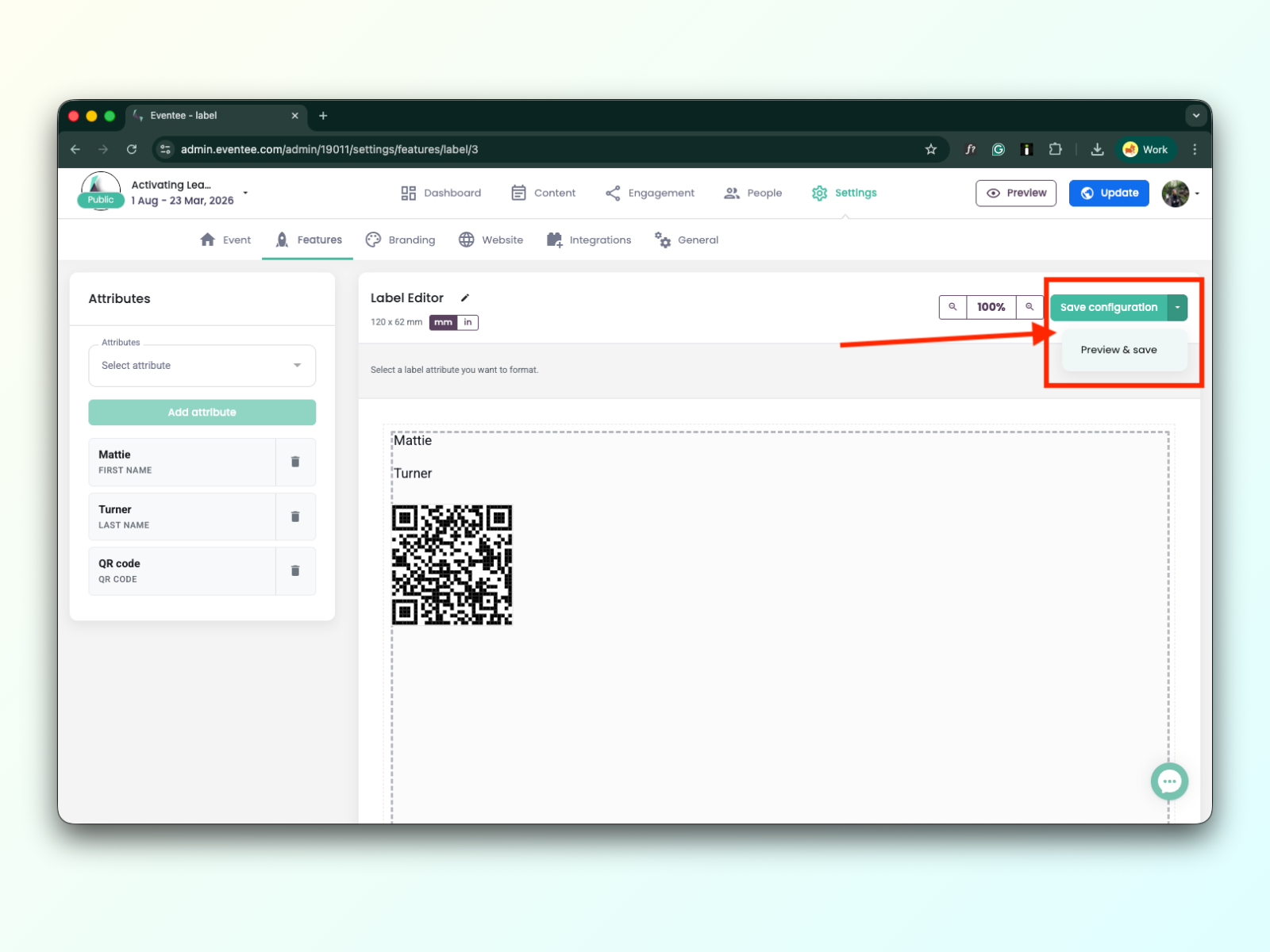
Save and preview button
Saving in the label editor is not automatic; you have to save your work by clicking the green button “Save configuration”.
You can look at how your label will look by clicking on the preview button.
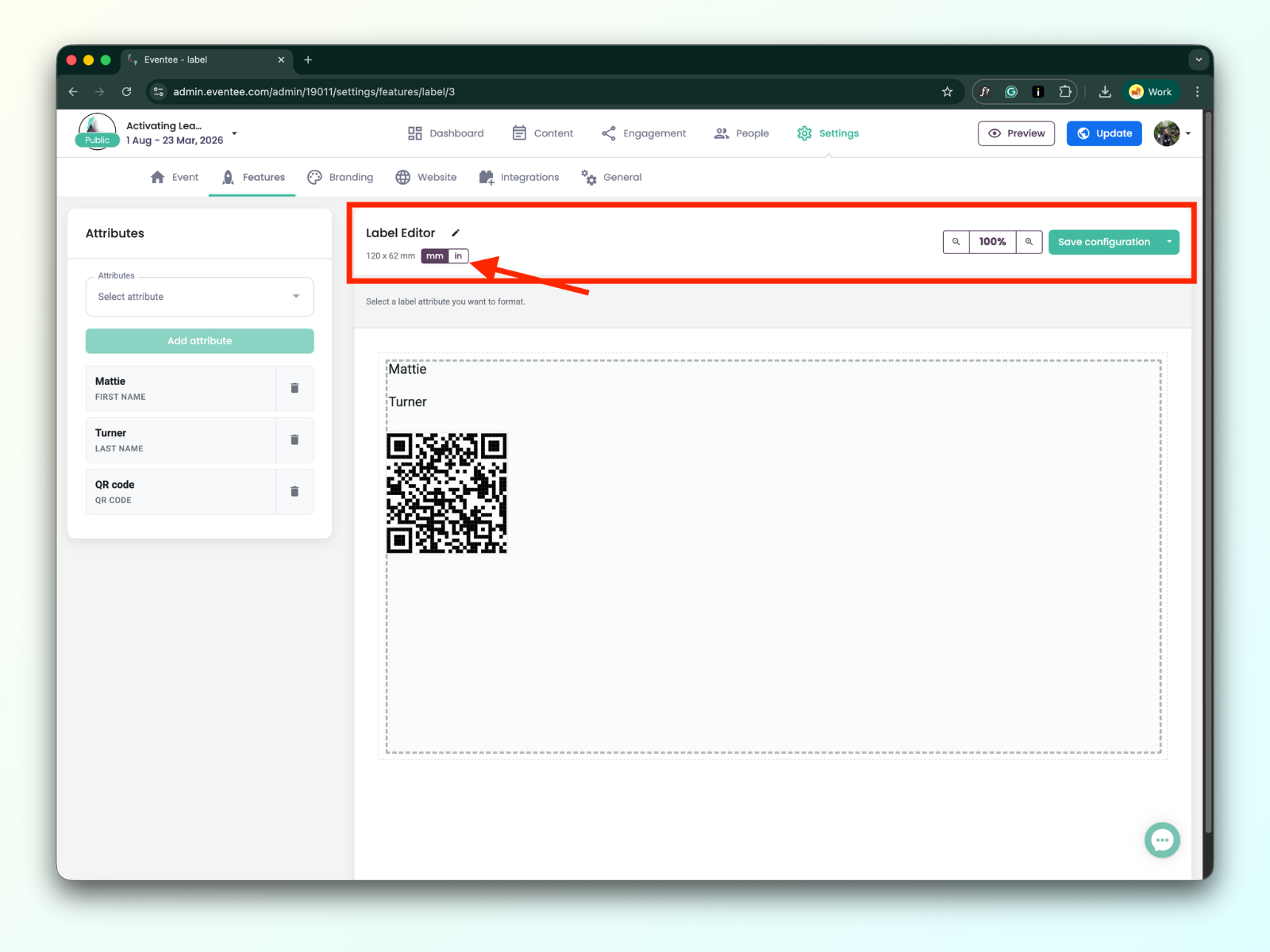
You can check the dimensions of the label in inches as well, using an inch converter
All added attributes to the label editor could be configured:
You can change the sizing of the attributes, and within the text field settings, you have the following options:
字体类型和大小:选择您偏好的字体和大小。
样式:应用粗体或斜体格式。
对齐:将文本左对齐、居中或右对齐。"