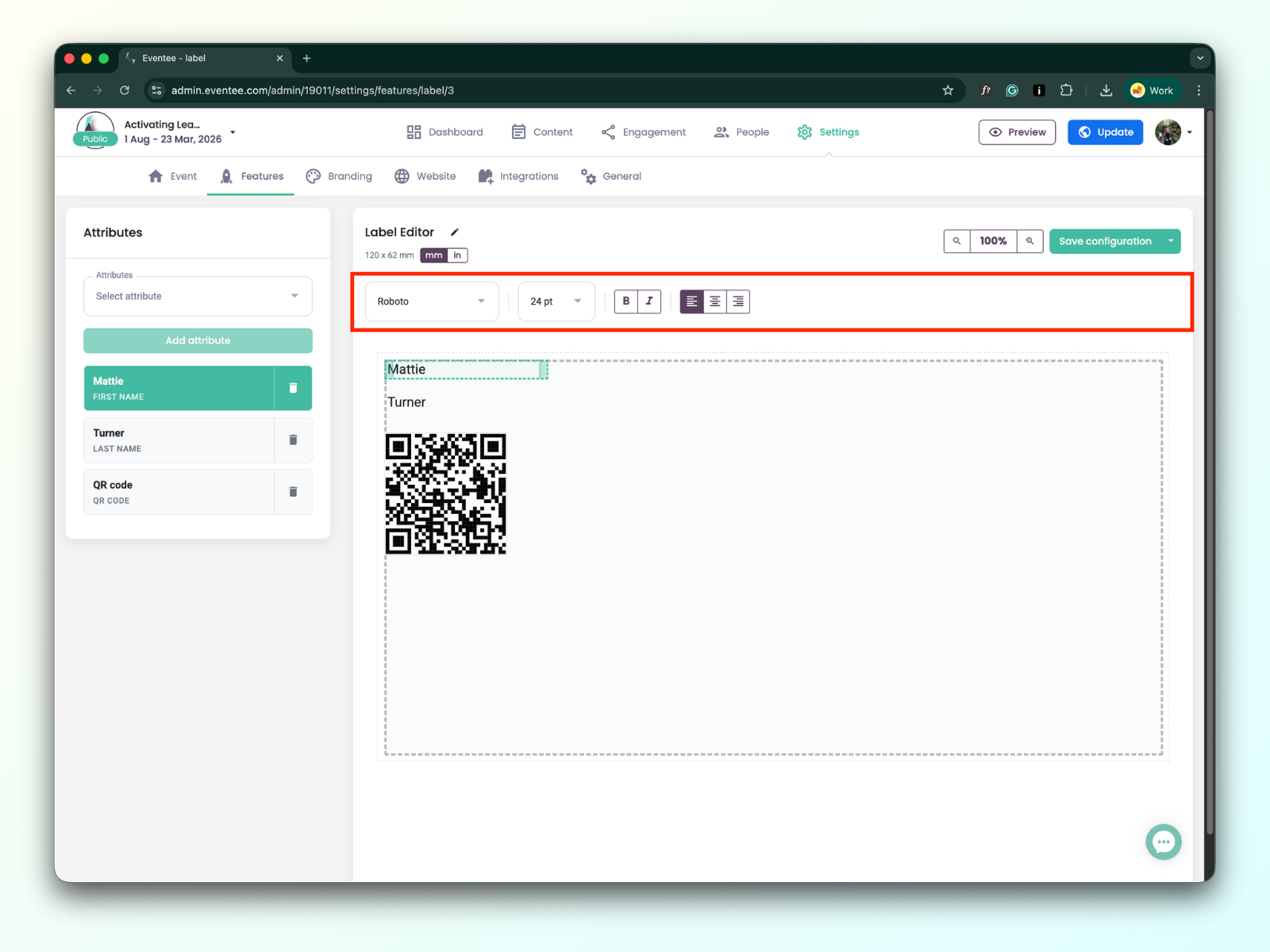
Our Label Editor is a specialized tool for creating and printing event badge labels. You can easily include the attendee name, the attendee’s QR code, event logo, and much more on every label.
The starting point for creating your first label is in: Settings → Features → Check-in → Edit label
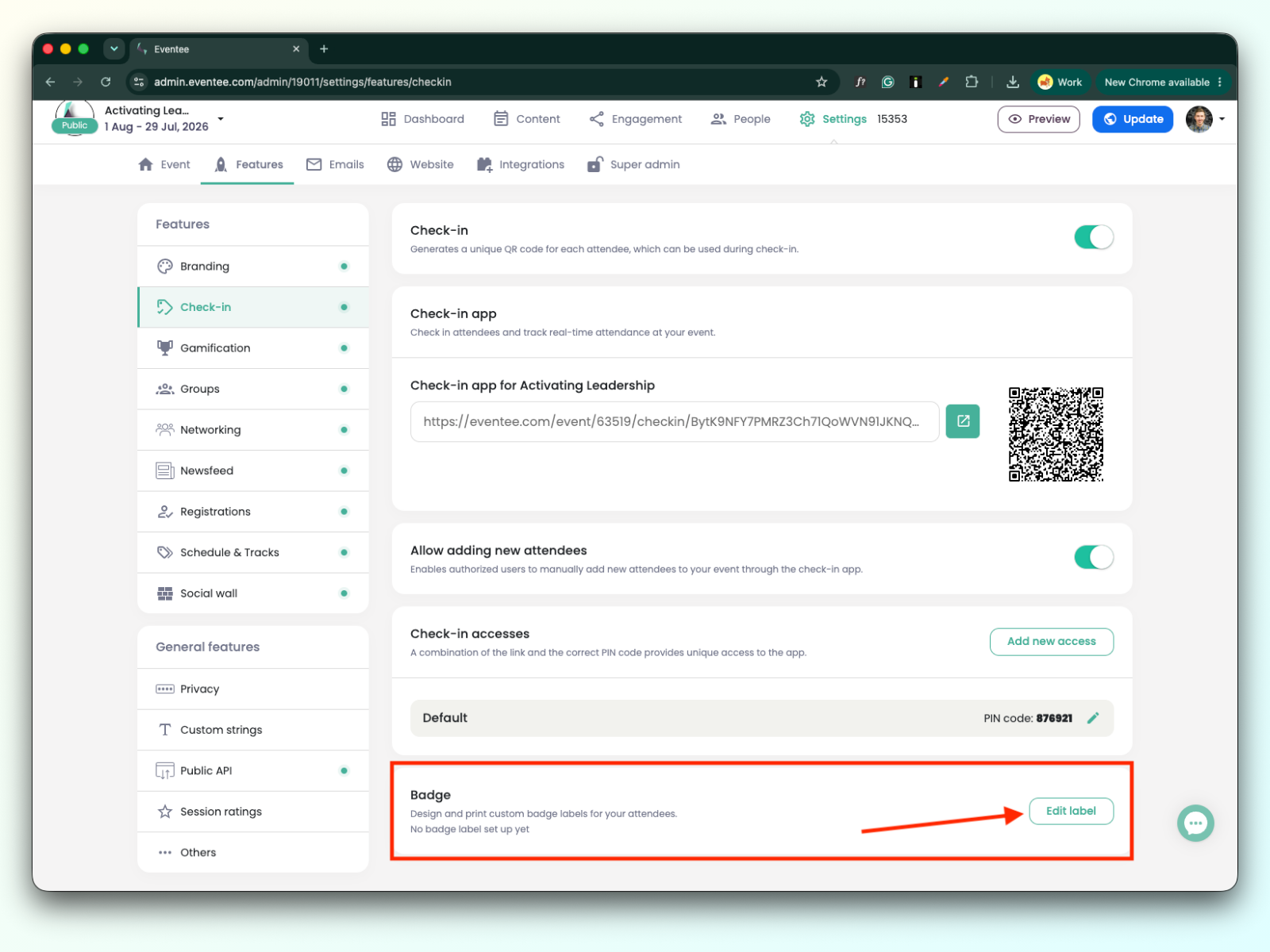
Clicking on the green “Manage label” button opens a pop-up window with Label settings.
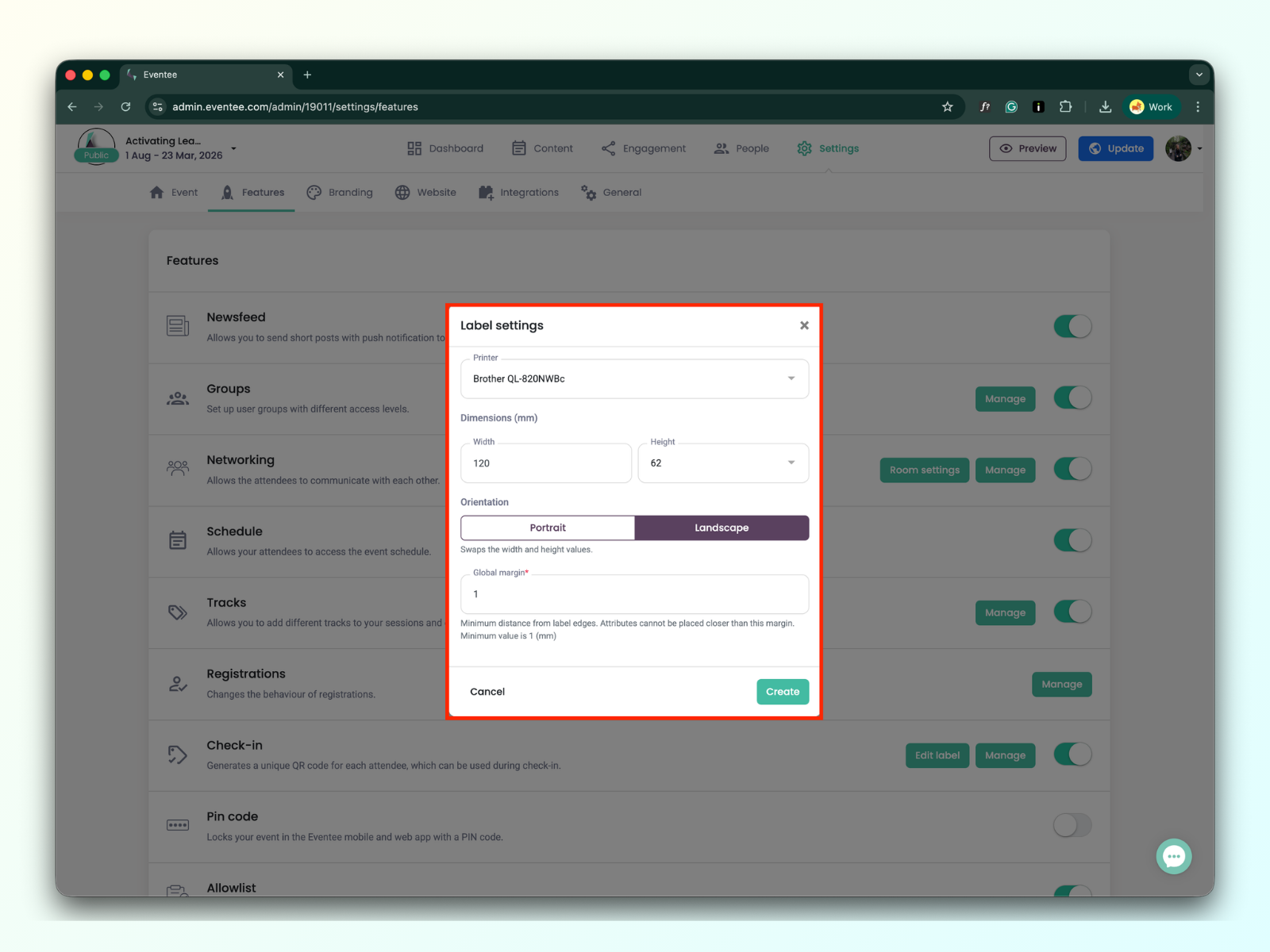
Você tem duas opções em relação às impressoras:
Brother QL-820NWBc impressora
Recomendamos a impressora porque é suportada e foi testada.
Impressora personalizada
Outras impressoras de etiquetas da série Brother QL-xxxx podem funcionar, mas ainda não as testamos, portanto a compatibilidade não é garantida.
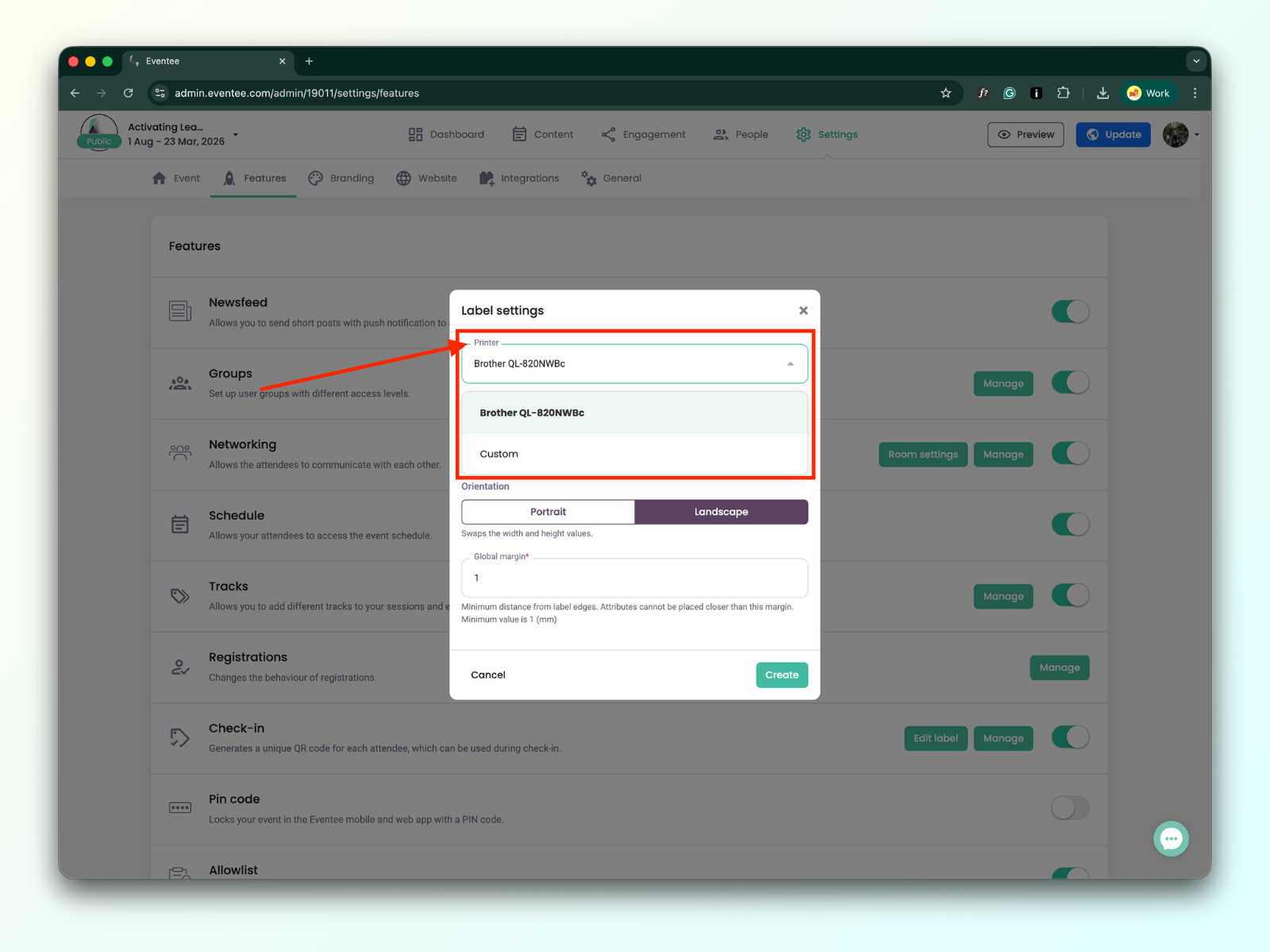

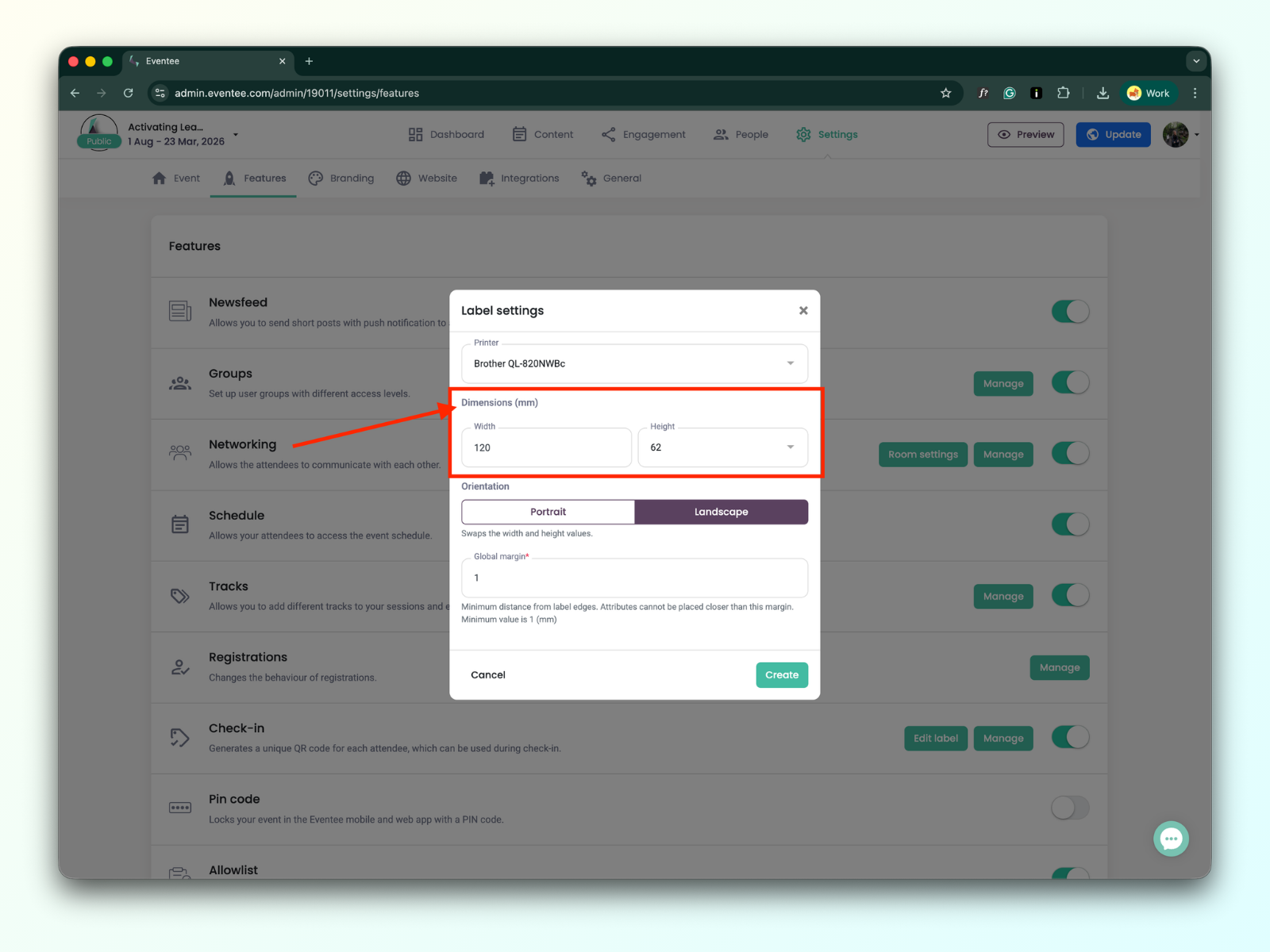
Você pode definir a largura e a altura da etiqueta.
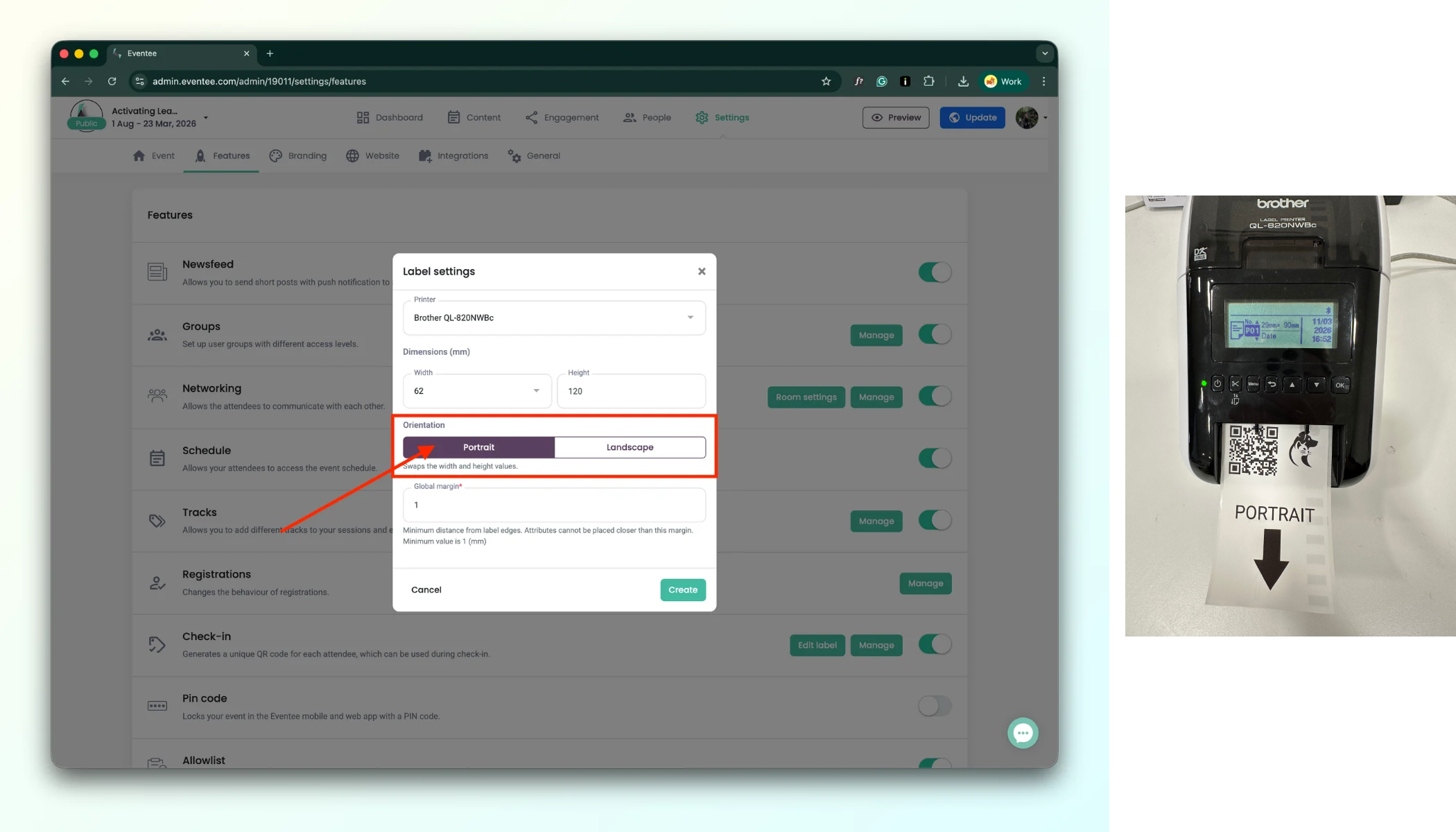
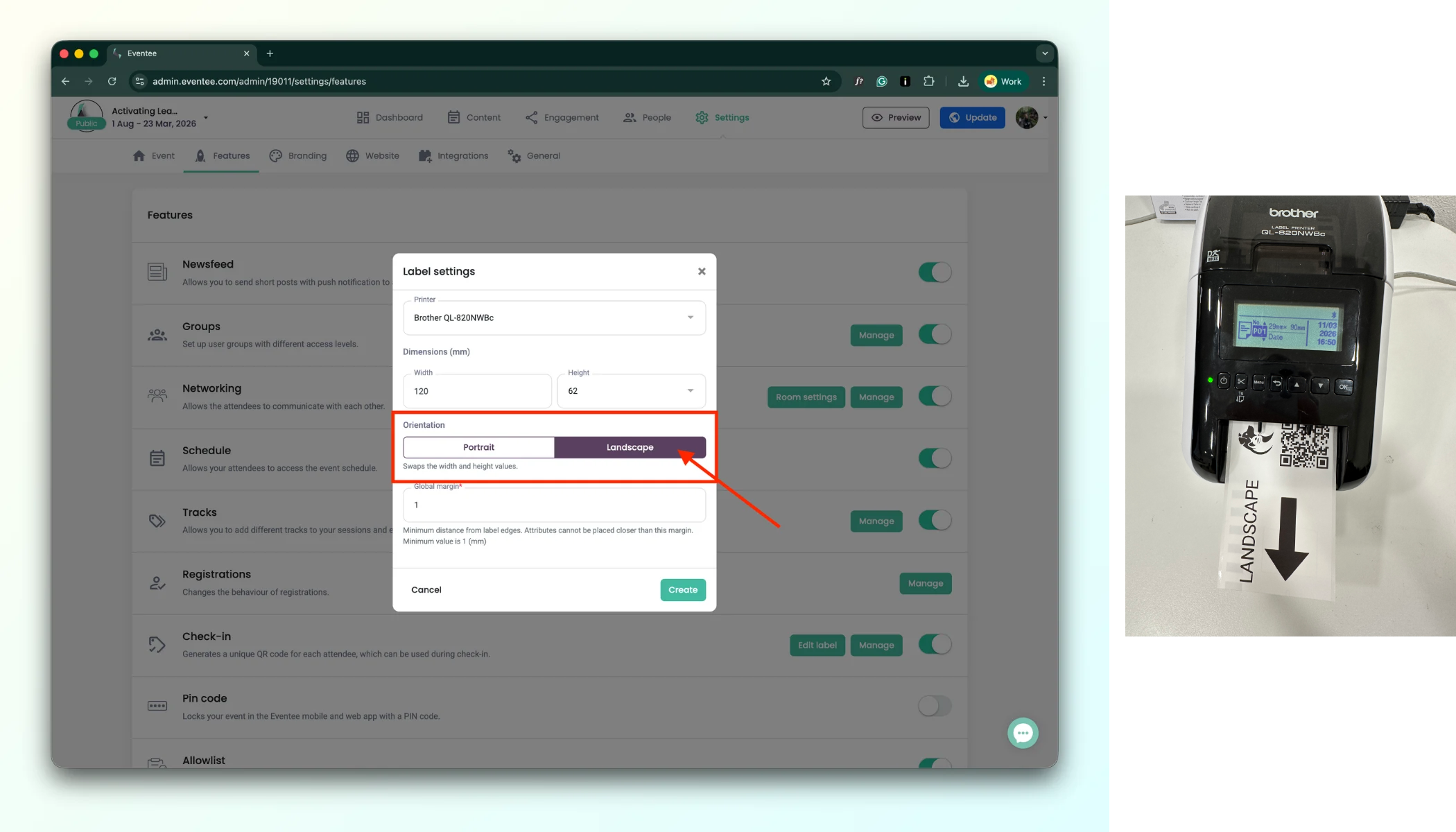
When designing a badge label, you can choose between Portrait and Landscape mode. This setting controls how the label is oriented when it comes out of the printer.
a. Portrait - The label is printed in the normal reading direction. When it comes out of the printer, you can read the text directly without turning the label.
b. Landscape - The label is printed rotated by 90°. When it comes out of the printer, you need to turn the label sideways to read it correctly.
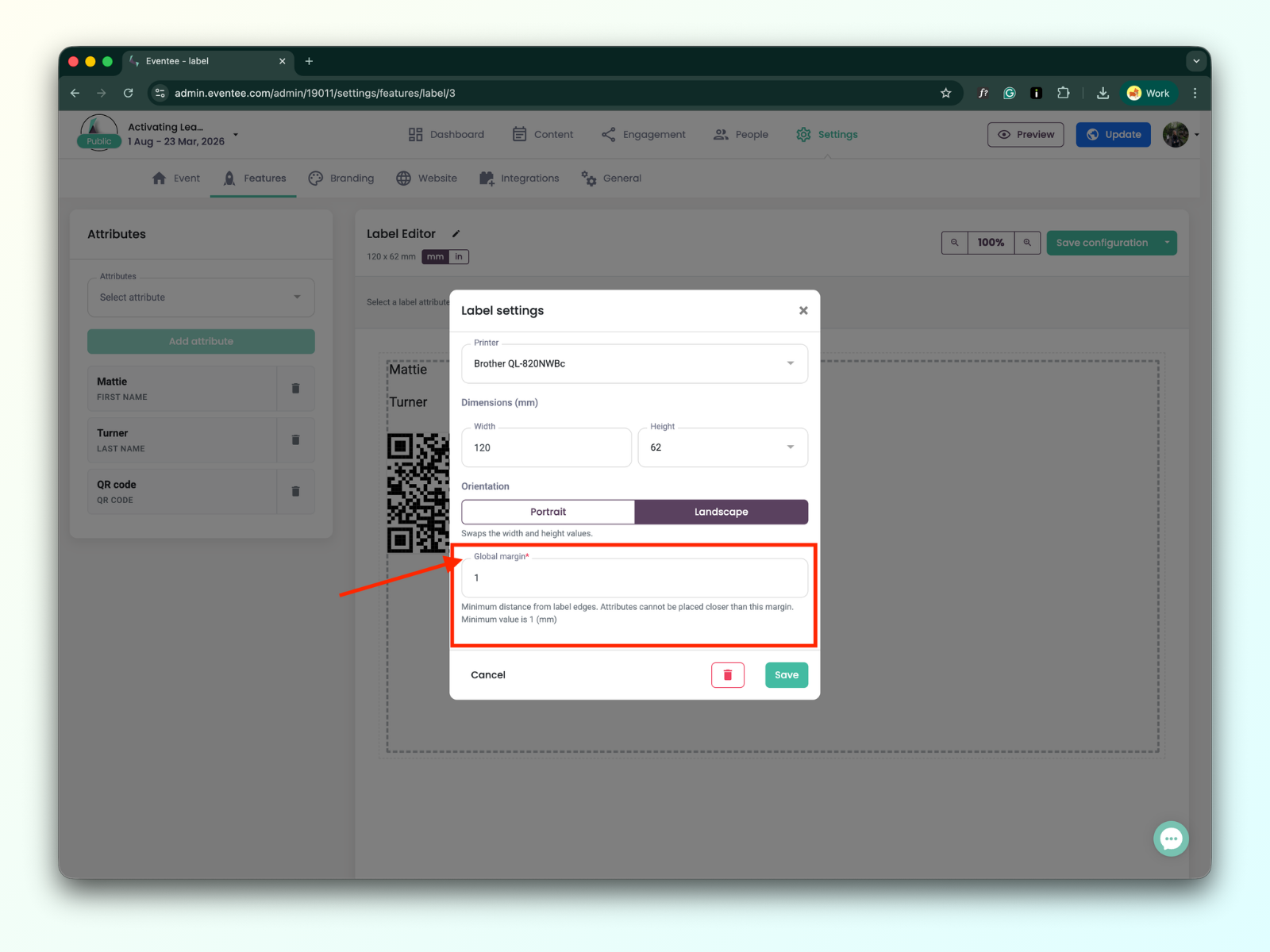
Minimum distance from label edges. Elements cannot be placed closer than this margin. Minimum value is 1 (mm).
Clicking on the “Create” button redirects you to the Label editor page.
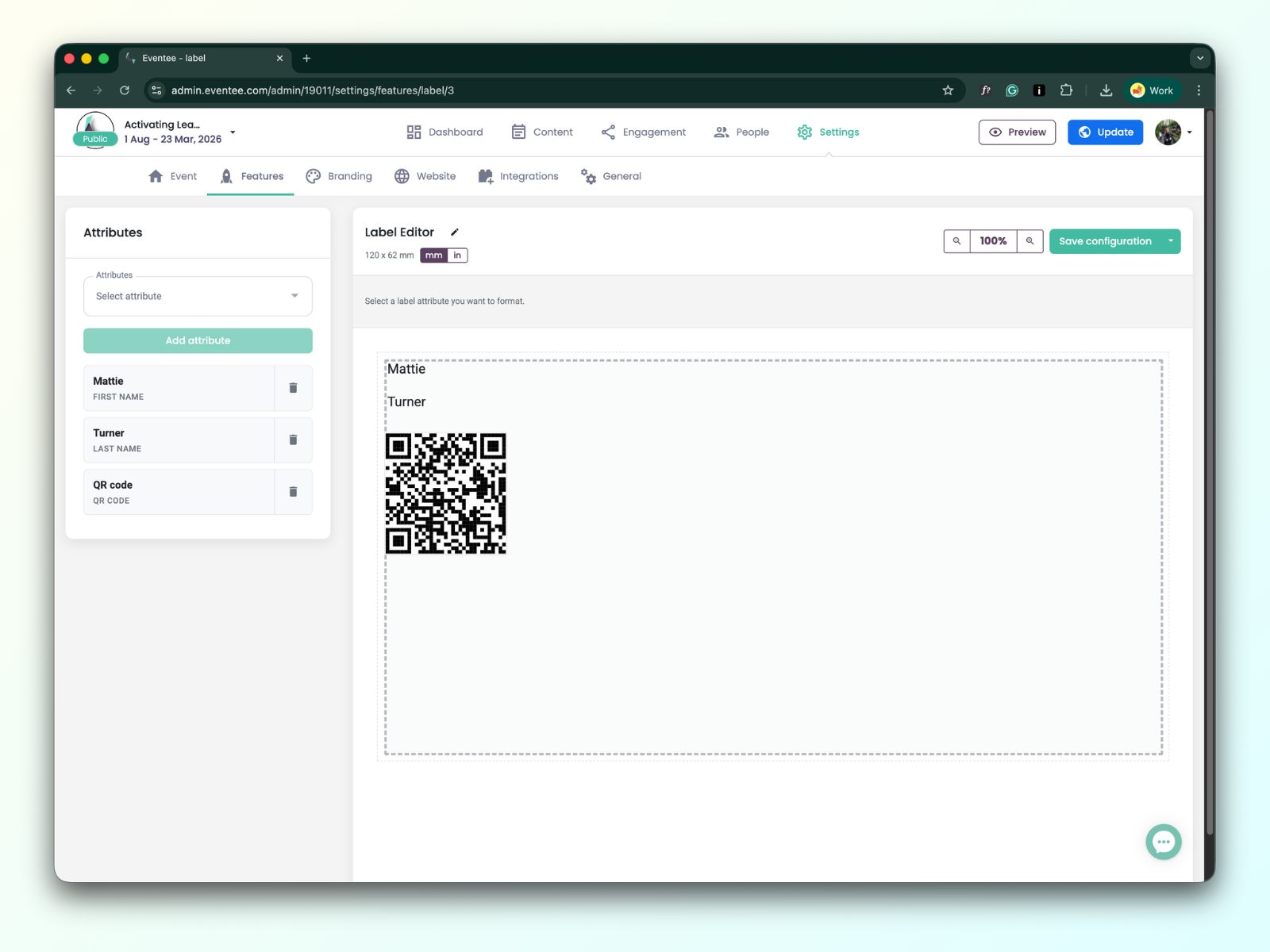
Você pode notar que alguns atributos são adicionados em um editor de etiquetas por padrão pelo sistema, como nome, sobrenome e código QR. É adicionado apenas como exemplo; você pode remover ou editar os atributos padrão.
A interface do editor de etiquetas consiste em duas seções principais:
Barra lateral esquerda: Contém os atributos disponíveis que você pode adicionar ao seu design.
Editor de etiquetas: A área à direita onde você pode organizar e editar seus atributos adicionados.
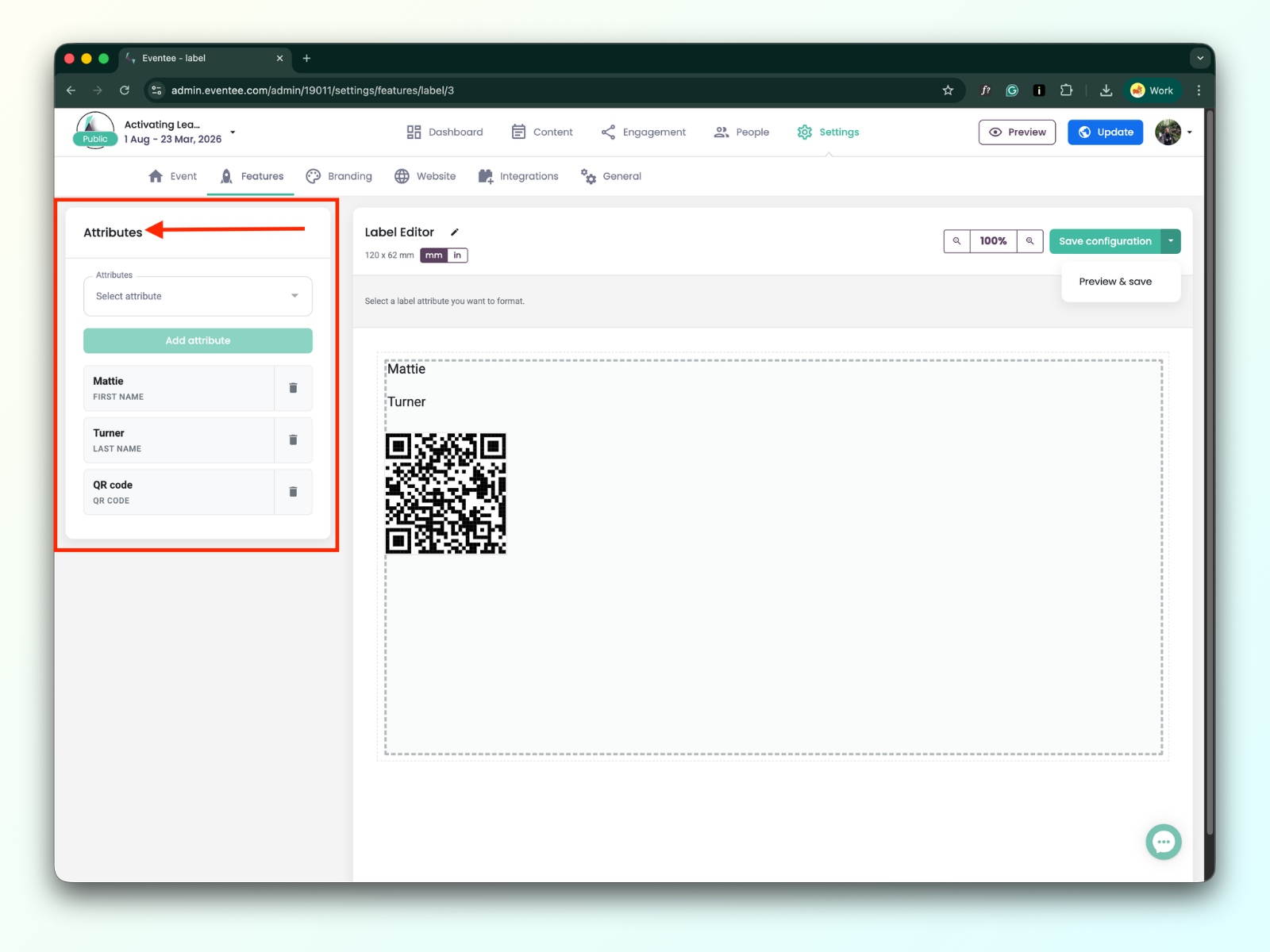
Os atributos que você pode usar para sua etiqueta são divididos em dois grupos:
Dados de faturamento
Primeiro nome
Sobrenome
Nome completo
Cargo
Nome da empresa
Telefone
Outro
Código QR
O código QR é único por participante
Texto personalizado
pode ser adicionado mais de uma vez
Imagem
pode ser adicionada mais de uma vez
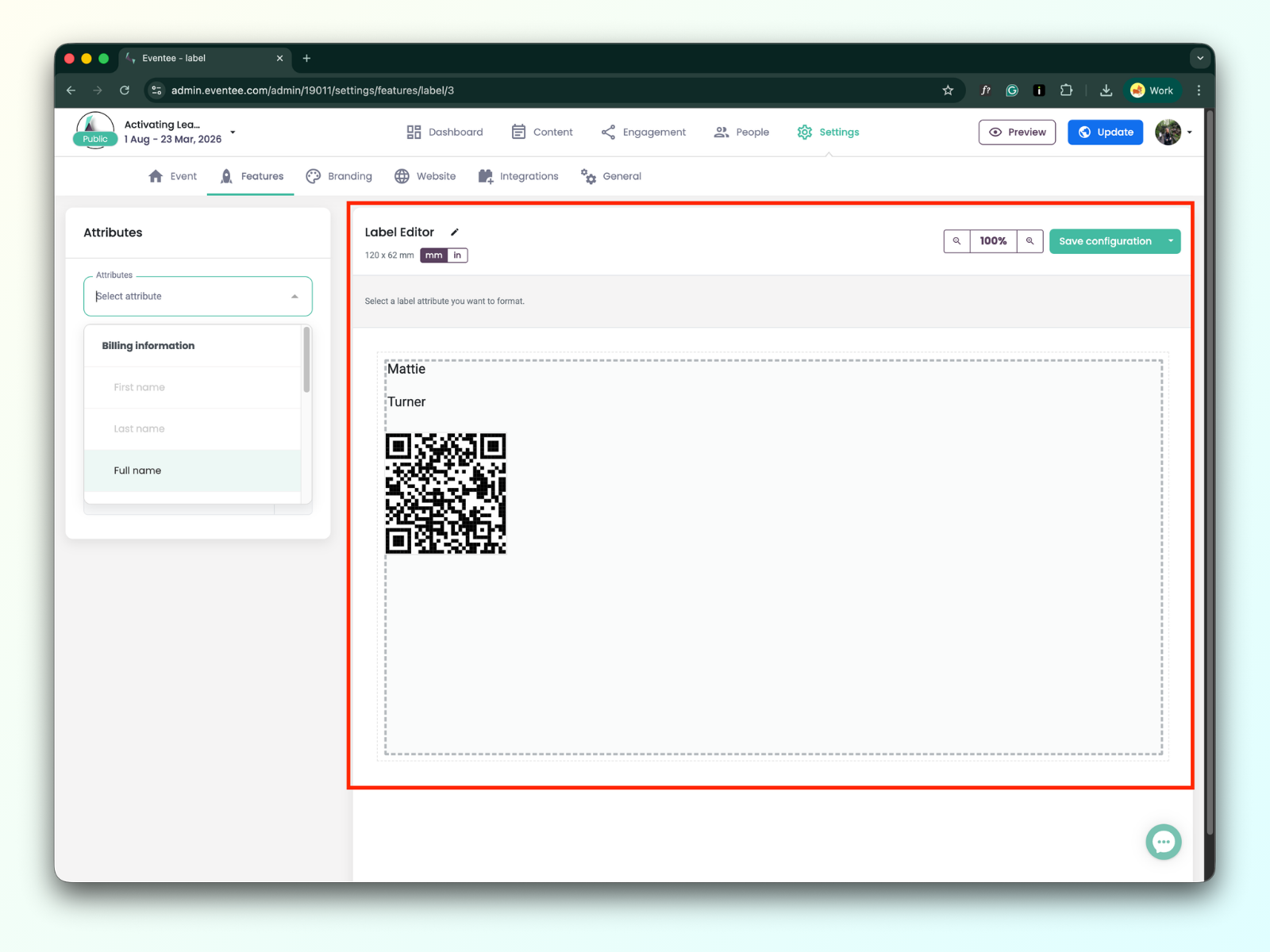
Ferramentas do editor de rótulos
Dentro das ferramentas, você pode encontrar:
botão de ícone de caneta para editar as configurações do editor de rótulos
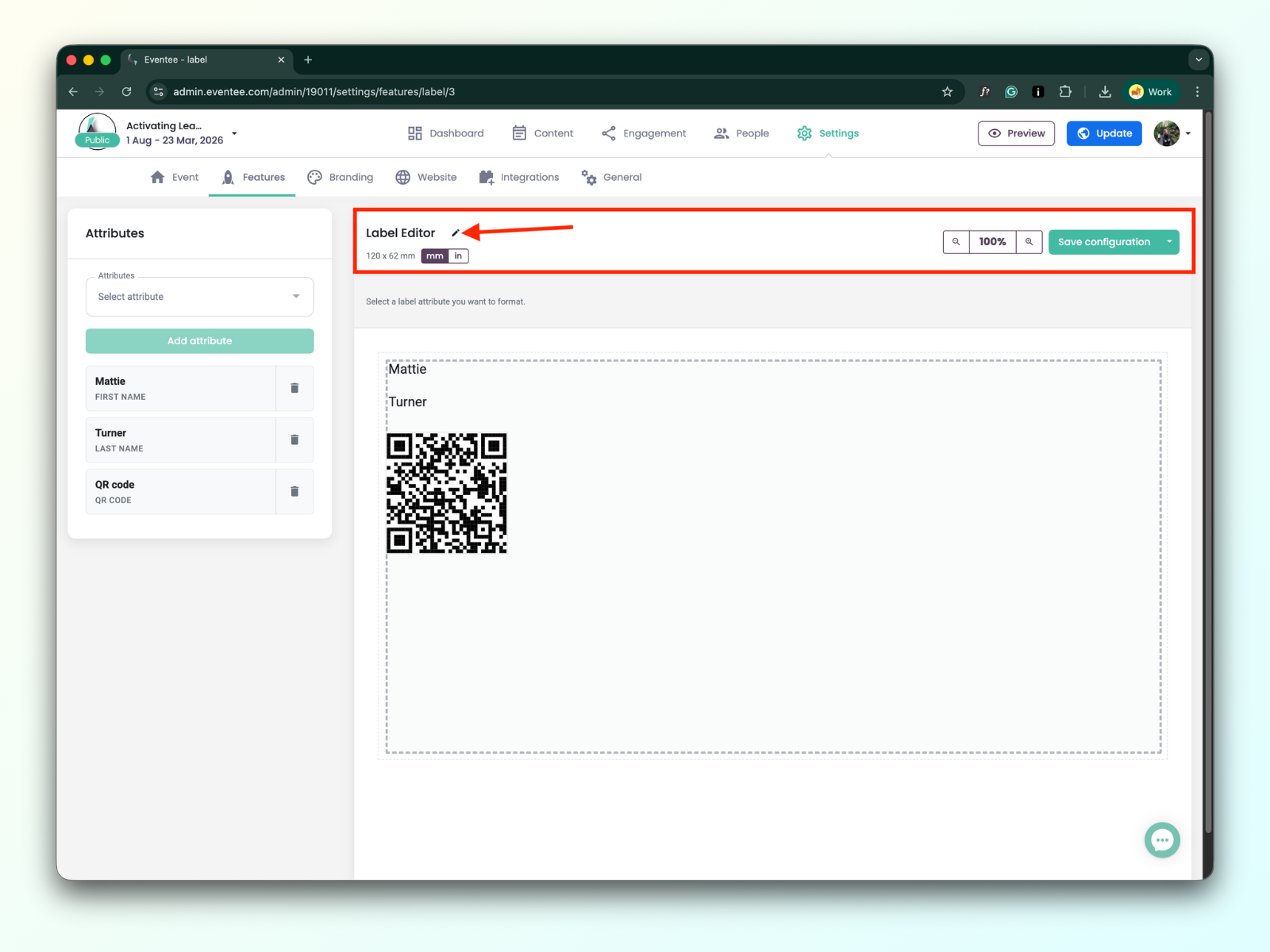
Opção de zoom
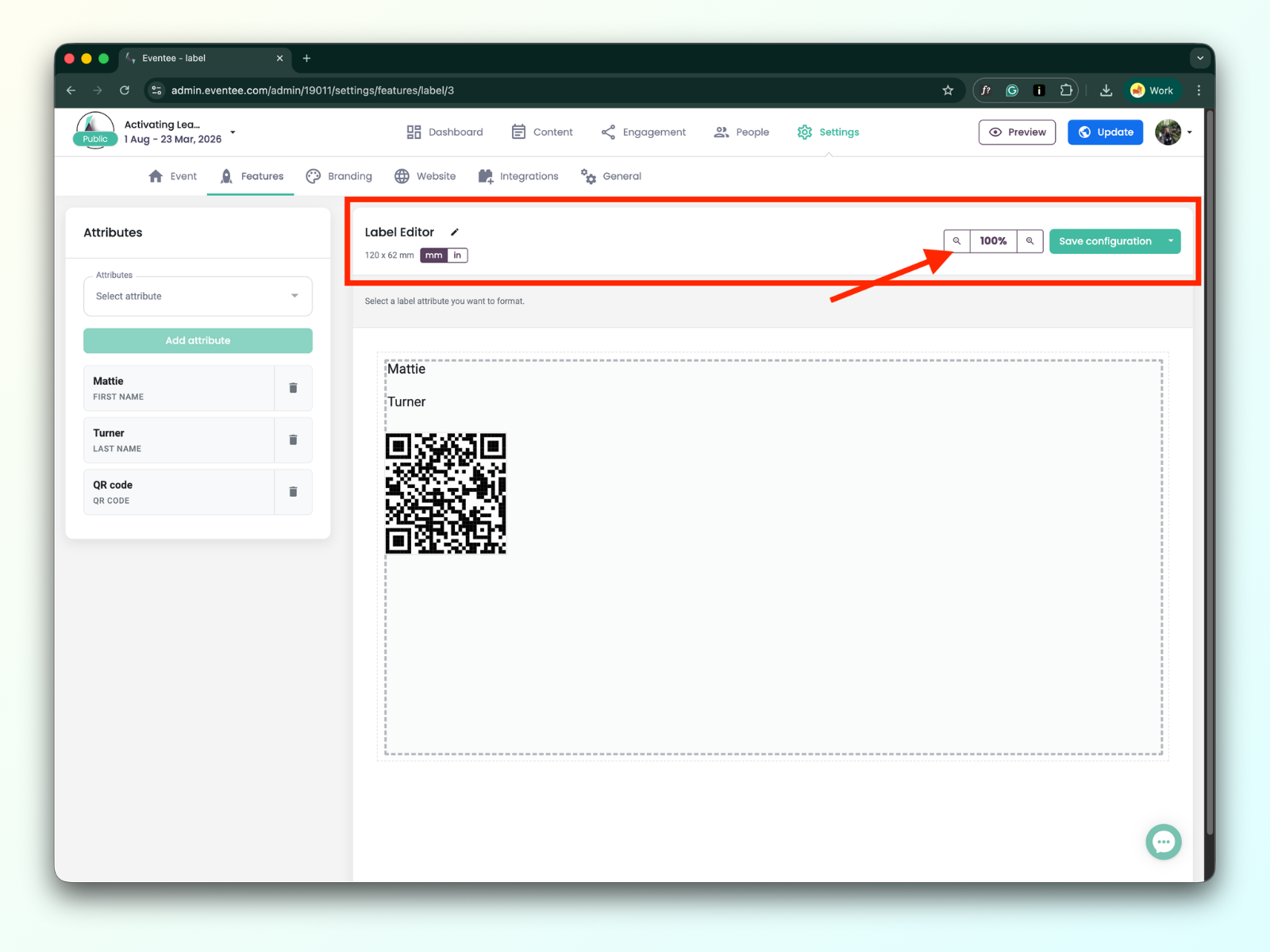
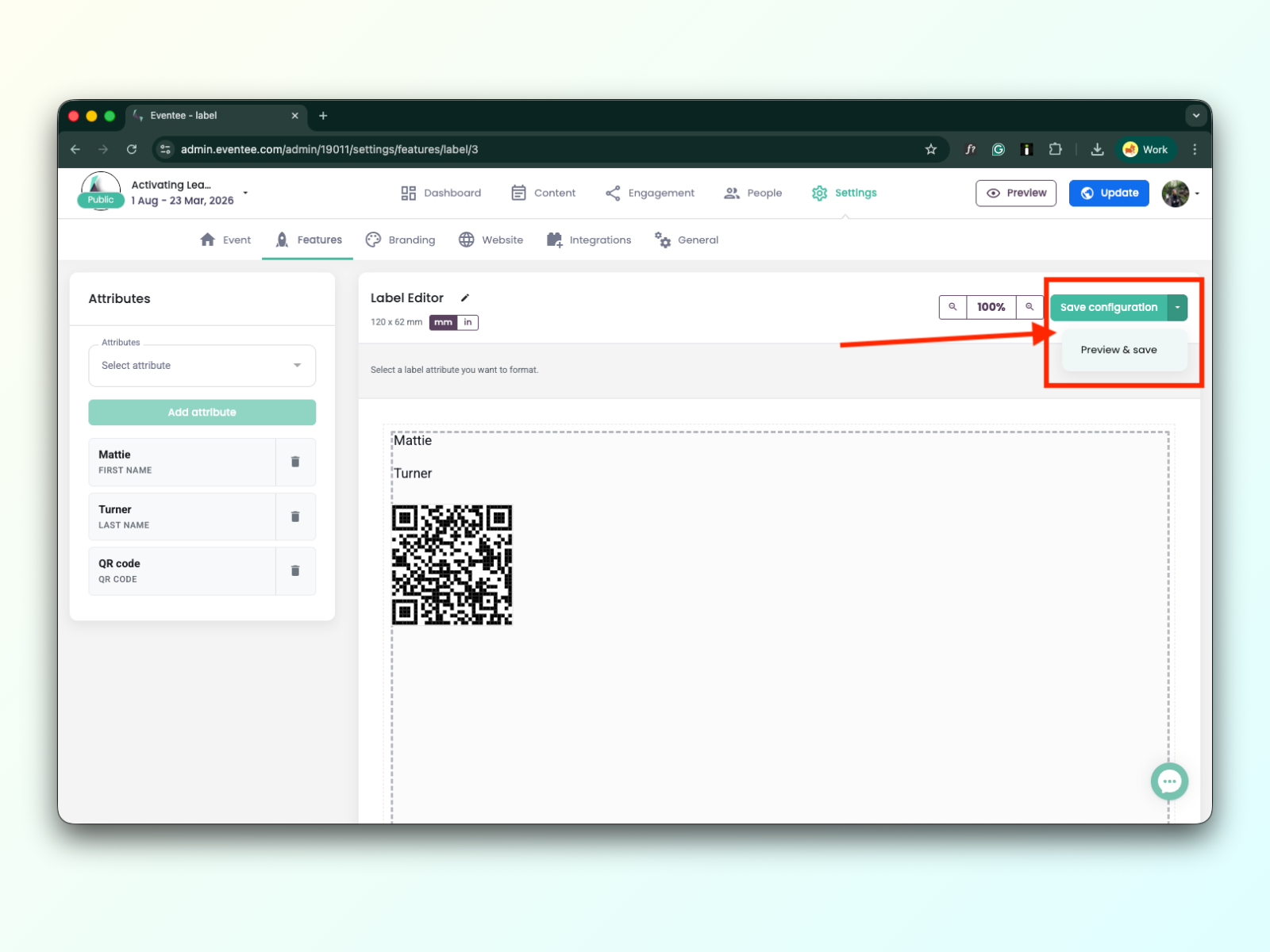
Save and preview button
Saving in the label editor is not automatic; you have to save your work by clicking the green button “Save configuration”.
You can look at how your label will look by clicking on the preview button.
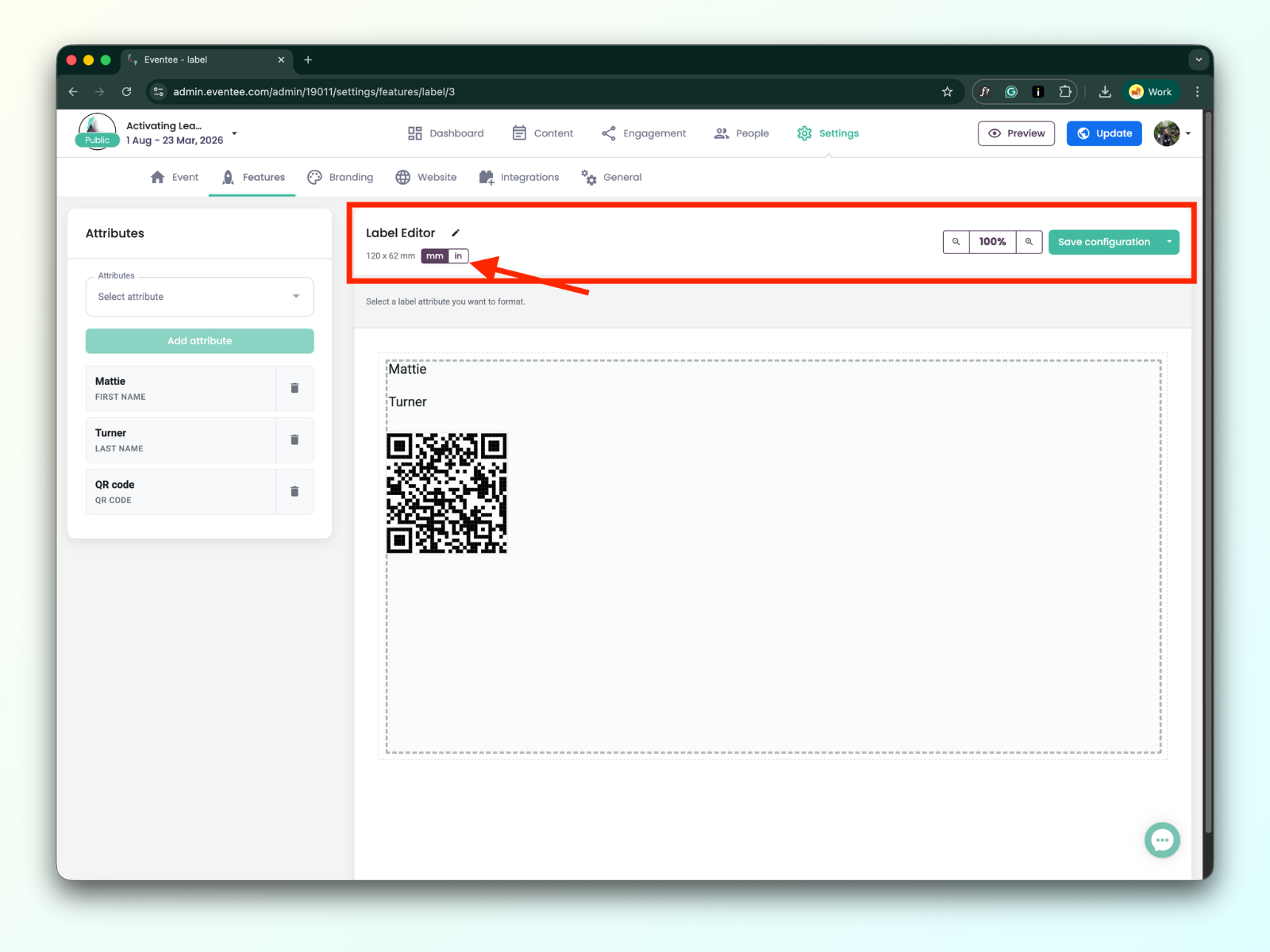
You can check the dimensions of the label in inches as well, using an inch converter
All added attributes to the label editor could be configured:
You can change the sizing of the attributes, and within the text field settings, you have the following options:
Tipo e Tamanho da Fonte: Escolha sua fonte e escala preferidas.
Estilo: Aplique formatação Negrito ou Itálico.
Alinhamento: Alinhe seu texto à esquerda, centro ou direita."