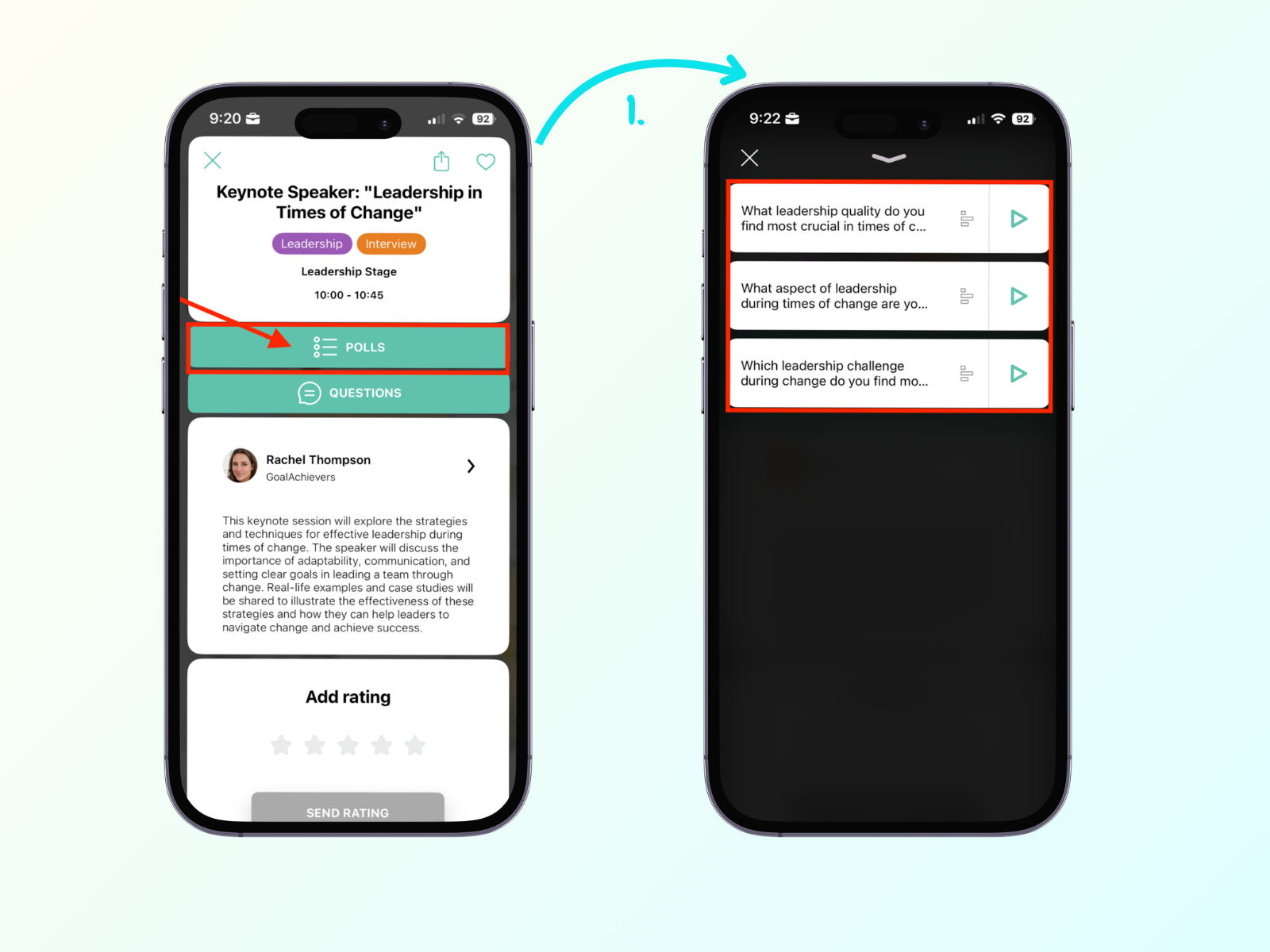
You can manage everything either via the web administration or straight from the Eventee mobile app. Just make sure you are logged in with the right moderator account.
To see polls for a specific session, navigate to Program and open the session. In the session detail, click Polls. Now, you should see the management interface where you can view, start, pause, or stop your prepared polls.
New polls can only be created in the web administration. Create them in advance or use the web administration during the session to add polls in real time. You can create an unlimited number of polls for a session, but remember that you can only have one poll active at a time.
How to manage: Open the list of prepared polls. Click Start to push a poll live to the audience, Pause to temporarily freeze voting, or Stop to close it completely when time is up.
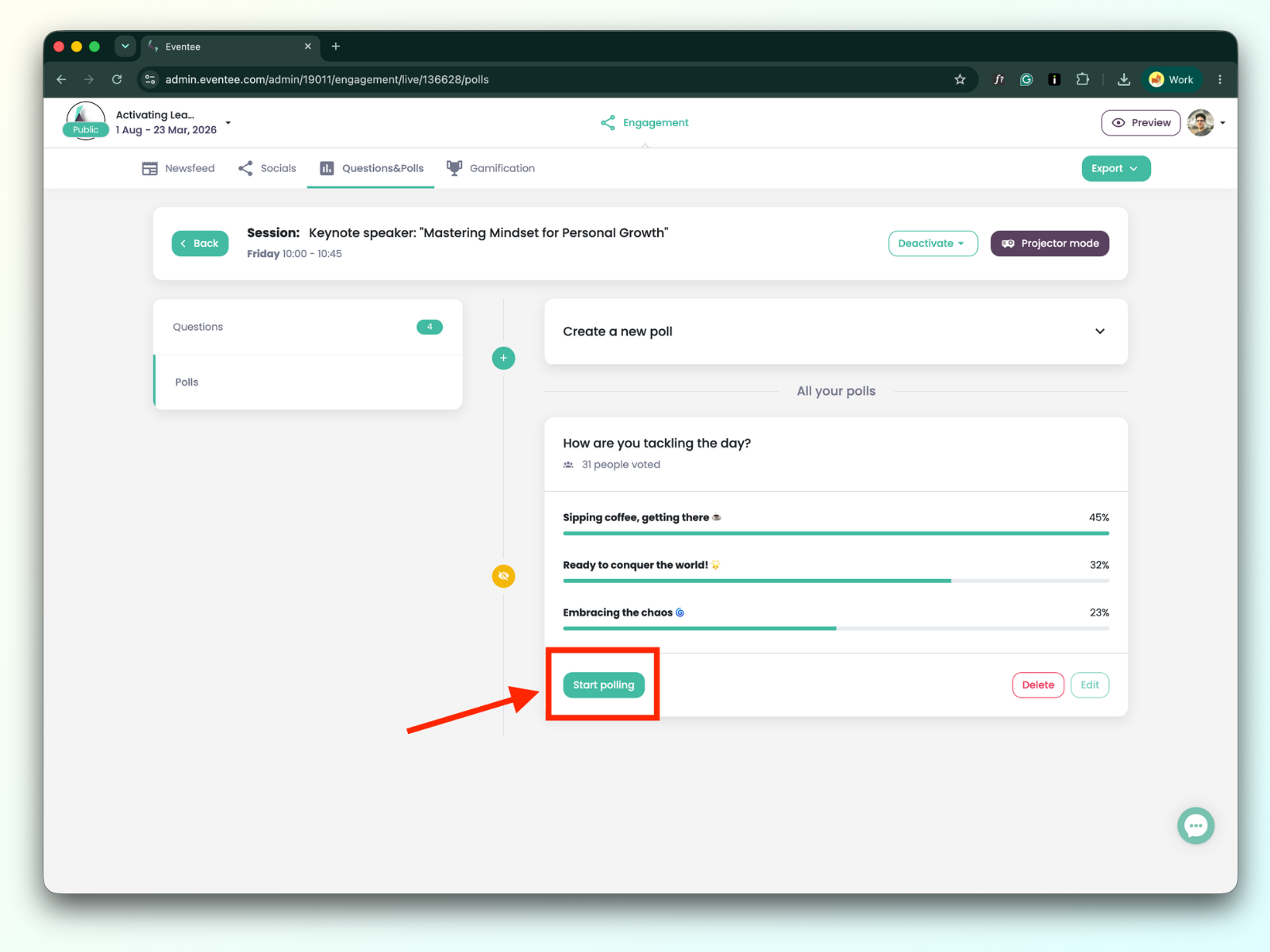
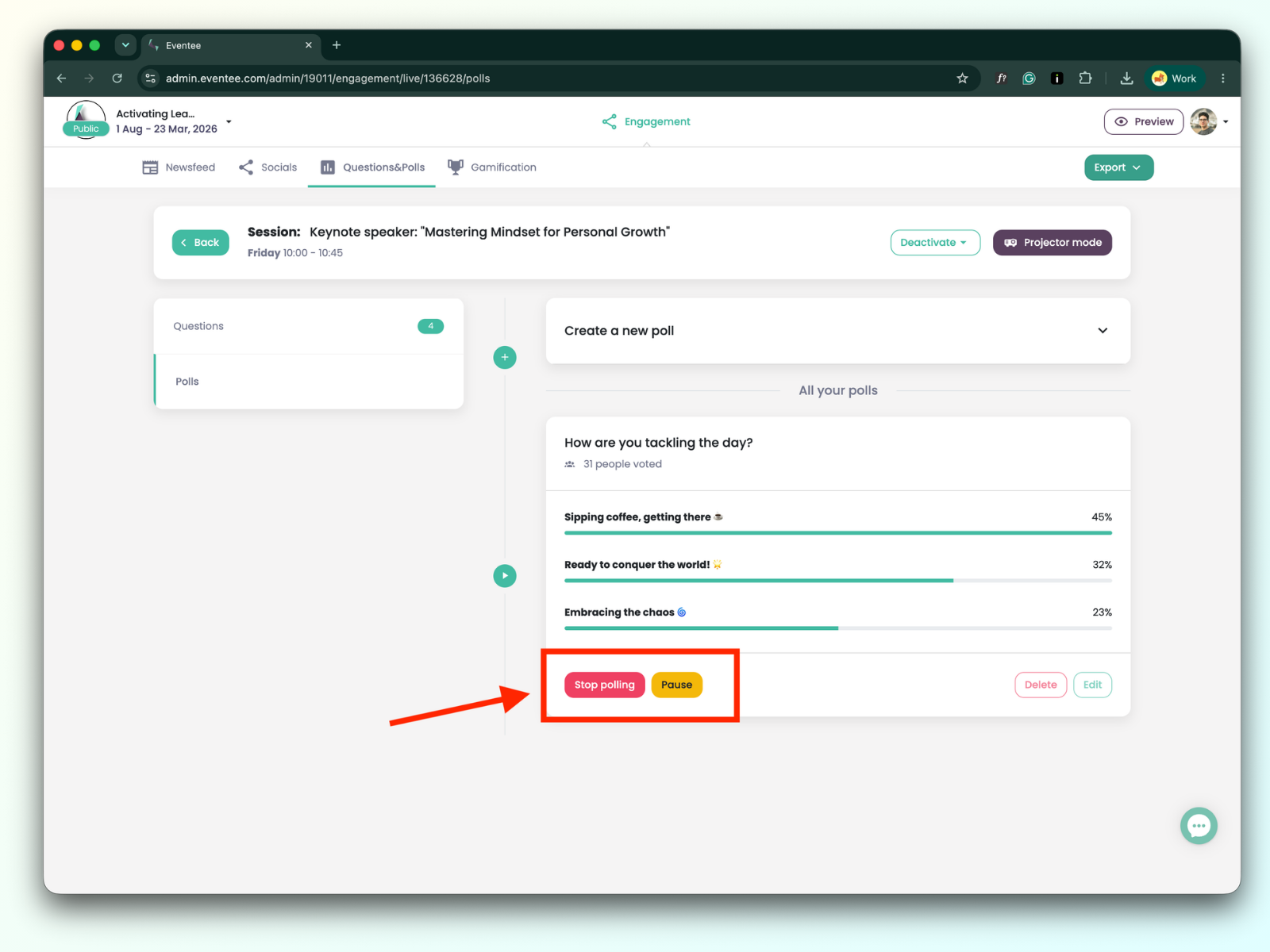
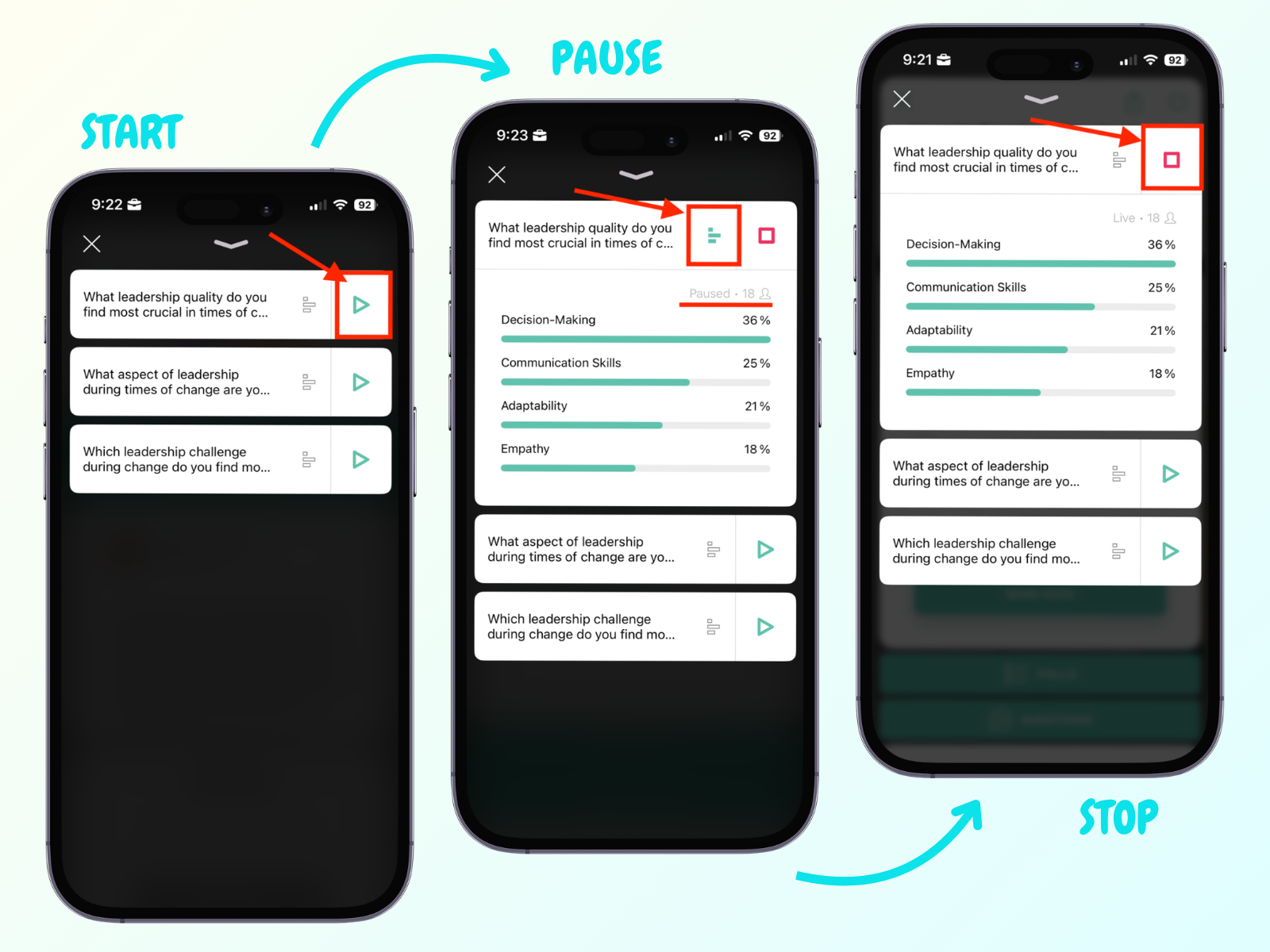
Once attendees vote, they can immediately see the live results in the app. Attendees who haven't voted yet will see the results only if you choose to reveal them.
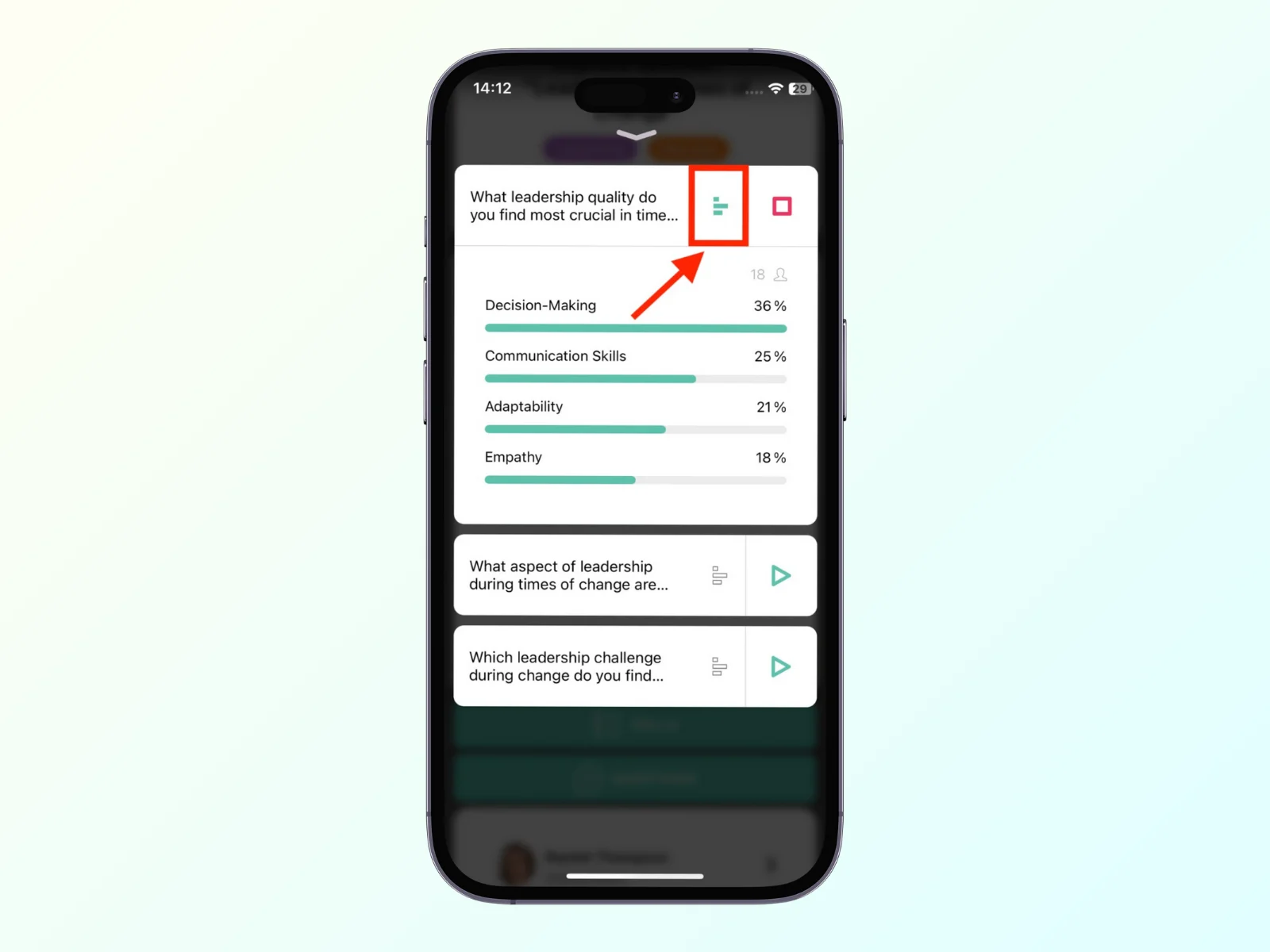
How to manage: Click the results visibility button to show or hide the results instantly. Keep in mind that when results are shown, the poll is paused. Attendees who haven't voted yet will be locked out from voting until you hide the results again.
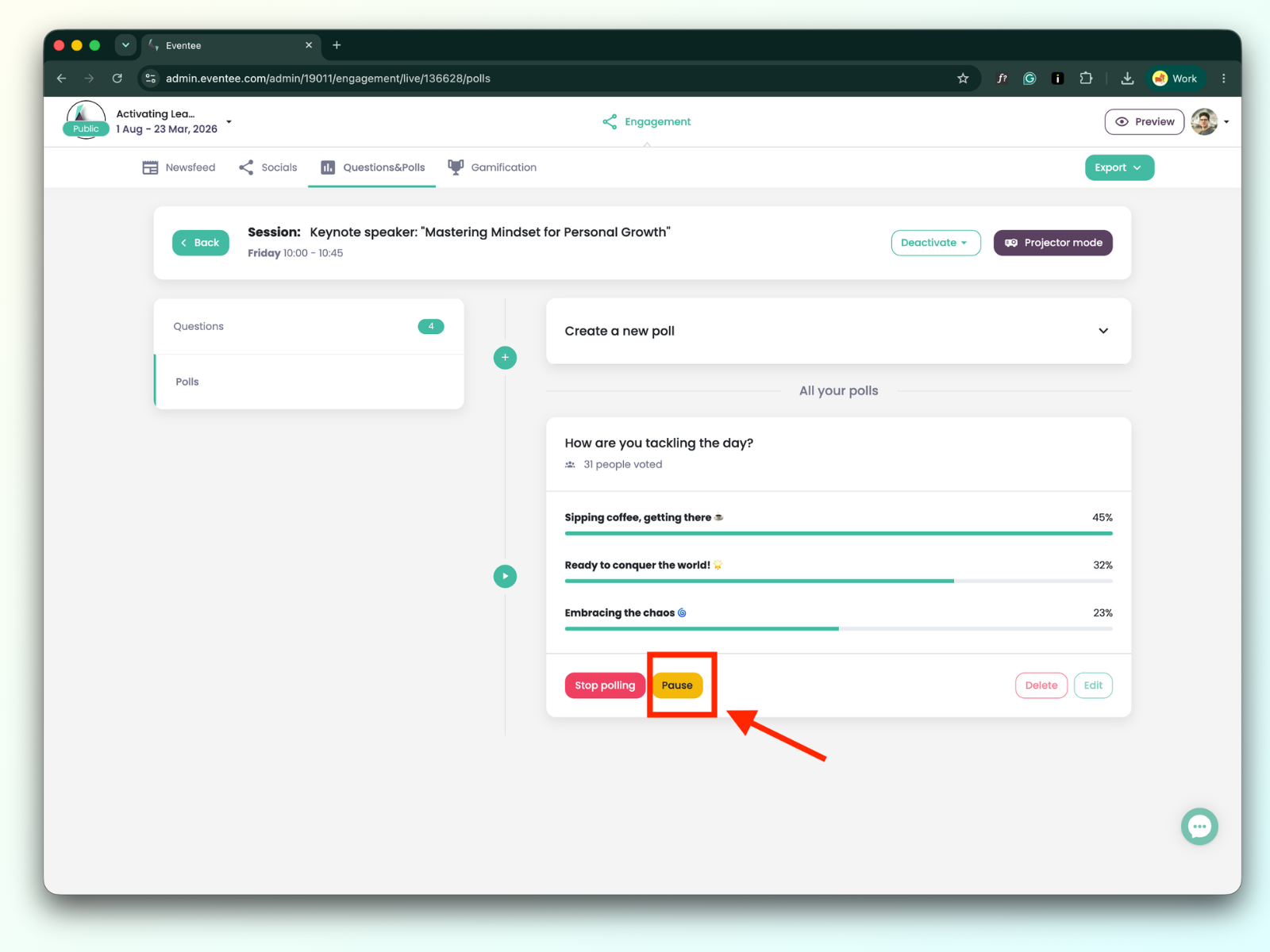
If you are also managing the stage screens, you can activate the Projector mode to show live poll results on a big screen. This can only be done from the web administration panel, not the mobile app.

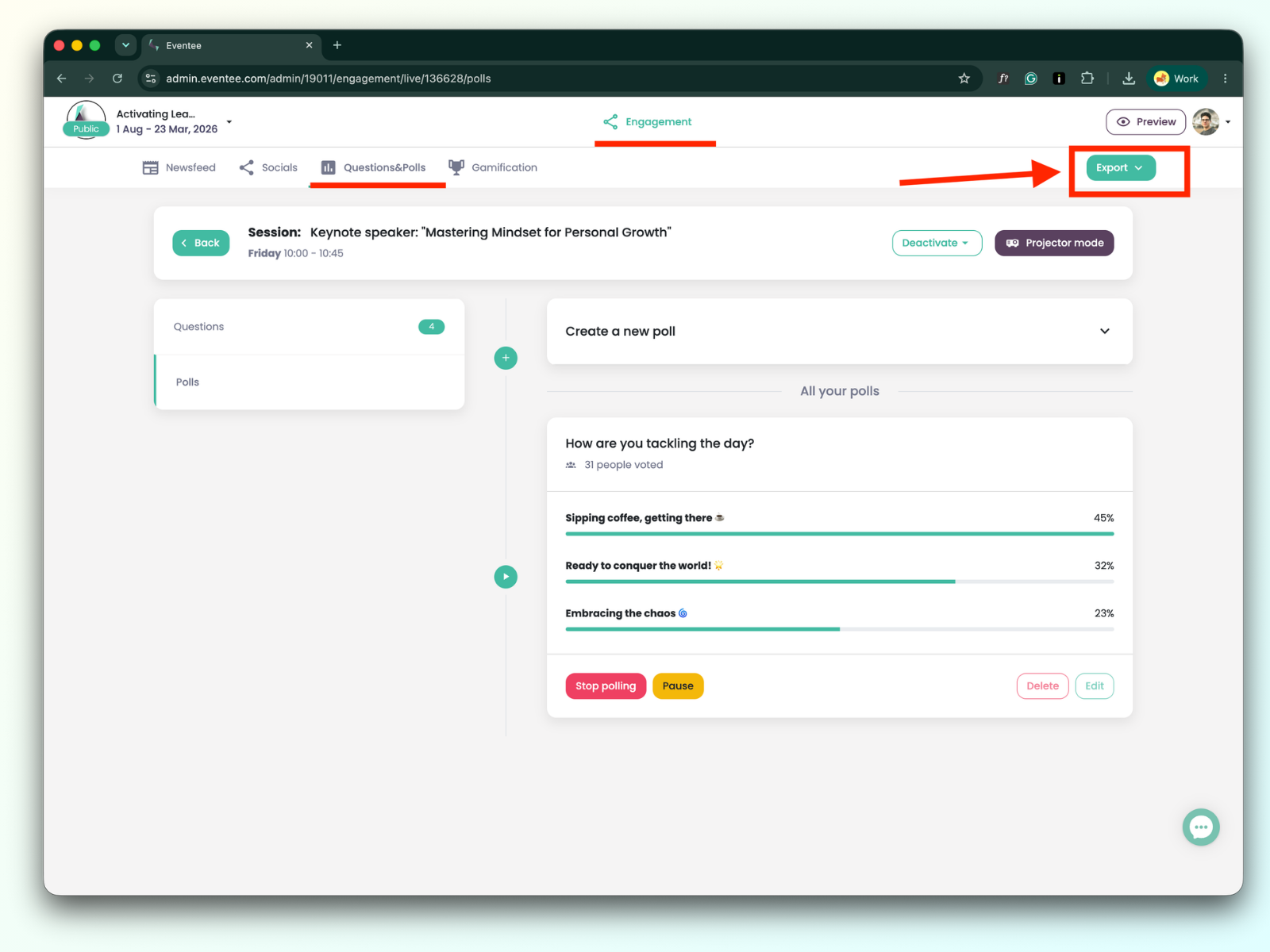
If you need to review the results or share the data after the event is over, you can export them.
This can only be done in the web administration. Head over to Engagement > Questions&Polls. Click the specific session and open the polls management interface. Find the Export button in the upper right corner.