You can manage everything via the web administration. Full management is not yet available via the Eventee mobile app. Just make sure you are logged in with the right moderator account.
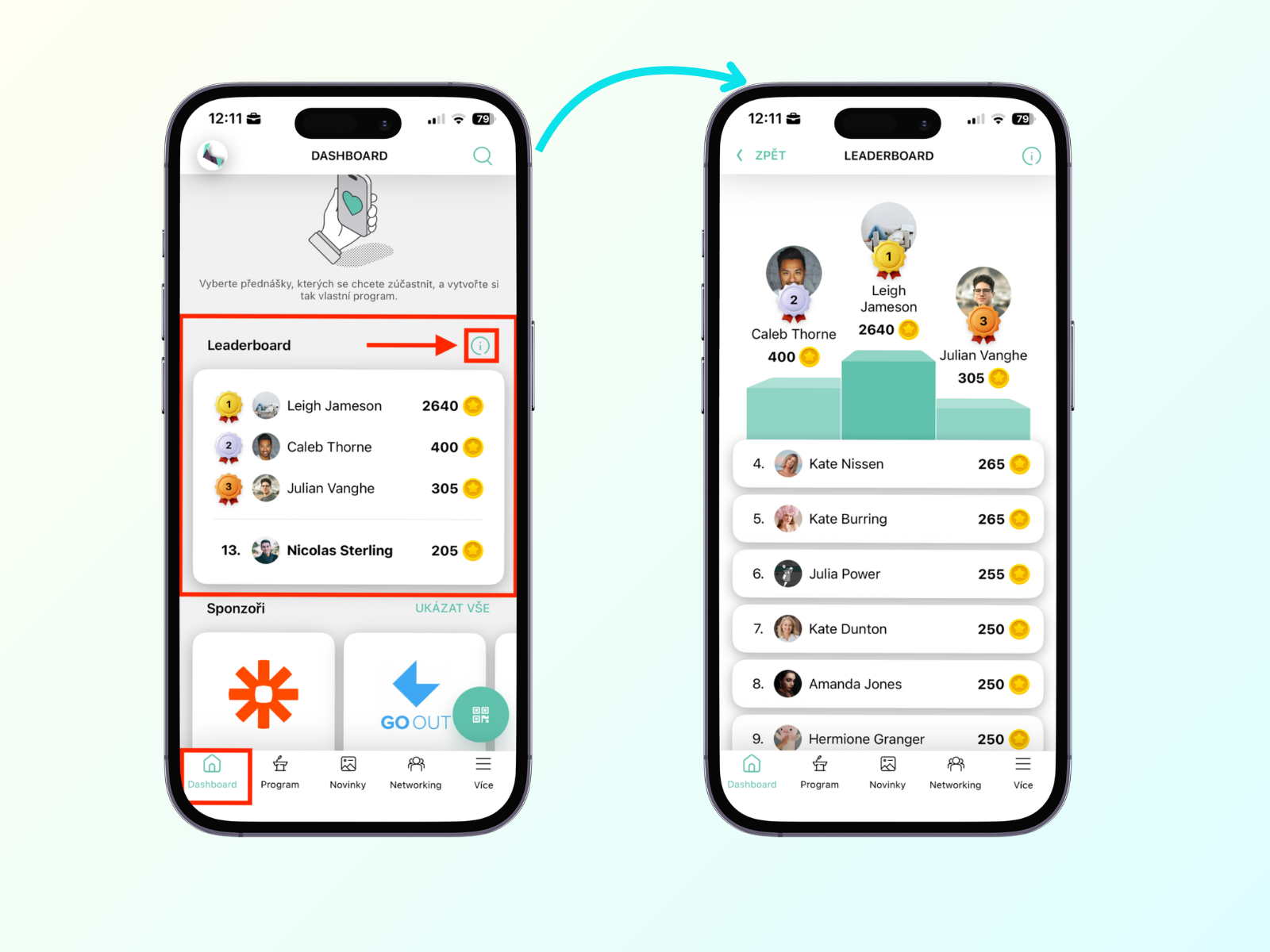
To track the game's progress during the event, open the Dashboard in the mobile app and navigate to the full Leaderboard view. Event team members can’t participate in the game and gain points. On the mobile app, you can view all players and monitor rankings.
However, to review a player’s activity, or to disqualify or restore them, you must use the web administration. Please note that as a moderator, you do not have access to game settings.
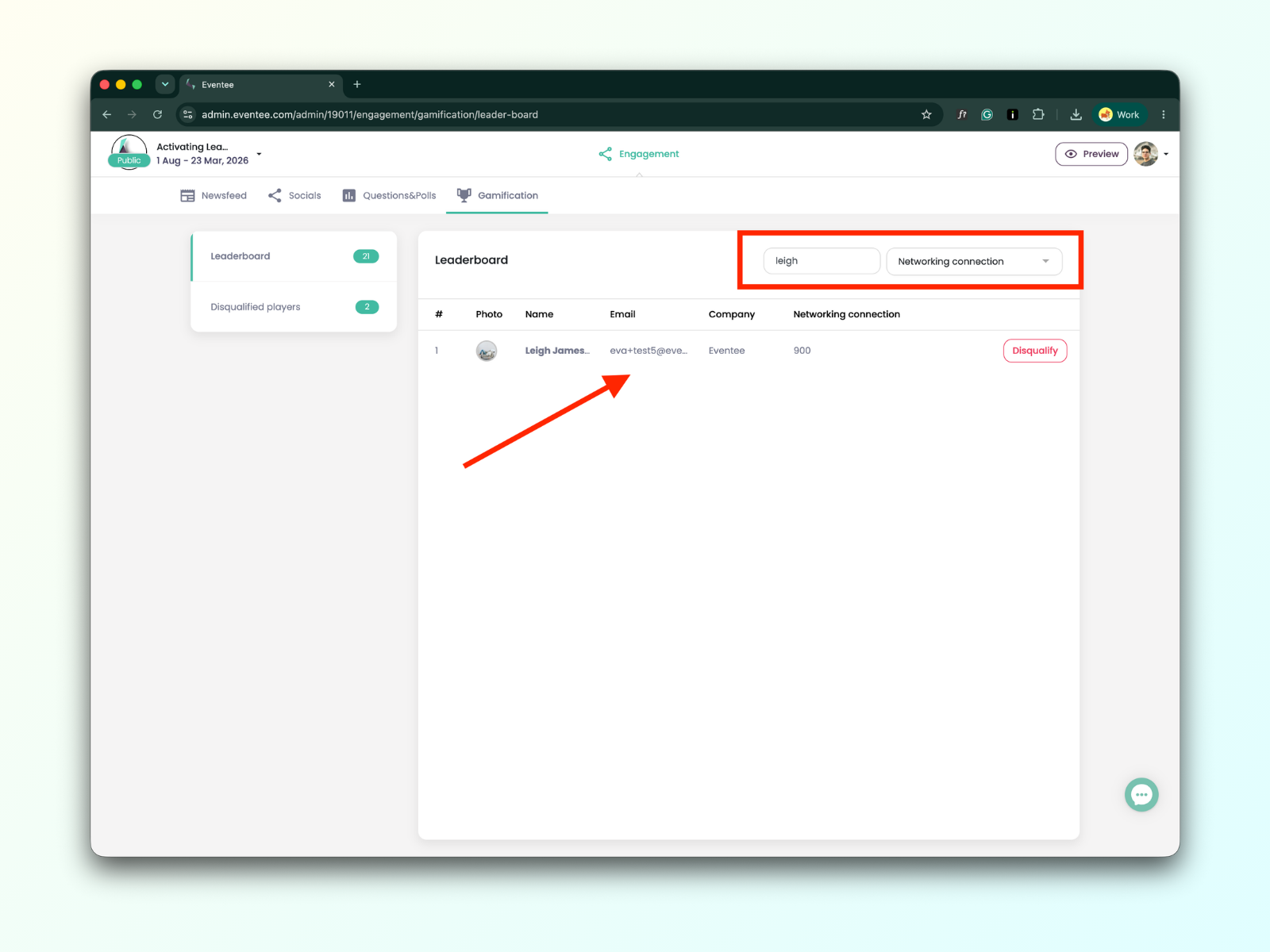
If you suspect an attendee is gaming the system or you need to verify how a top player earned their rank, you can audit their points.
How to manage: Open the Gamification tab in the web administration to view the list of all players. Search for the player you want to review, then use the filter next to the search bar to see how many points they earned for each activity.
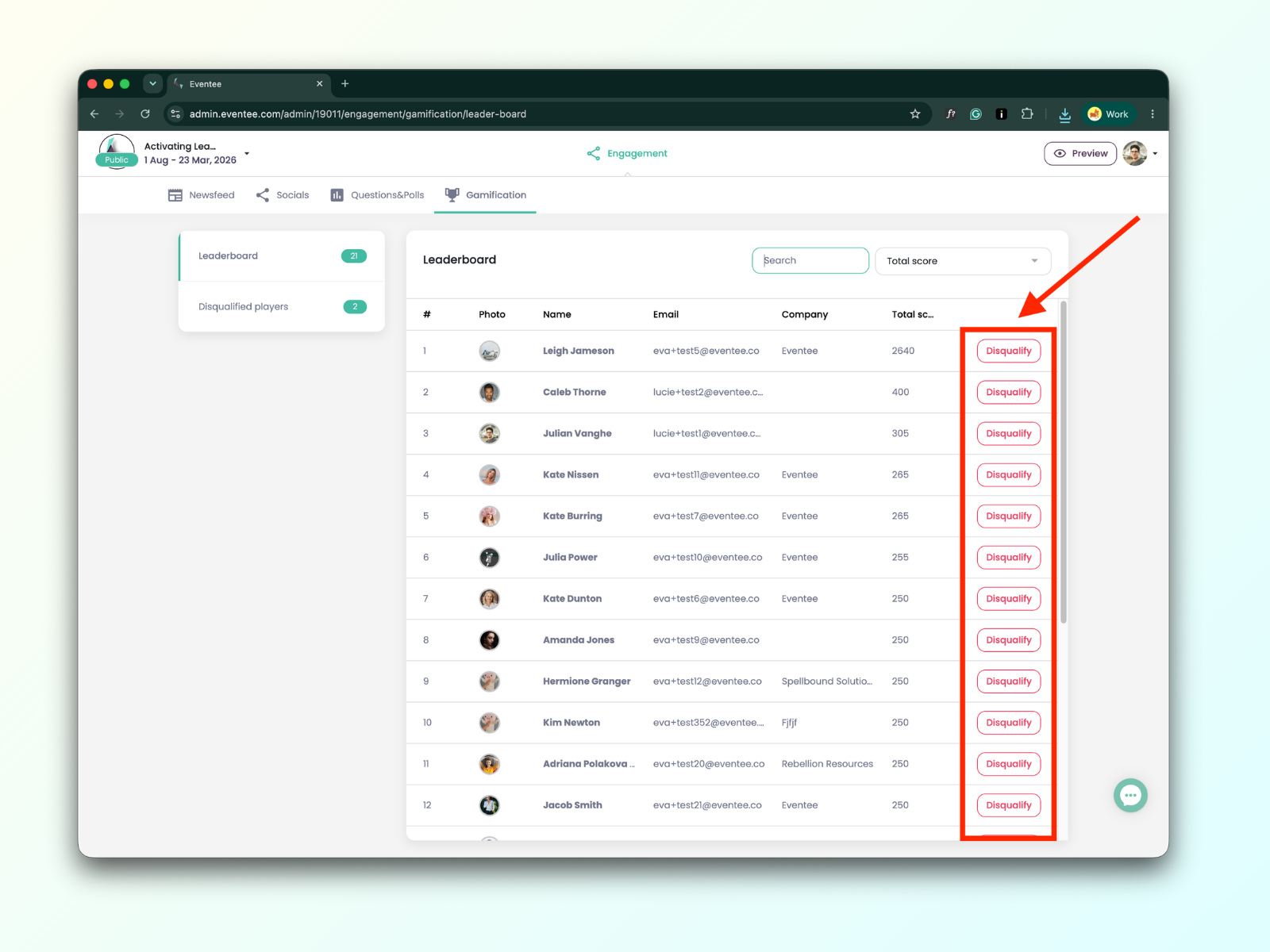
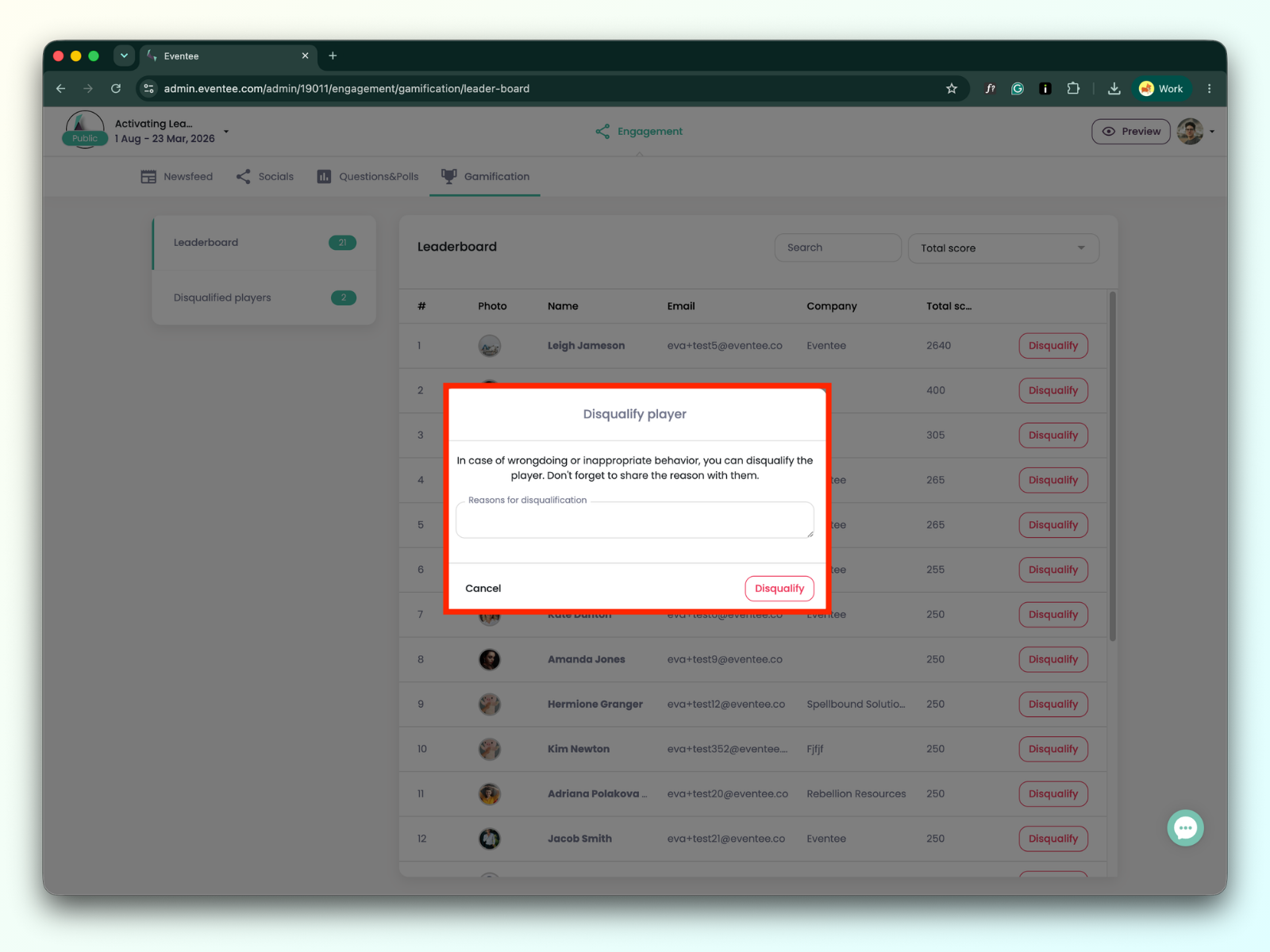
If an attendee violates your event's code of conduct, you have the authority to remove them from the competition.
How to manage: Locate the player in the Gamification tab in the web administration. Click Disqualify to remove them from the Leaderboard. You have to enter a specific reason for the disqualification, which will be visible to the player in their app.
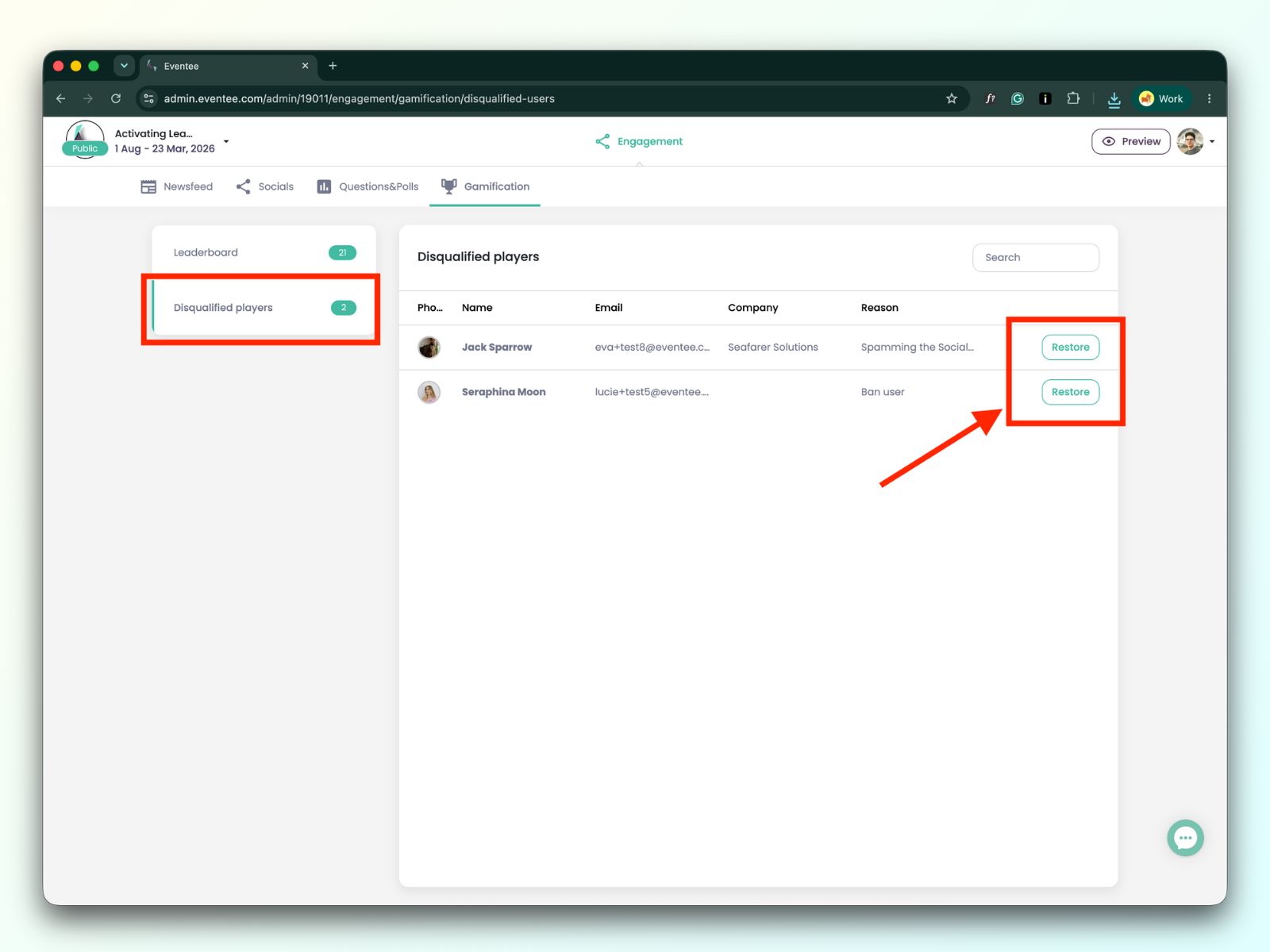
The system keeps a clear record of disqualified players and the reasons for their disqualification. If a player was disqualified by mistake, you can restore their status at any time.
How to manage: Go to the Gamification tab in the web administration and open Disqualified players. Here you can track two types of inactive users—players you manually disqualified (which will display your written reason) and players who voluntarily chose to leave the game on their own (the reason field will be blank). If a player left by accident or has served their penalty, click Restore to bring them back into the game.