Manage all user-flagged material from the Reported Content section. This screen gives you a complete overview of all reports to help you keep your platform safe and compliant. Follow this guide to moderate and manage your community's content effectively.
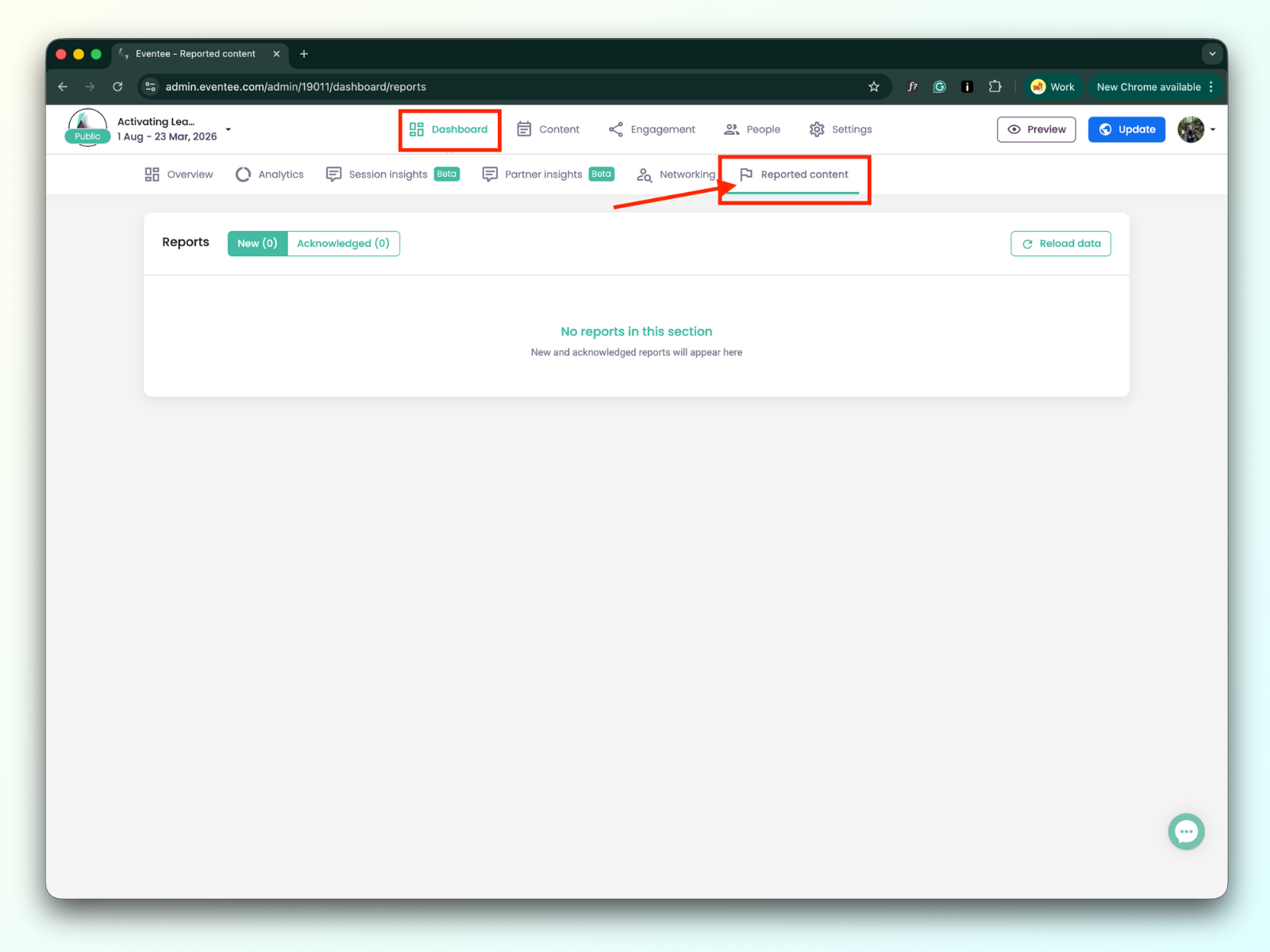
To view the reported content, navigate to Dashboard → Reported Content.
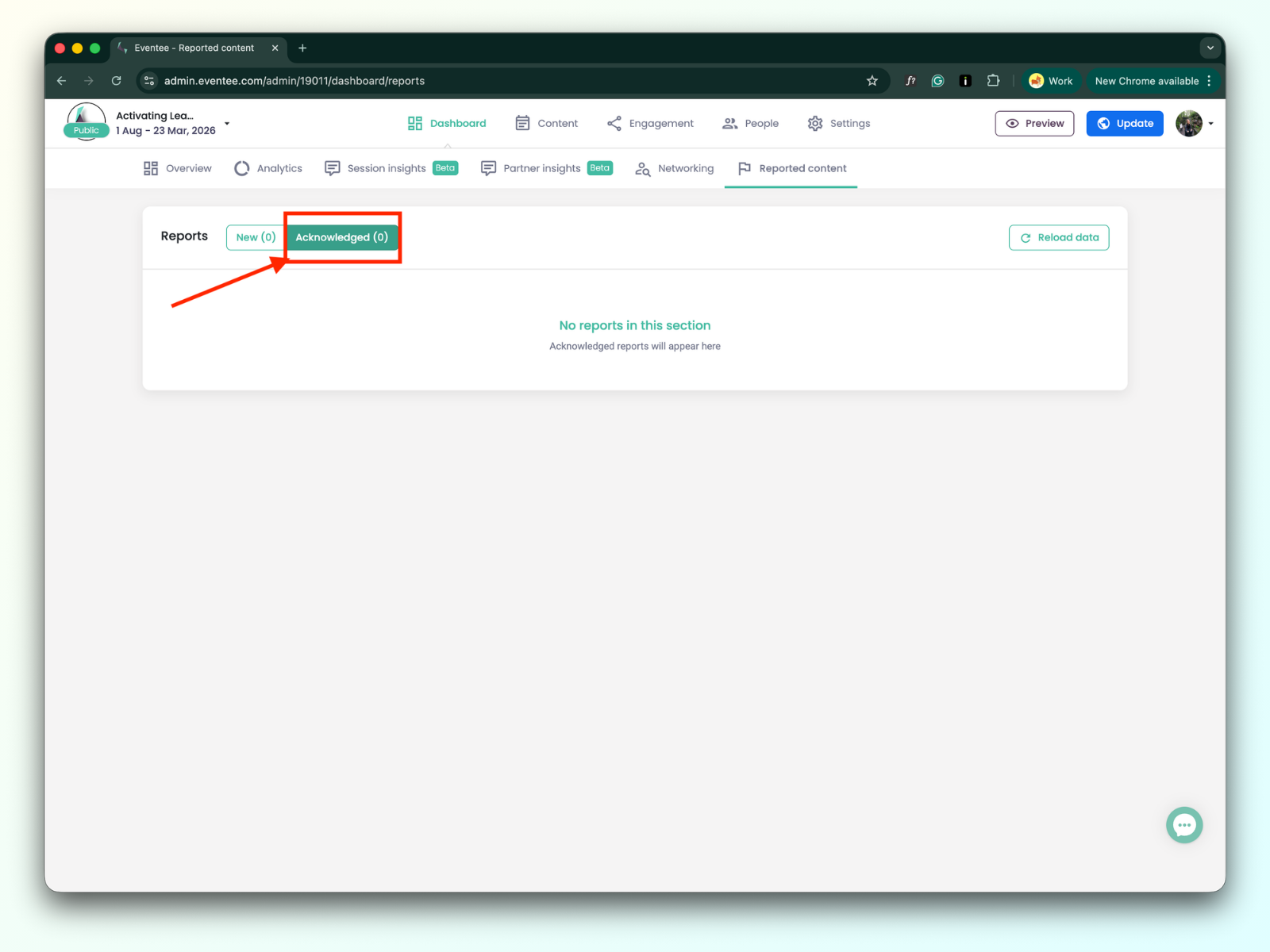
Located to the right of the "Reports" title is a toggle button. By default, the table displays New reports.
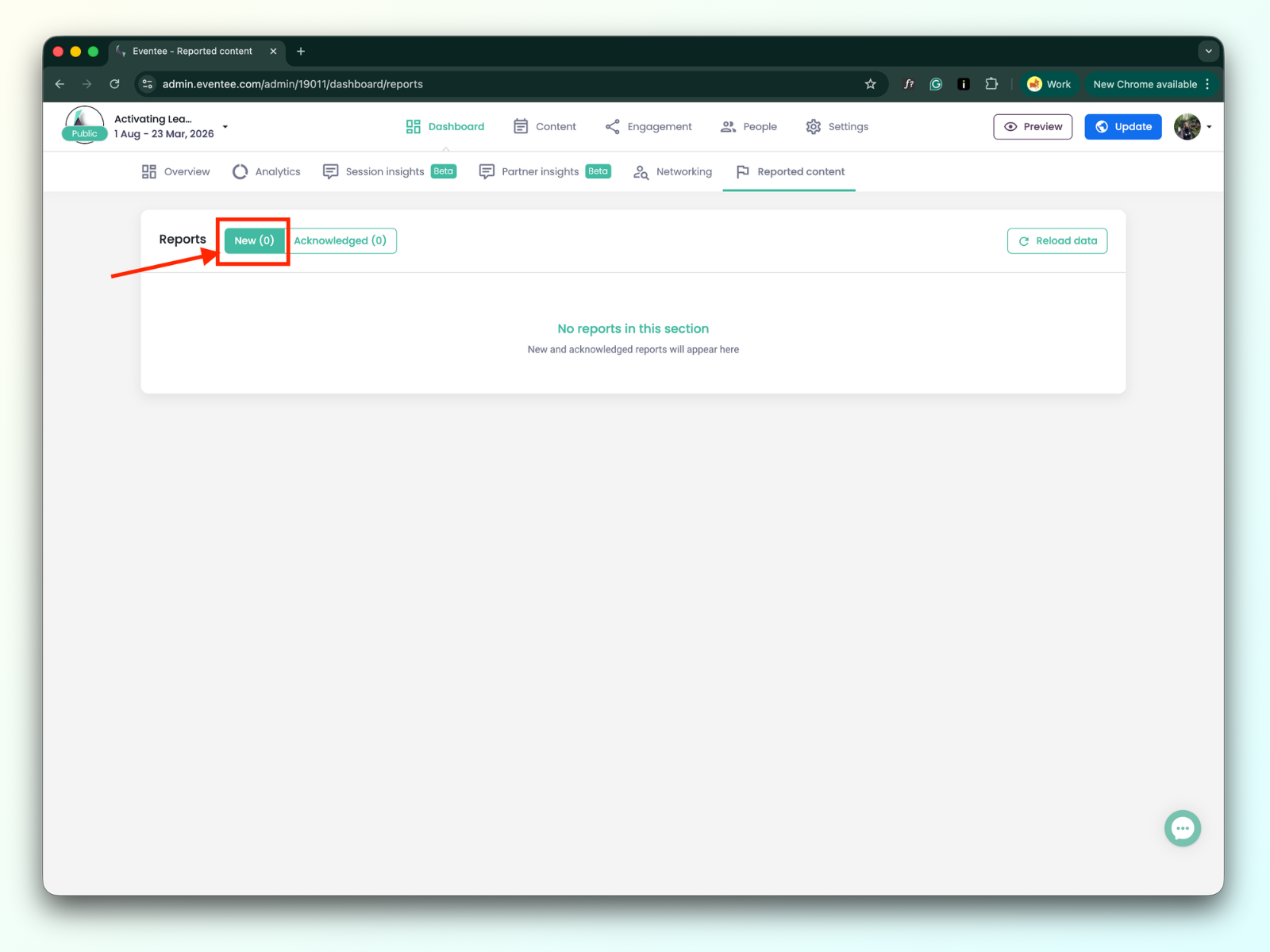
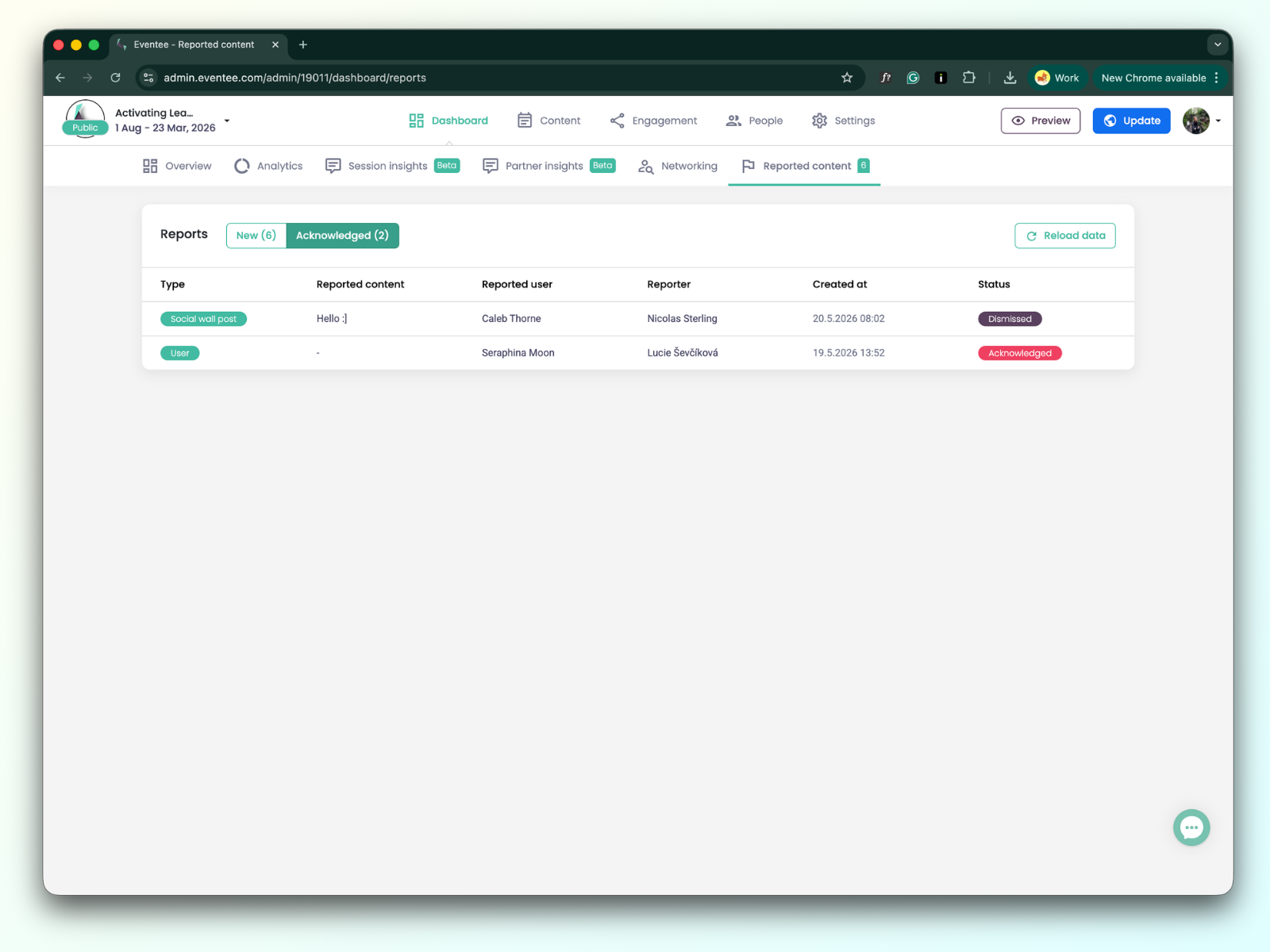
Click the Acknowledged button to view a list of acknowledged reports.
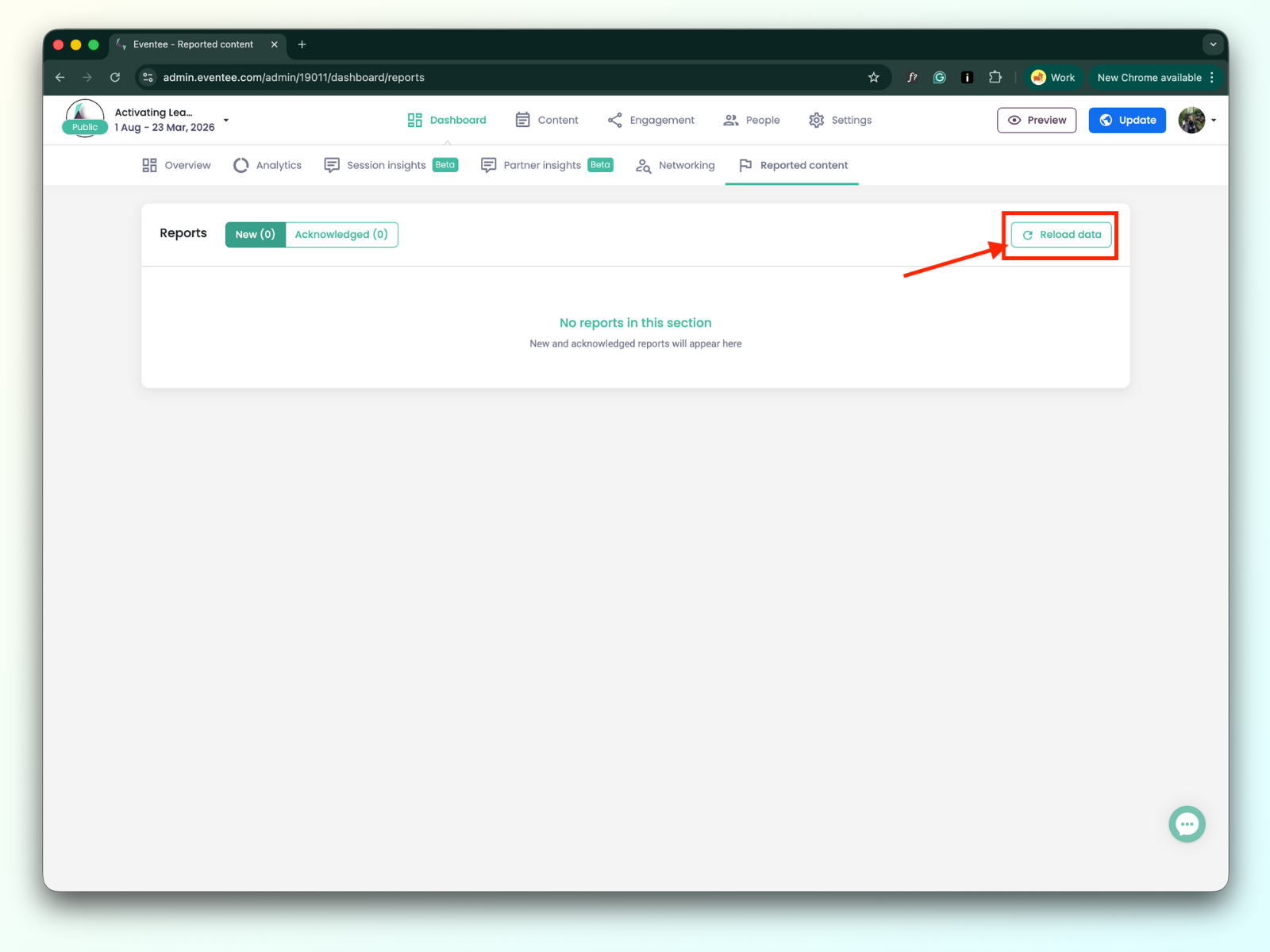
On the right side, there is a "Reload Data" button. Since the table does not refresh automatically, you must click this button or reload the page to view the latest data.
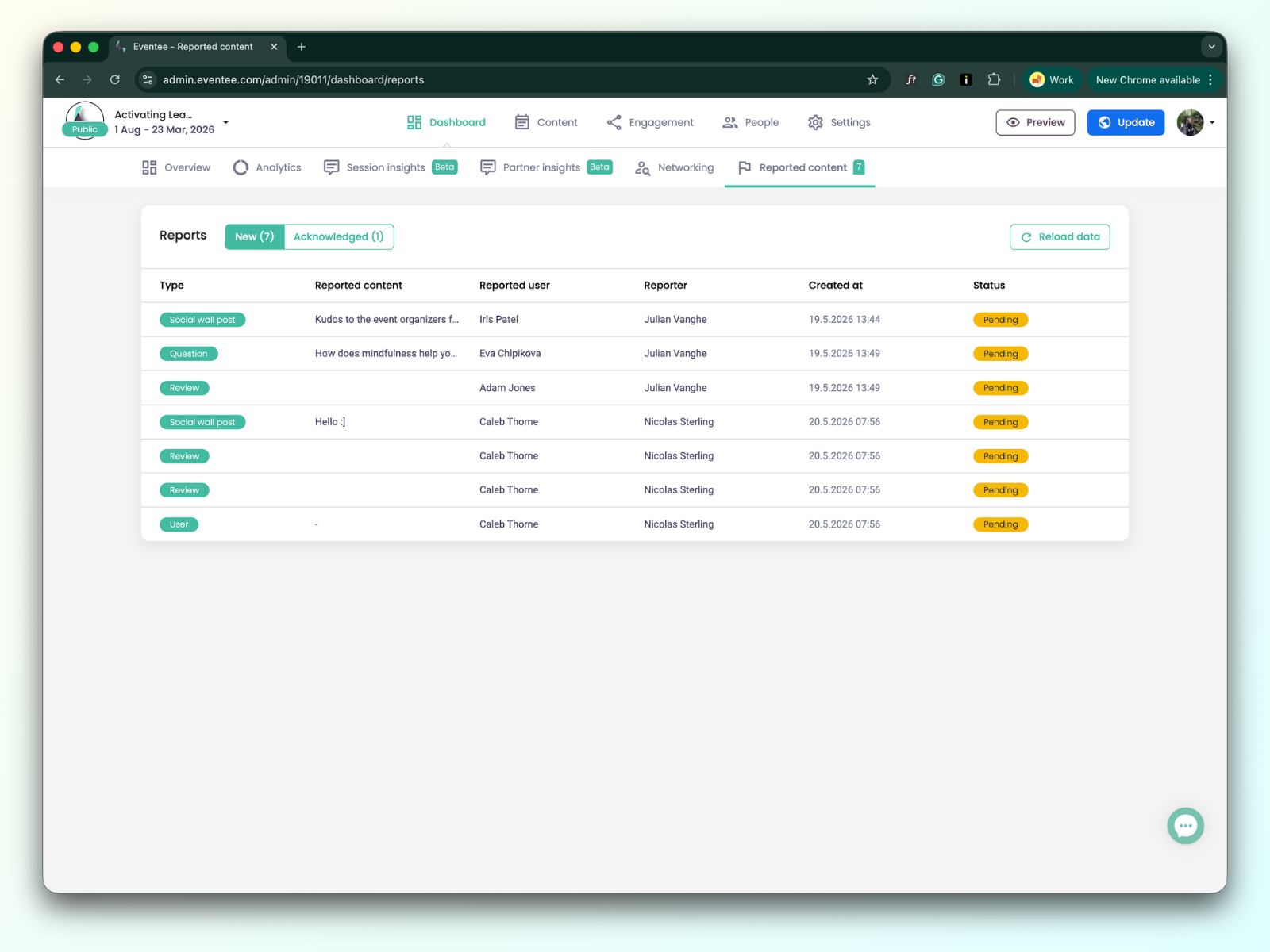
Type - Four types of content could be reported: Social wall post, Question, Review of the session, and User.
Reported content - Content that was reported.
Reported user - The name of the user who was reported.
Reporter - Reporter name.
Created at - The date when the content was reported.
Status - Status of the reported content. 'Pending' means the report has not yet been acknowledged.
attendee (app user)
team member
anonymous user
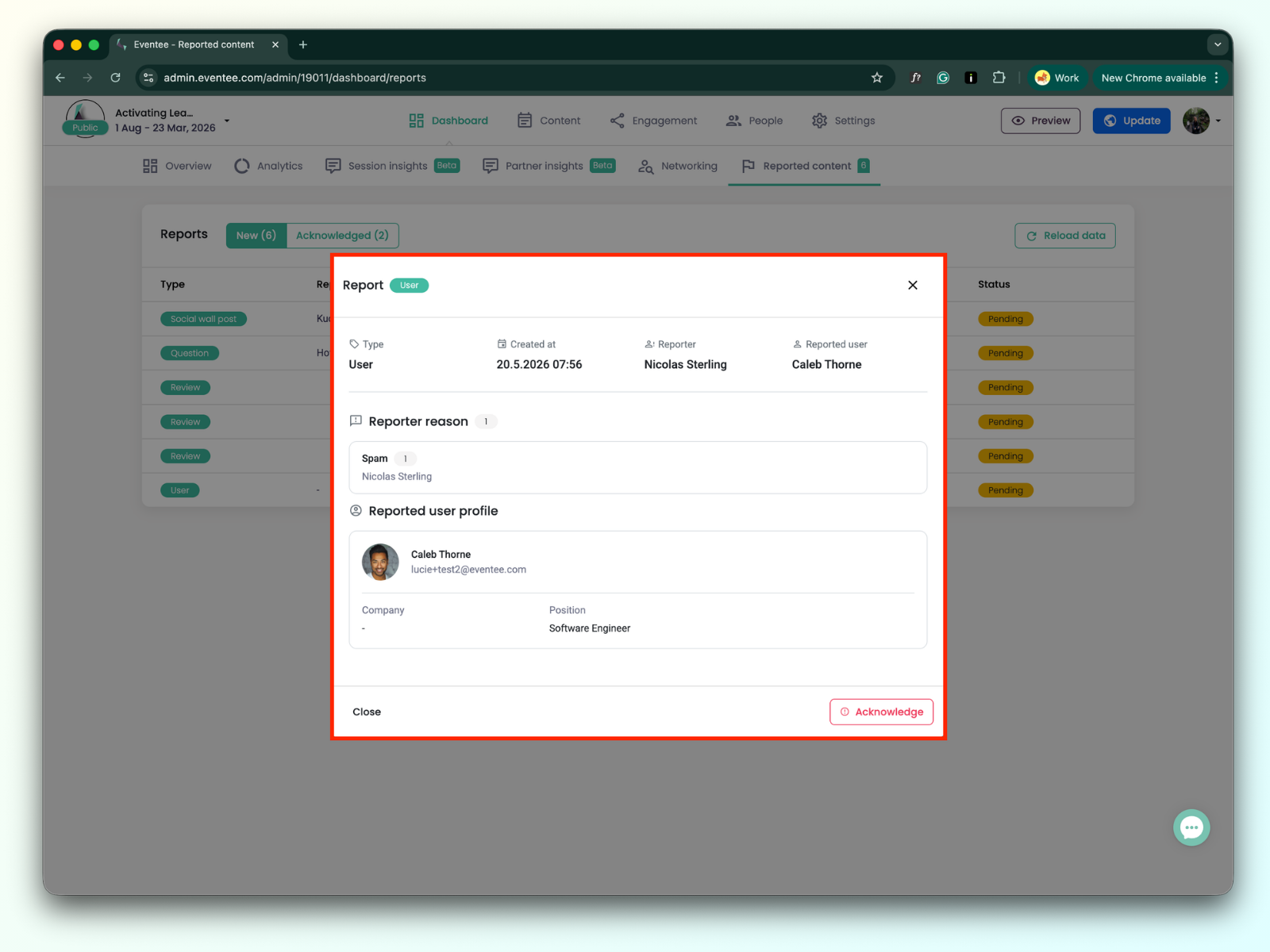
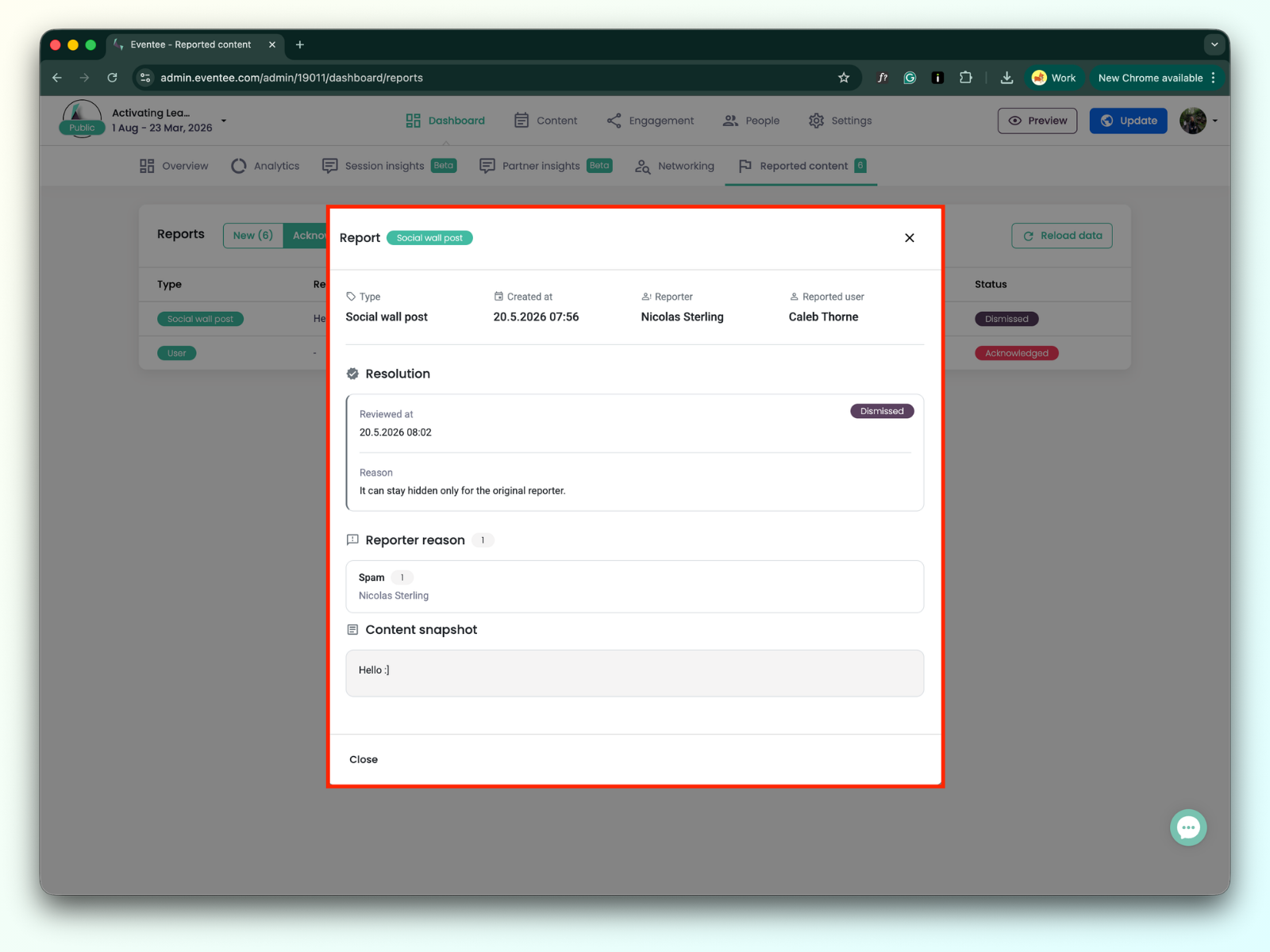
Clicking the report triggers the modal window with report details.
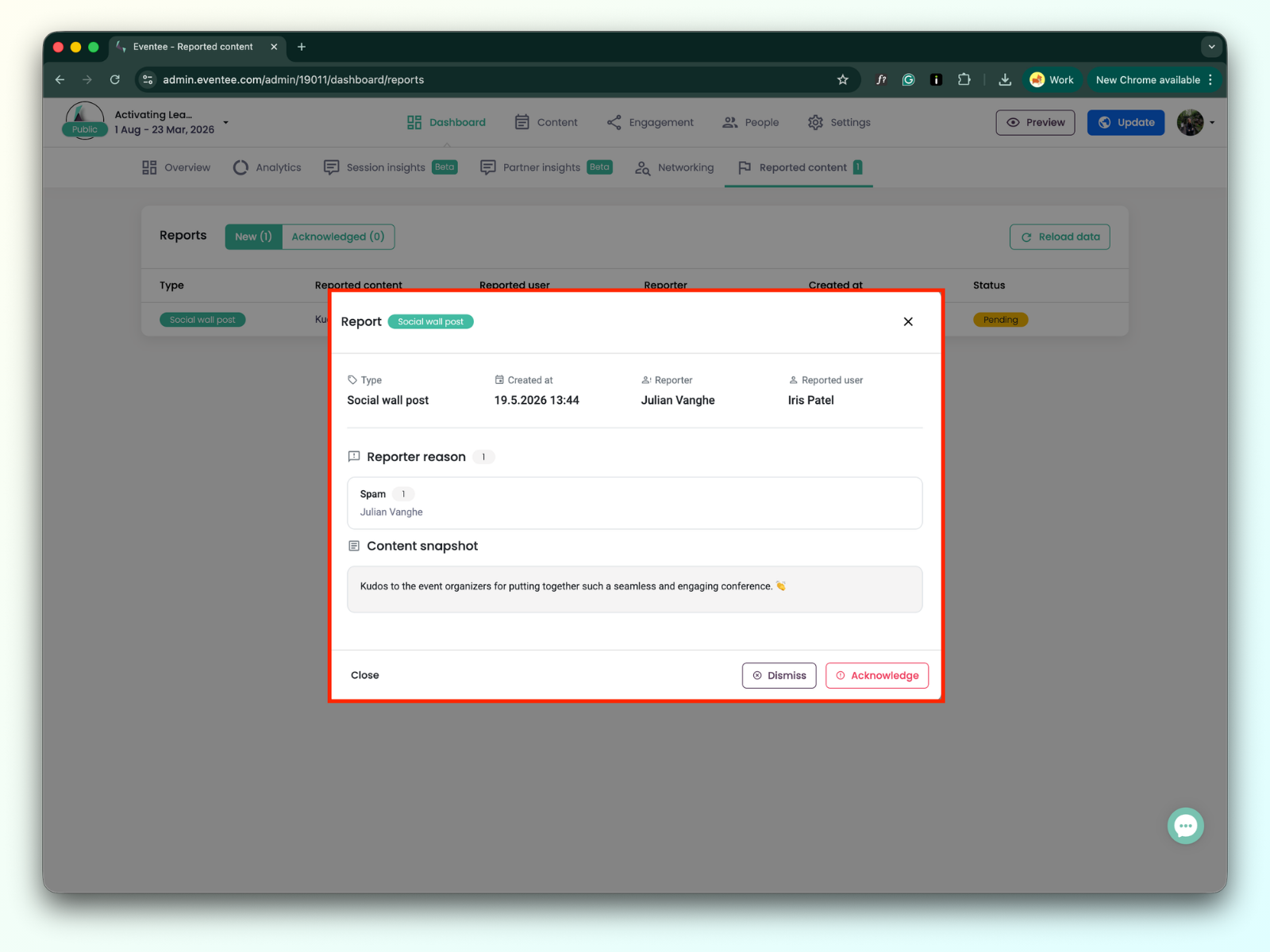
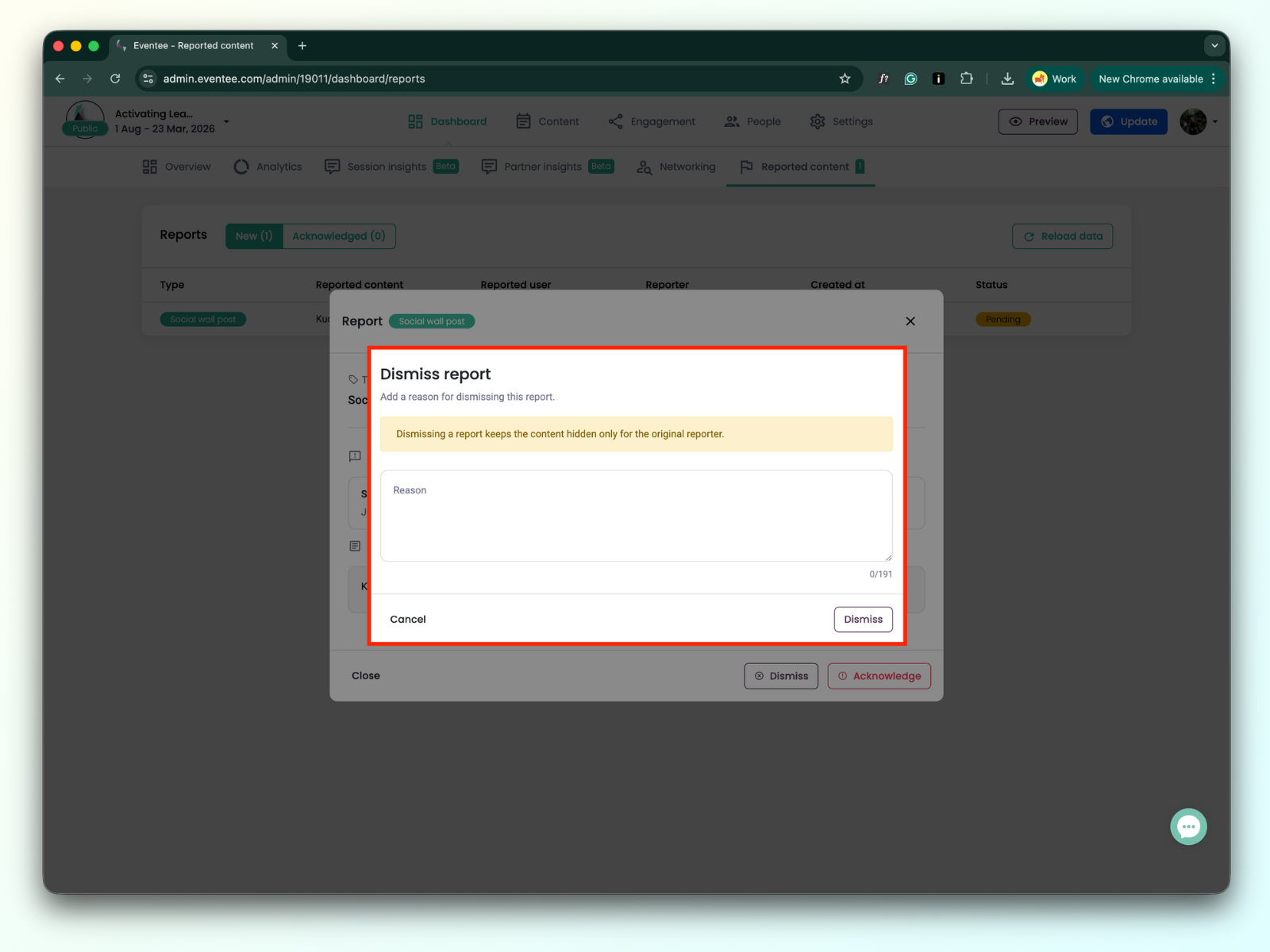
After reading the report, you can choose to either dismiss or acknowledge it:
Dismissing the report hides the content only from the original reporter.
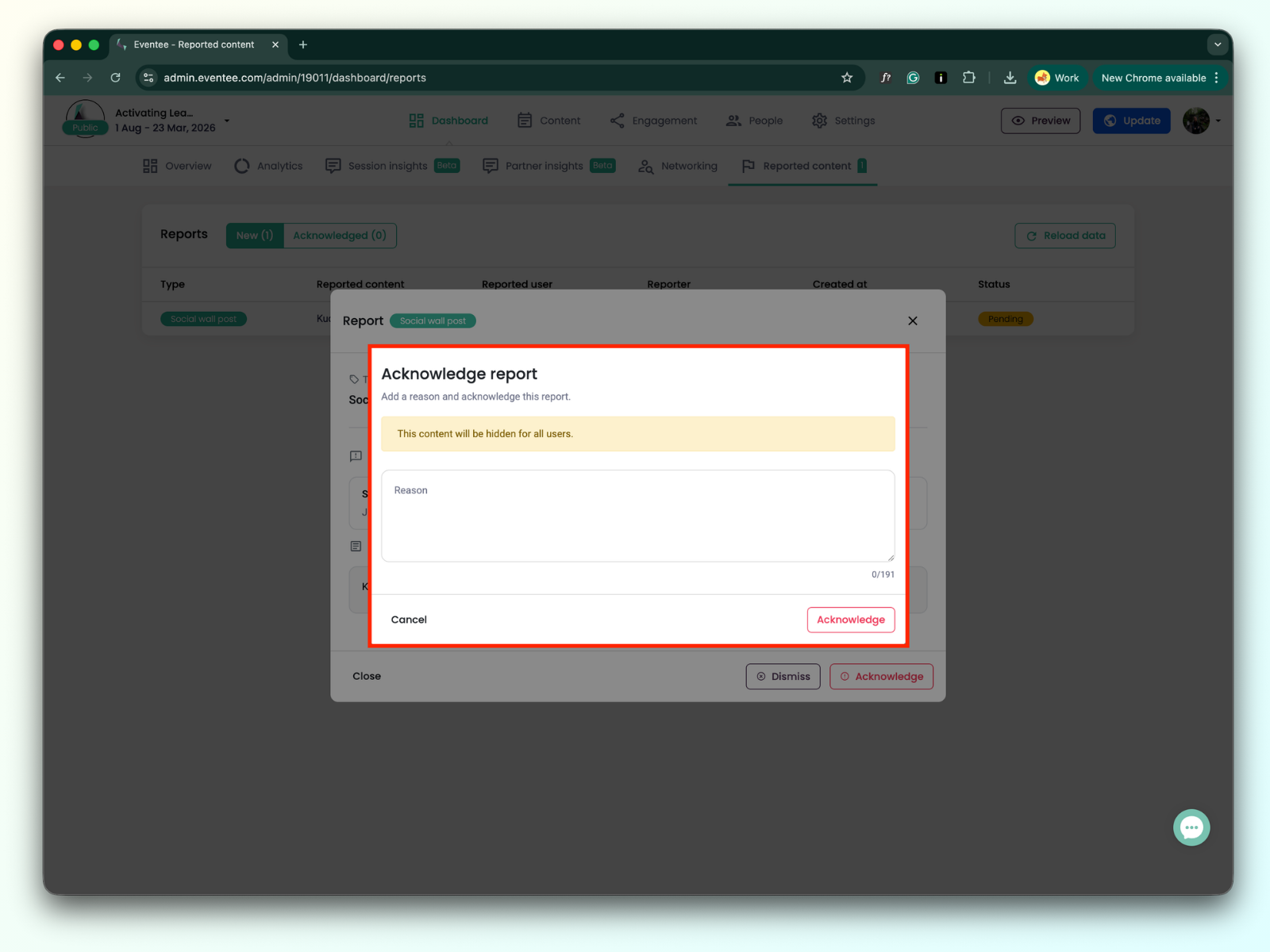
Acknowledging the report hides the content for all users.
User report type can only be acknowledged. Once a user is acknowledged, they are in a read-only state.
Reviewed reports are moved to the Acknowledged table.
Clicking on the report opens a modal window with detailed report information.
A "Read-Only" state is a restrictive mode applied to a user's account, typically following a policy violation. When a user is in this state, they can still access the event information, but their ability to interact or contribute to the community is severely limited.
If an account is in Read-Only mode, the user:
Cannot create new content: This includes posting on the social wall, adding reviews, asking questions, or voting in polls.
Cannot interact with existing content: They are unable to "like" questions or social wall posts.
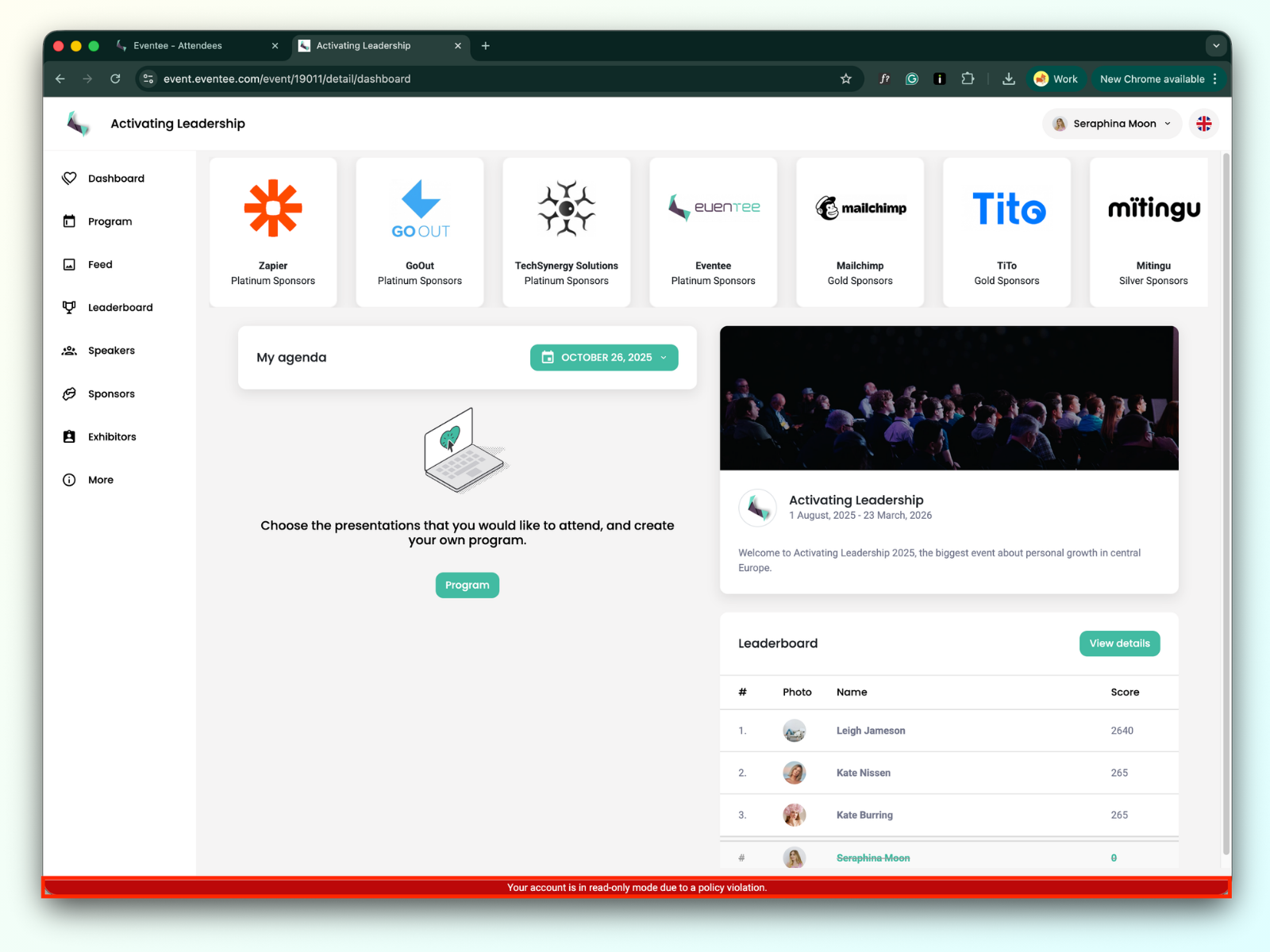
Is disqualified from Gamification: They are removed from the leaderboard (appearing as a blocked user without a profile image) and cannot join games.
Sees a system warning: Both the web and mobile apps will display the following message:
“Your account is in read-only mode due to a policy violation.”
The user maintains basic passive access to the event, meaning they can:
View the agenda.
Book workshops.
Report content.
When the Read-Only state is applied, the system performs a cleanup of the user’s previous interactions:
Content Deletion: All user-generated content (reviews, live questions, poll upvotes, social wall posts) is deleted for all other attendees.
Networking: The user is automatically disconnected from all existing networking matches.

As an event administrator, you can trigger the Read-Only state by banning a user. Follow these steps:
Navigate to the People tab in your admin dashboard.
Find an attendee you wish to ban.
Click the attendee to see detailed information.
Click the Ban user button.
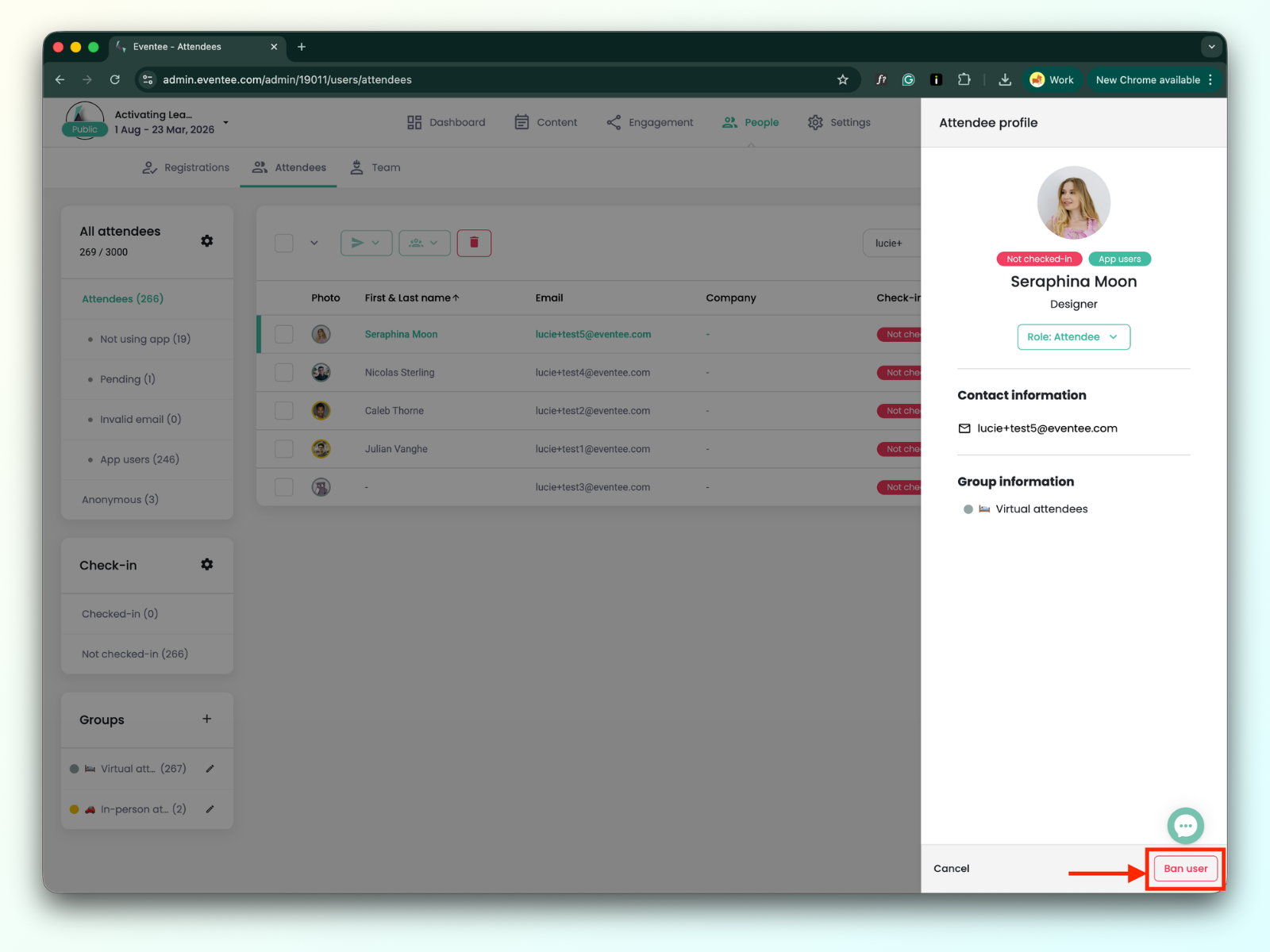
Once these steps are completed, the attendee's account will immediately switch to the Read-Only state:
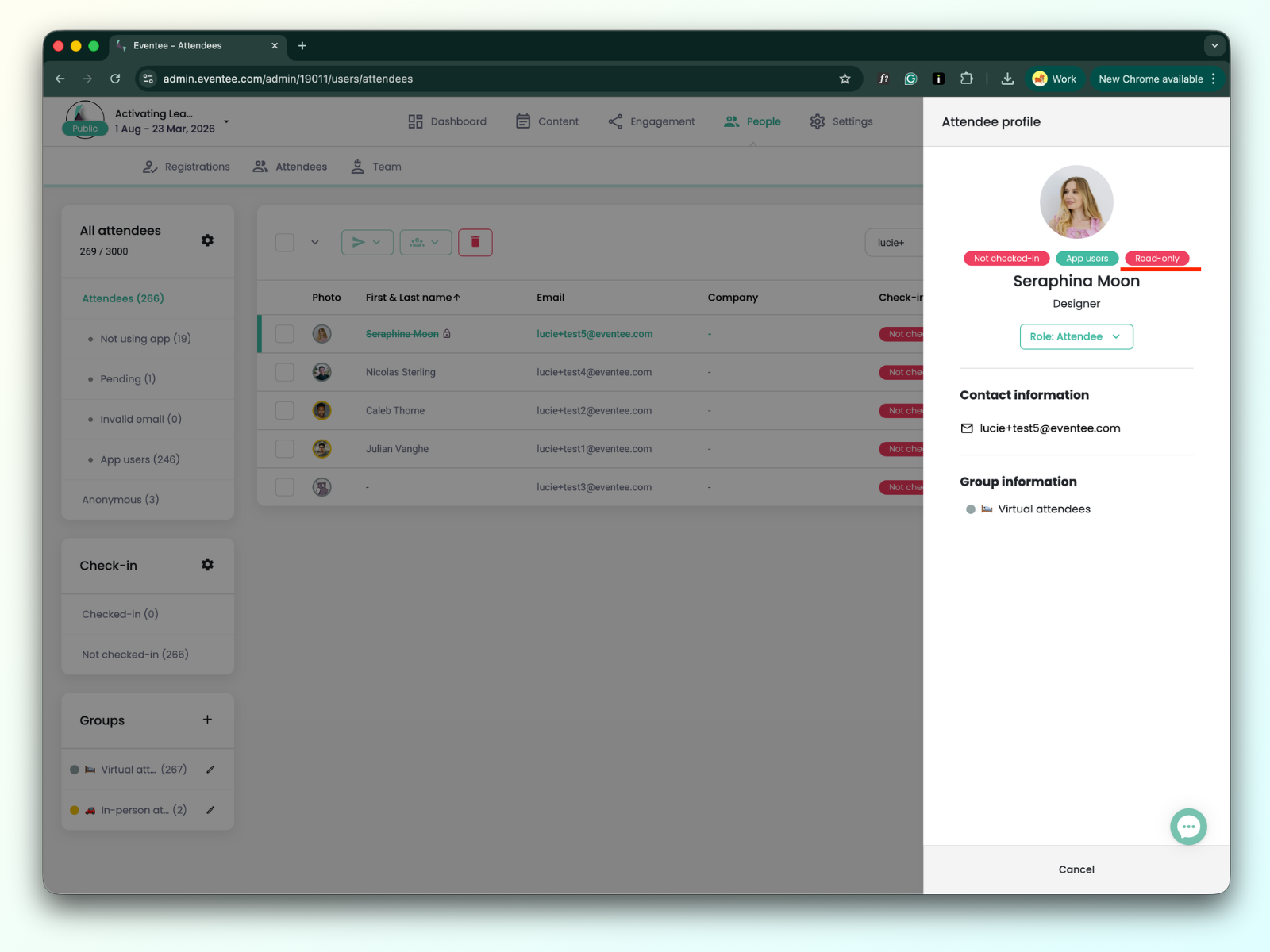
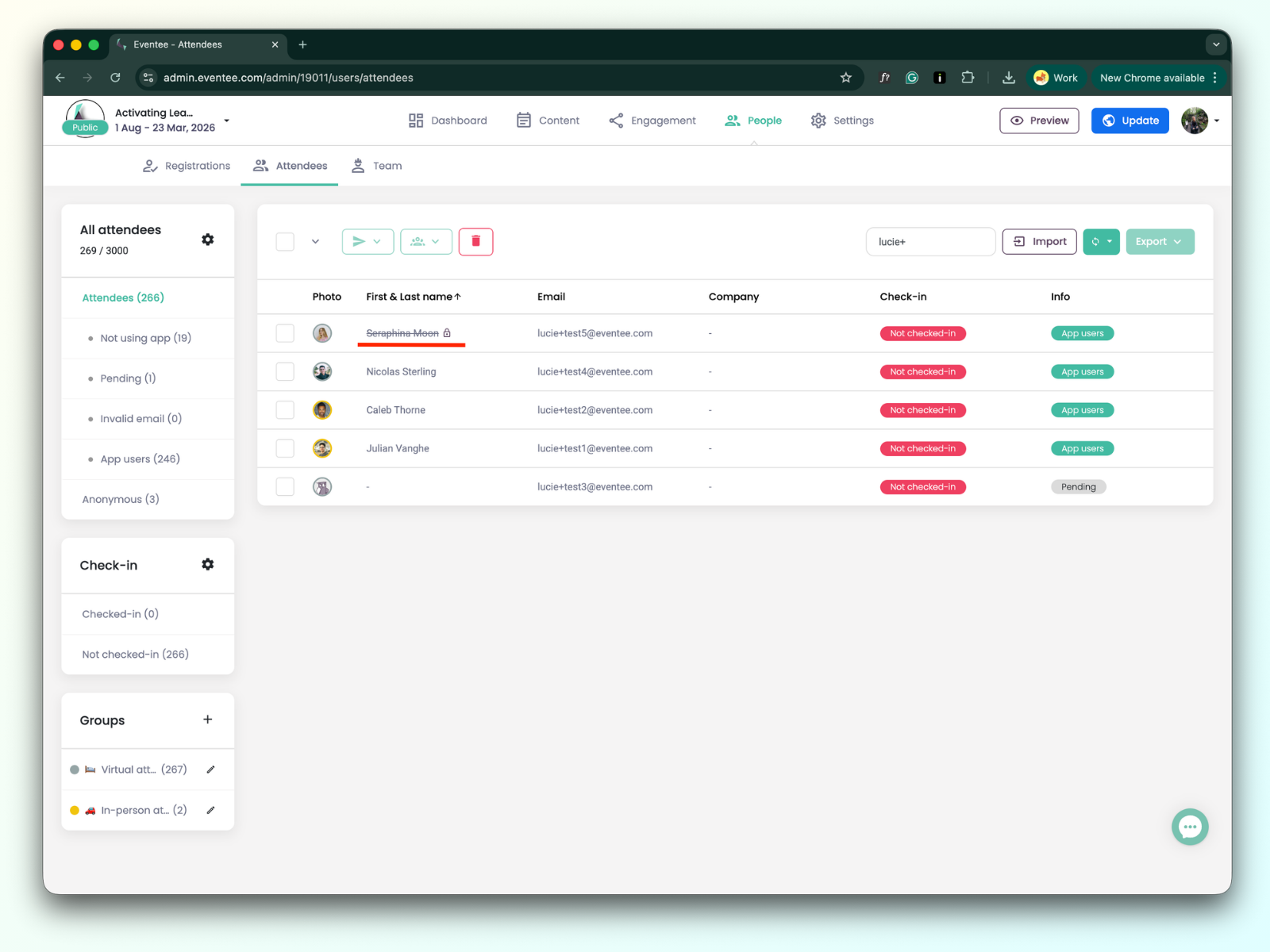
In the web app and mobile apps, a banned attendee will see a note that the account is in a read-only mode due to a policy violation.