To complete the registration and gain full access to the platform, team member must verify their email address. This step ensures secure communication and helps us maintain a safe environment for all users.
Email verification is required whenever a new team member account is created, or an existing email address is updated.
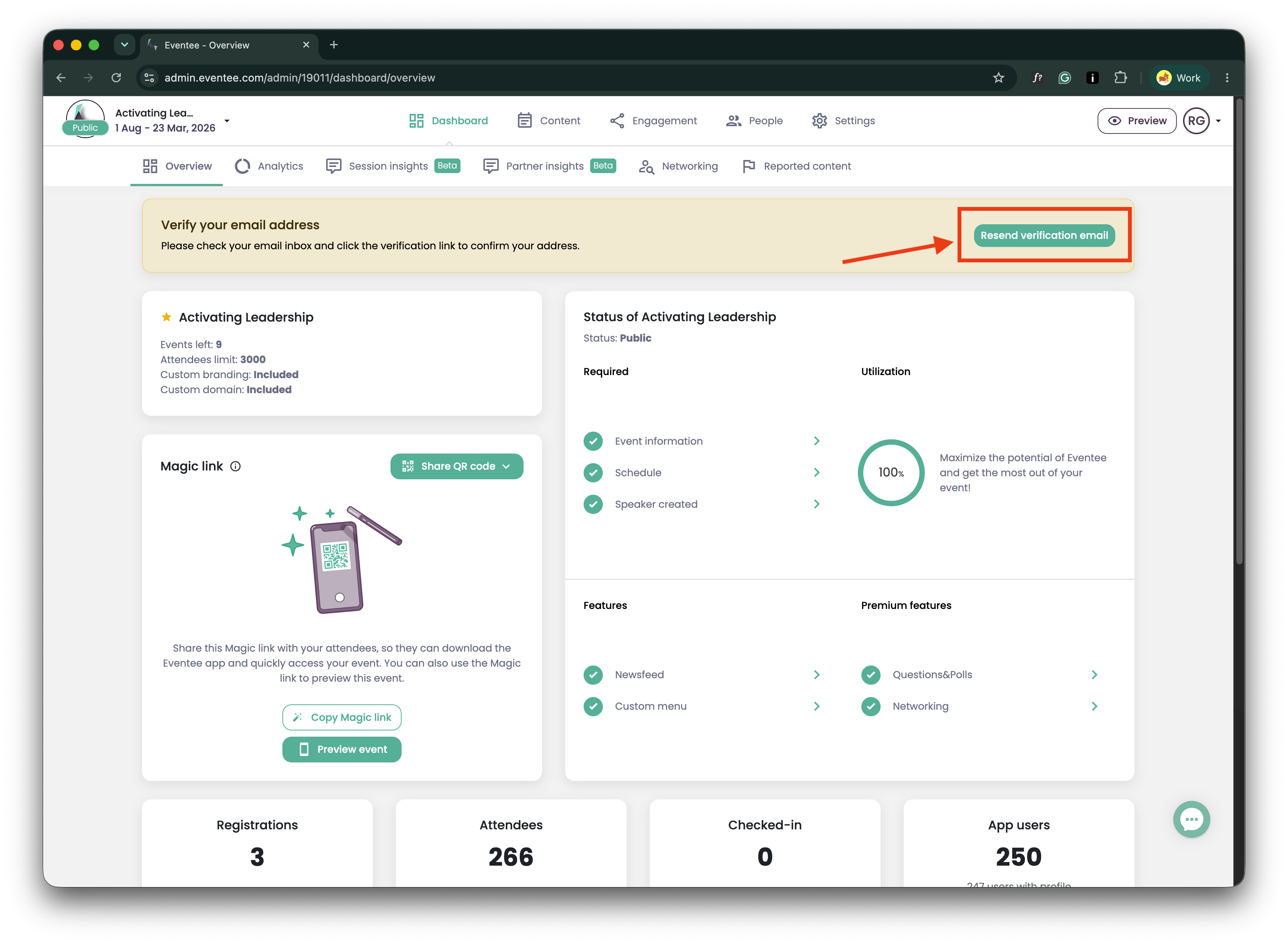
Until you verify your email, you will see a warning message in your dashboard with the heading 'Verify your email address'.
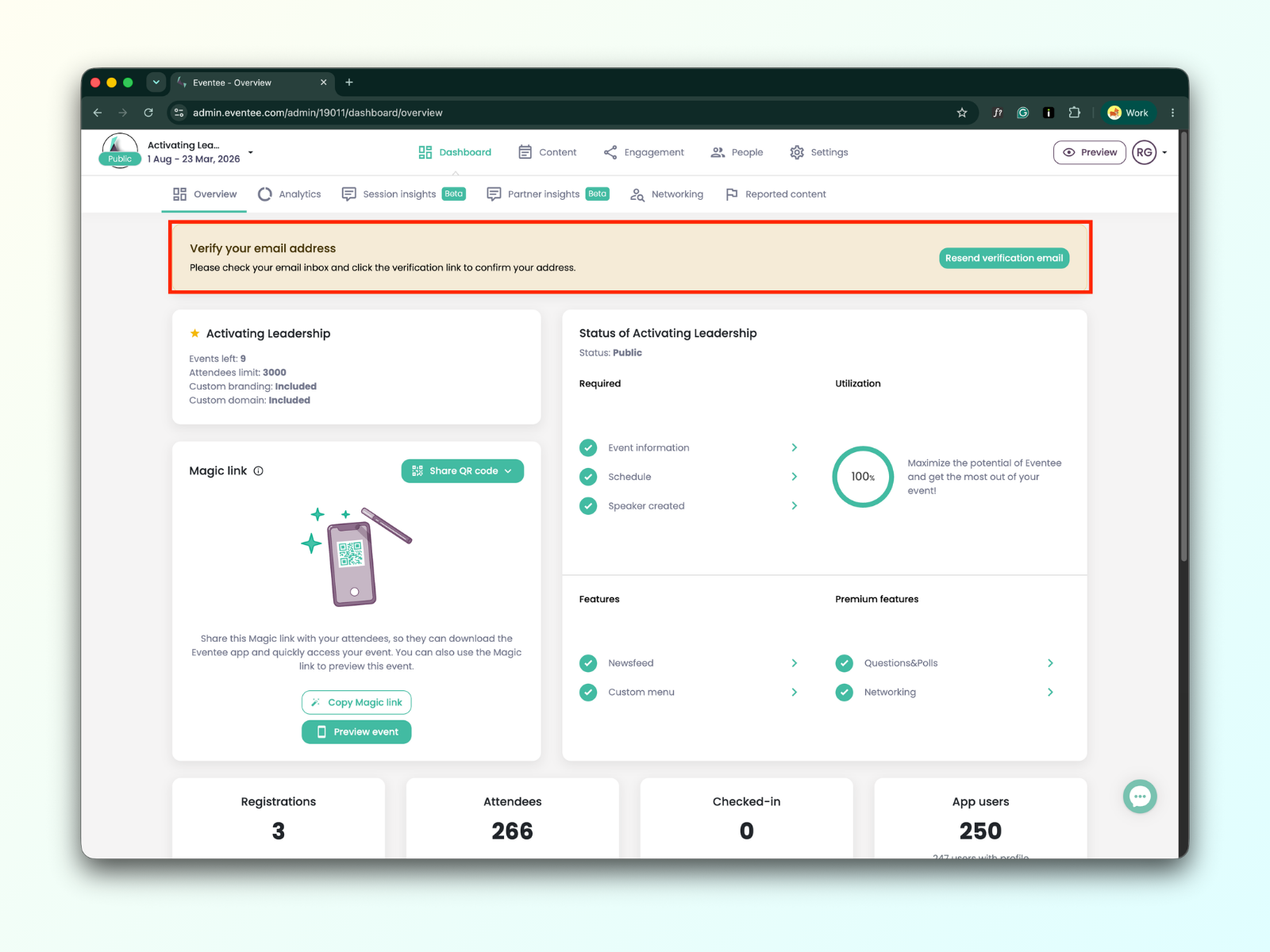
The branding feature is disabled
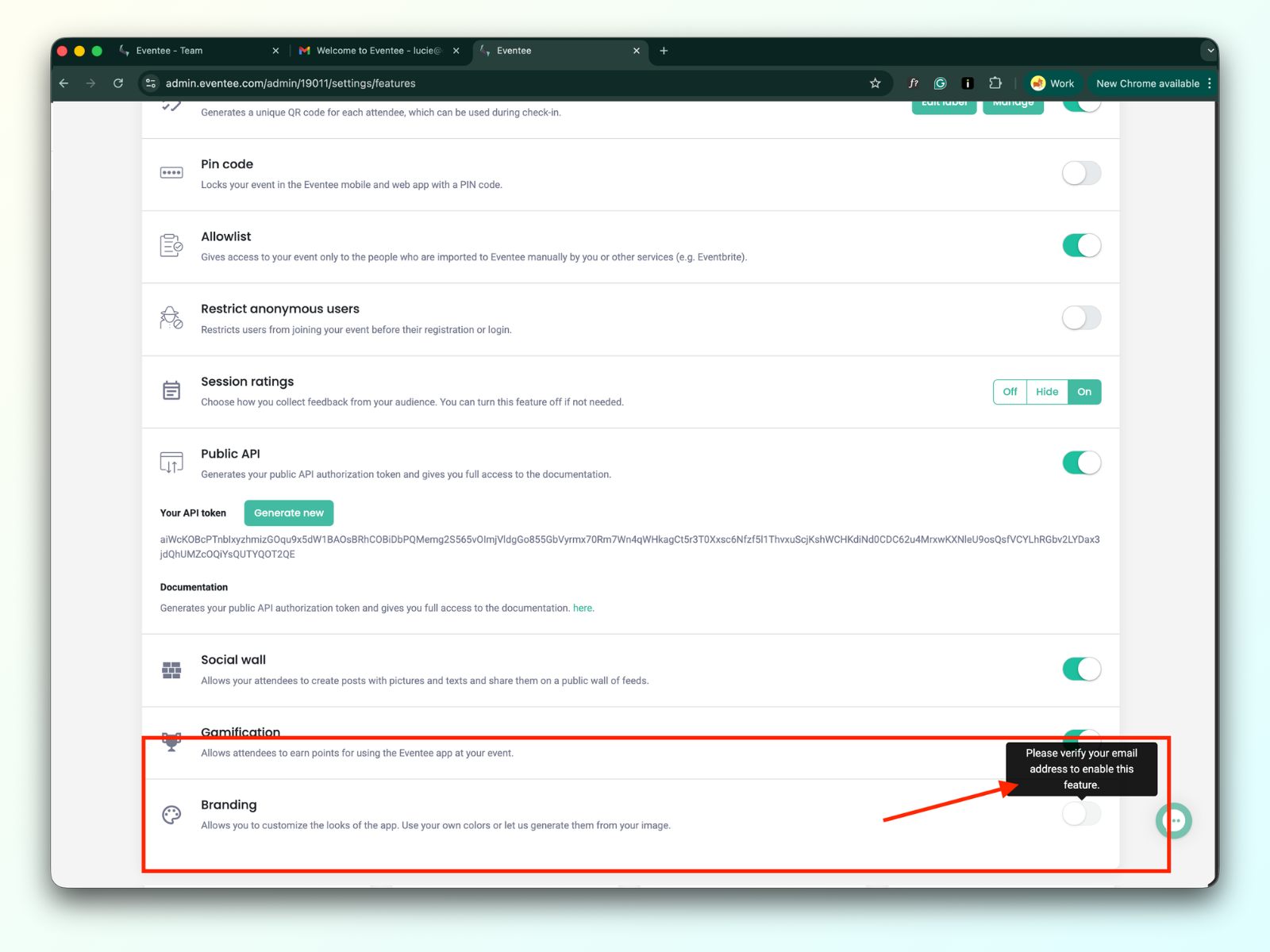
Inviting team members to the event and the company is not possible
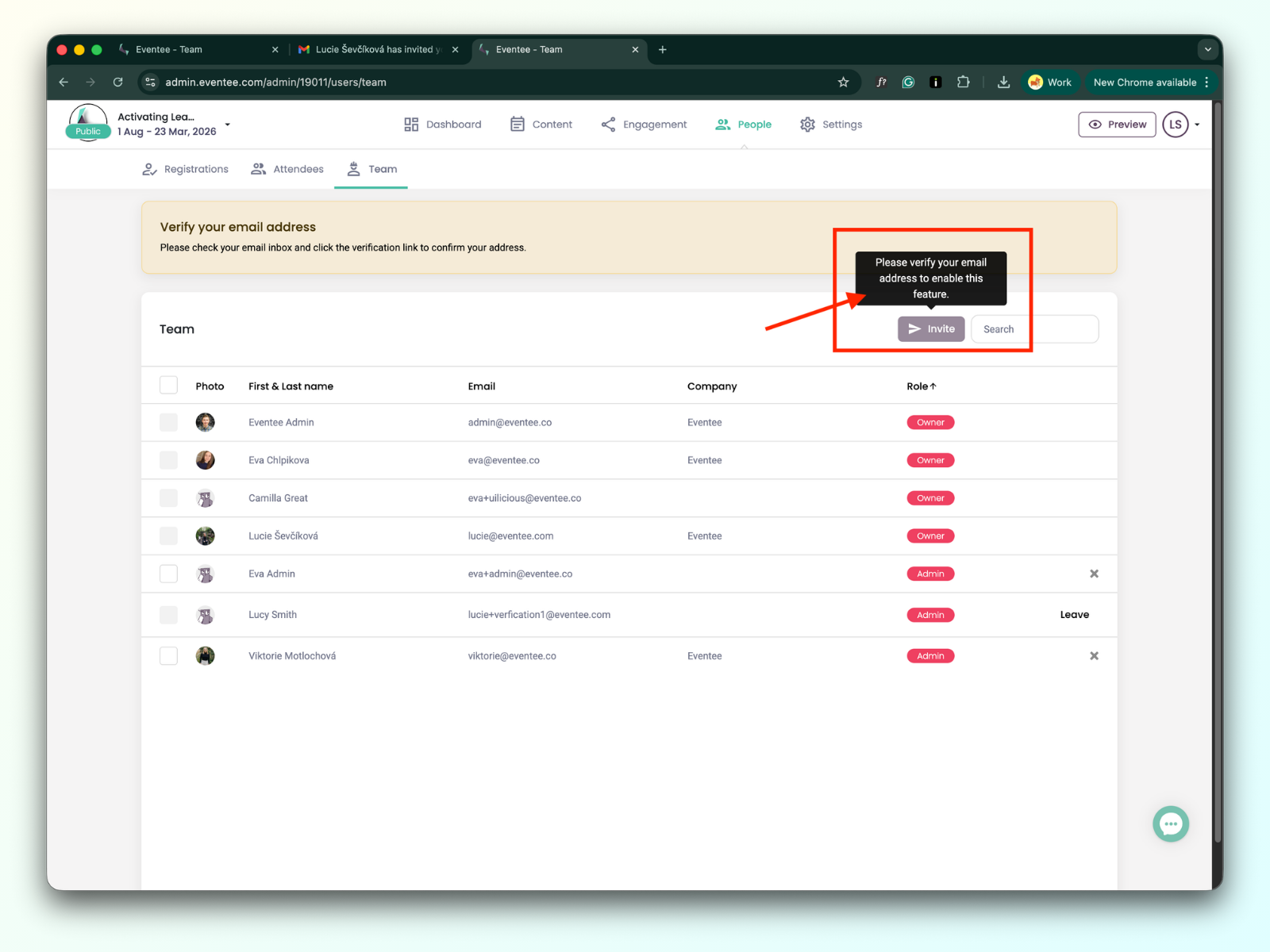
The newsfeed feature is disabled
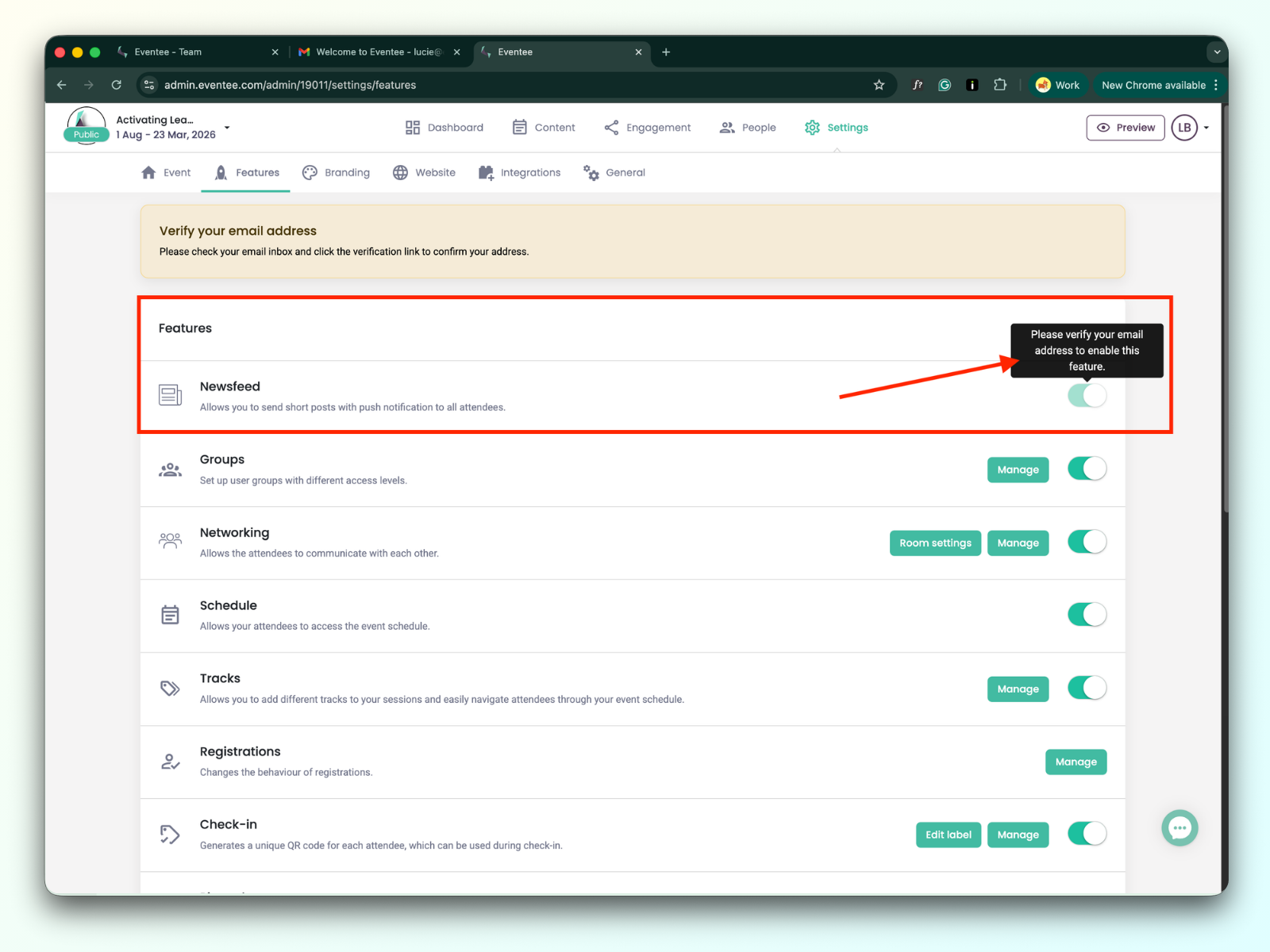
You can try resending the verification email. The link can be found in two different places.
1a. The resend verification button is on the right side of the yellow banner. Clicking the button sends a verification email. The button will then be disabled and can only be clicked again after a few minutes.
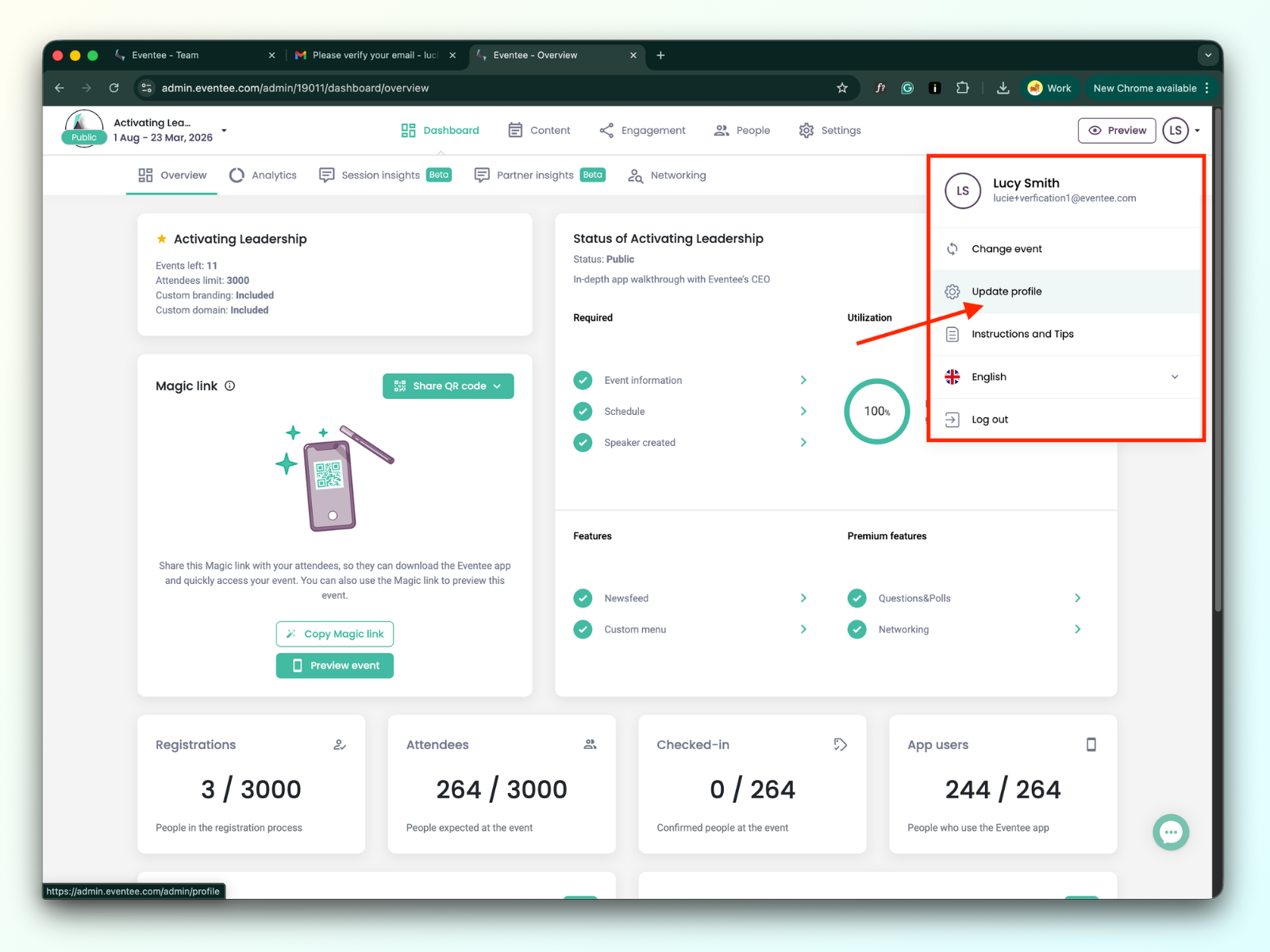
1b. Or the resend verification button can be found in your User Profile. Access your profile settings by clicking on your profile icon in the upper-right corner and choosing Update profile.
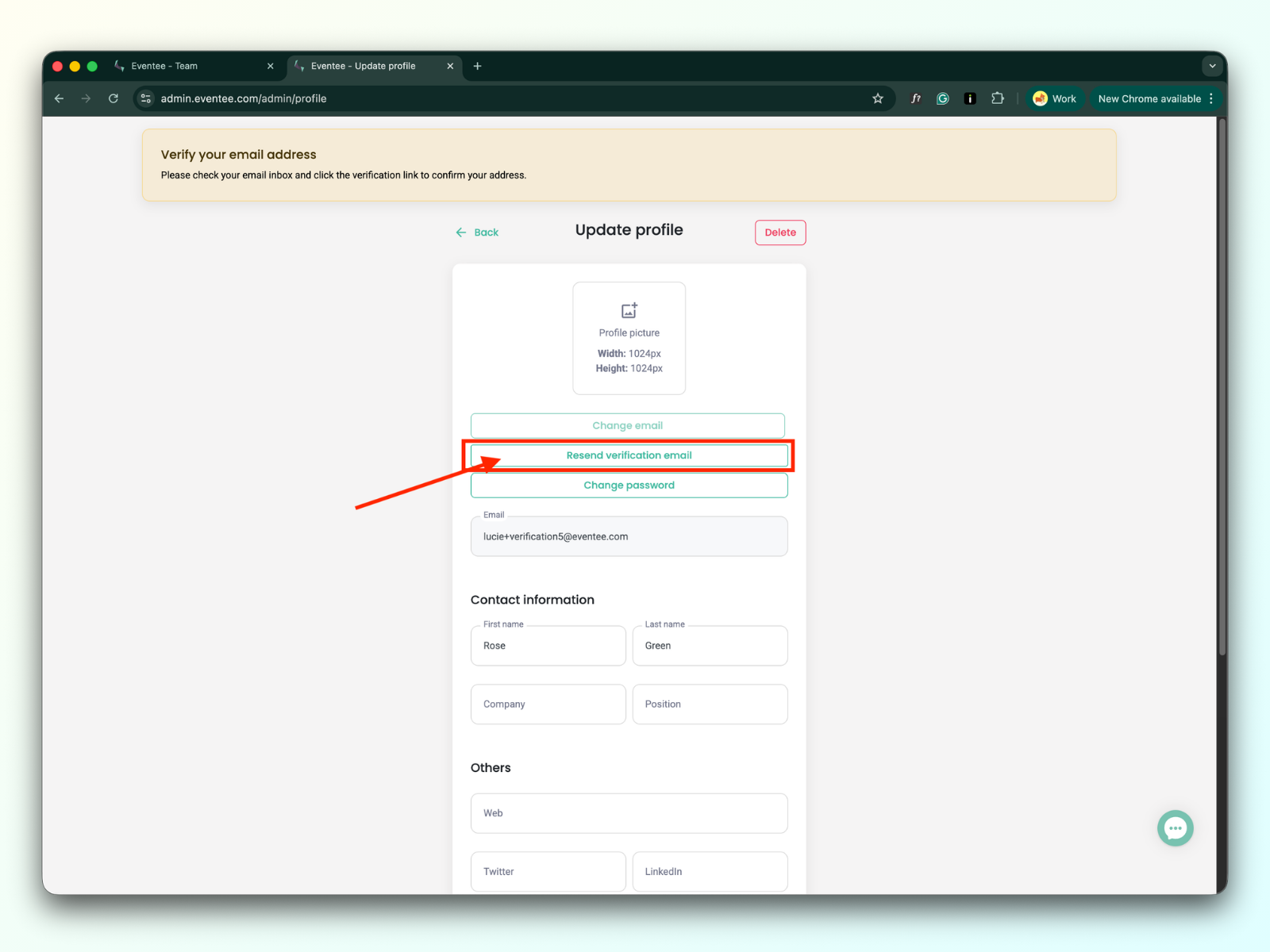
Click on the " Resend verification email” button.
If you haven't received the verification email, please check your spam folder, as it may have ended up there.
If your Eventee account is registered with a corporate email address and you are not receiving the verification email, it may be blocked by your company's anti-spam filtering system.
If you checked your spam folder and are not using a corporate email address, please check that there isn’t a typo in your email address. You can change your email by following the step-by-step guide below.
4a. Click on Update profile
4b. Click on the Change email button
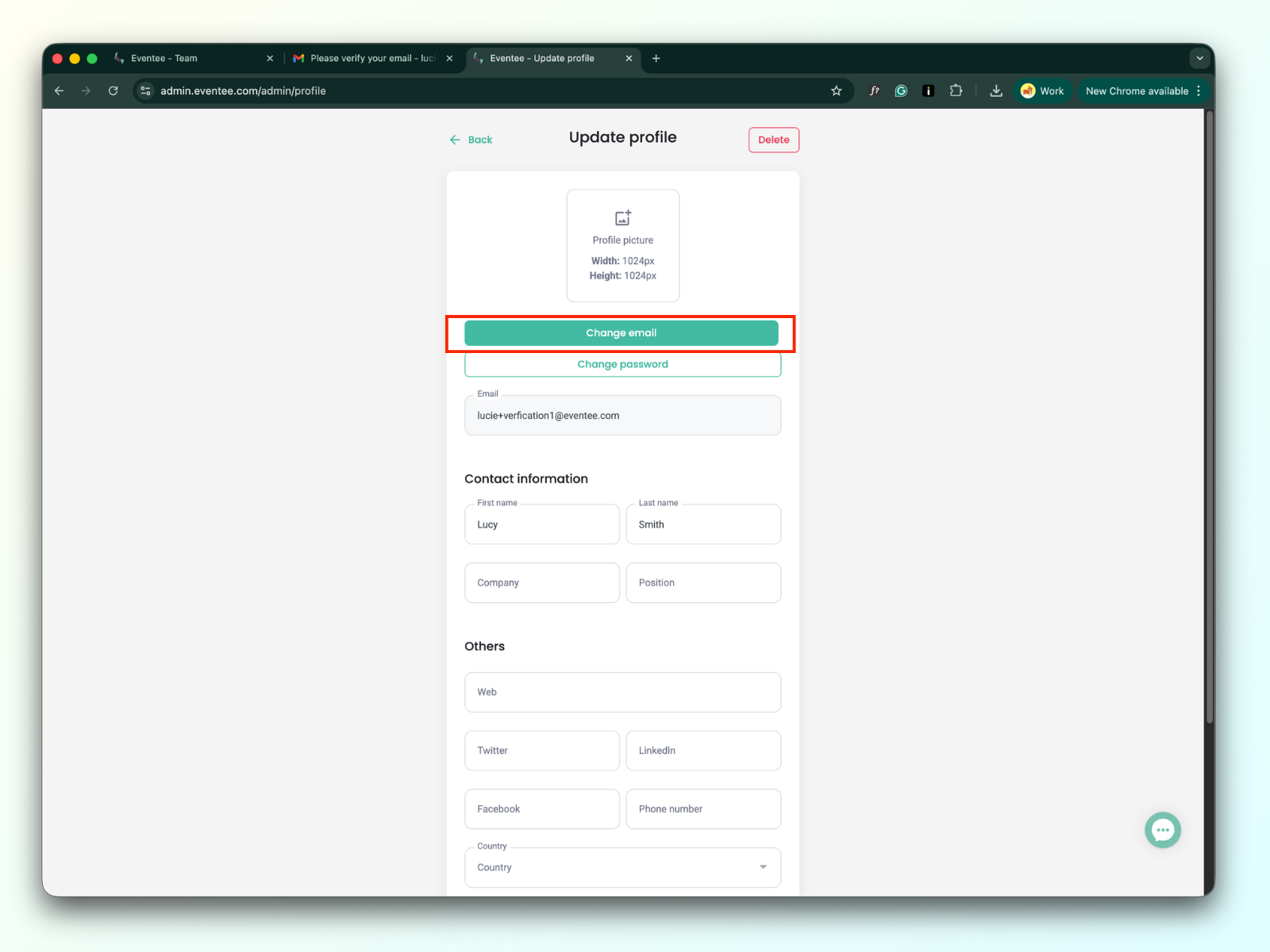
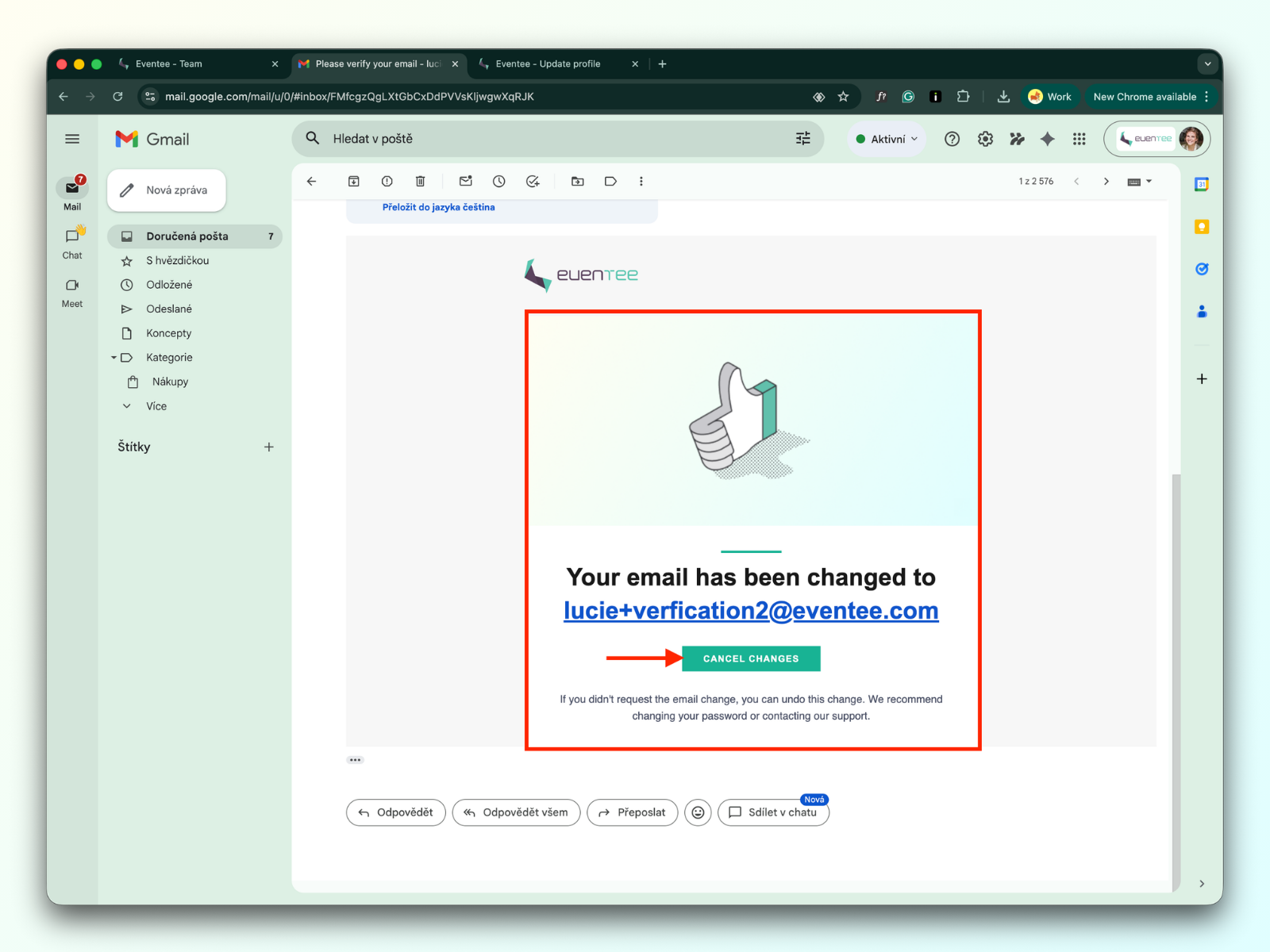
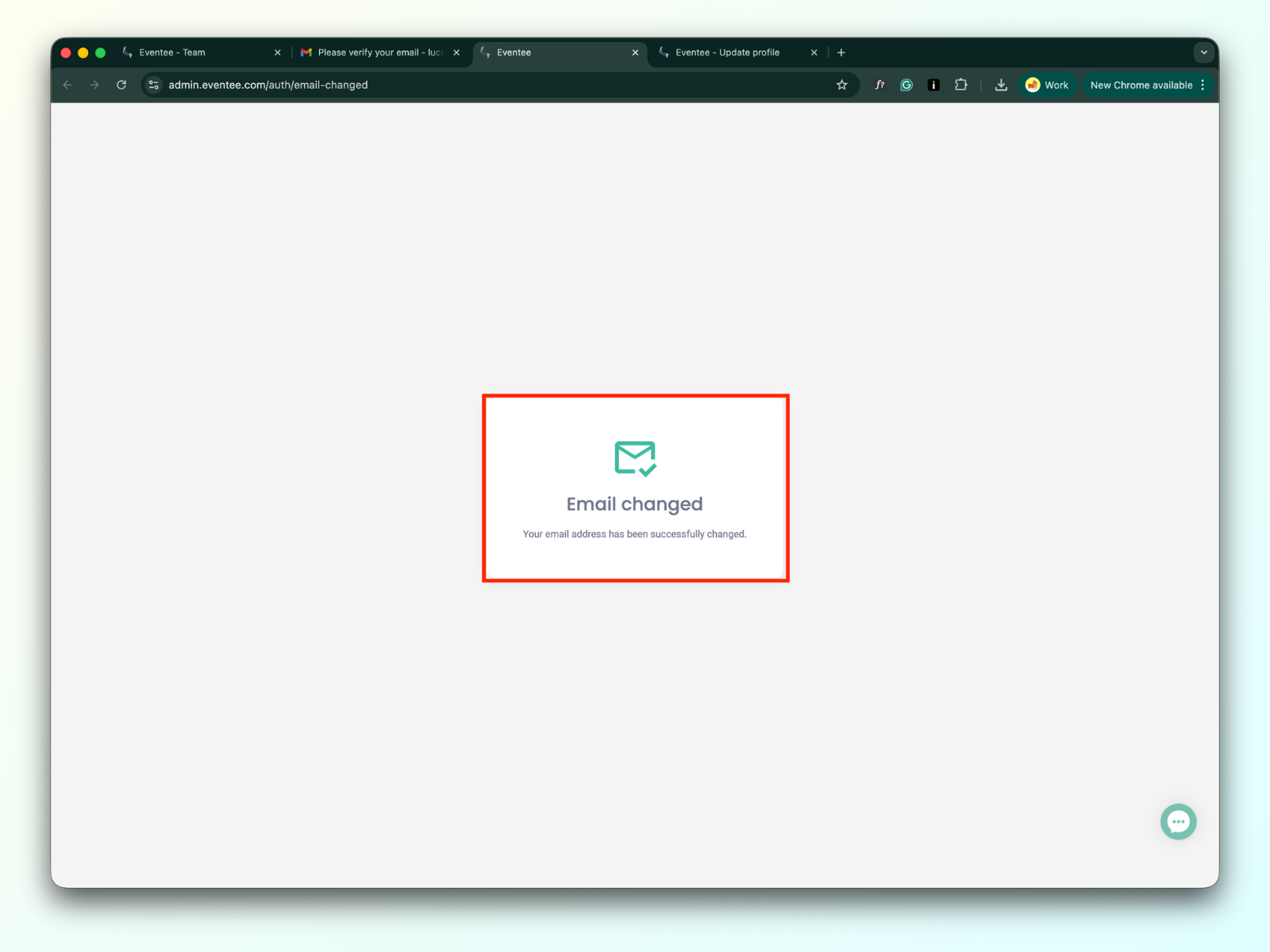
4c. You will receive an email in which you can either accept the change and verify the new email, or you can cancel the changes.
Cancel email changes flow
Verify new email flow
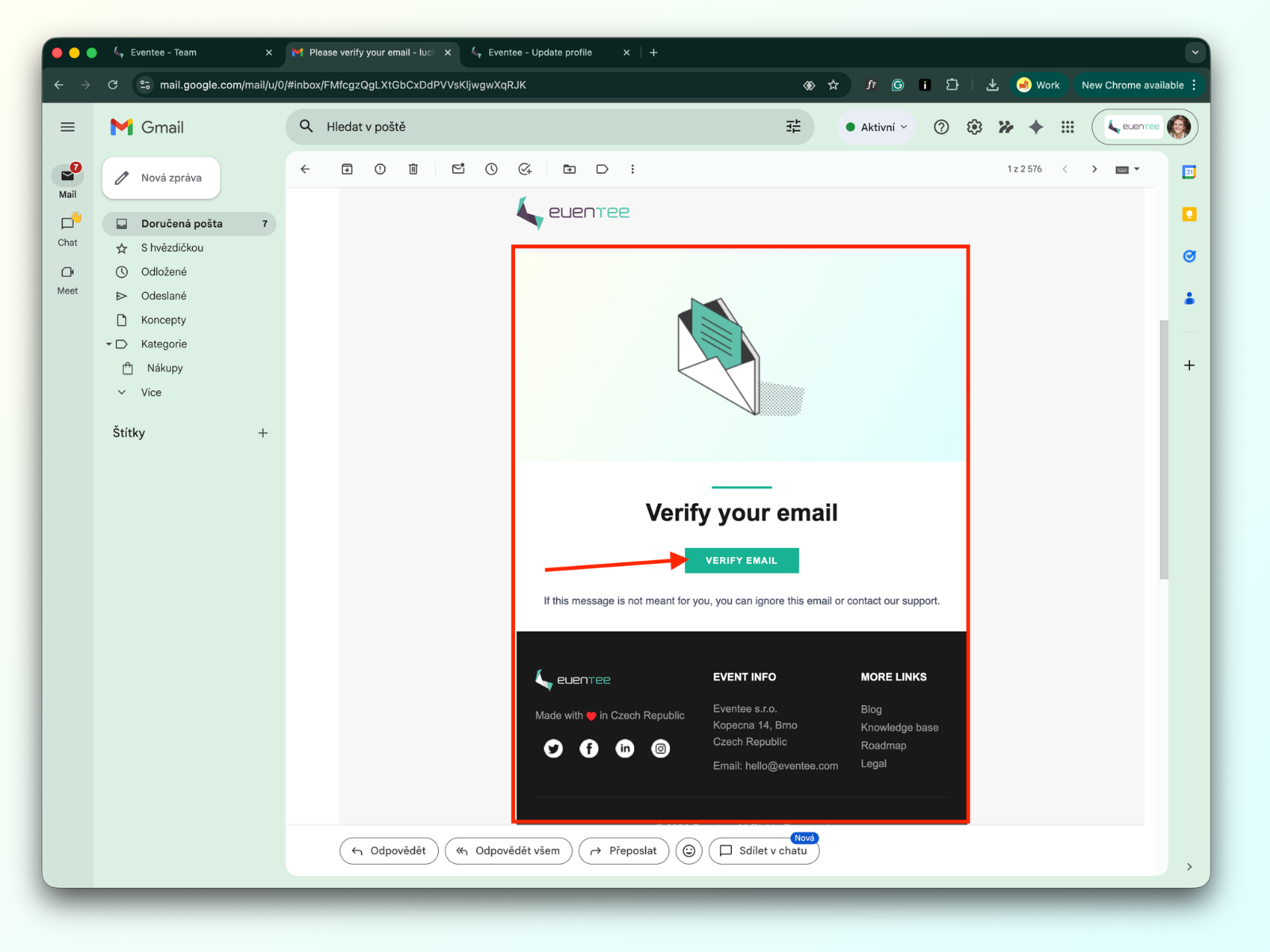
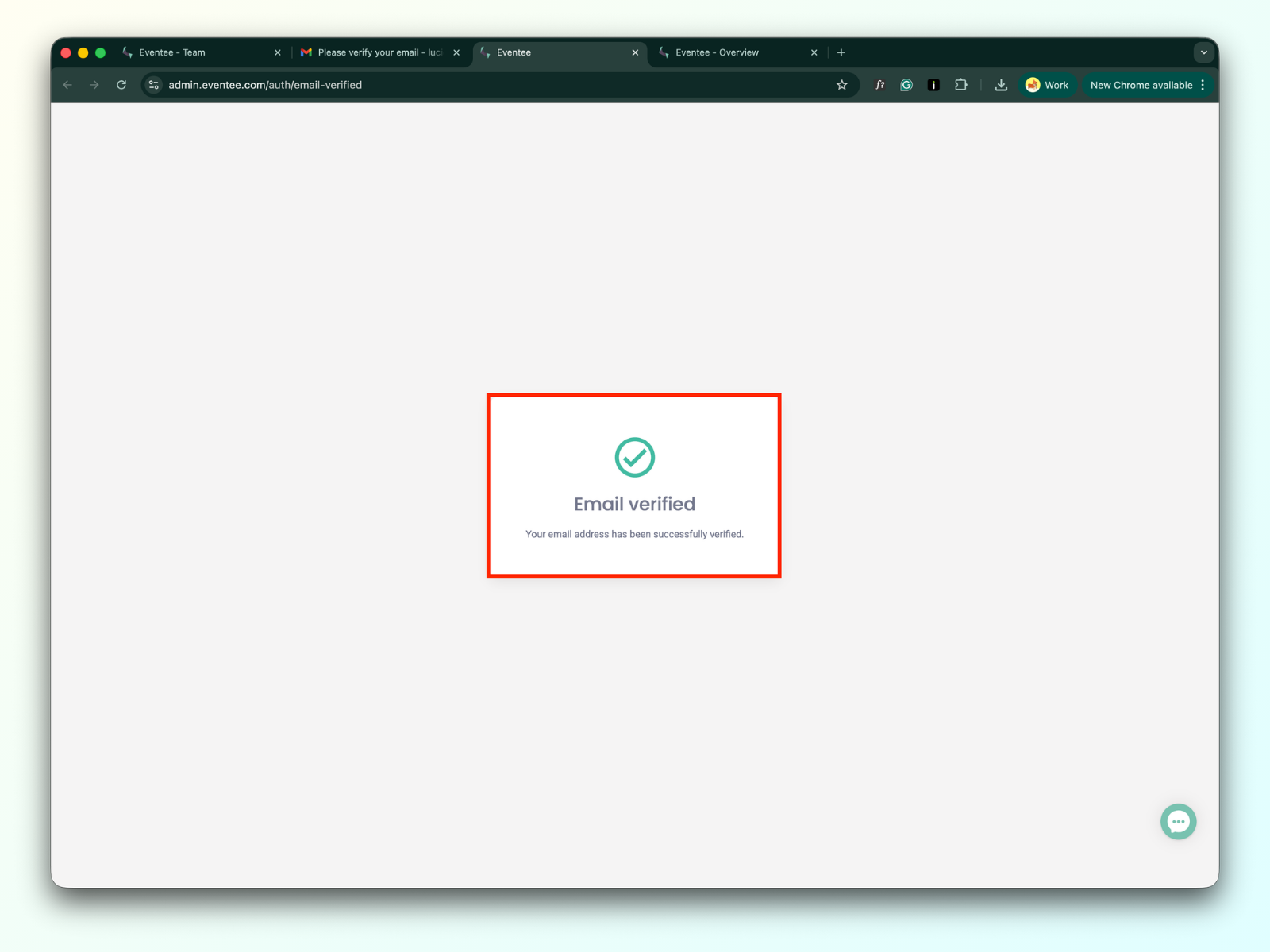

When you create a new account or accept an invitation to join an event team, you will receive a verification email. The verification link is valid for one hour, after which it expires, and you will need to resend the verification email.
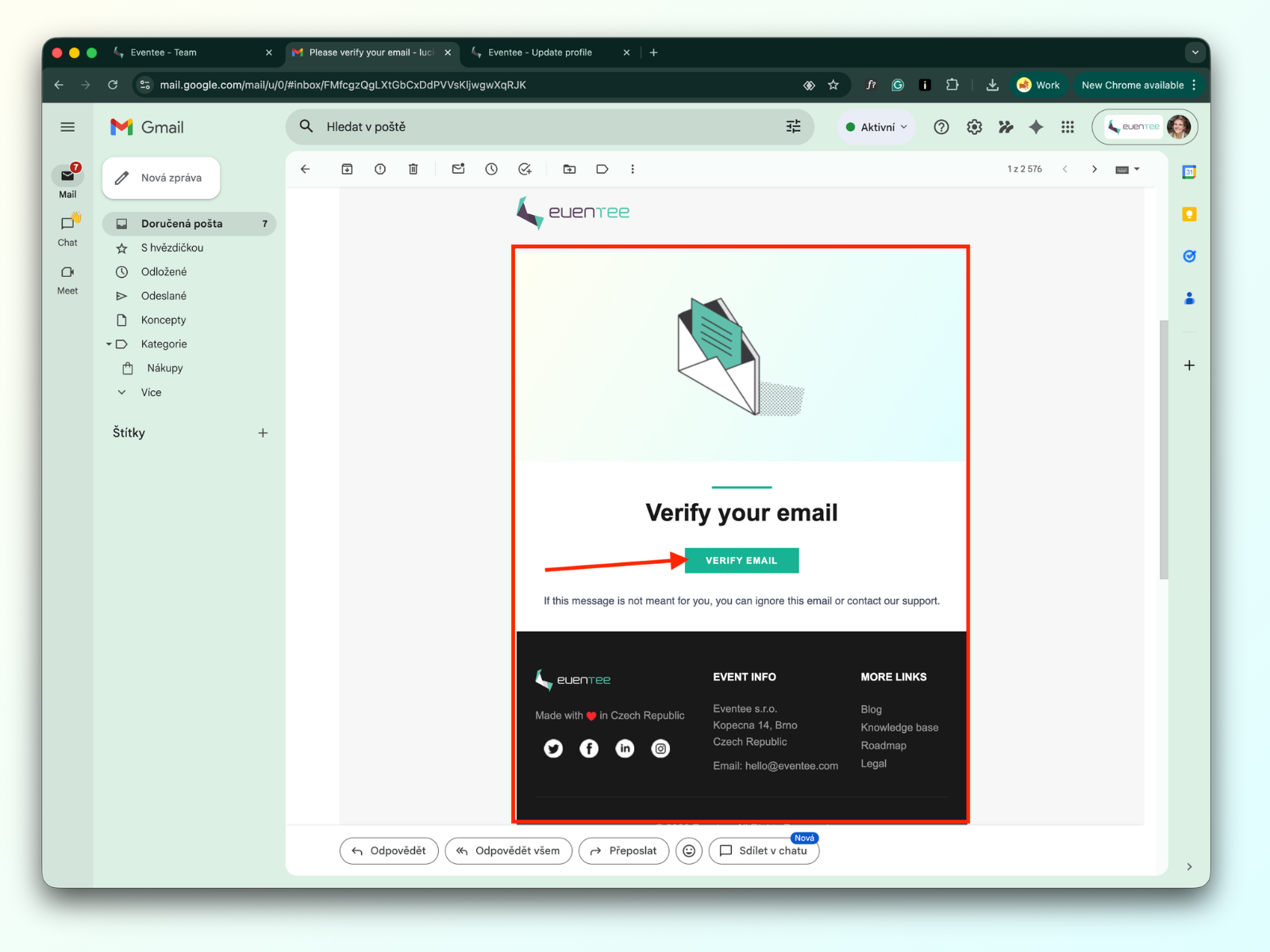
By clicking the verify email button, you will see a message that your email was verified.
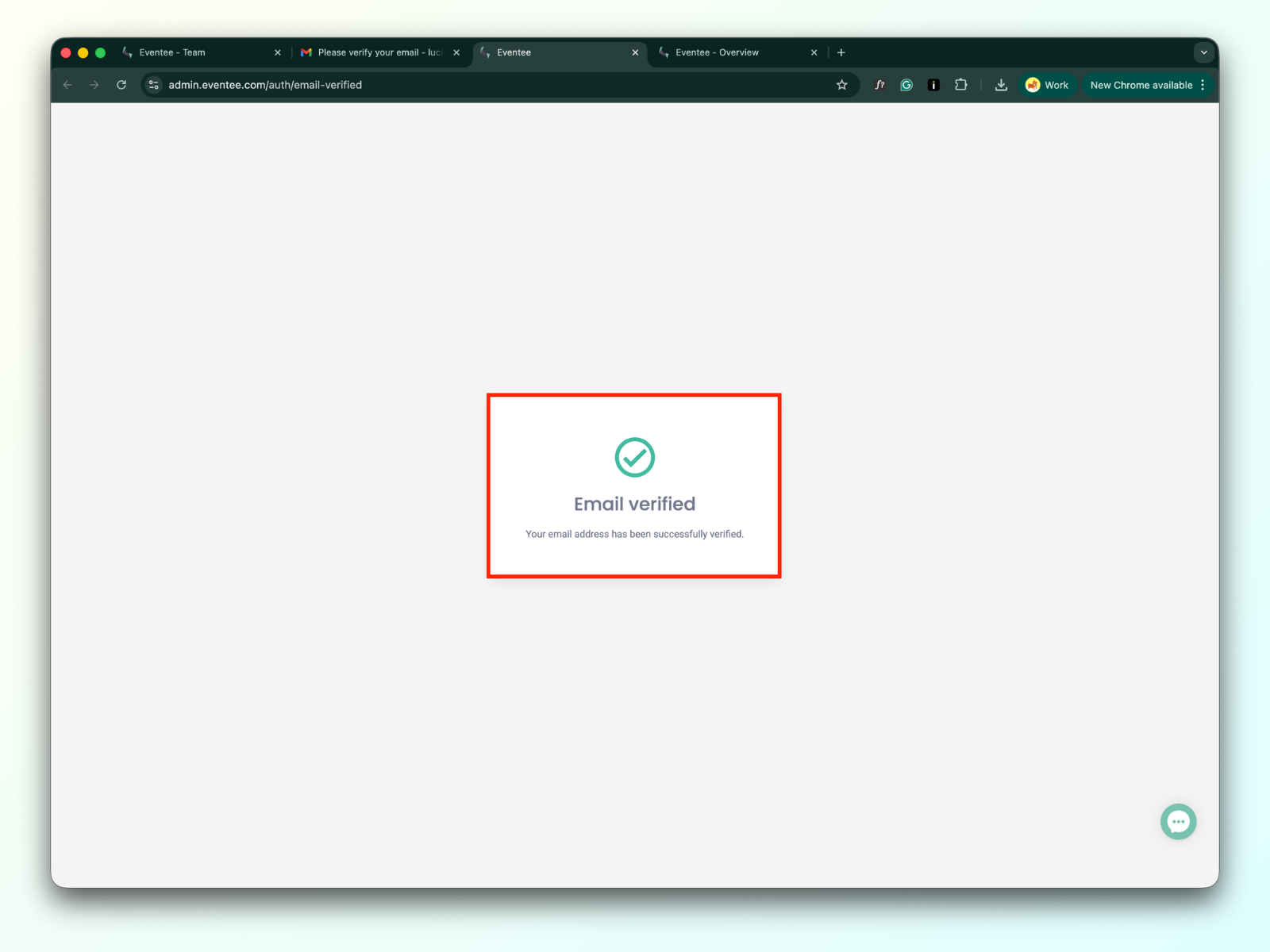
Reload your admin page. After reloading, the yellow banner with the warning message will disappear, and you will have access to the above-mentioned features.