Note: This article covers setting up and using the Simple Shop integration. Simple Shop is a ticketing service available only in Czech, so its screens and labels are in Czech. If you are interested in using Simple Shop, please contact our support team at [email protected].
First, log in to your event's admin in Eventee and turn on the Simple Shop integration on the Settings → Integrations page.
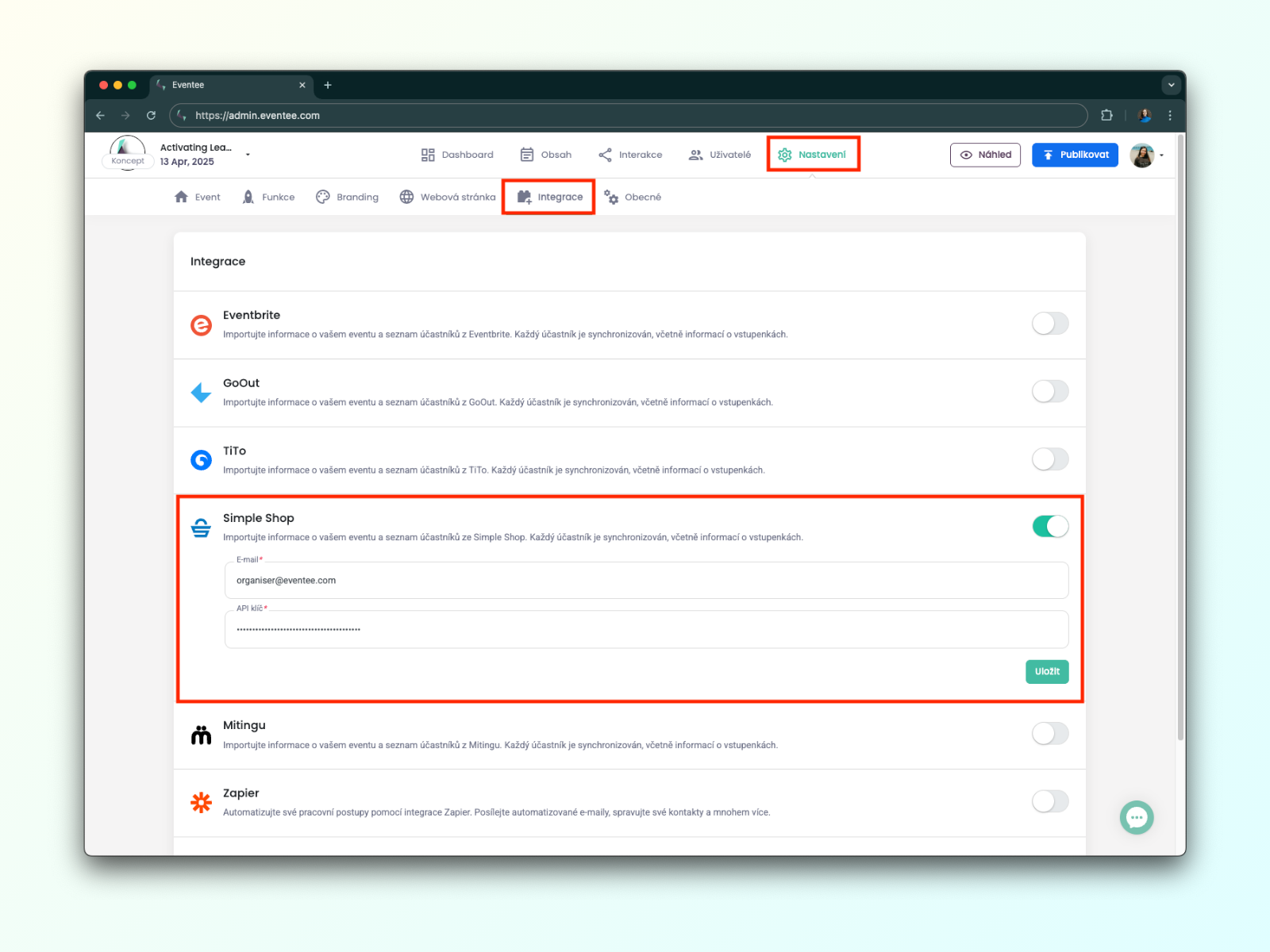
Once the integration is turned on, you'll see that Eventee needs two details: an email address and an API key. You can get both in the Simple Shop portal.
Part 2.0: Check the category
Before you look for the key and email address, please check that your product (ticket form) is in the Vstupenka (Ticket) category. If it isn't, we can't connect it to Eventee.
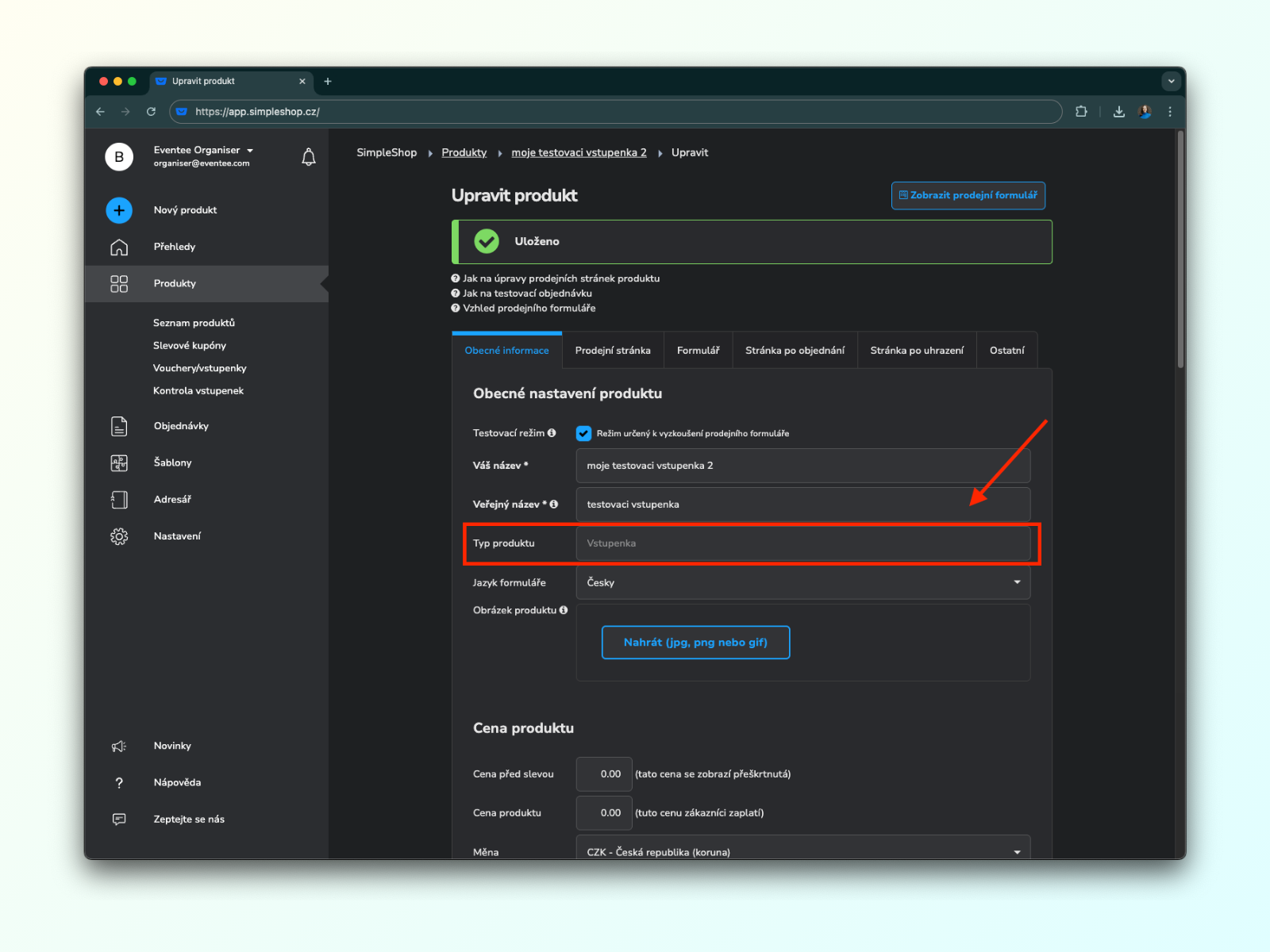
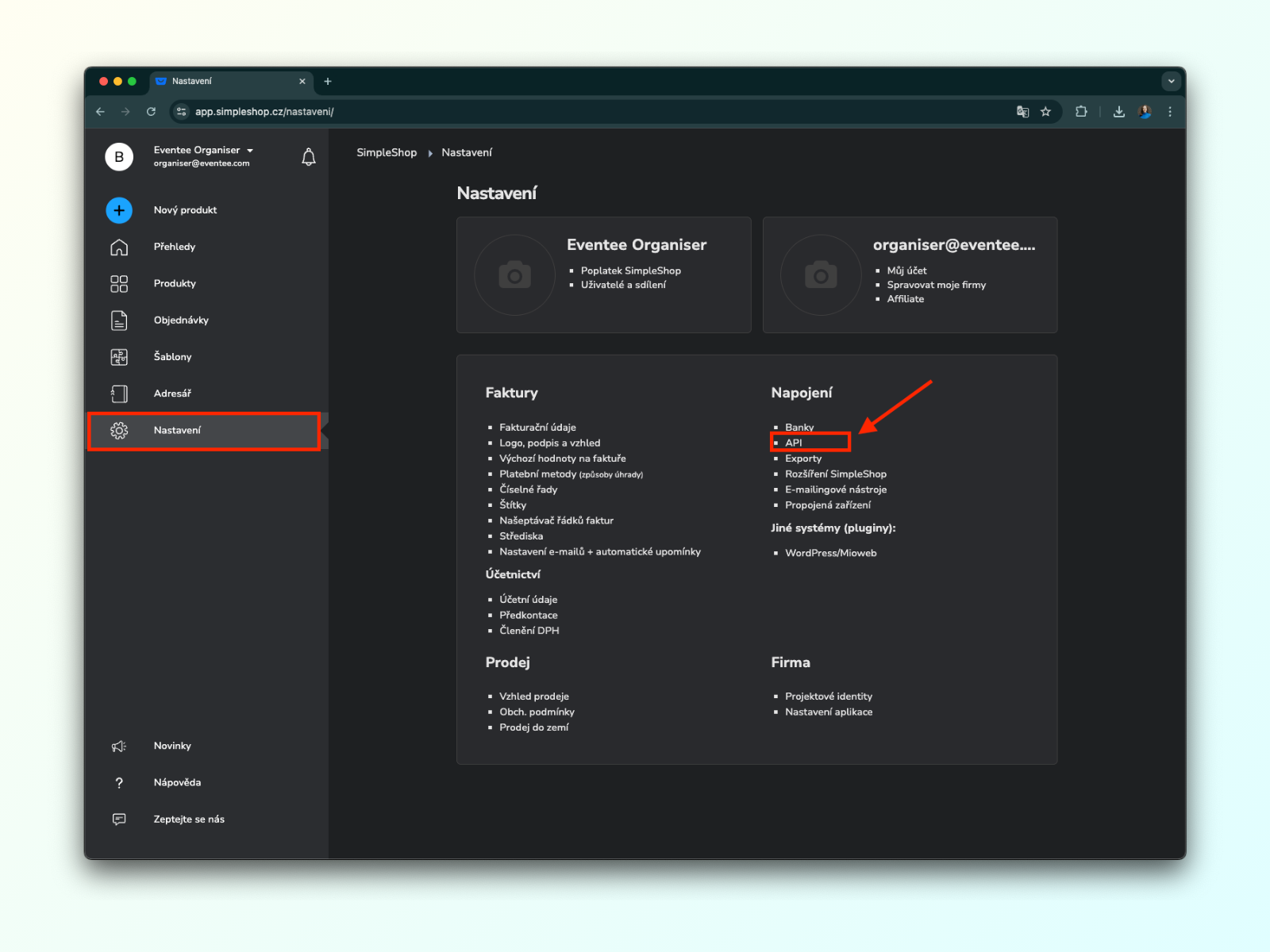
Part 2.1: You'll find the email address in the top left corner of Simple Shop. Copy it into Eventee straight away. To get the API key, go to Nastavení → Napojení → API (Settings → Connections → API).
Part 2.2: On the API page, generate the API key and copy it.
Part 3.1: You should now have both the email address and the API key. Enter them in Eventee, again on the Settings → Integrations page, and click Save.
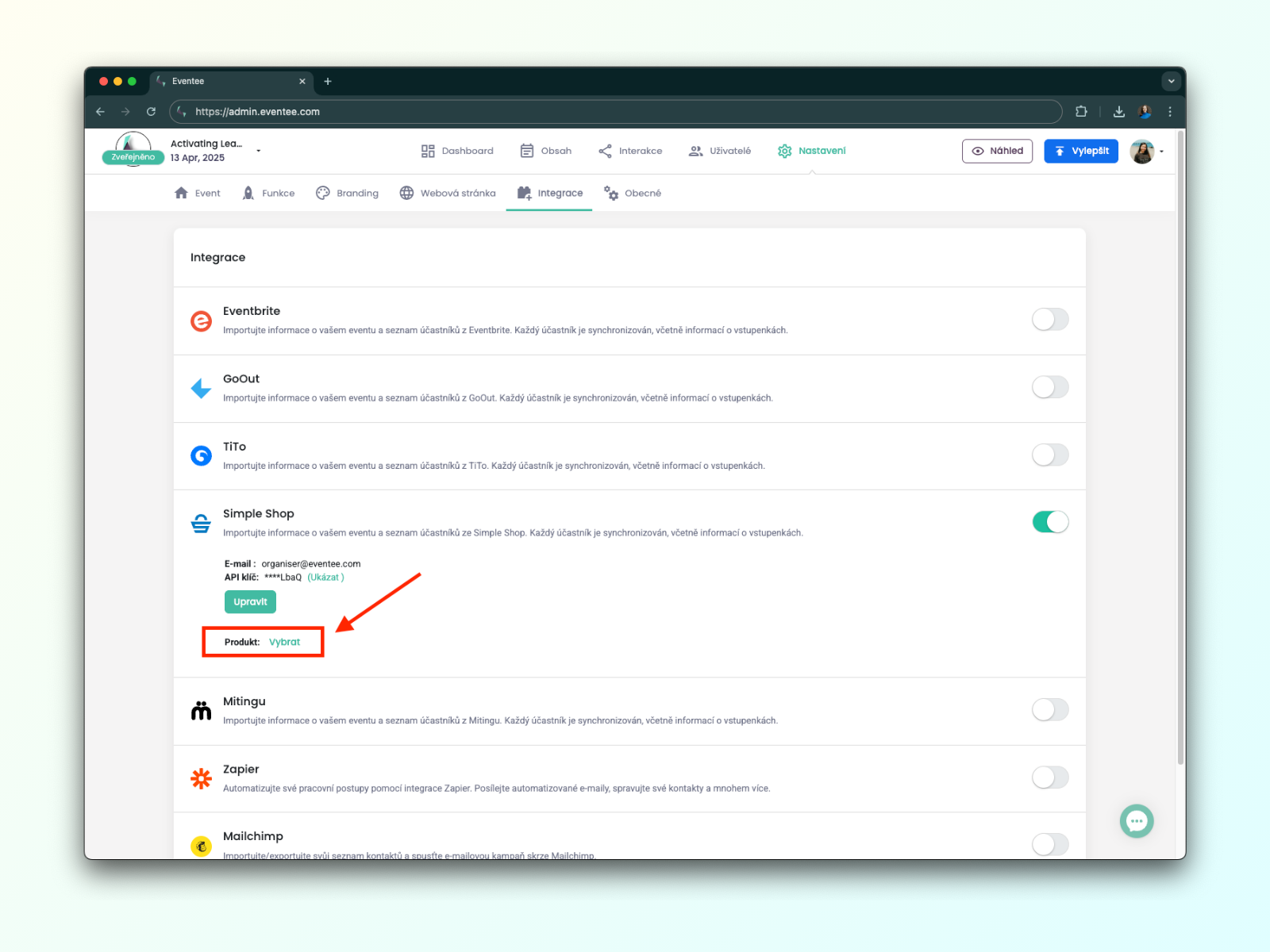
Part 3.2: After saving, new fields appear. One of them lets you choose a "product", which is your ticket form in Simple Shop. Click Select.
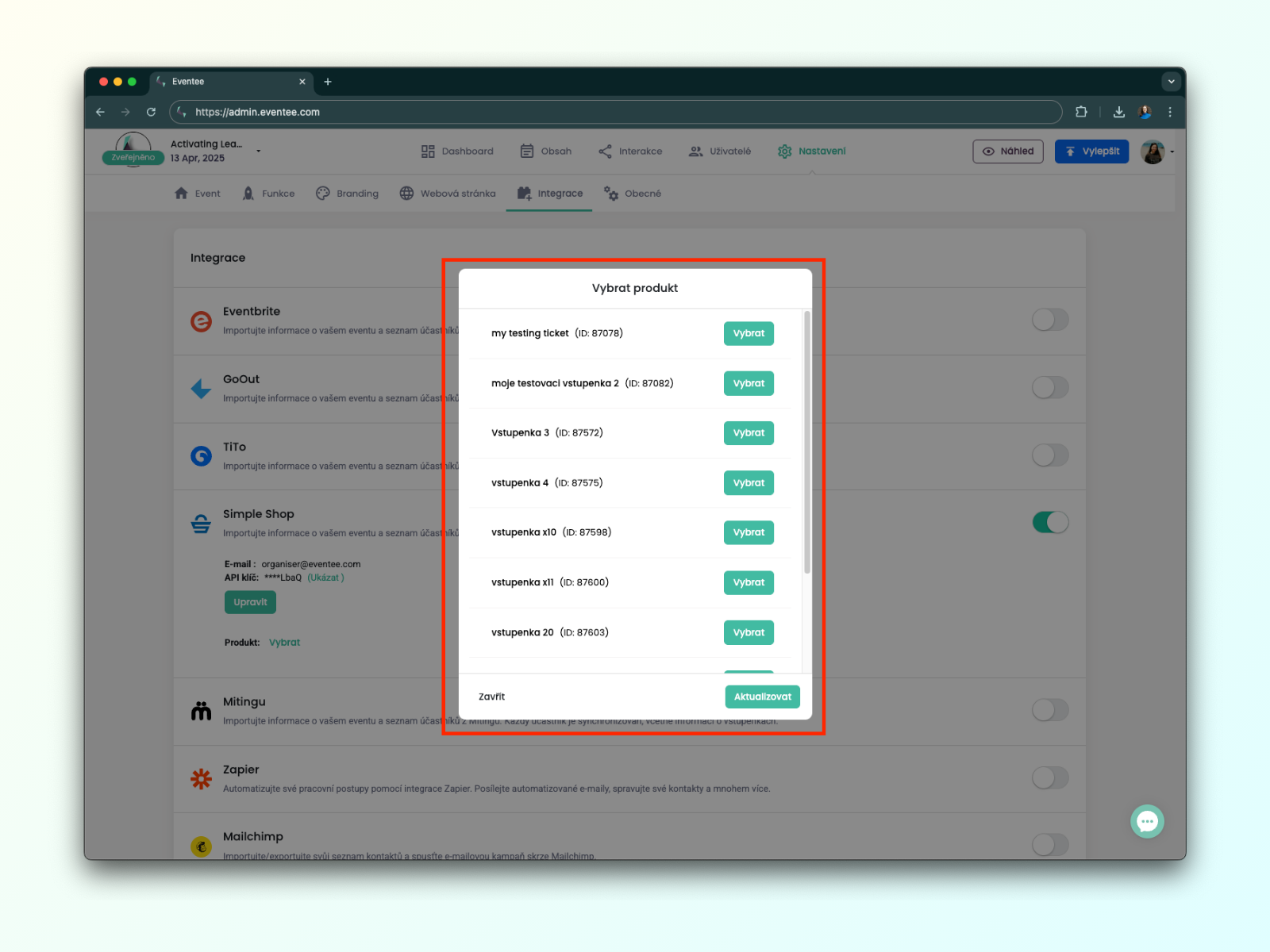
Part 3.3: A window opens where you can choose your tickets from Simple Shop.

Part 3.4: You should now see the name of the selected ticket in the Eventee admin, together with the Synchronize once button. Clicking it imports all attendees who bought that ticket.

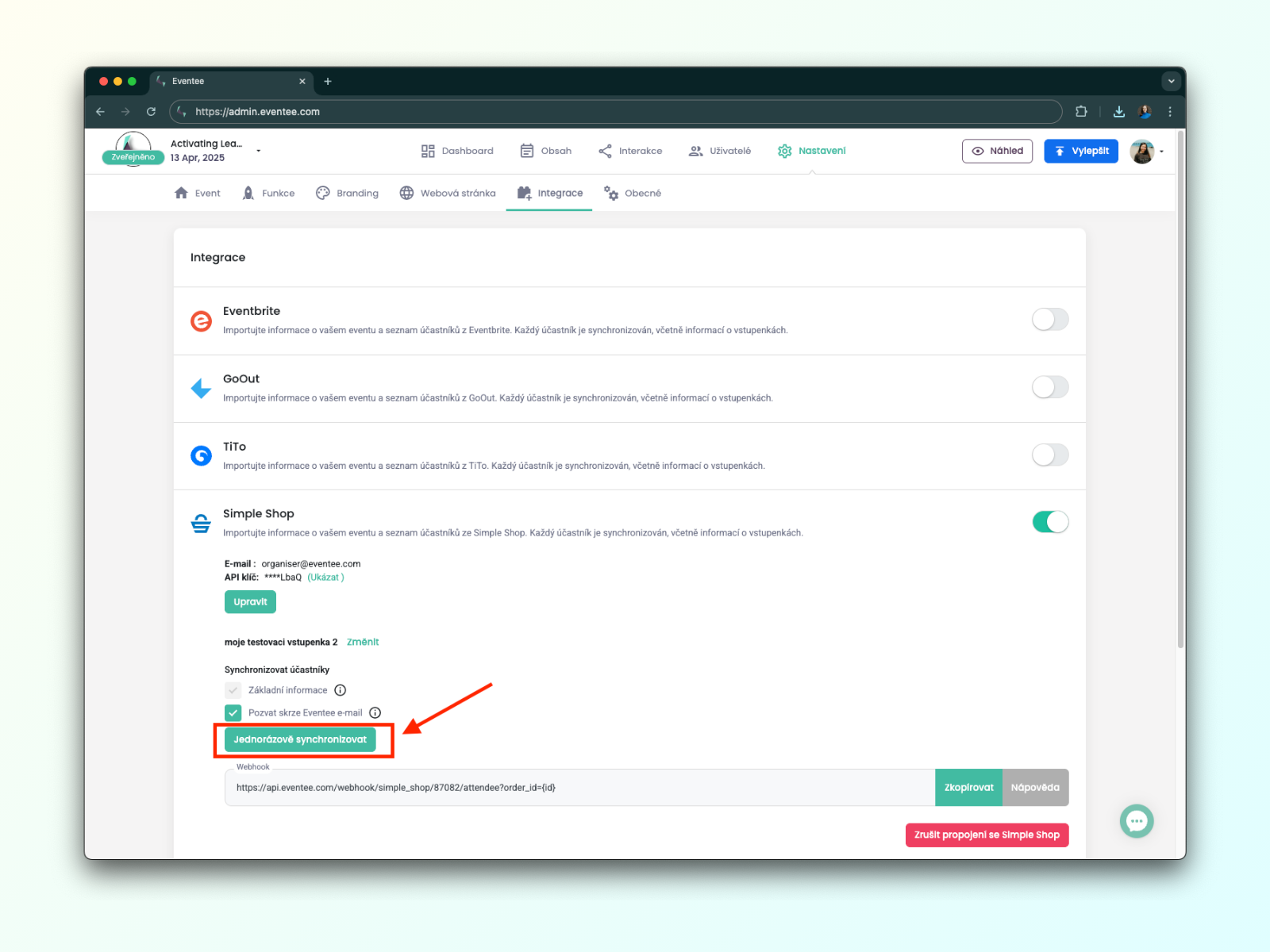
As its name says, the Synchronize once button doesn't keep synchronizing continuously. This part explains how to import attendees automatically.
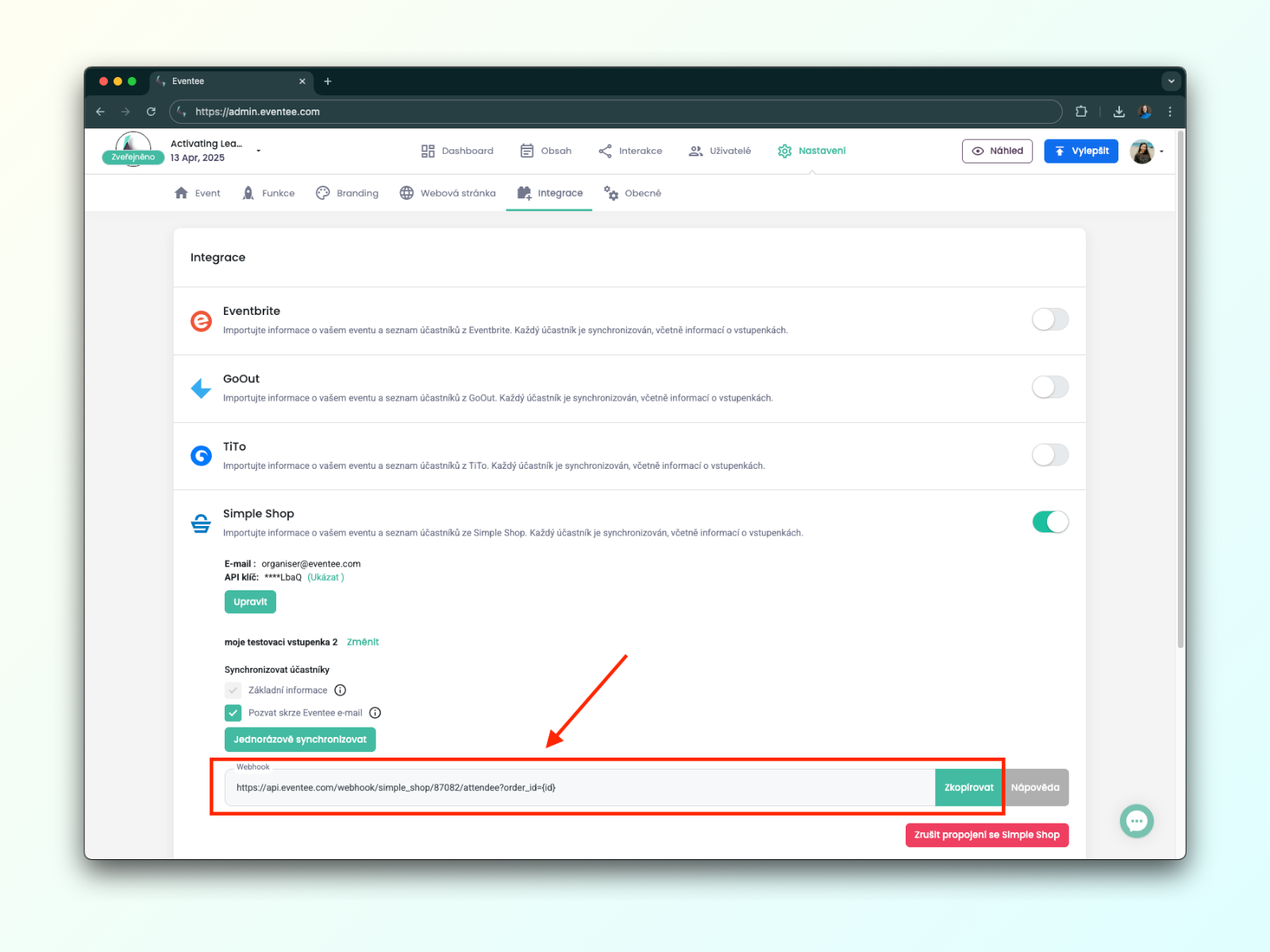
Part 4.1: First, copy the webhook link shown in Eventee below the Synchronize once button.
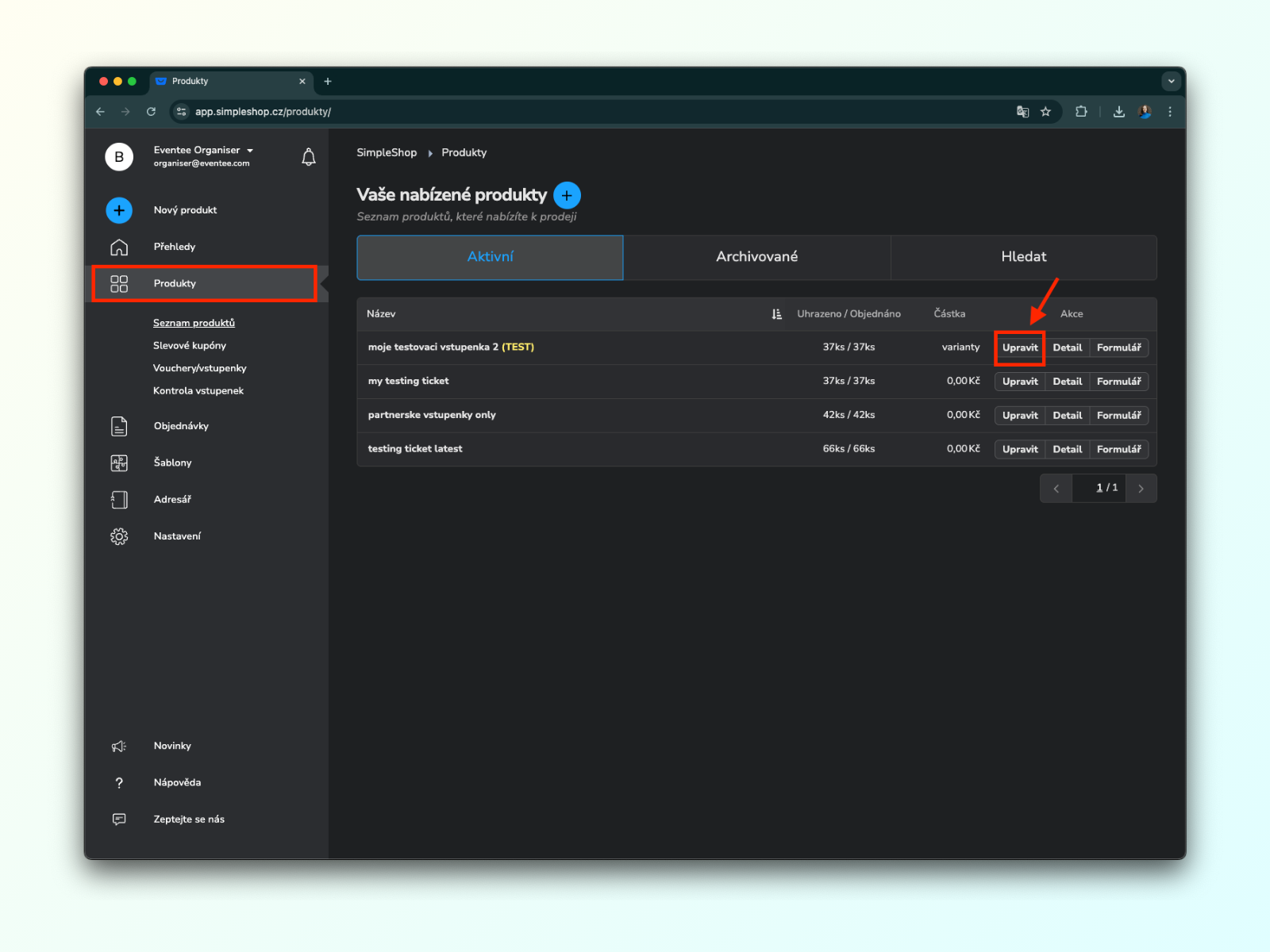
Part 4.2: Go to Simple Shop, find your ticket among your products and click Upravit (Edit).
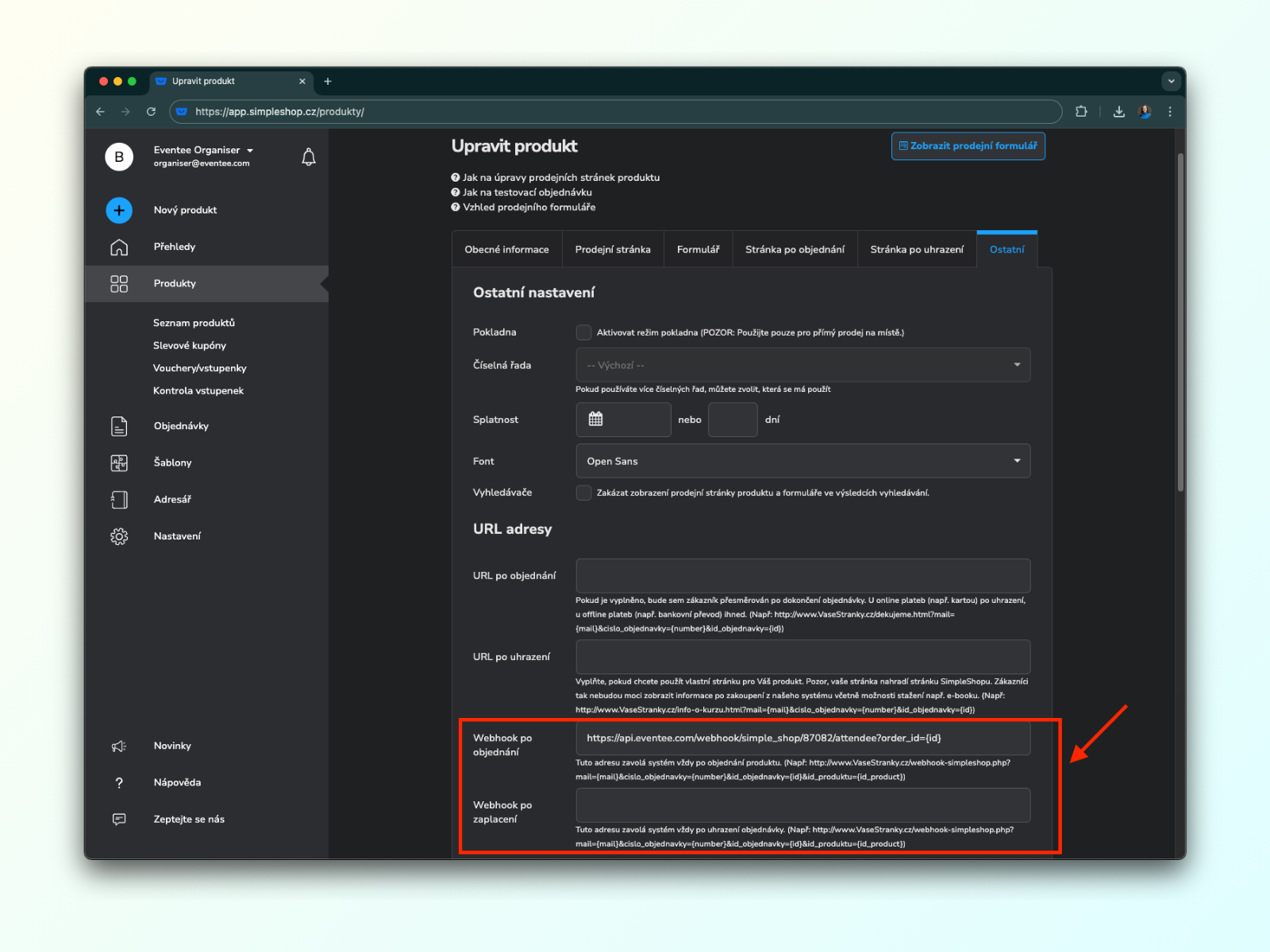
Part 4.3: Open the last tab, Ostatní (Other), find the Webhook po zaplacení (Webhook after payment) field and paste the link you copied from Eventee. Save everything.

Unfortunately, partner tickets can't be synchronized automatically. Simple Shop doesn't call the webhook link from Part 4 for them, so Eventee can't tell when a partner ticket is activated.
The only option is to turn off automatic invitations and run a manual synchronization and send the invitations yourself, for example once a day.
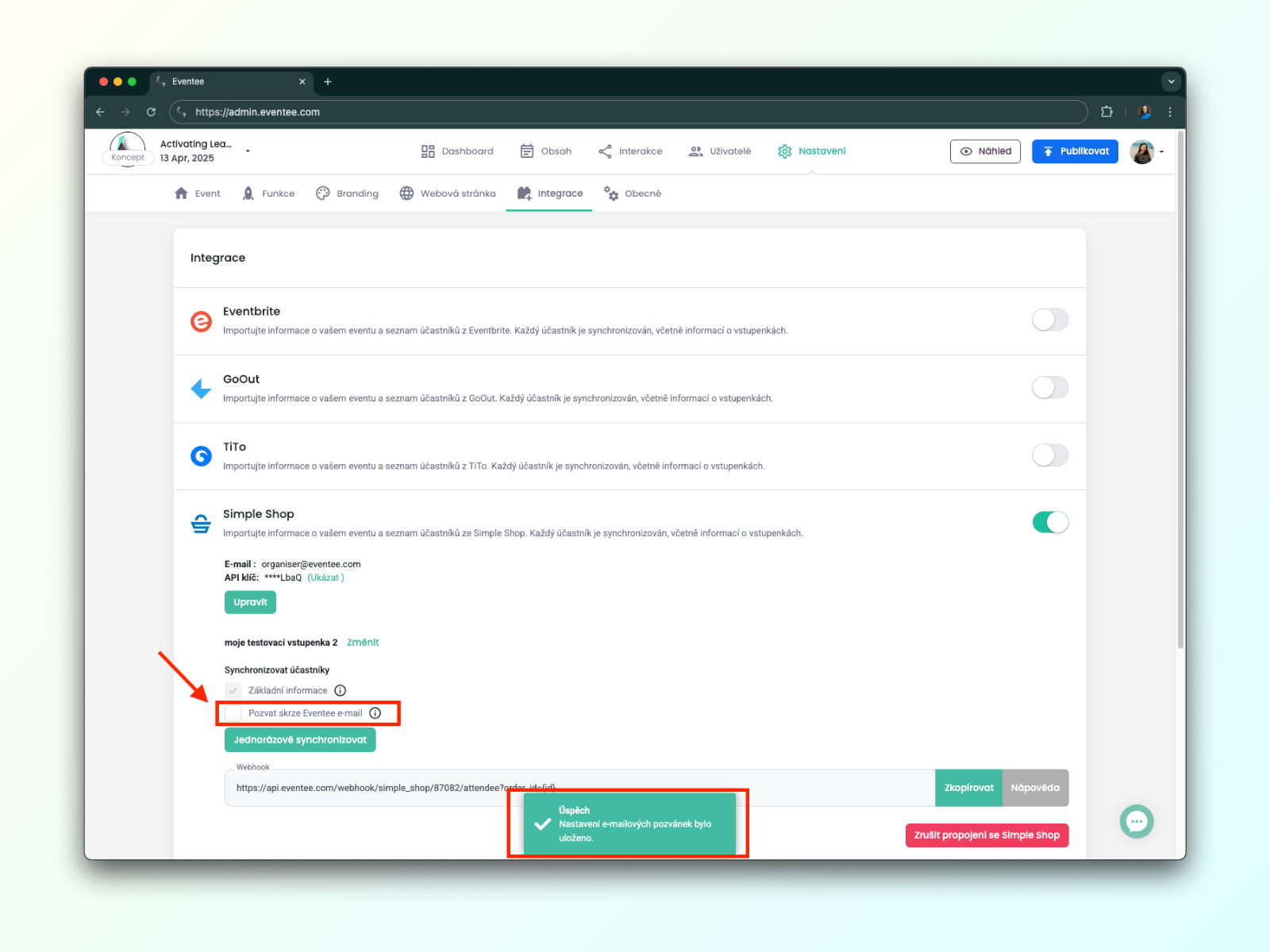
Part 5.1: Open Settings → Integrations again and find Simple Shop. Uncheck Invite via Eventee email to turn off automatic invitations.
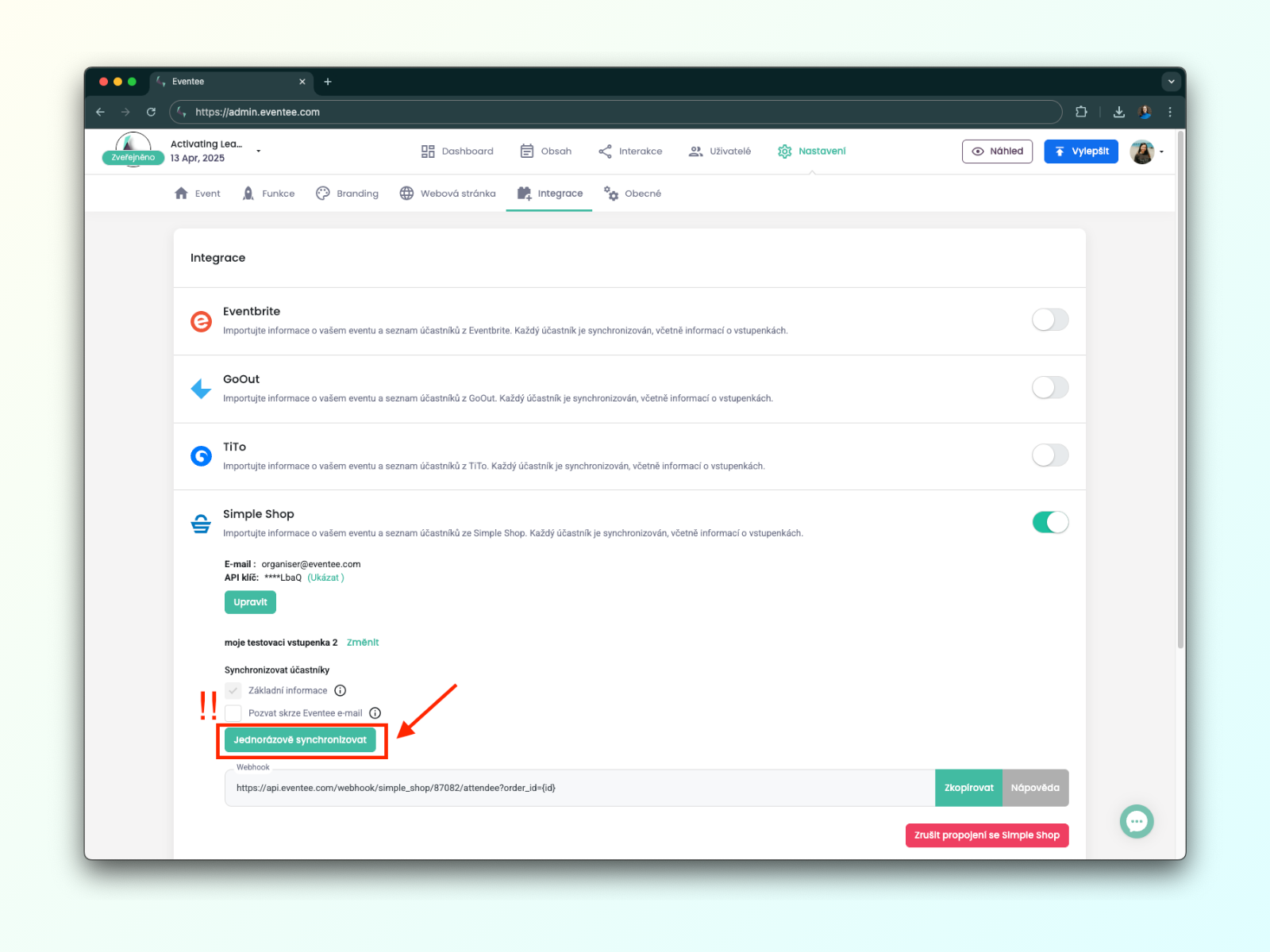
Part 5.2: Until ticket sales for your event end, click Synchronize once at least once a day, so that all partner ticket activations are imported into Eventee.
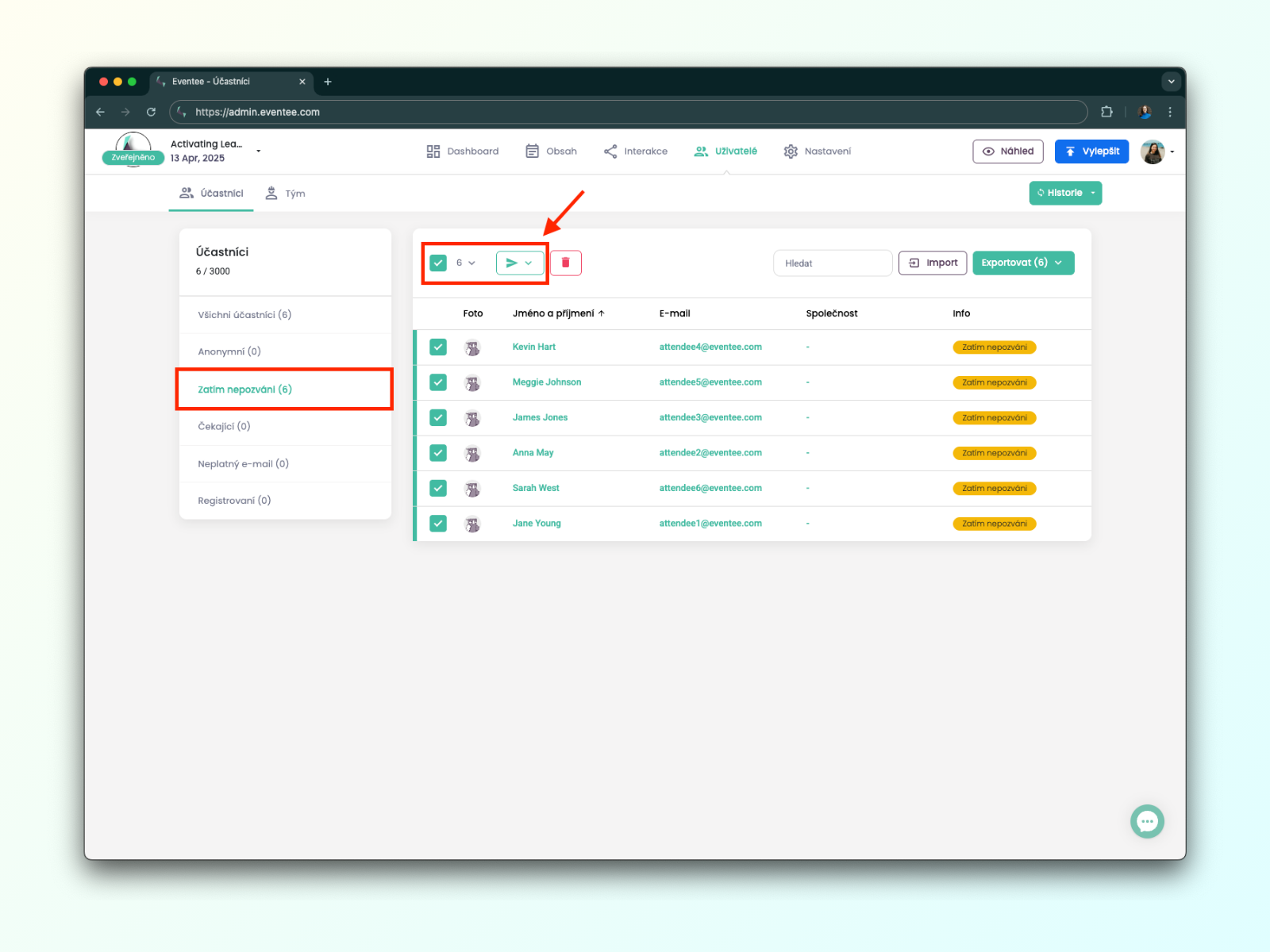
Part 5.3: When the synchronization is finished, go to Users → Attendees → Not invited yet, select these attendees and send them an invitation.
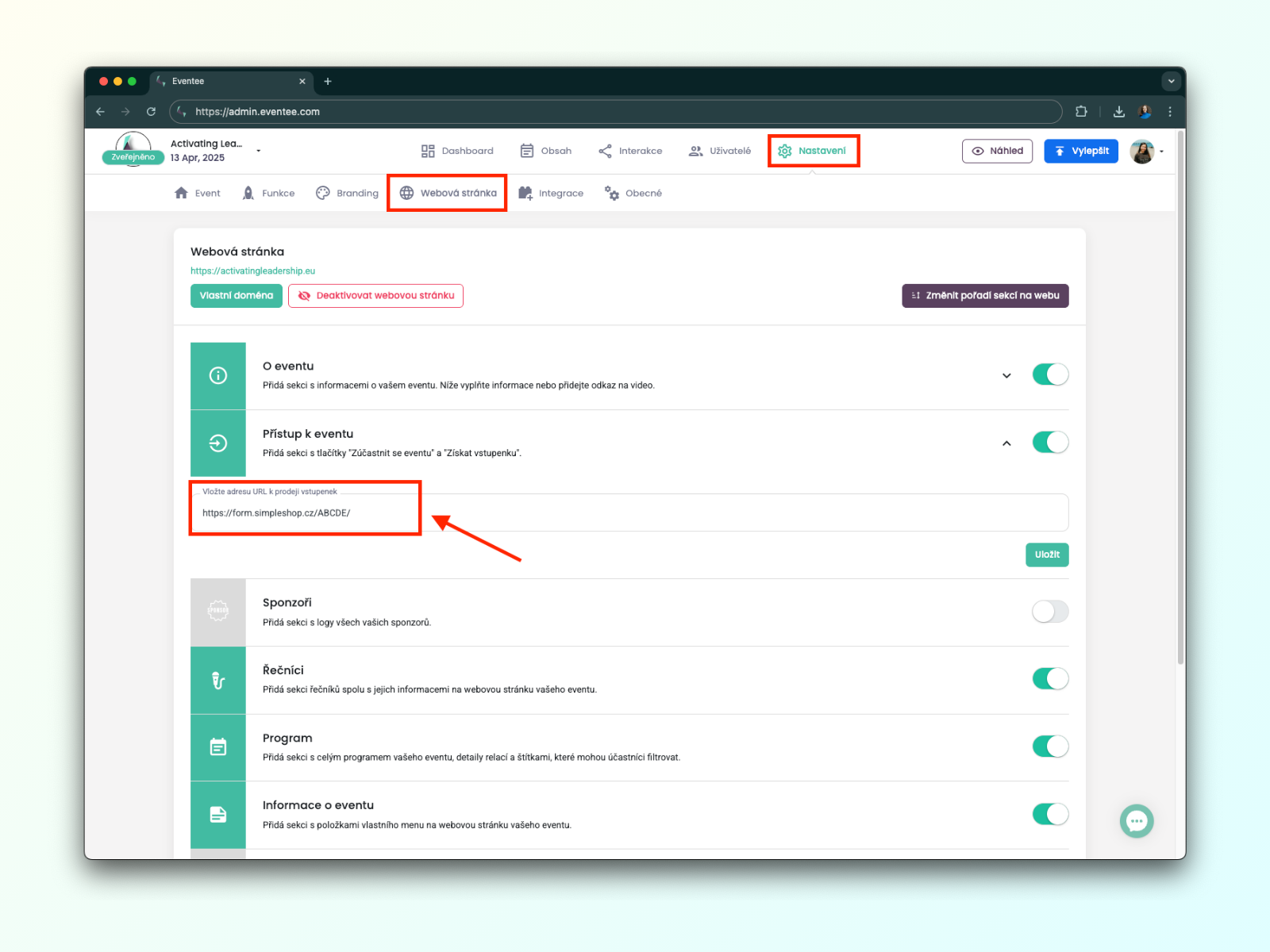
If you want future attendees to reach your ticket form through your event in Eventee, you can also set up the Get Ticket button.
The button appears in the mobile apps before entering the event, on the event homepage, and in the web app when an attendee logs in with an email that has no ticket.
Add the link to your ticket form in Eventee under Settings → Website → Event Access → URL.